
Banners and status notices
Every banner and notice the app shows about the plan, payments, usage, seats, Stripe and the course builder, with when it appears, what it means, what to do and who sees it.
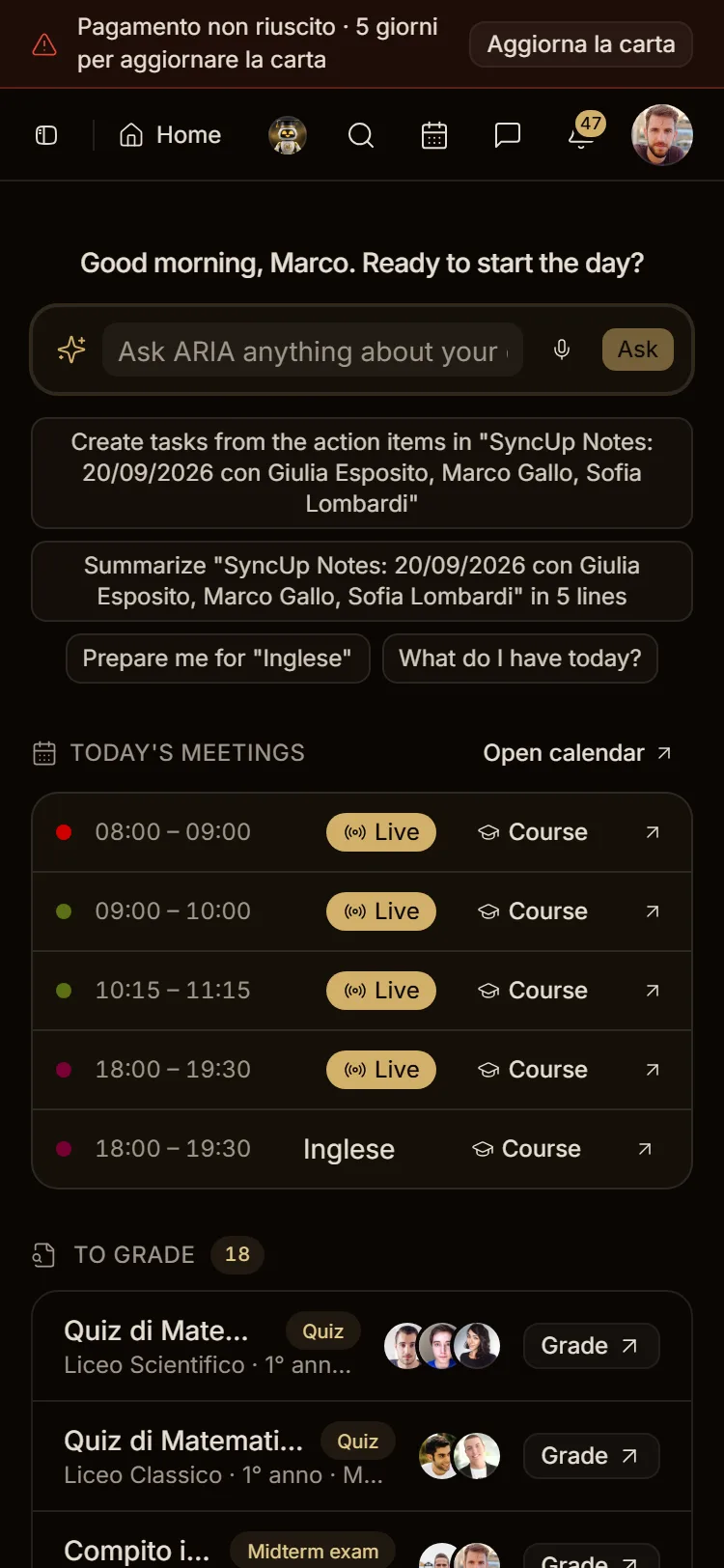
Photographed on 30/09/2026 on app.aladia.io with the Accademia Leonardo personas (spec billing/banners). Cases marked real use production data; cases marked simulated use the real page with only the plan, billing or usage answer of the API replaced, because those states (trial, failed payment, restricted, over the limits, usage at 80–100%) cannot be created in production without touching the database or Stripe. The images show production before the fixes of branch chore/banners-shots (same tones for every notice, banner fixed at the top, wrapping text on phones, its own message for the restricted workspace): after the deploy the spec refreshes them.
The app speaks about the plan in a few fixed places, always with the same three tones:
- info (gold): a trial, free seats, an offer;
- warning (amber): something to do soon (card missing, over the Free limits, a usage at its limit, extra seats);
- destructive (red): a failed payment, a restricted workspace, a blocked invitation.
| Where | What it says | Who sees it |
|---|---|---|
| Top of the app, above sidebar and header | the most urgent plan notice, one at a time | Owner, Admins, Billing role (in the personal workspace: you) |
| Settings > Plans and Settings > Billing | the failed payment with its date, the plan badge | same |
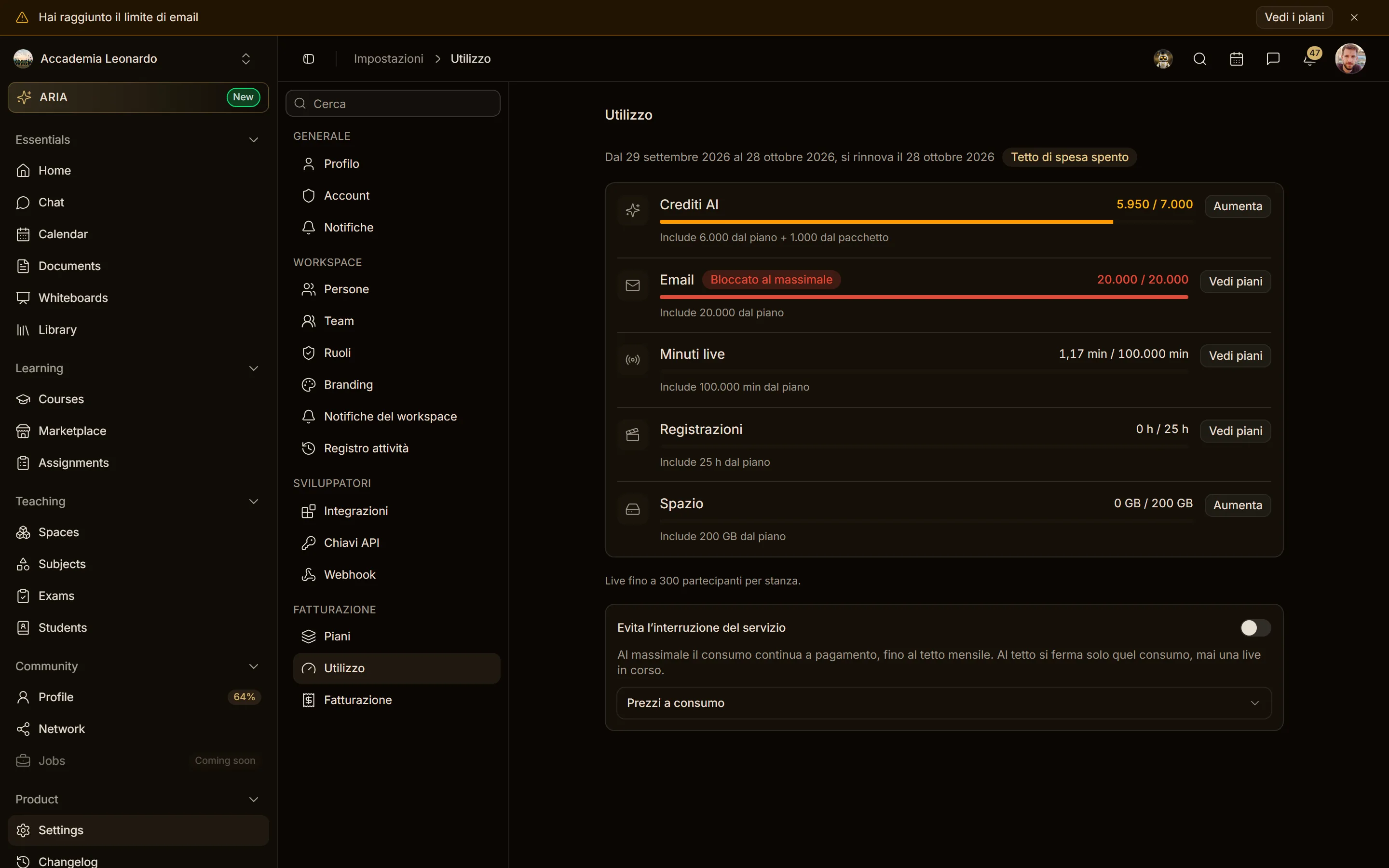
| Settings > Usage | each usage at 80% (amber) and 100% (red) | same |
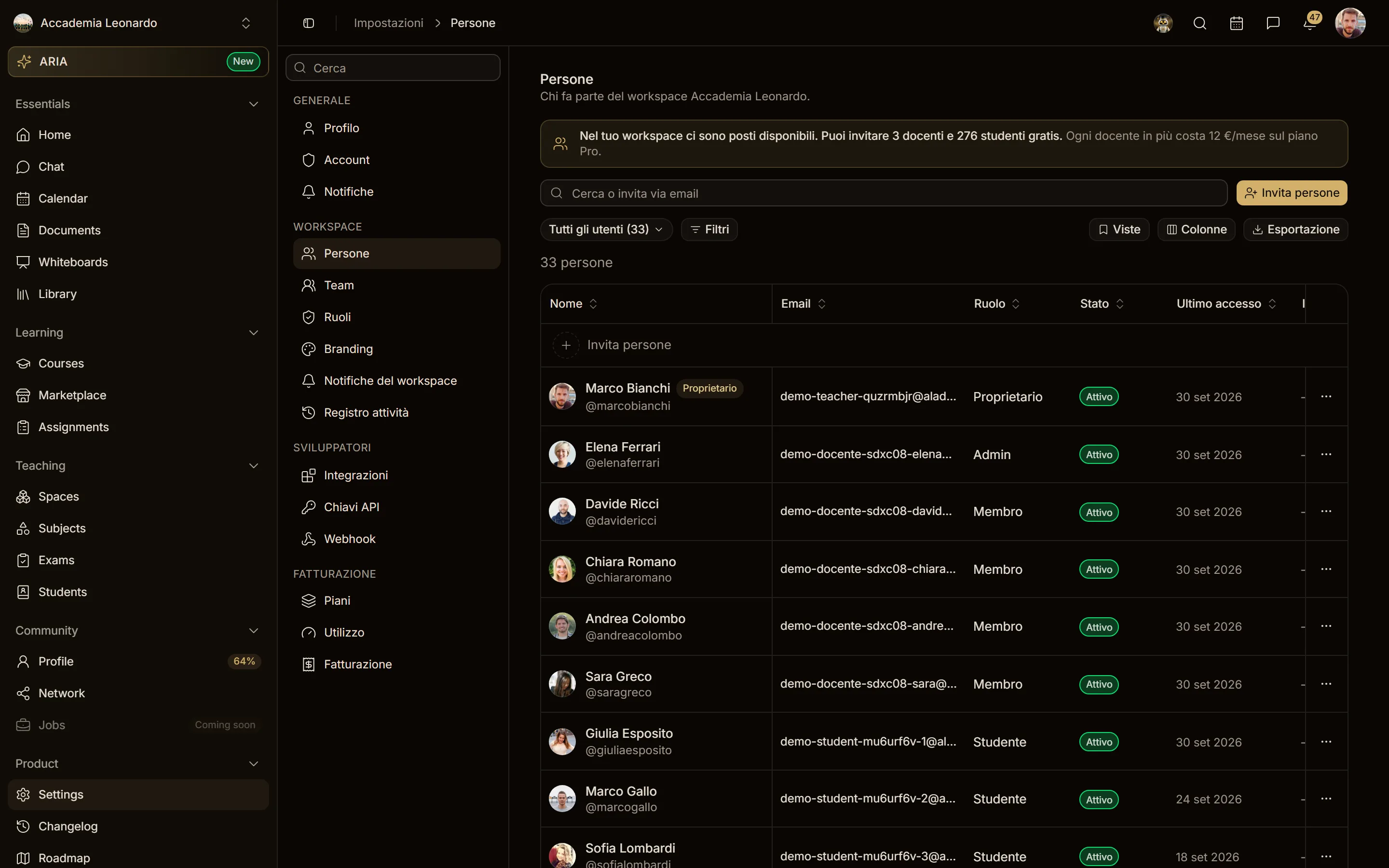
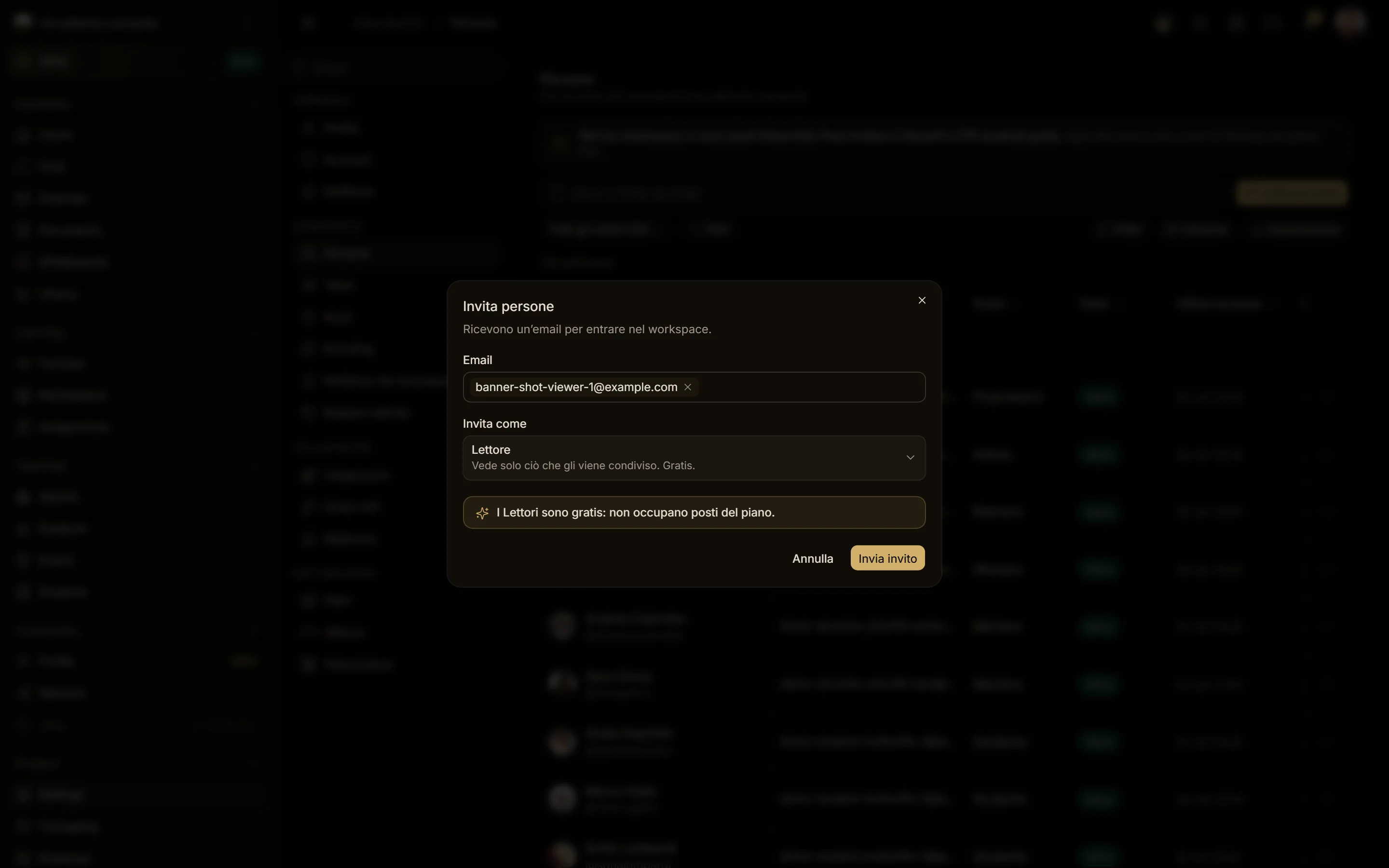
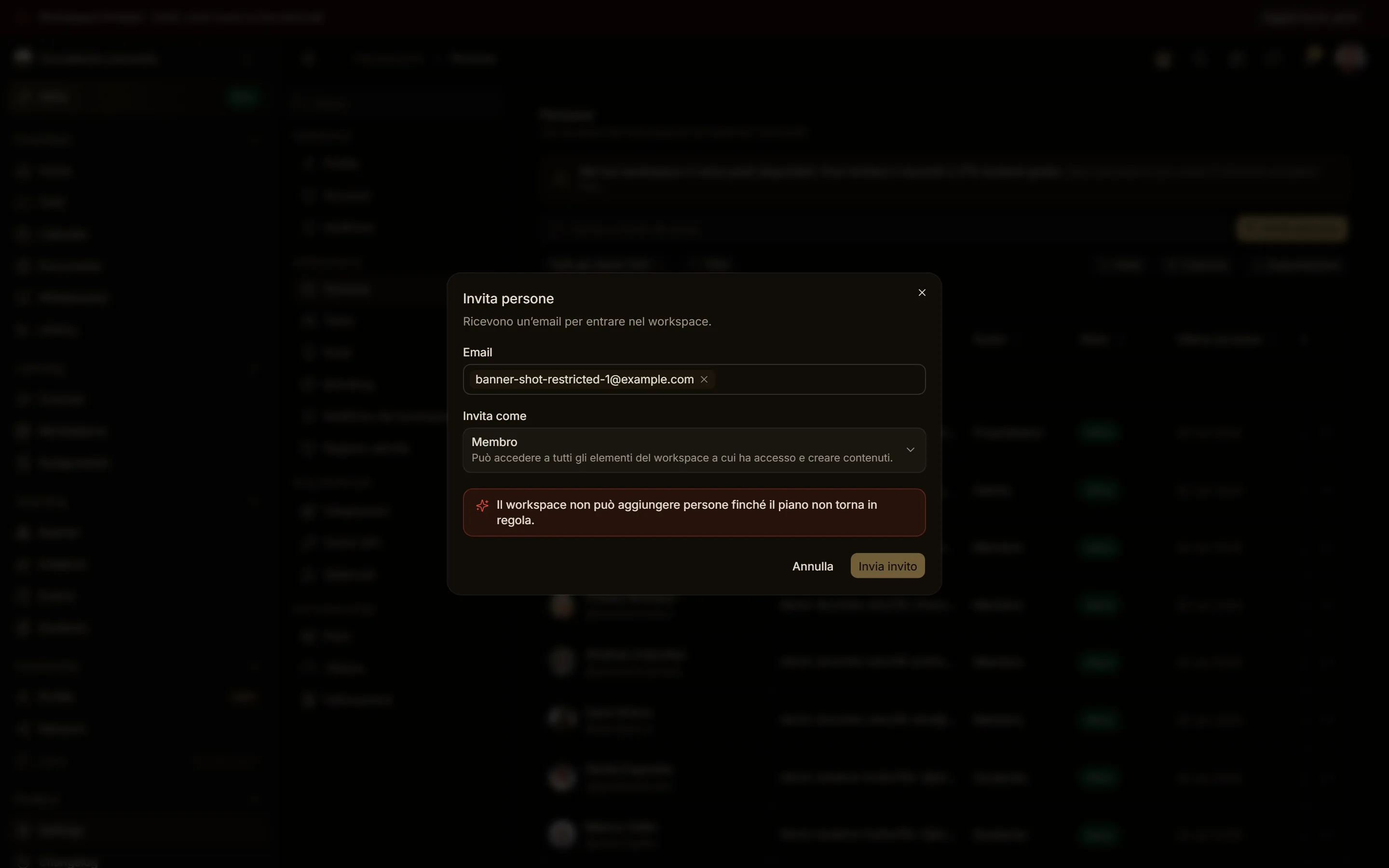
| Settings > People and the Invite dialog | seats left, extra seats, blocked invitations | whoever manages people |
| Bottom of the sidebar | the plan card (trial of Pro, upgrade to Pro) | whoever manages billing |
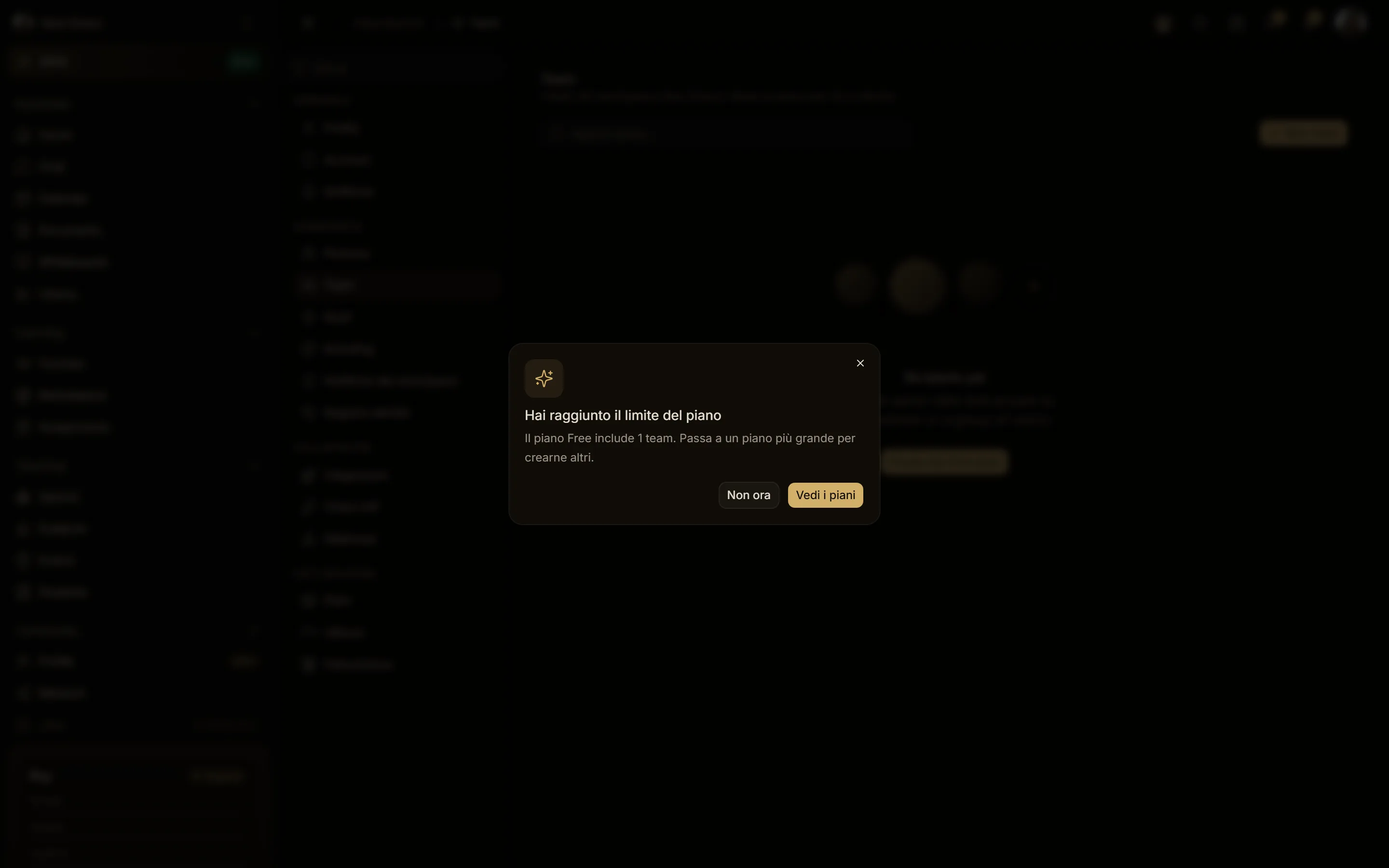
| Centre of the screen | "You reached the plan limit" (teams, custom roles) | whoever tries to create one |
The banner at the top of the app
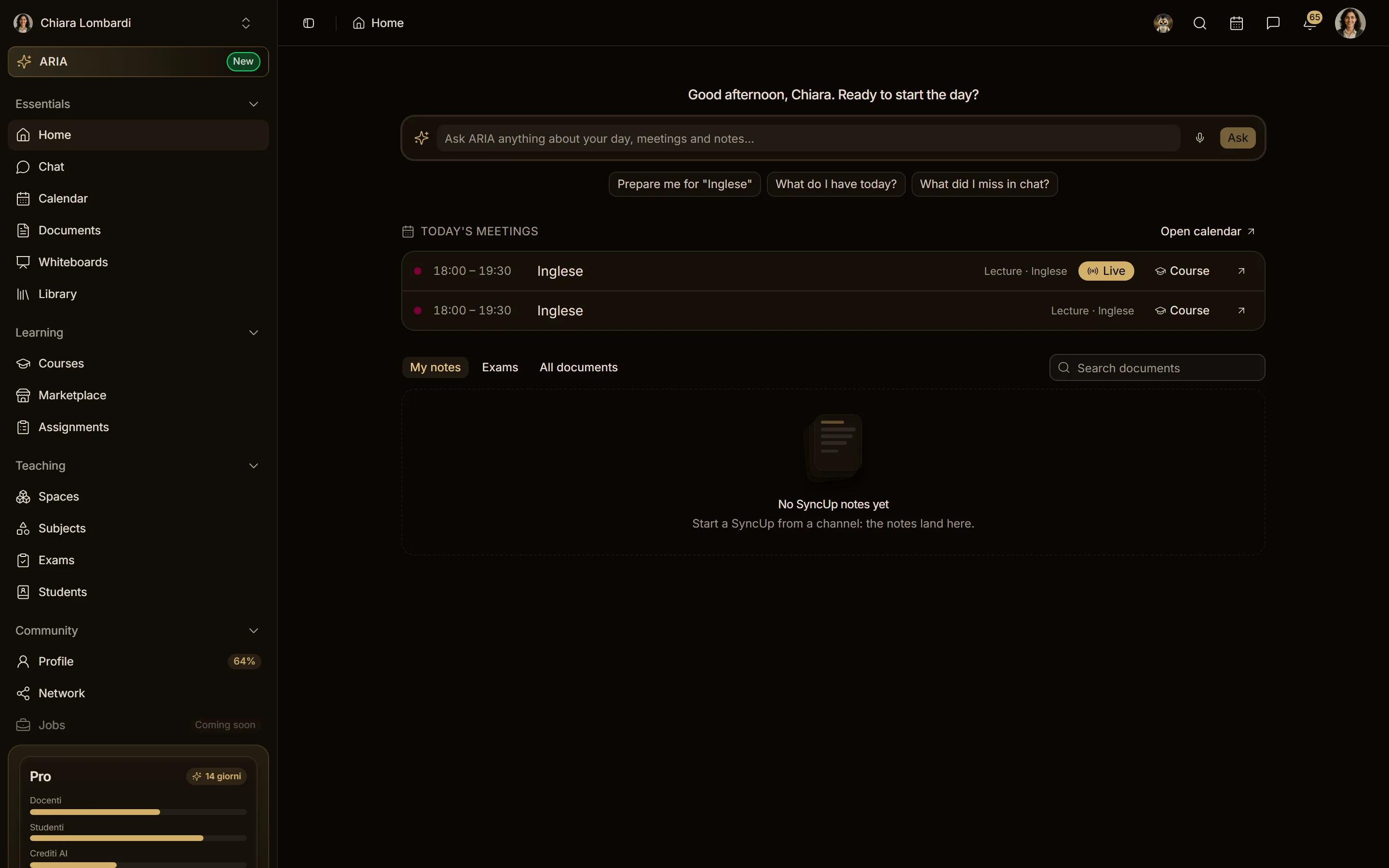
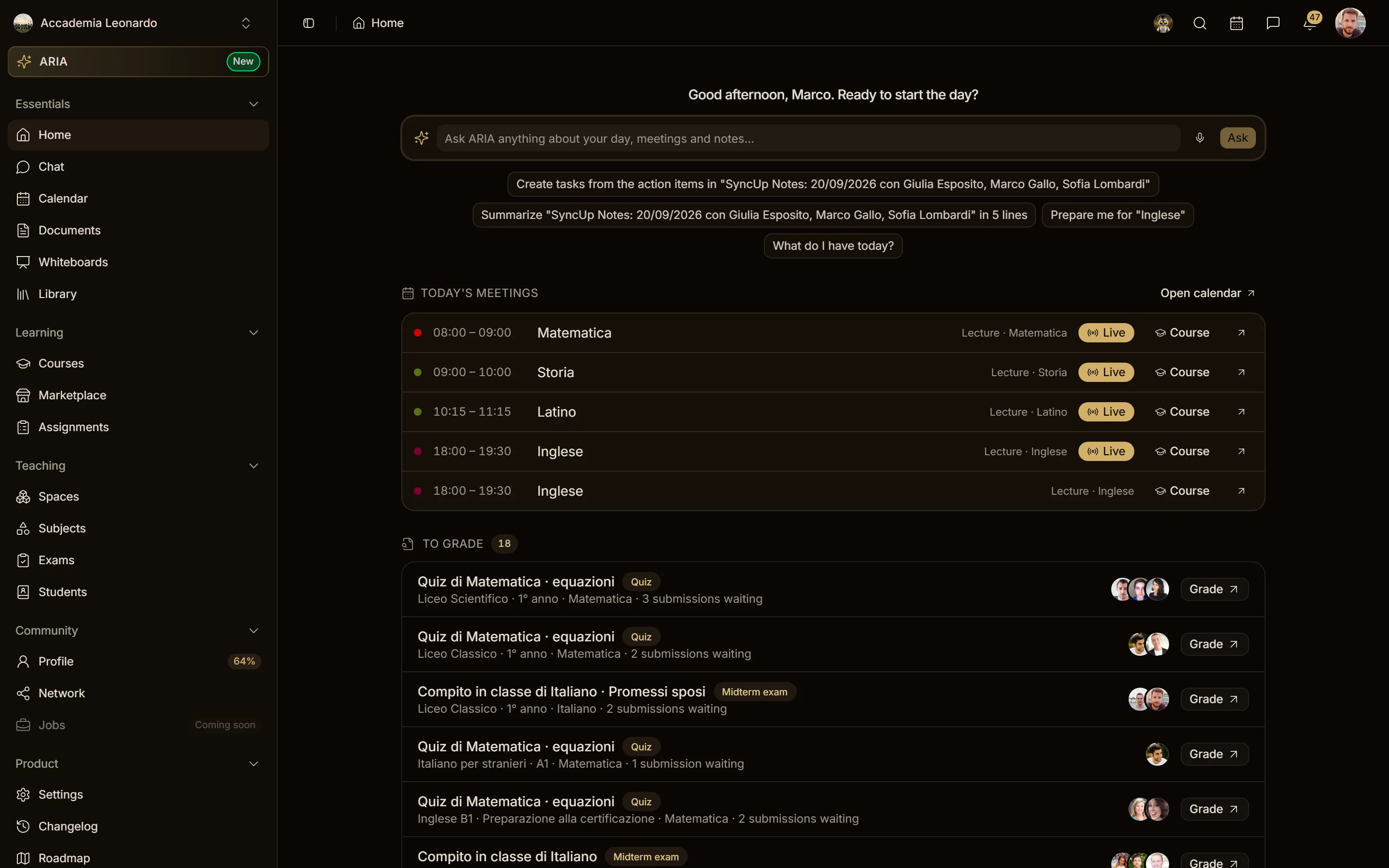
It sits above the sidebar and the header, stays in place while the page scrolls, and says one thing at a time, the most urgent first: failed payment or restricted workspace, trial without a card, trial in progress, over the Free limits, a usage at 100%. Members, Students and Viewers never see it.
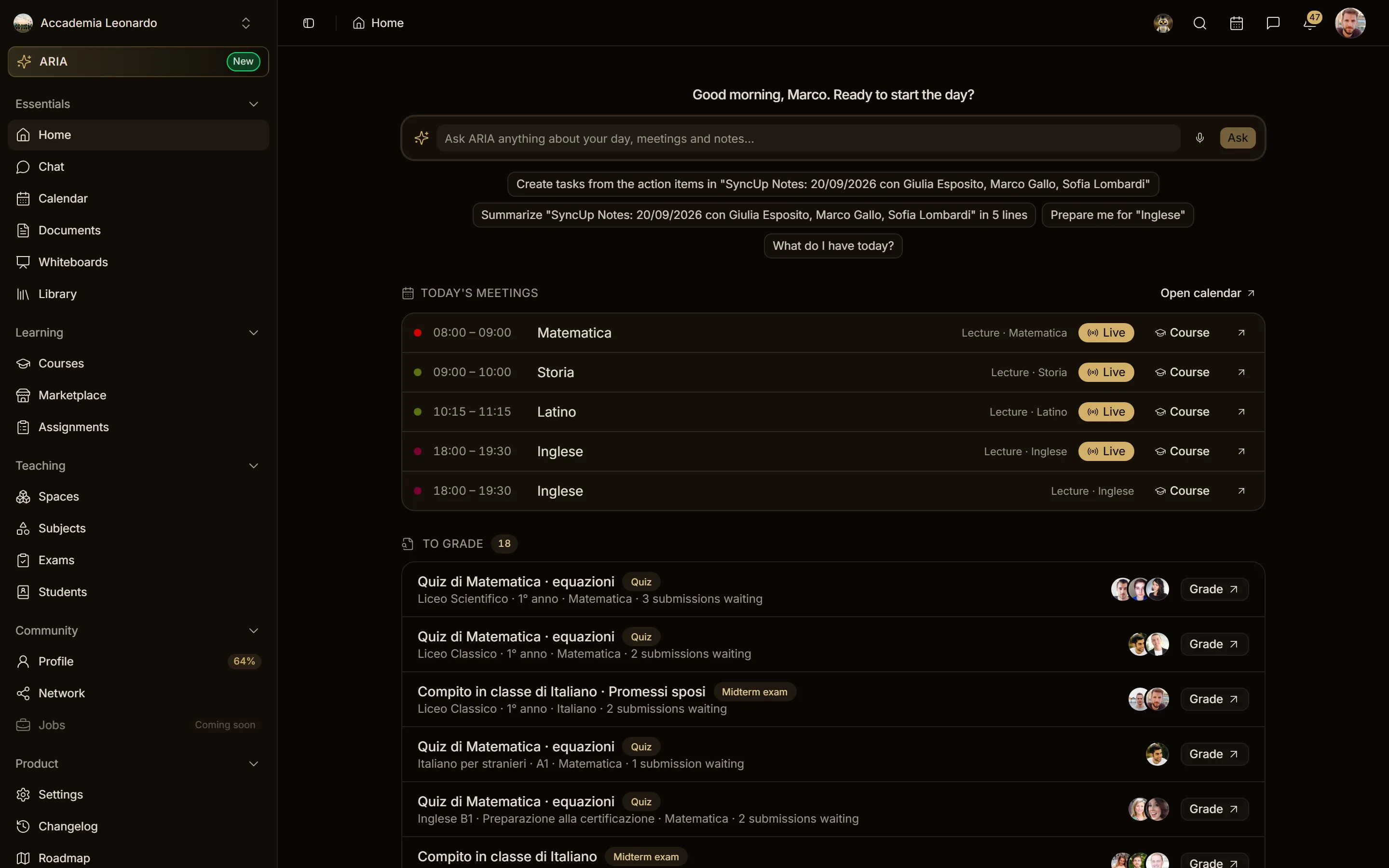
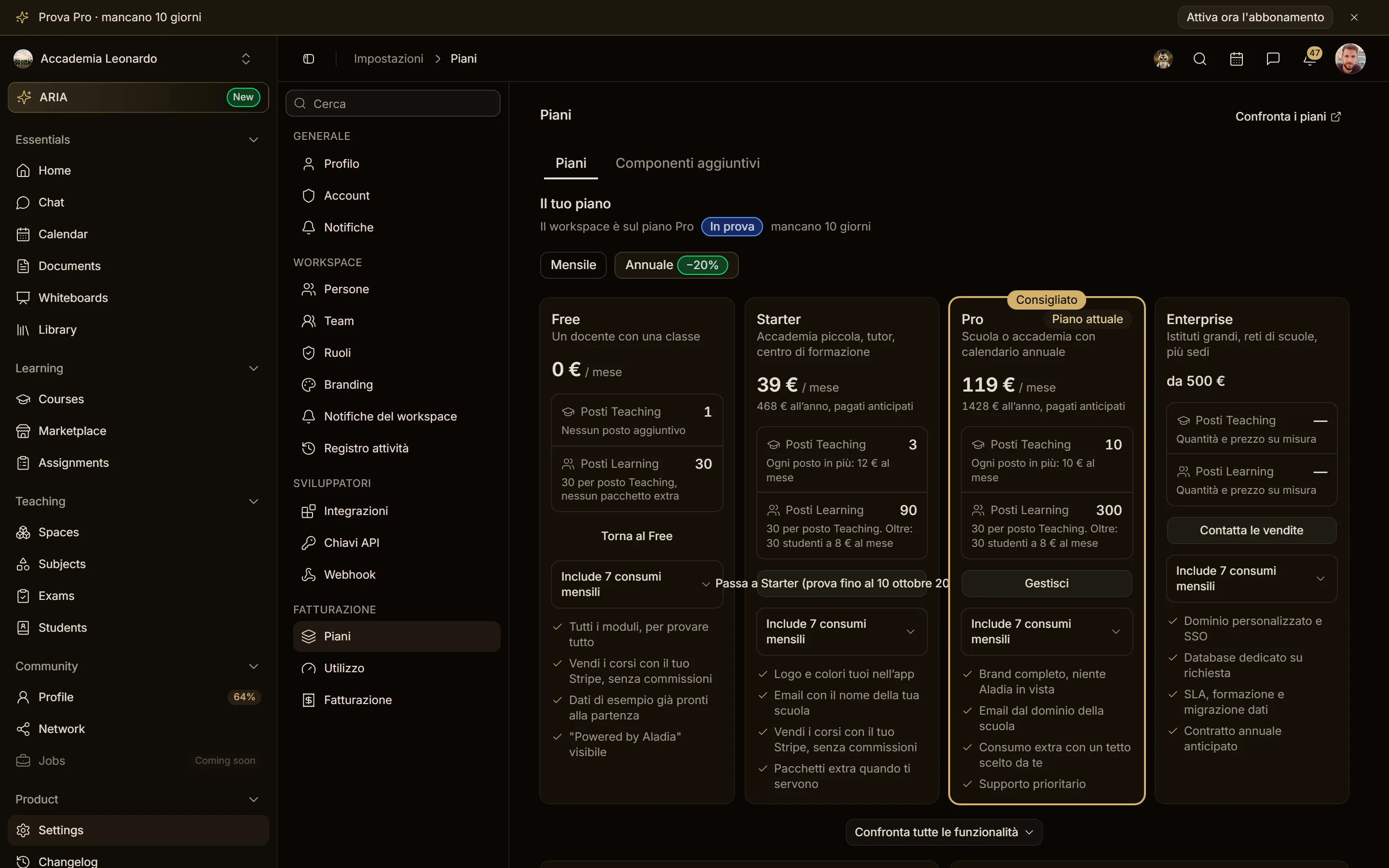
Trial in progress (simulated)
- When: the workspace is in the 14-day trial and a card is on file.
- Meaning: the plan is active for free until the date; then the first charge.
- What to do: Activate subscription now opens Plans with the activation step; the X hides it for today.
- Who: Owner, Admins, Billing role.
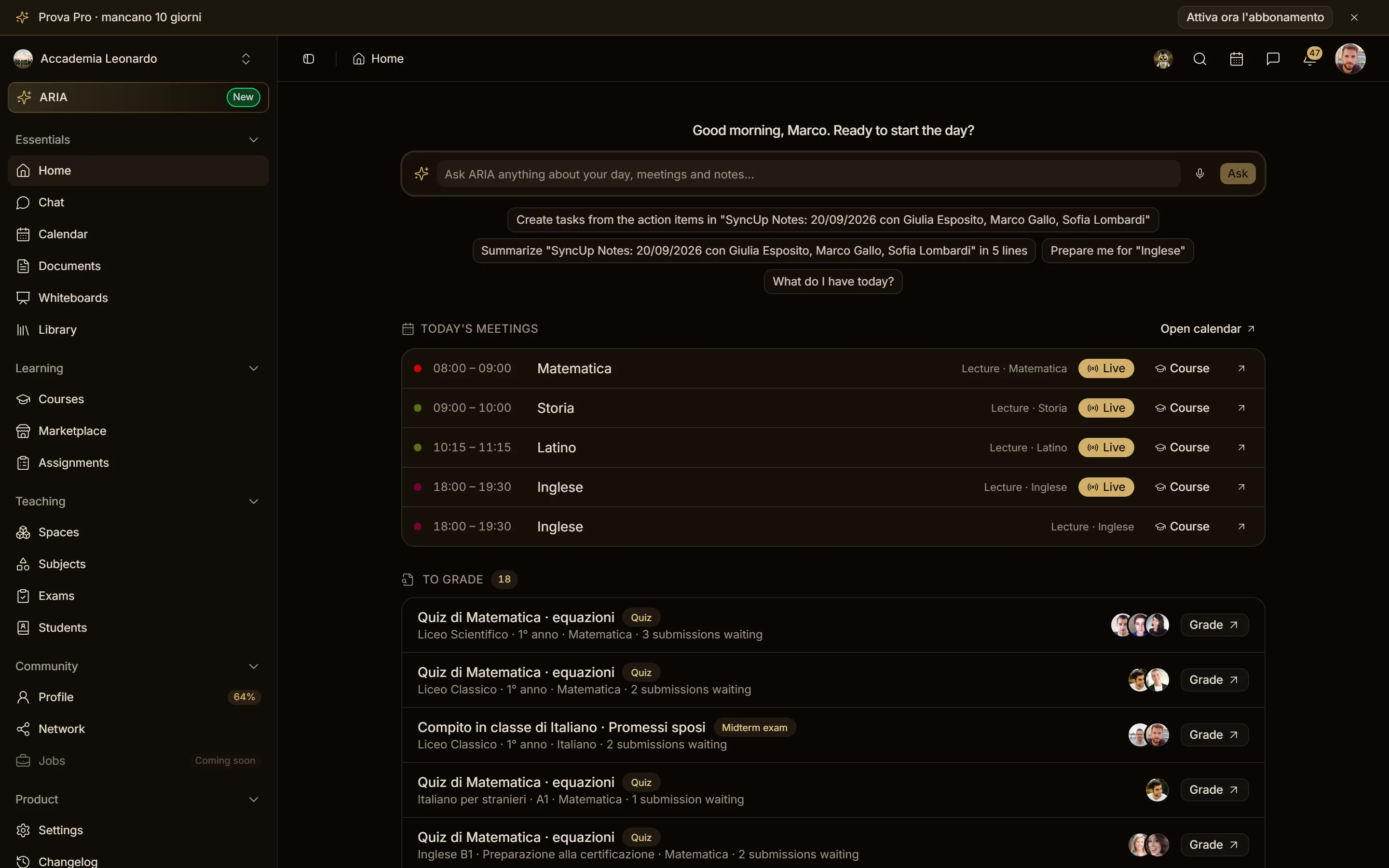
Trial ending, last 3 days (simulated)
Same banner, but it can no longer be closed: the X disappears in the last 3 days.
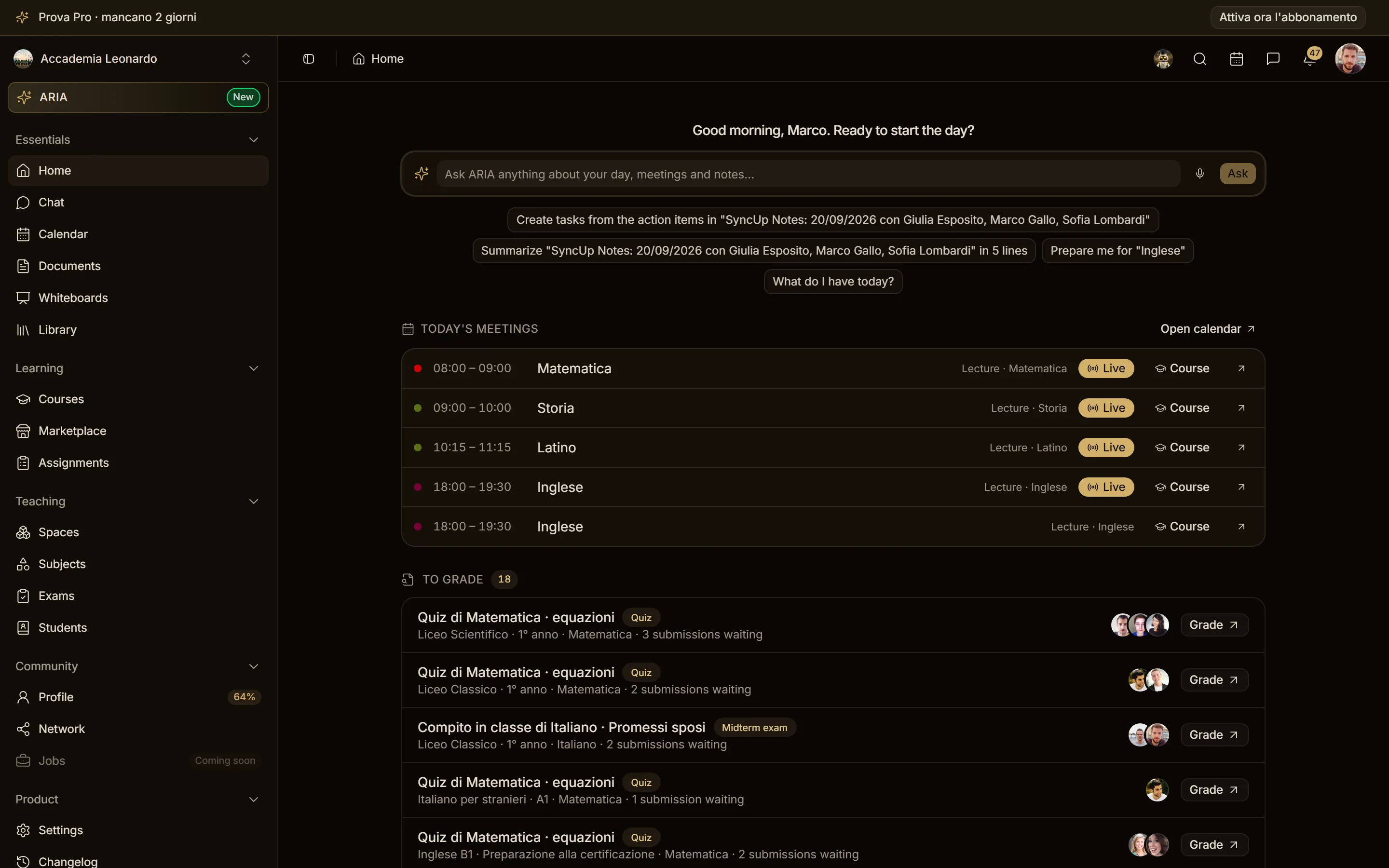
Trial without a card (simulated)
- When: trial in progress and no payment method.
- Meaning: at the end of the trial the plan cannot be charged.
- What to do: Add card opens Billing with the card form.
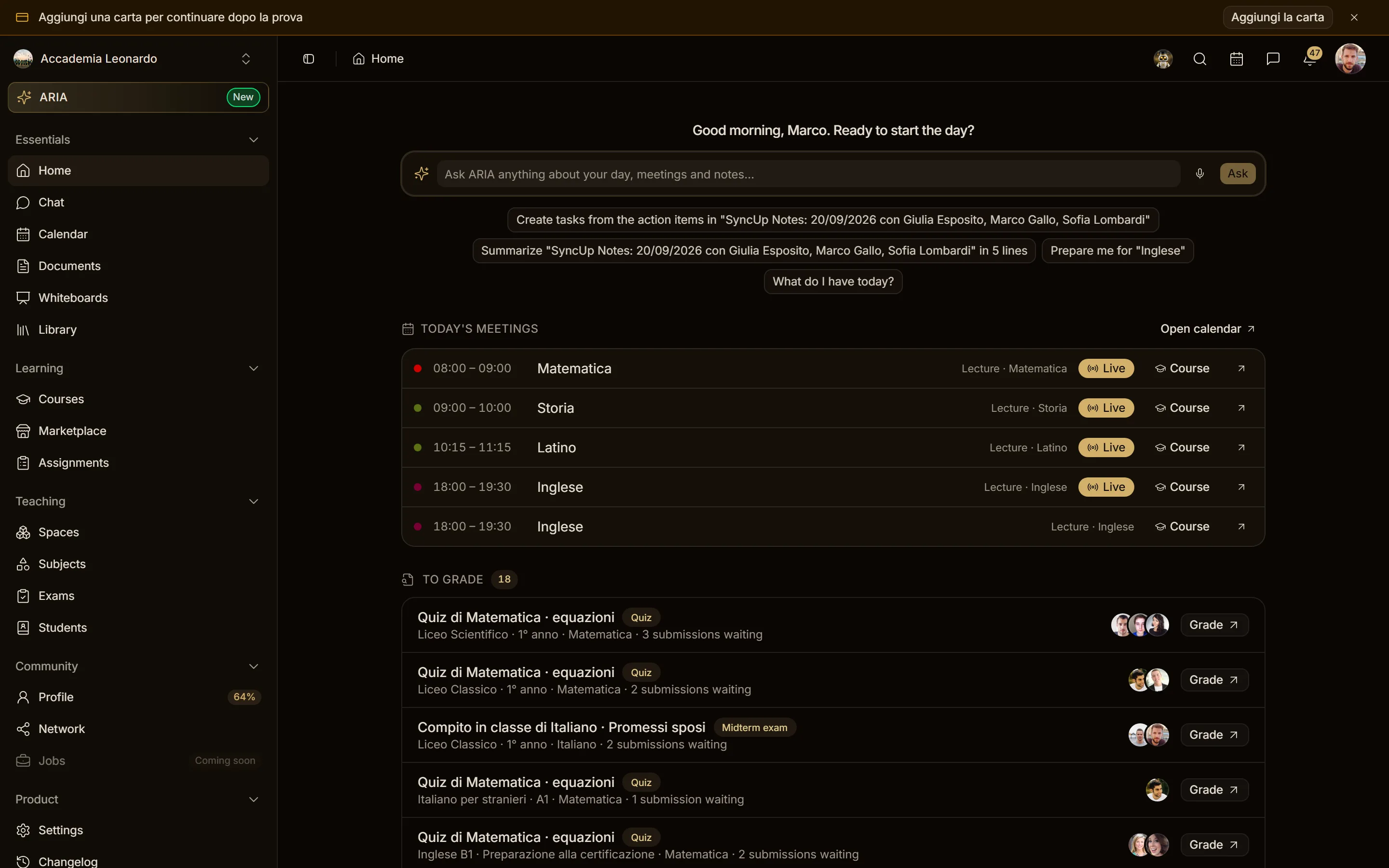
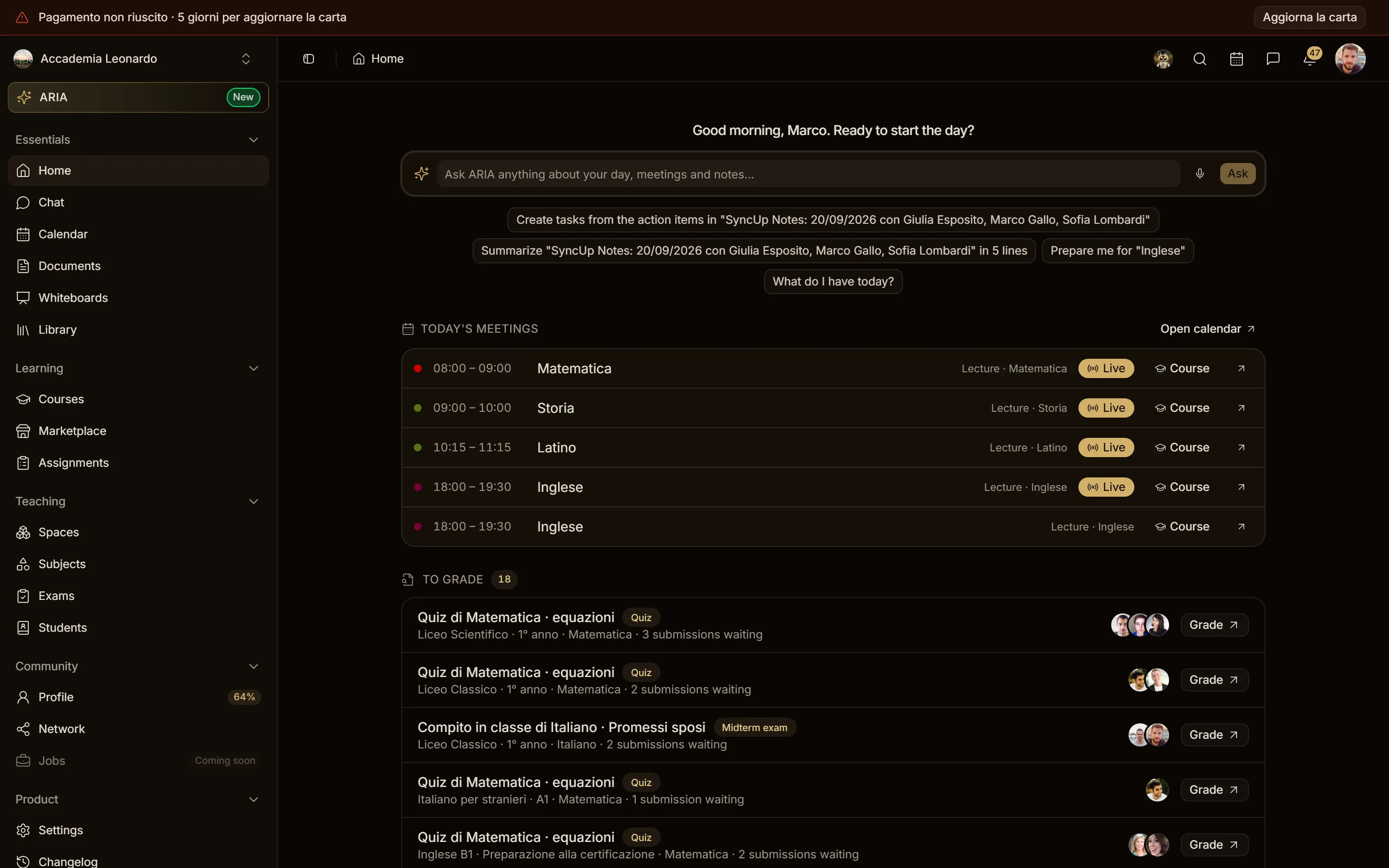
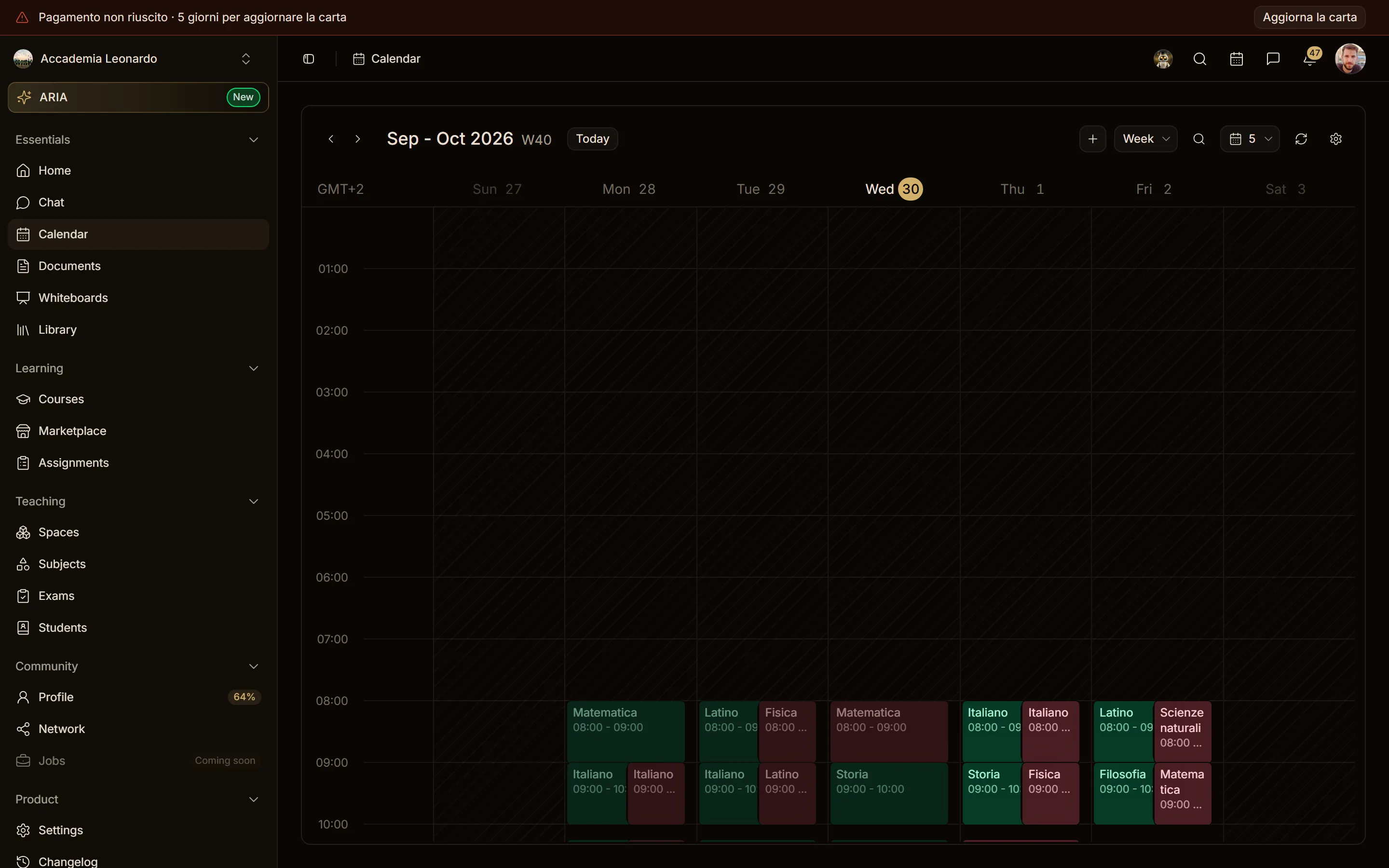
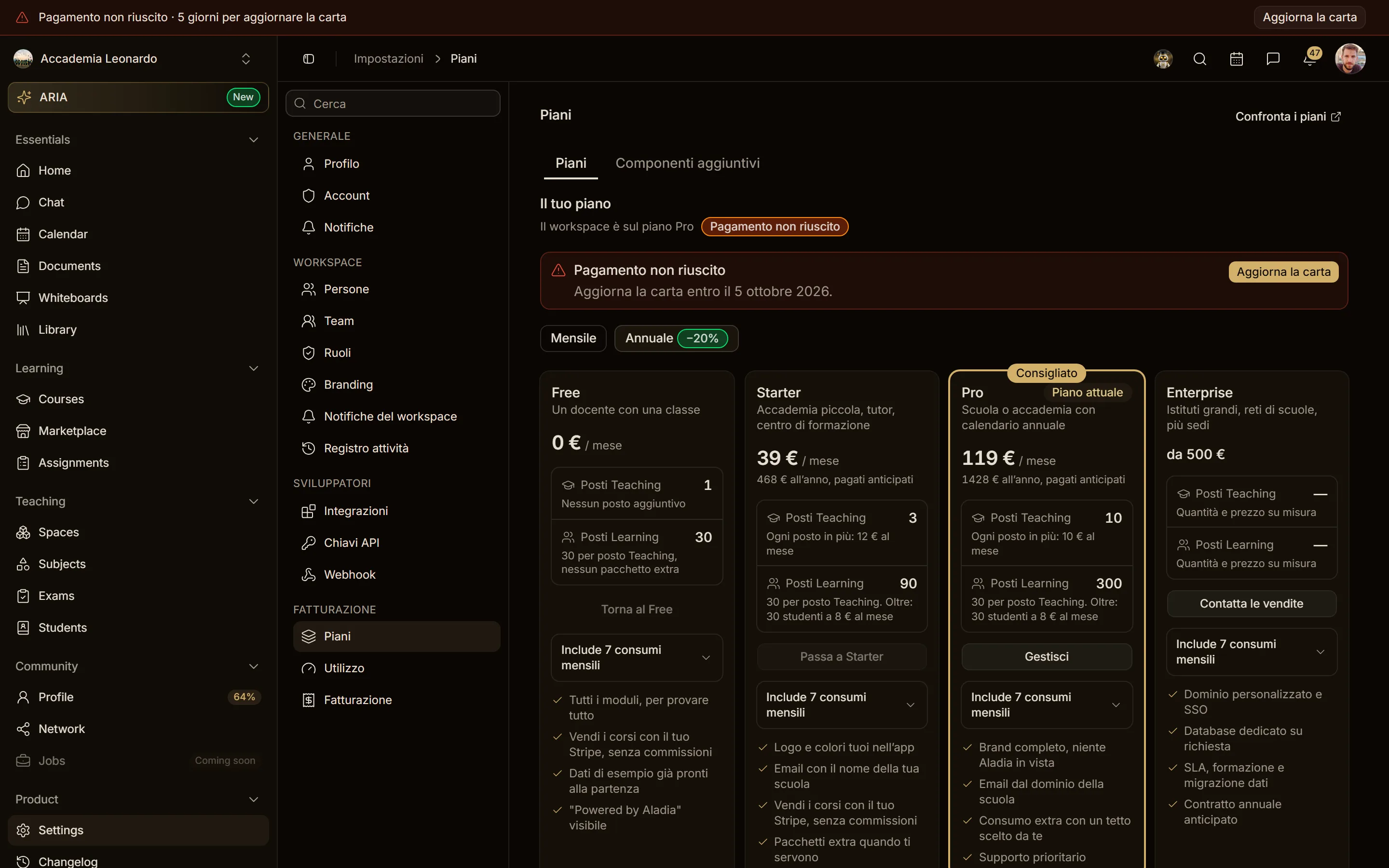
Payment failed, grace period (simulated)
- When: a renewal was declined (
past_due); 7 days of grace start. - Meaning: everything keeps working until the date; after it the workspace is restricted.
- What to do: Update card opens Billing with the card form. It cannot be closed.
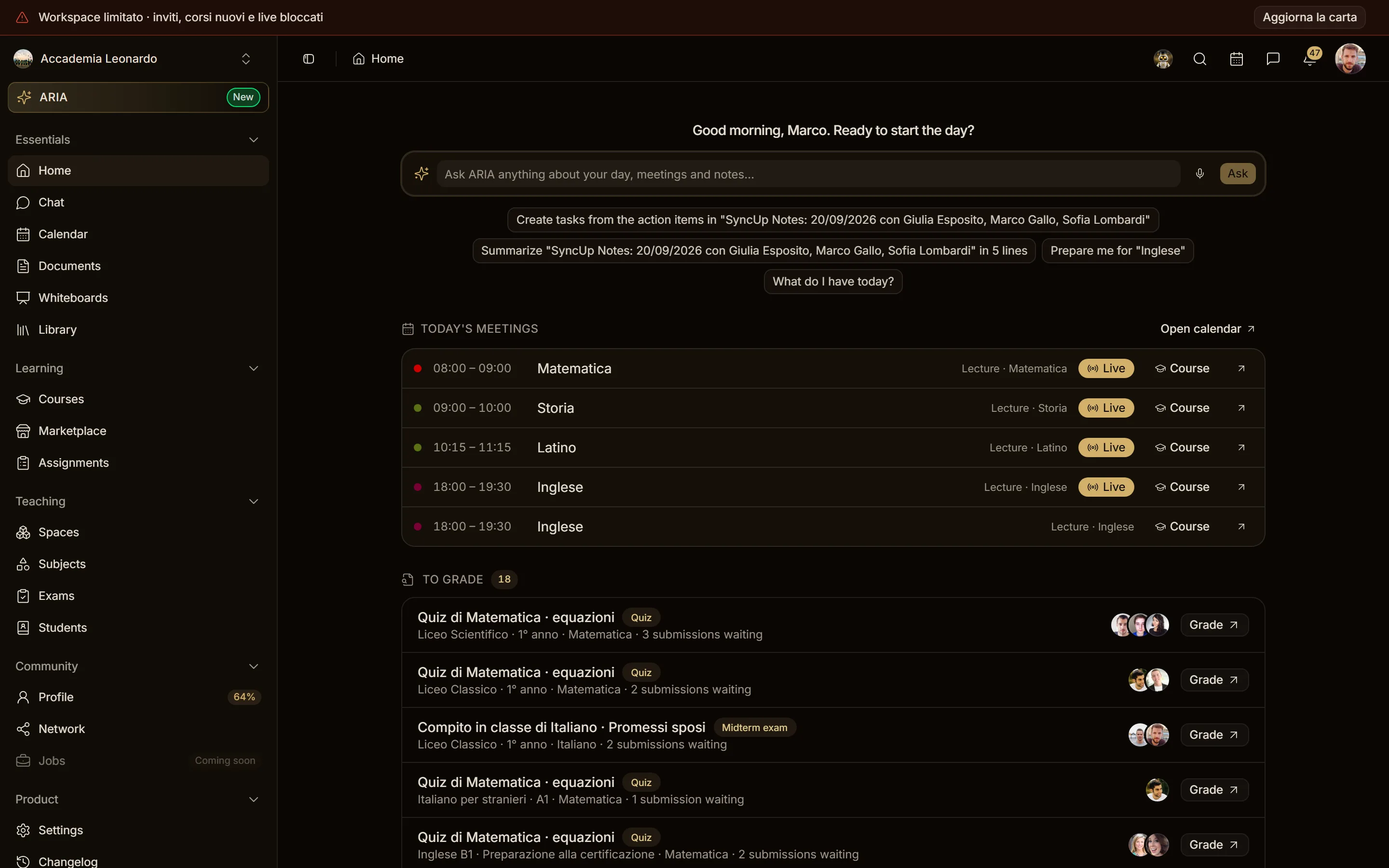
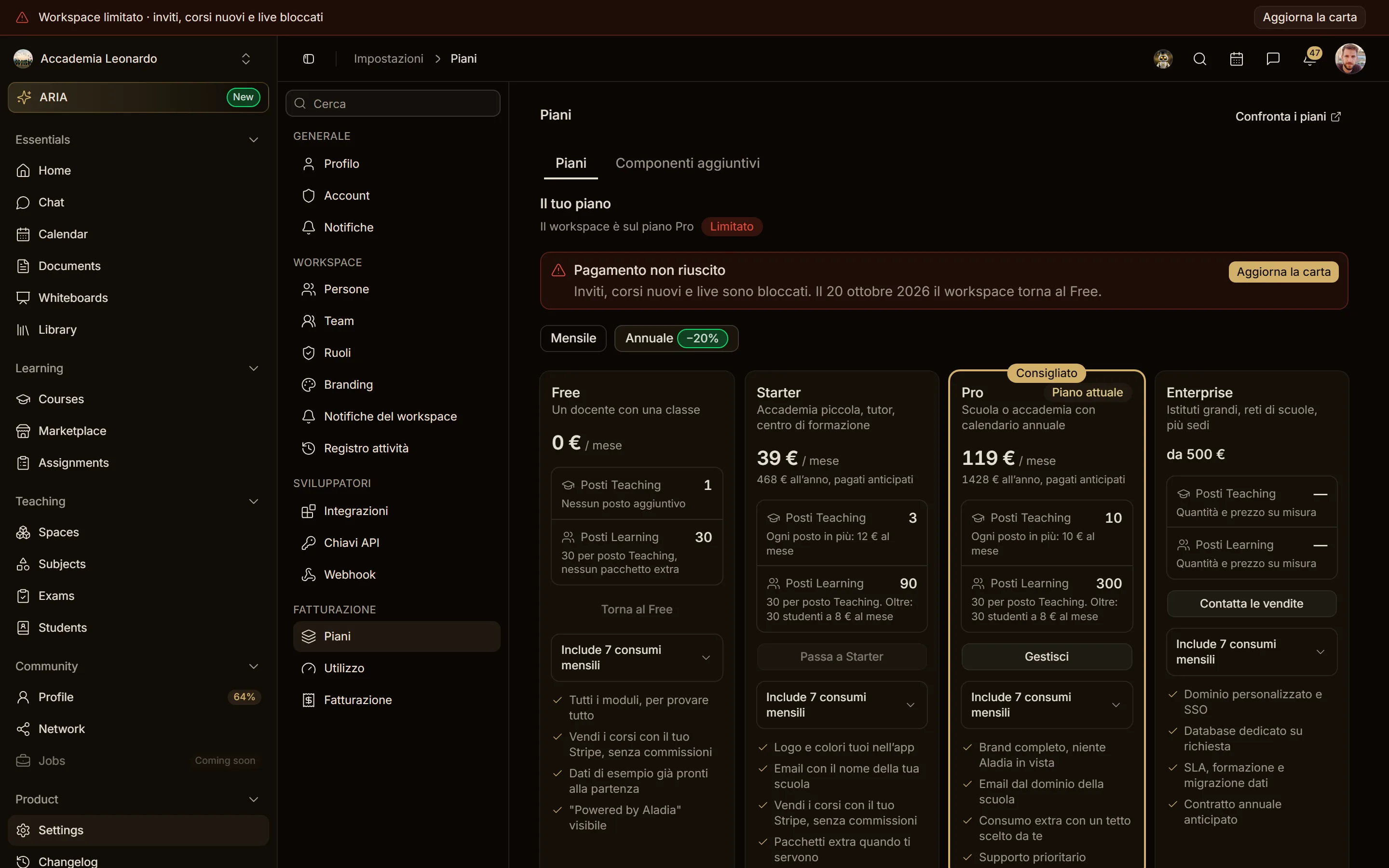
Workspace restricted (simulated)
- When: the grace period ended without a valid card (
restricted). - Meaning: invitations, new courses and live sessions are blocked; what exists stays. At the date shown in Plans the workspace goes back to Free.
- What to do: Update card. It cannot be closed.
- Text: "Workspace restricted · invites, new courses and live sessions blocked" (in the image, taken before the fix, it still says "Payment failed · 0 days").
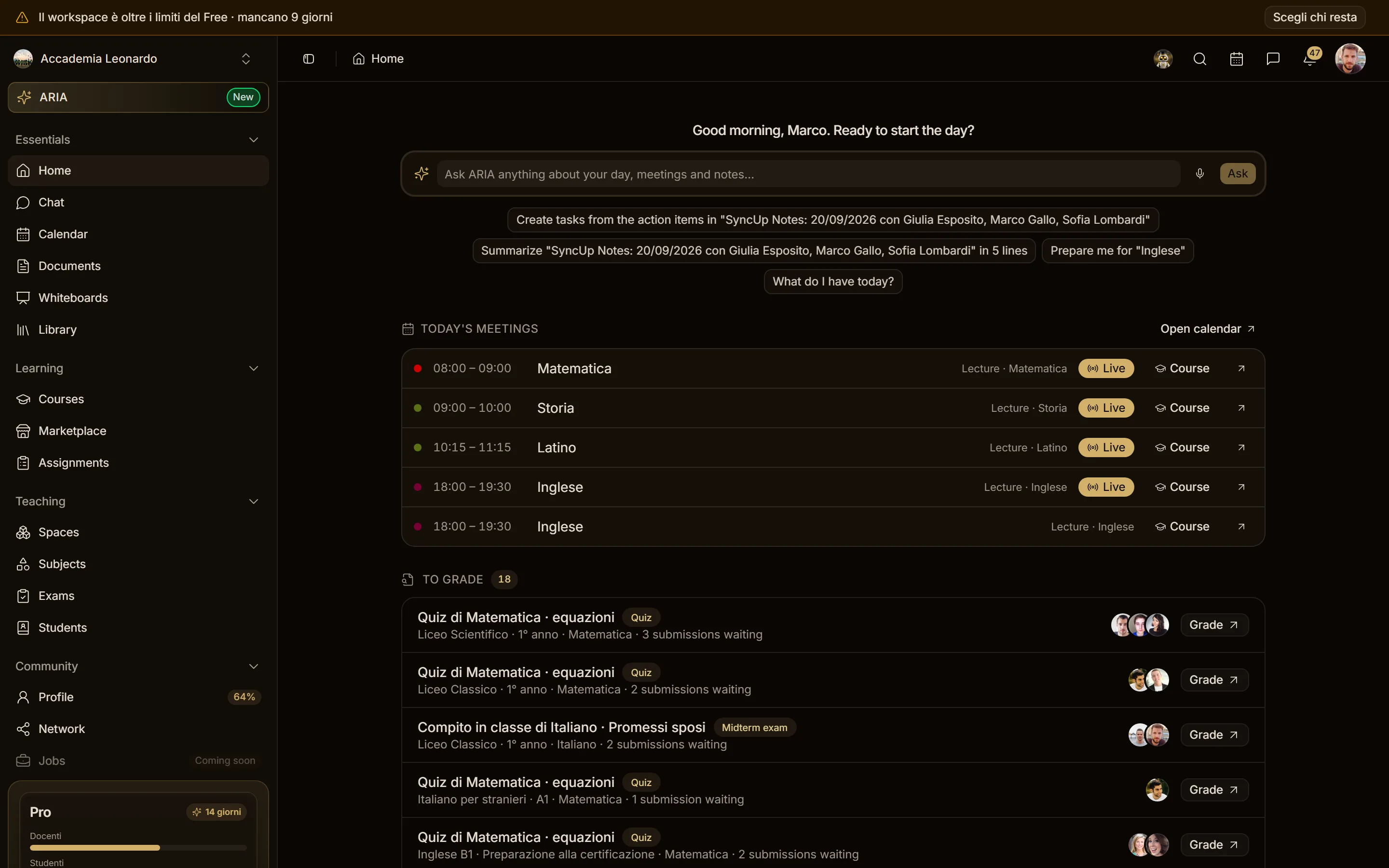
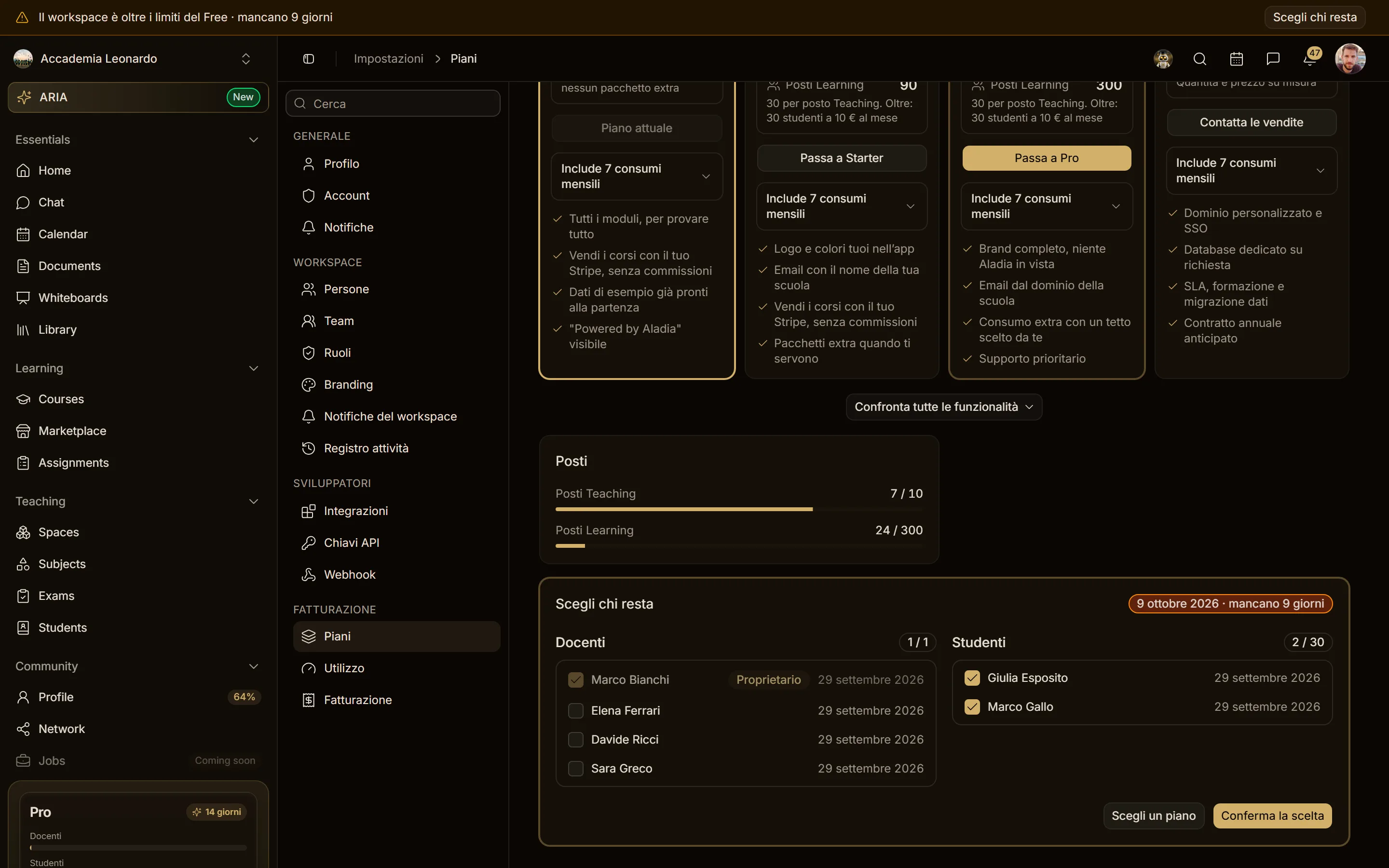
Over the Free limits (simulated)
- When: the workspace went back to Free with more teachers or students than Free includes.
- Meaning: 14 days to choose who stays; then the automatic rule chooses.
- What to do: Choose who stays opens Plans on the choice (see below).
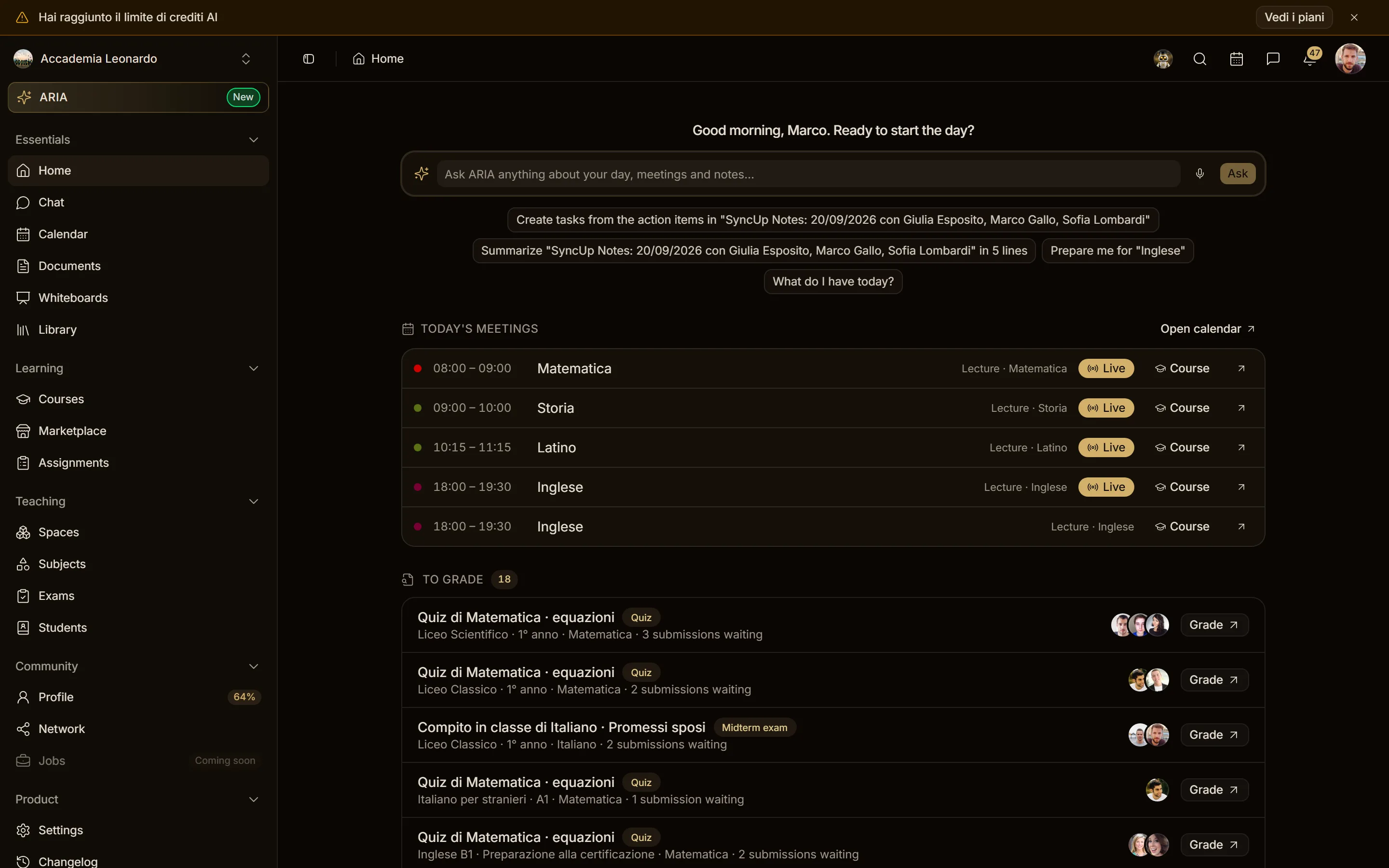
A usage at 100% (simulated)
- When: one monthly usage (AI credits, emails, live minutes…) reached its limit.
- Meaning: with usage enforcement on, that usage stops until the renewal or a pack.
- What to do: See plans; the X hides it for today.
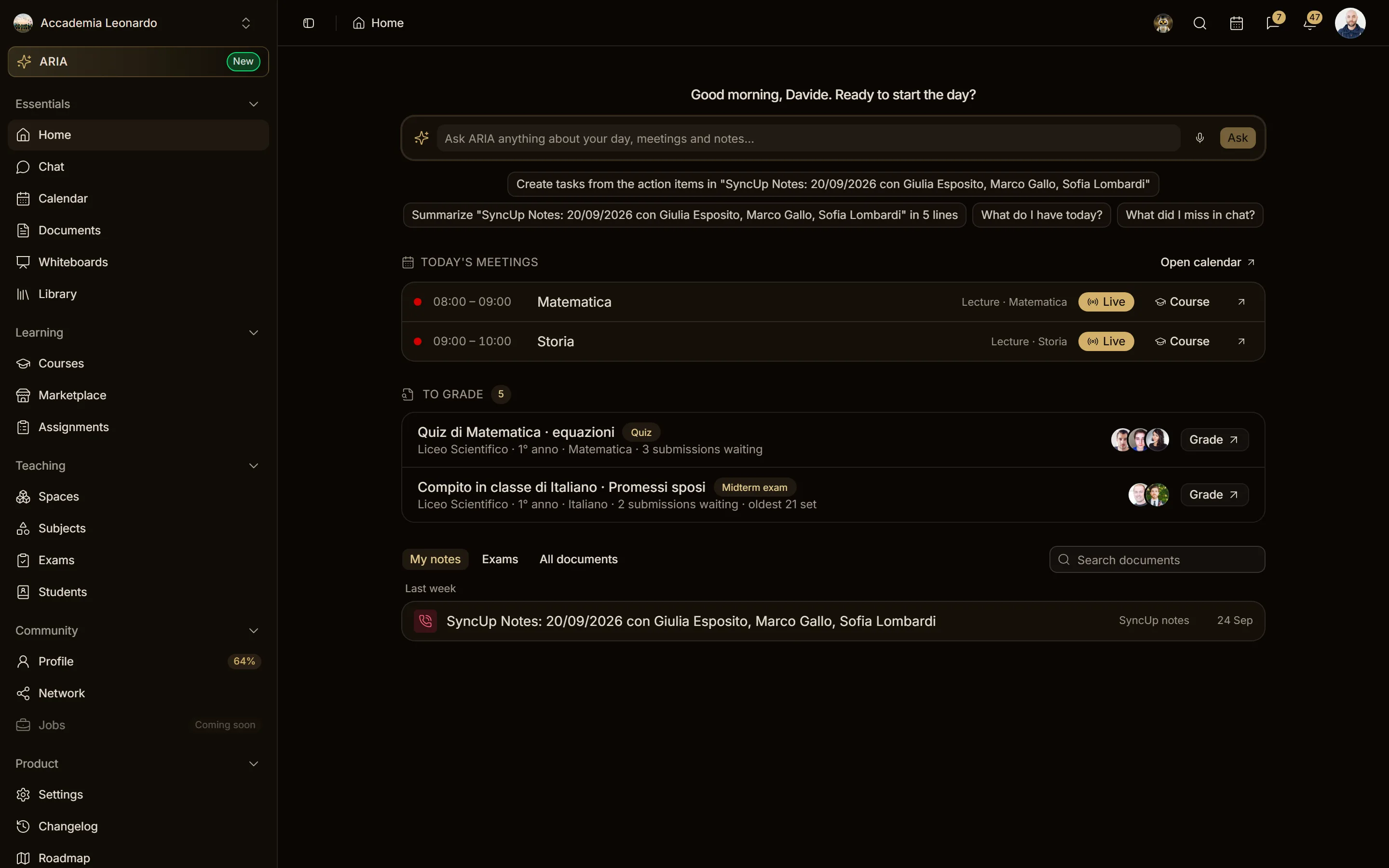
Who does not see it
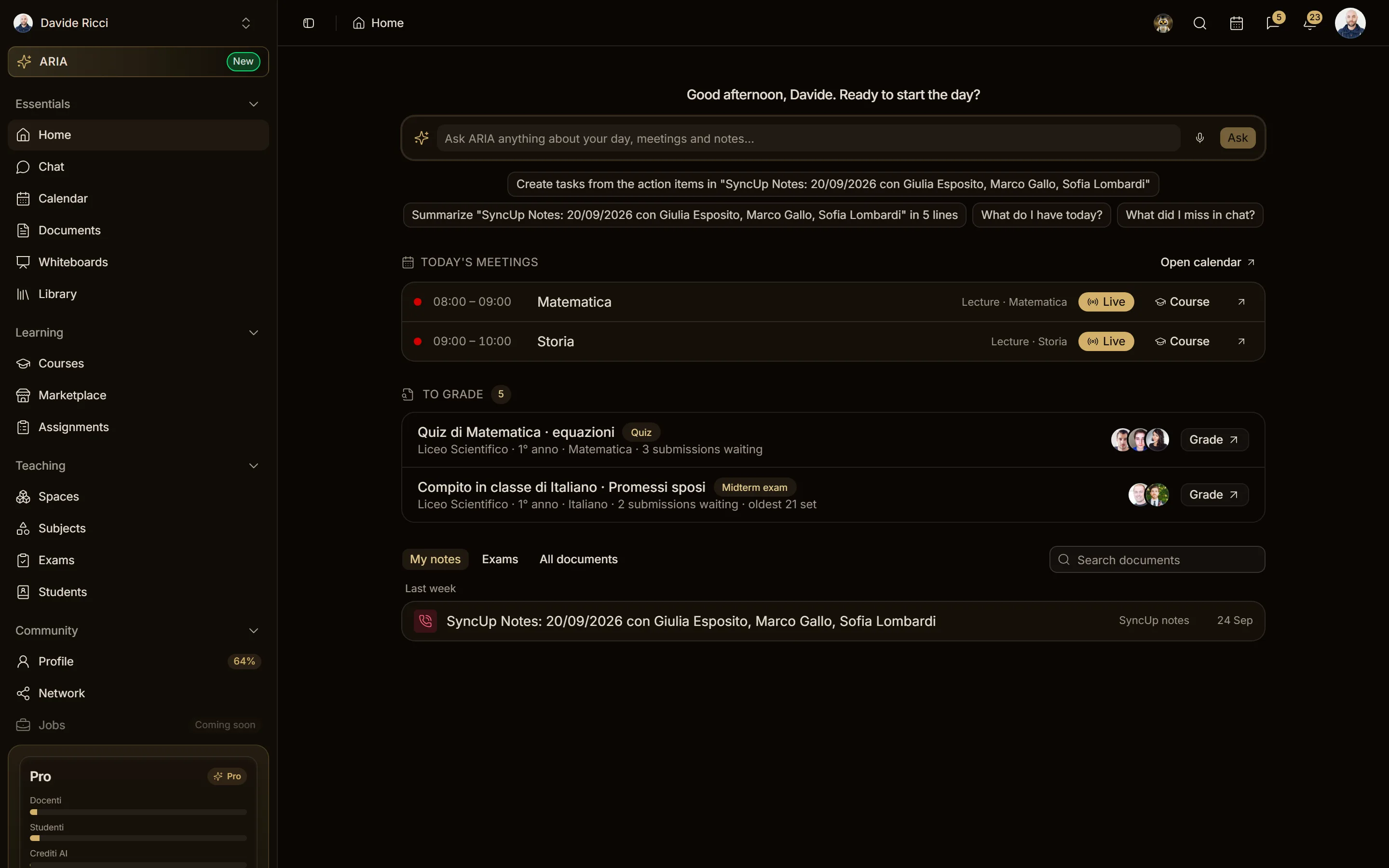
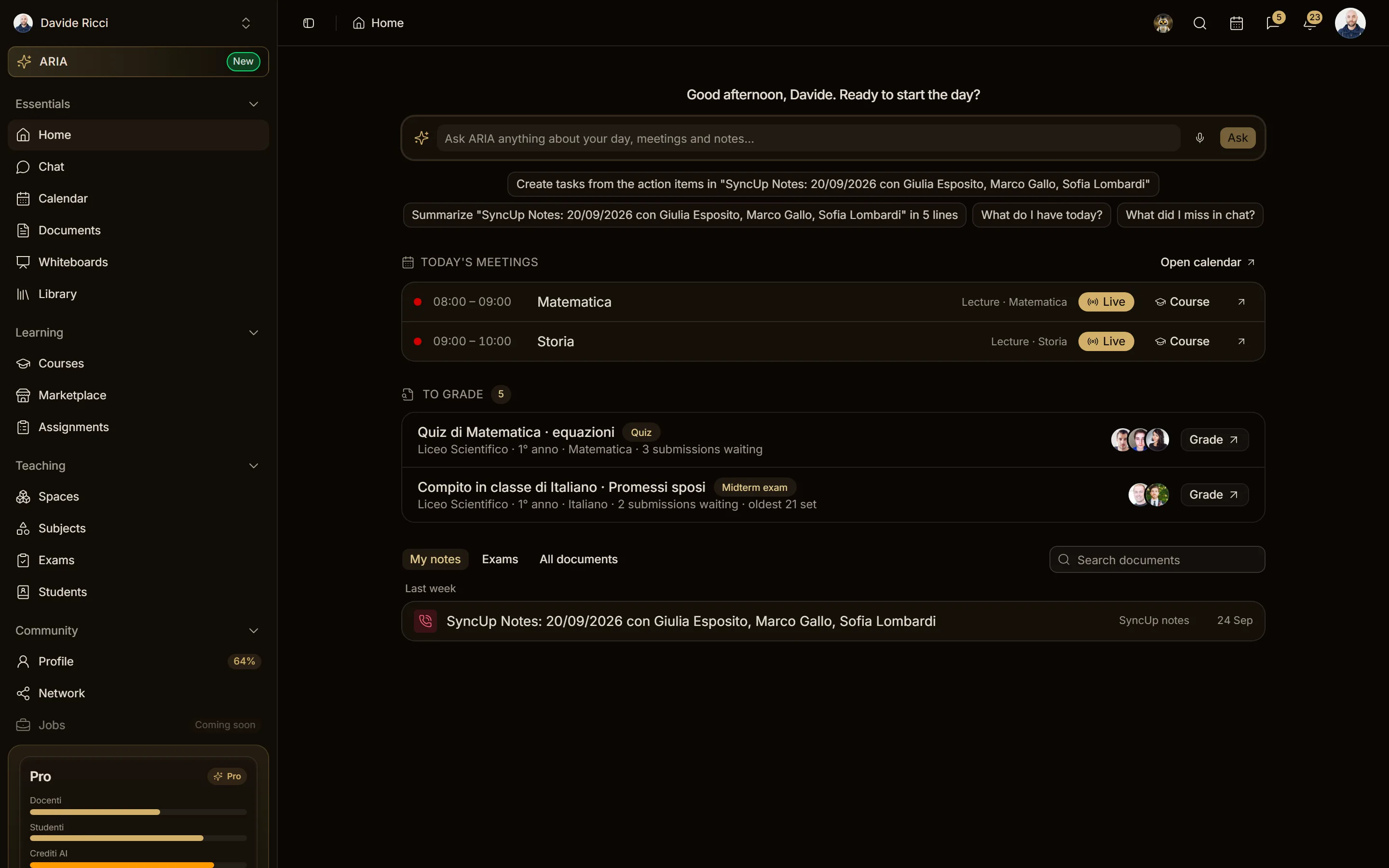
A Member (here Davide, teacher of the academy) sees no banner even when the payment failed: only who manages billing can fix it.
Pages that fill the screen, like the calendar, shrink by the height of the banner.
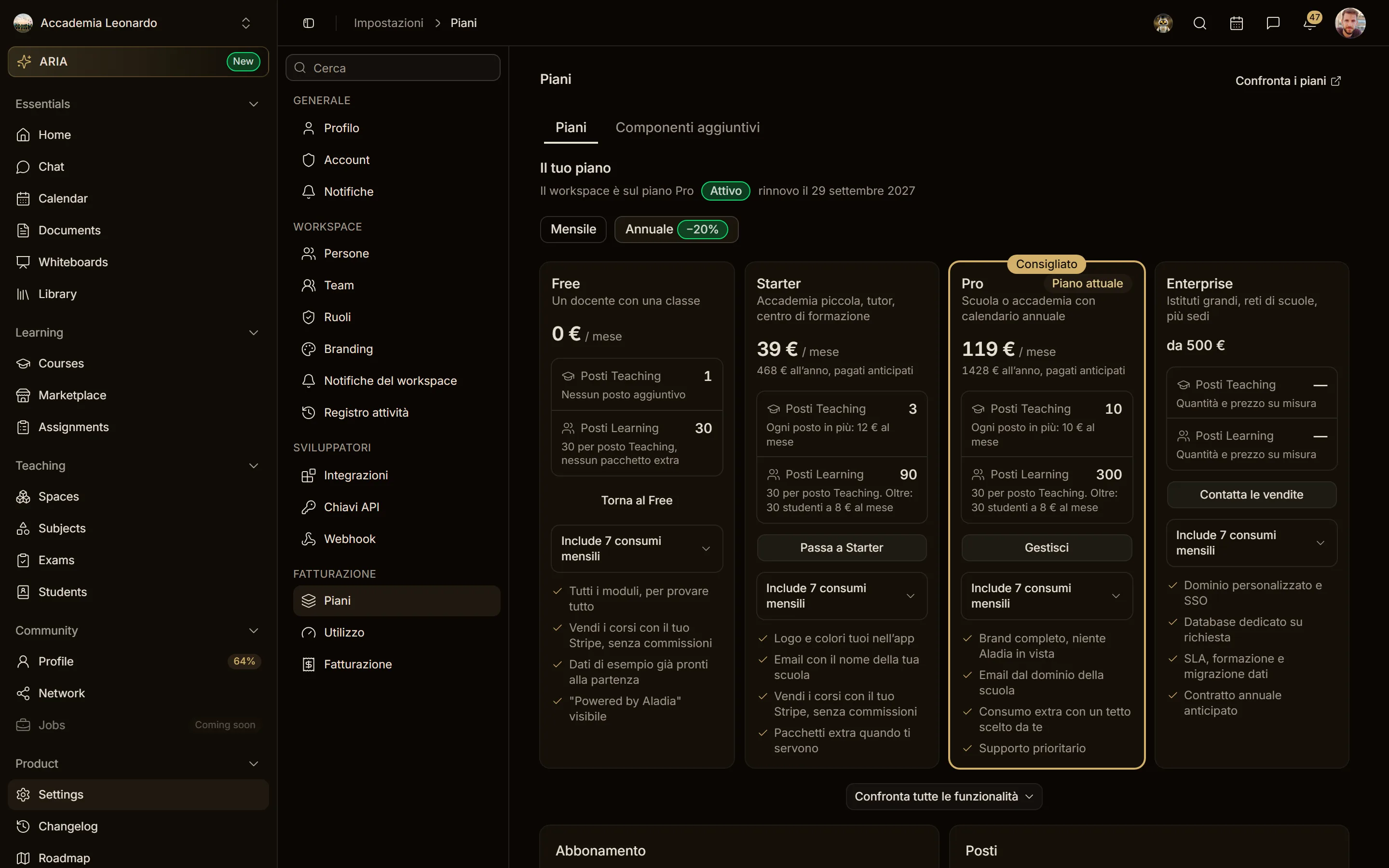
A scheduled cancellation has no banner: it shows only in Plans (next section).
Plans and Billing
Plan active (real)
Your plan says the plan, the status badge and the renewal date. Under the Subscription card, "The trial had already been used." appears when the trial is no longer available.
Trial in progress (simulated)
The badge Trial with the days left, and Activate now in the Subscription card.
Payment failed and restricted (simulated)
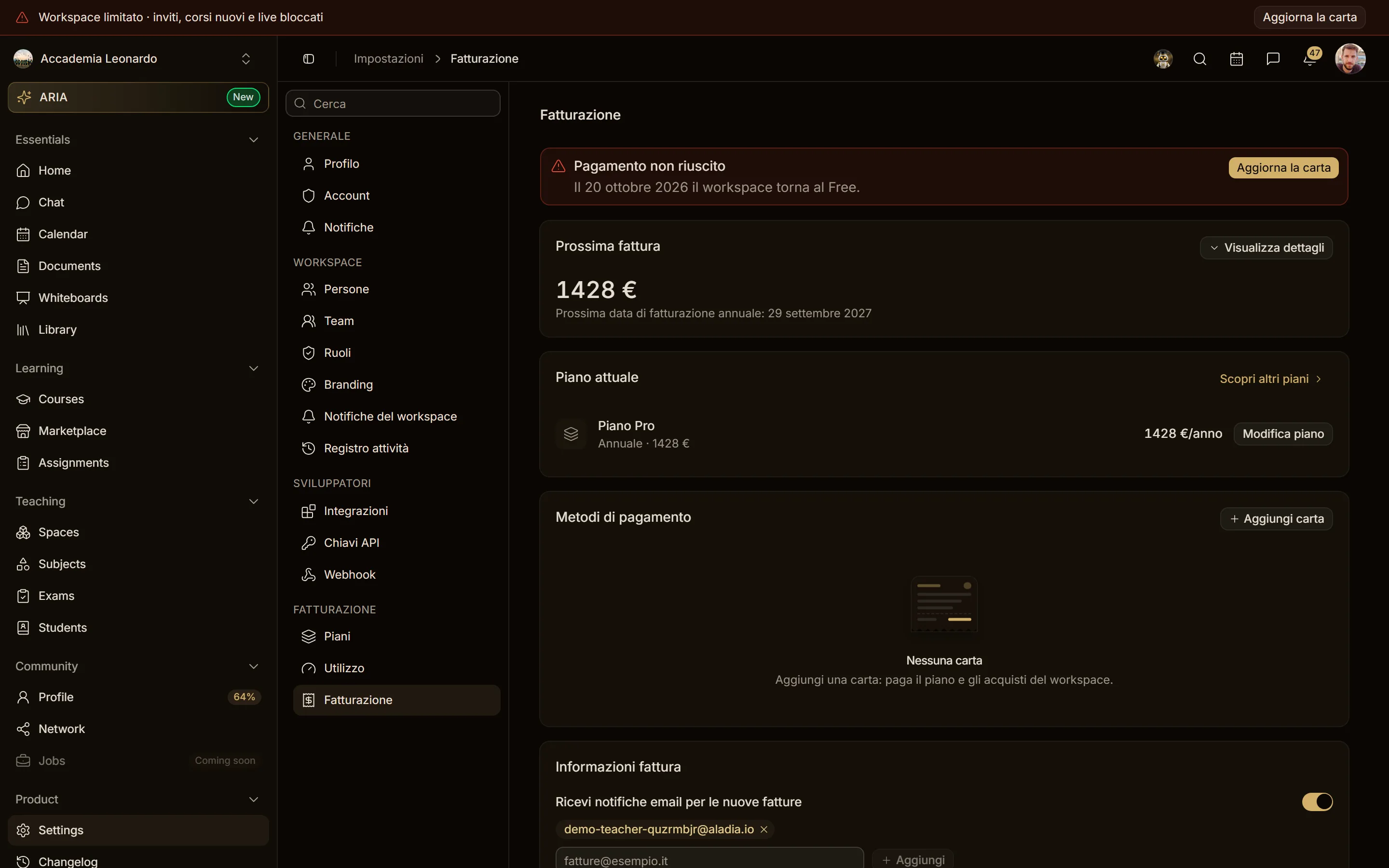
A red notice above the plan cards, in Plans and in Billing: Update your card by the grace date, or, when restricted, what is blocked and the date the workspace goes back to Free. Update card opens the card form. The plan cards are disabled until the payment is fixed.

Choose who stays (simulated)
Over the Free limits, Plans shows Choose who stays with the deadline: the checkboxes start as the automatic rule would leave them (the Owner, the most active students). Confirm choice saves; Choose a plan goes back to the cards.
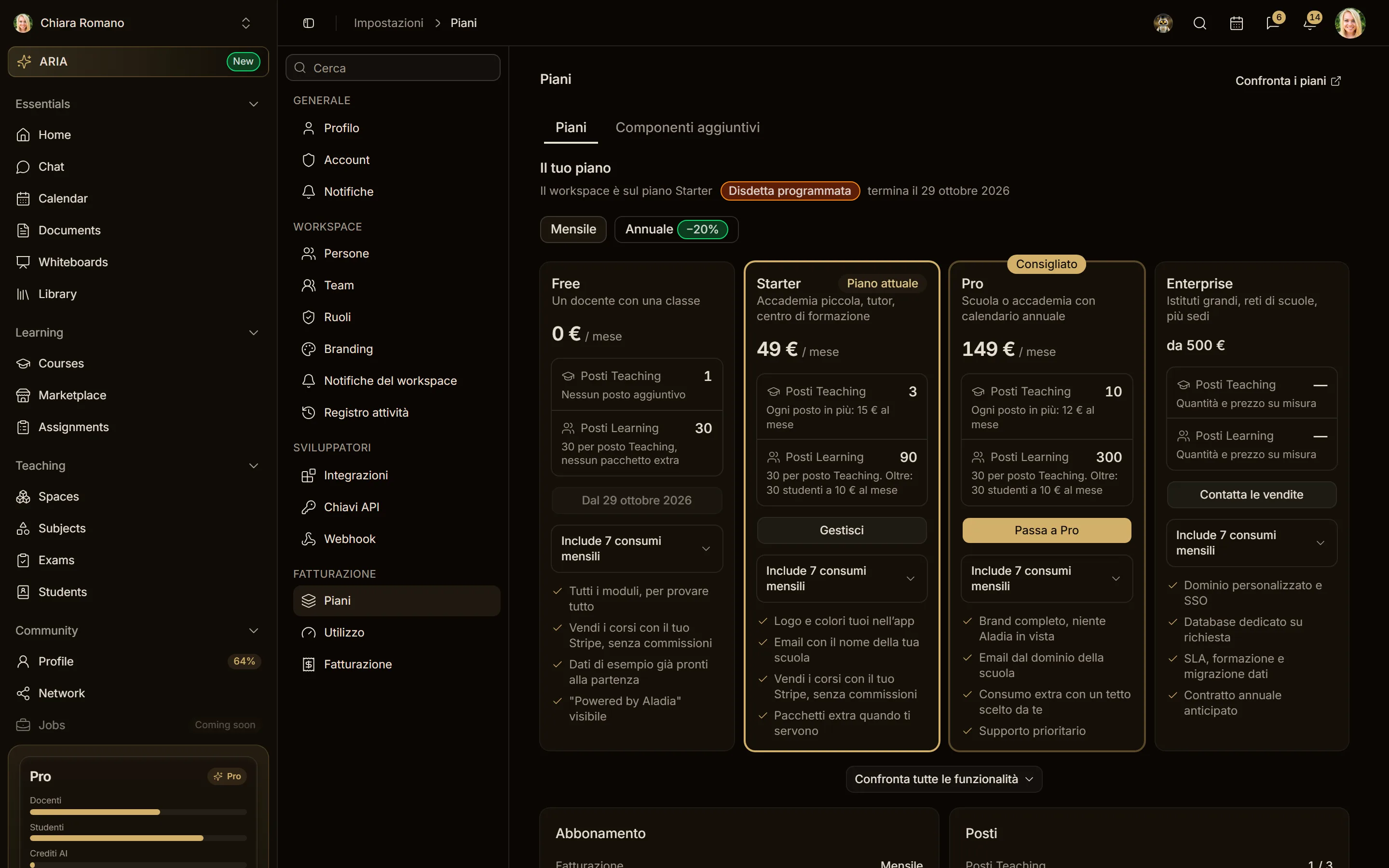
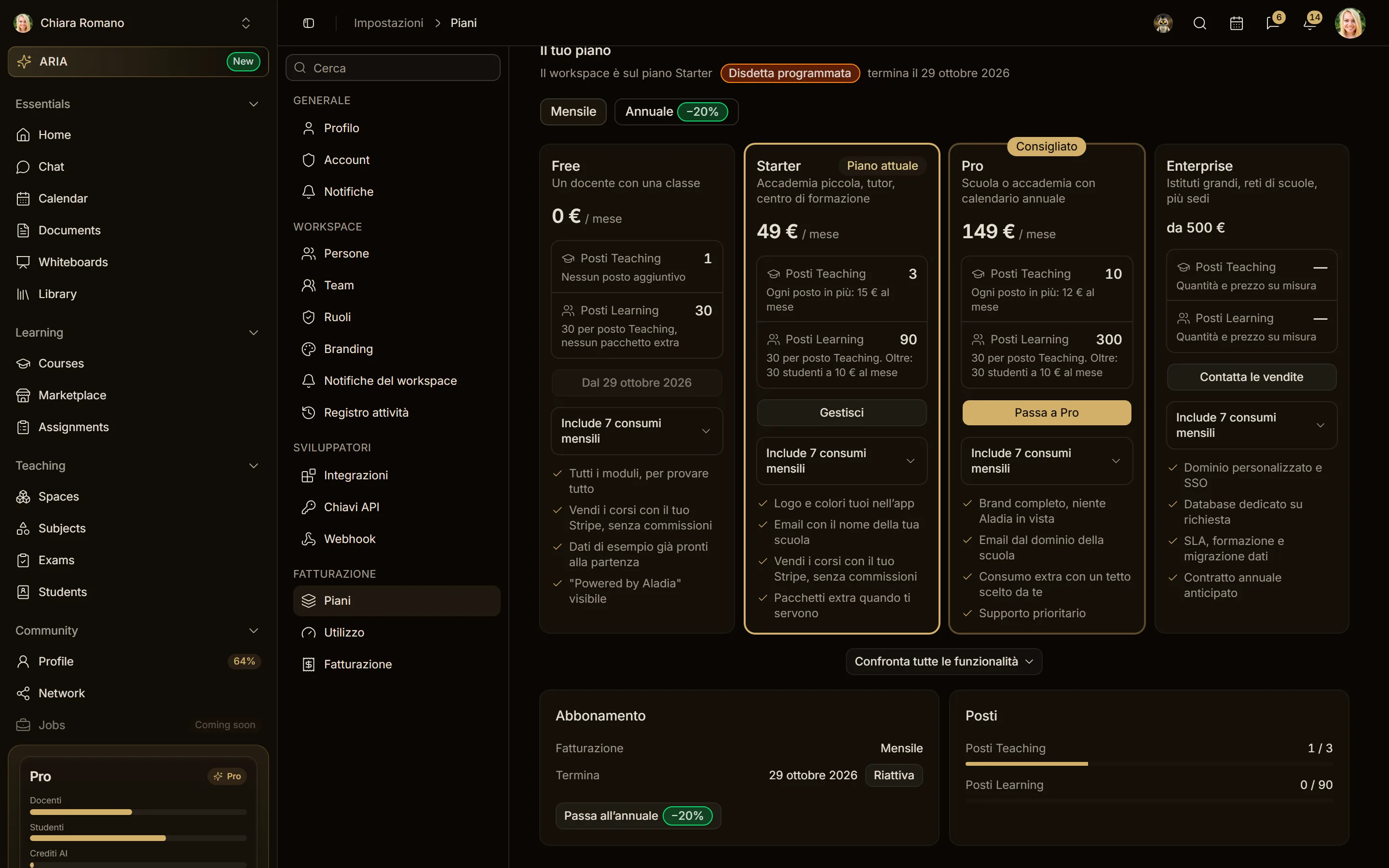
Cancellation scheduled (real)
- When: the plan was cancelled and runs until the end of the paid period.
- Meaning: the badge Cancellation scheduled and "ends on …"; at that date the workspace goes to Free.
- What to do: Reactivate in the Subscription card undoes the cancellation.
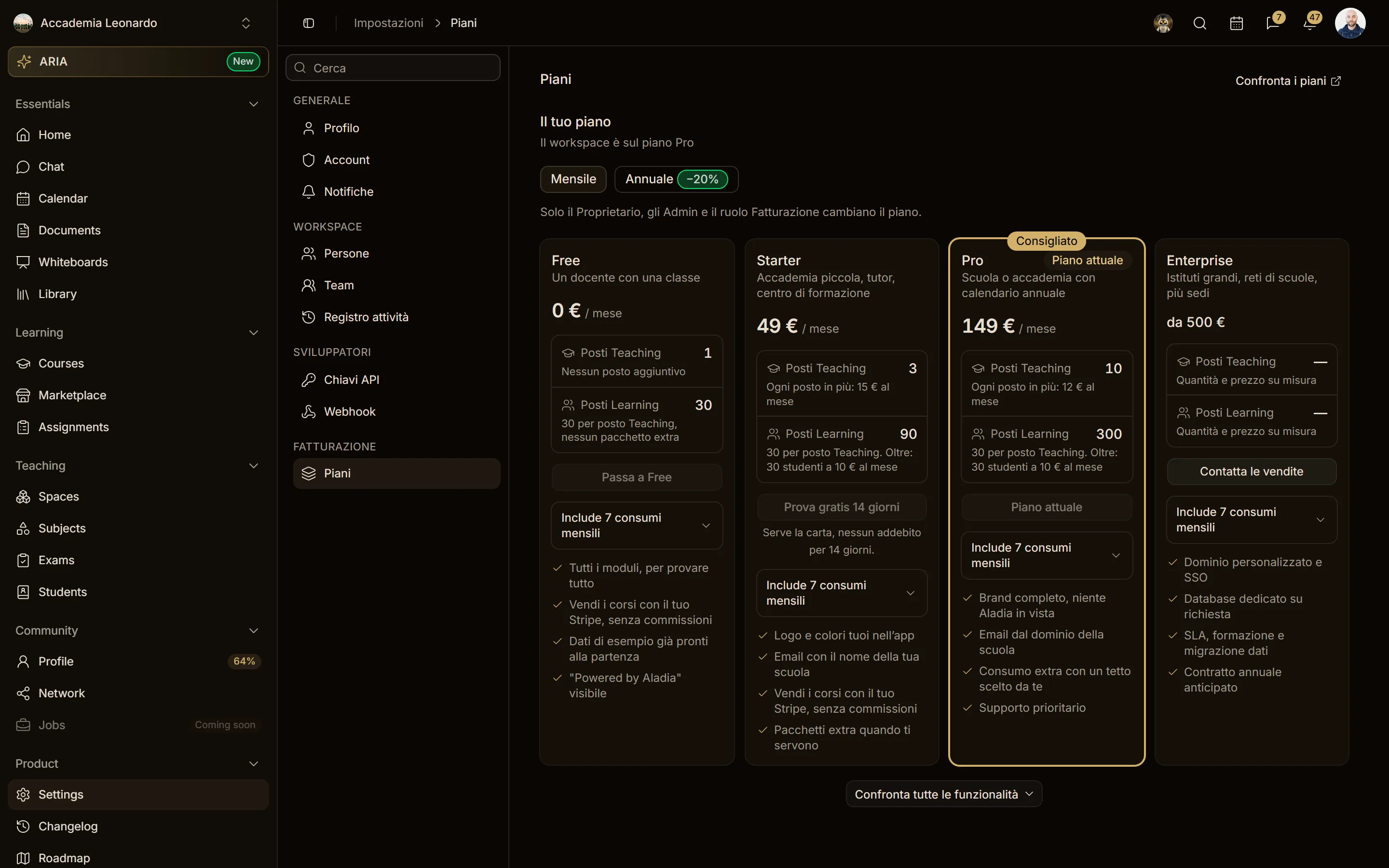
Read-only (real)
A Member sees the plan cards with a line: only the Owner, the Admins and the Billing role change the plan.
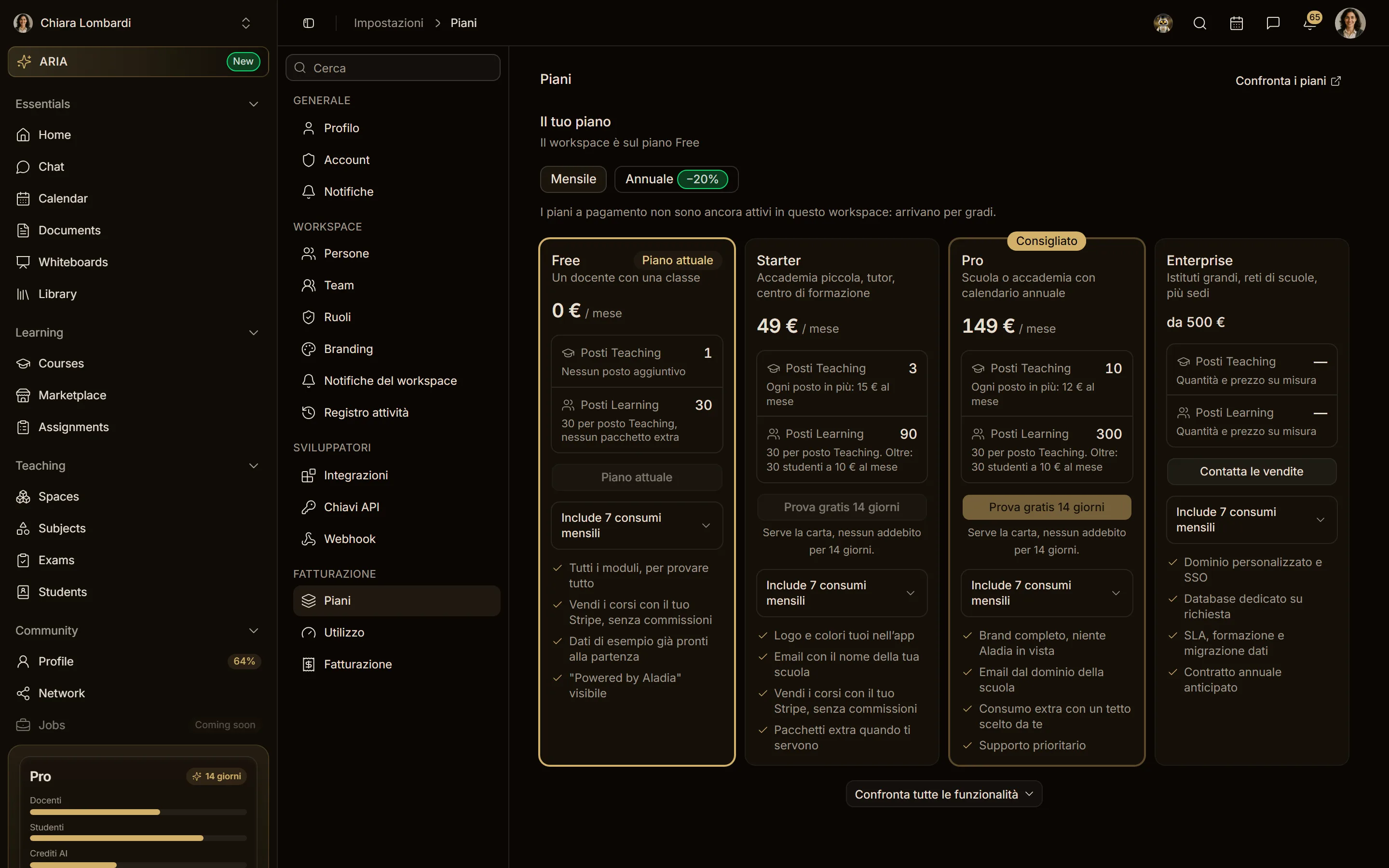
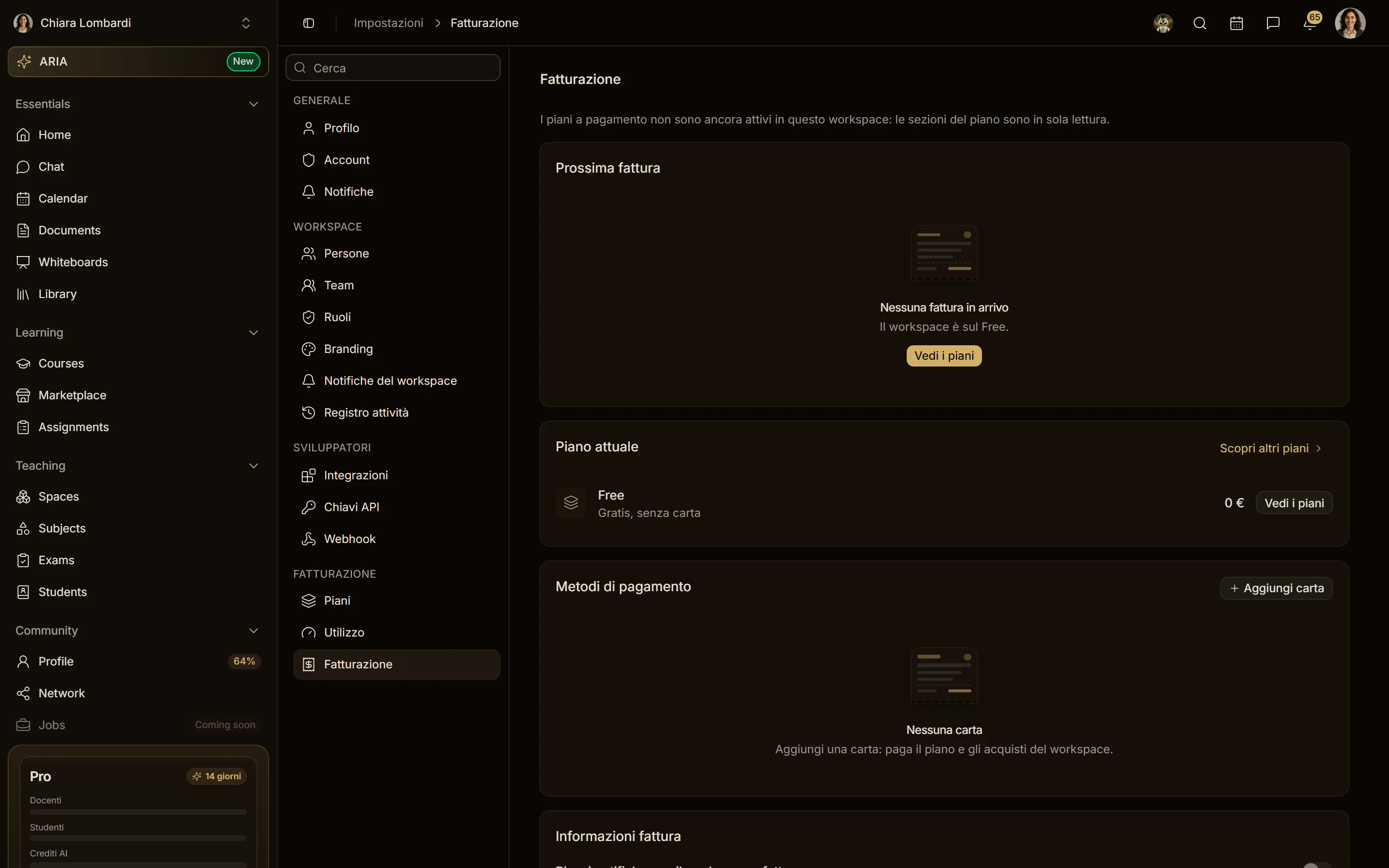
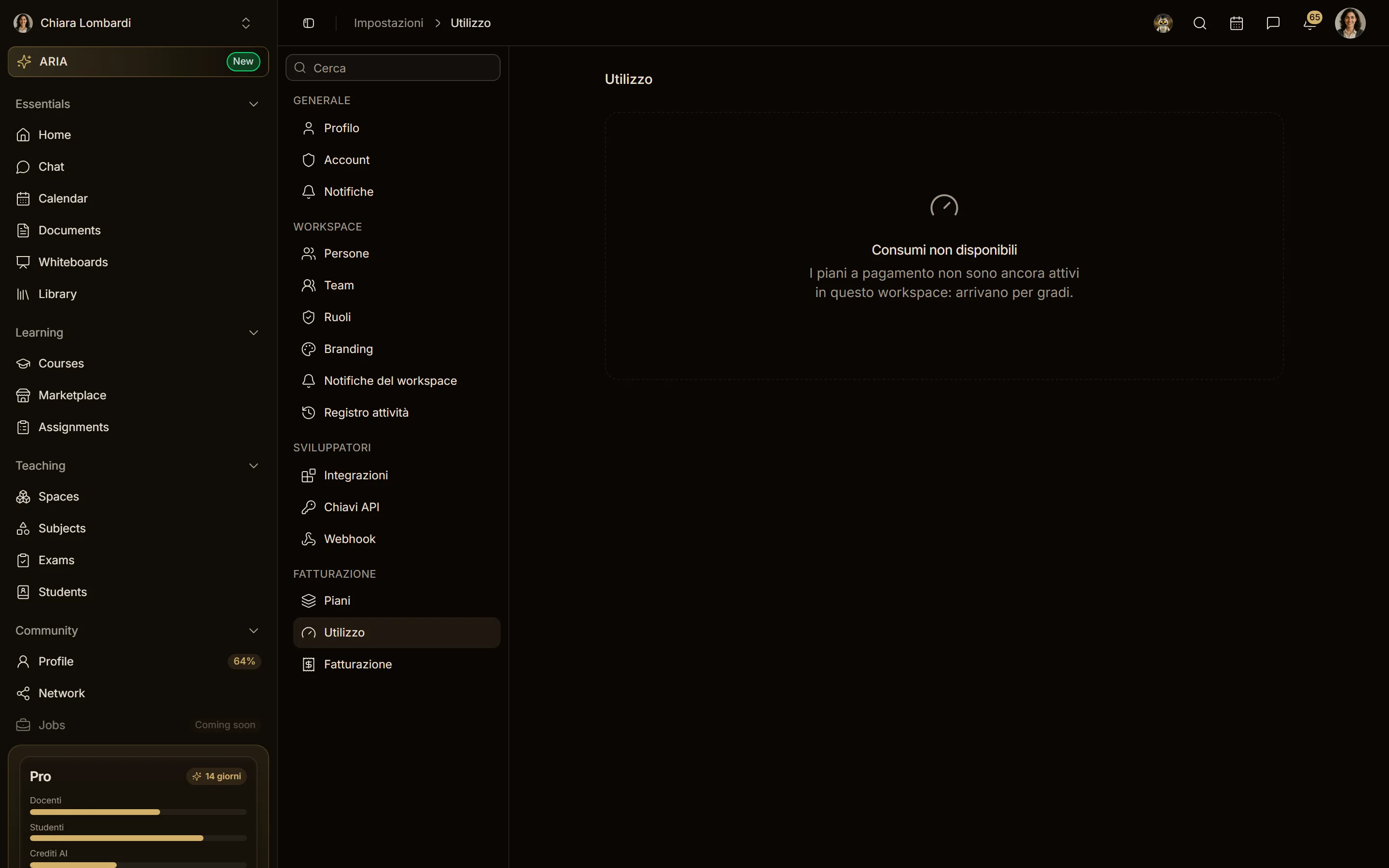
Paid plans not active yet (real)
Where paid plans are not rolled out yet, Plans, Billing and Usage say so in one line and stay read-only.
Usage
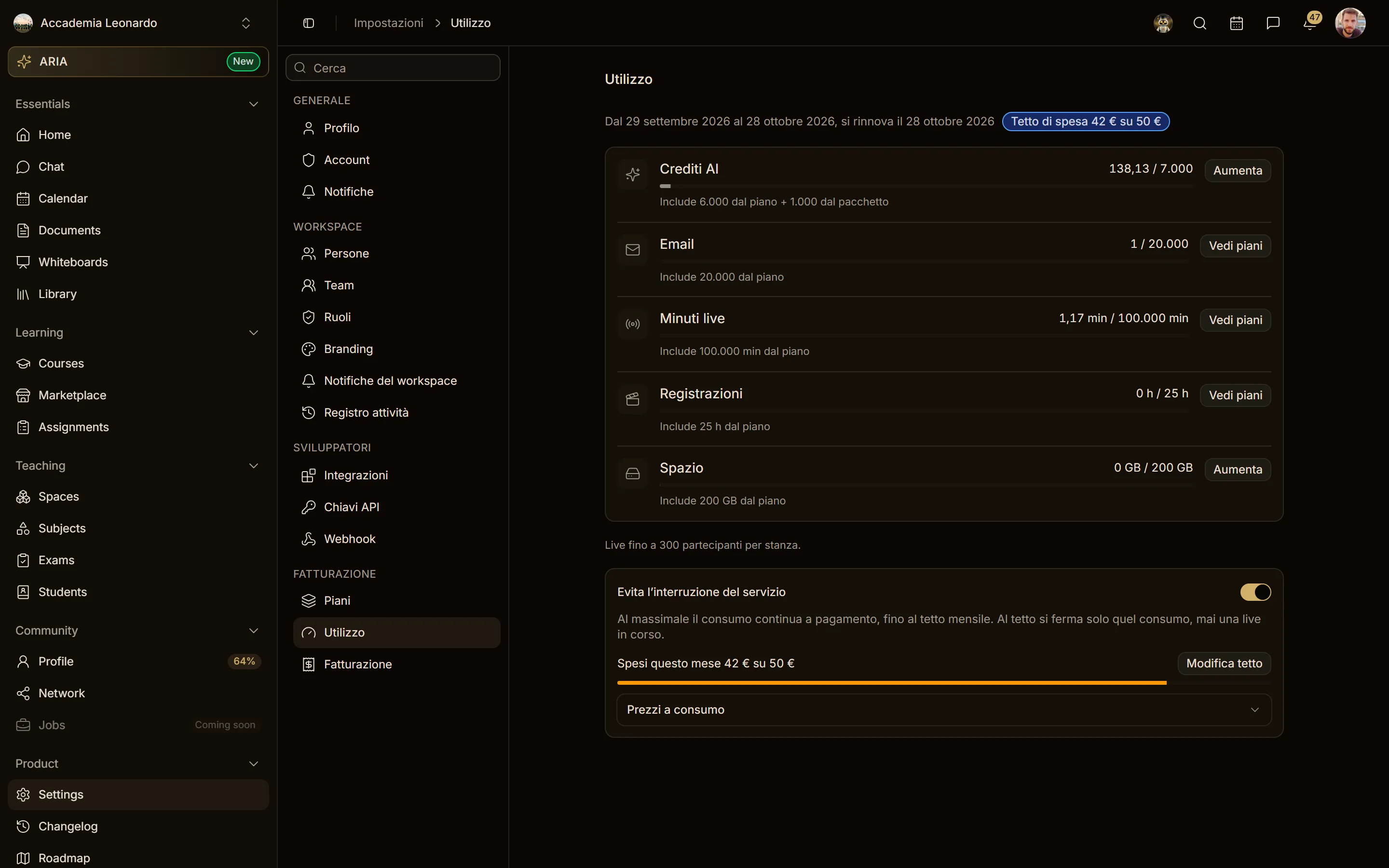
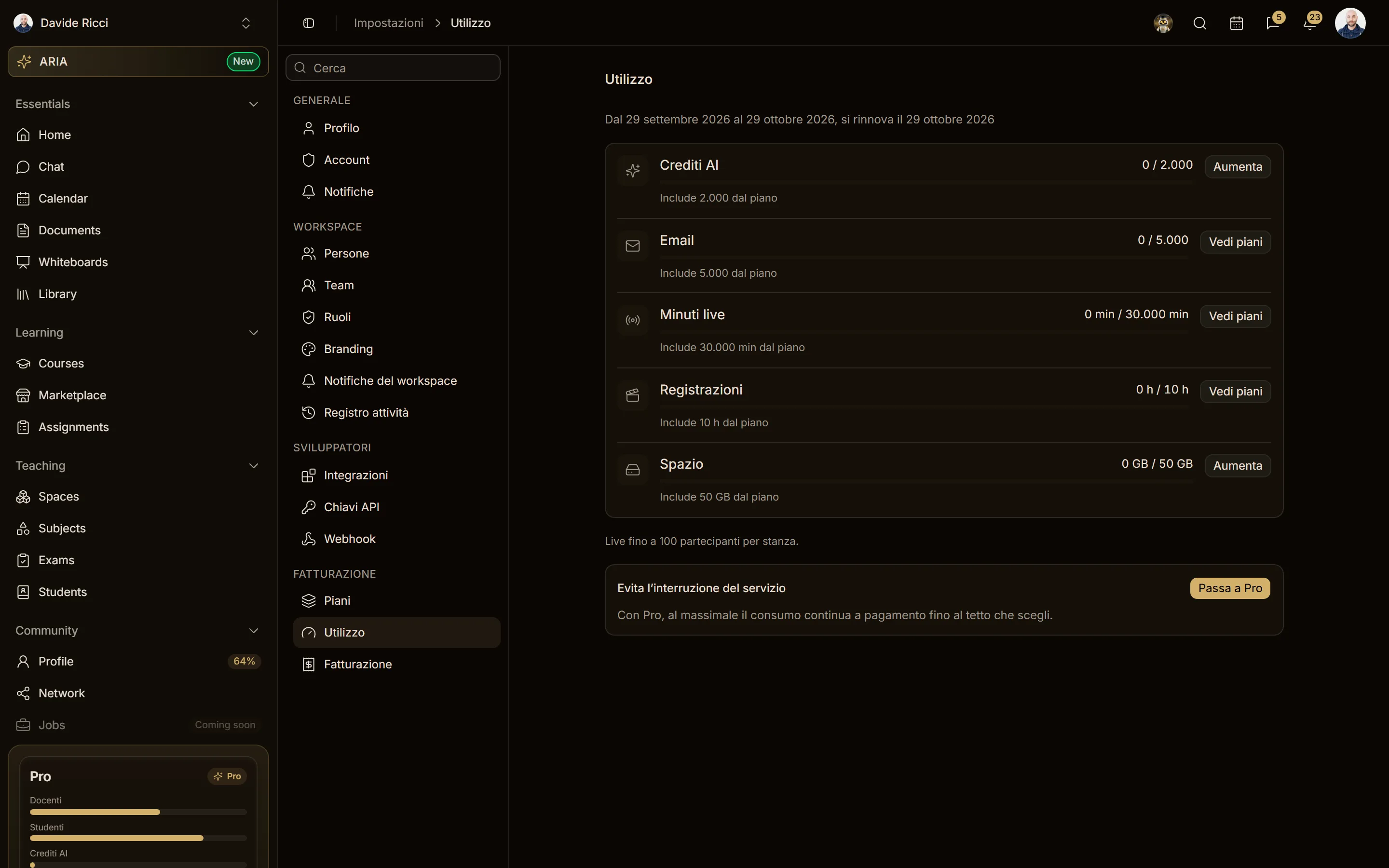
Each row has its bar: neutral under 80%, amber from 80%, red at 100%. With enforcement on, a usage at its limit shows Blocked at the limit. Increase opens the right pack in Add-ons; See plans when there is no pack for that usage. Details in Usage.
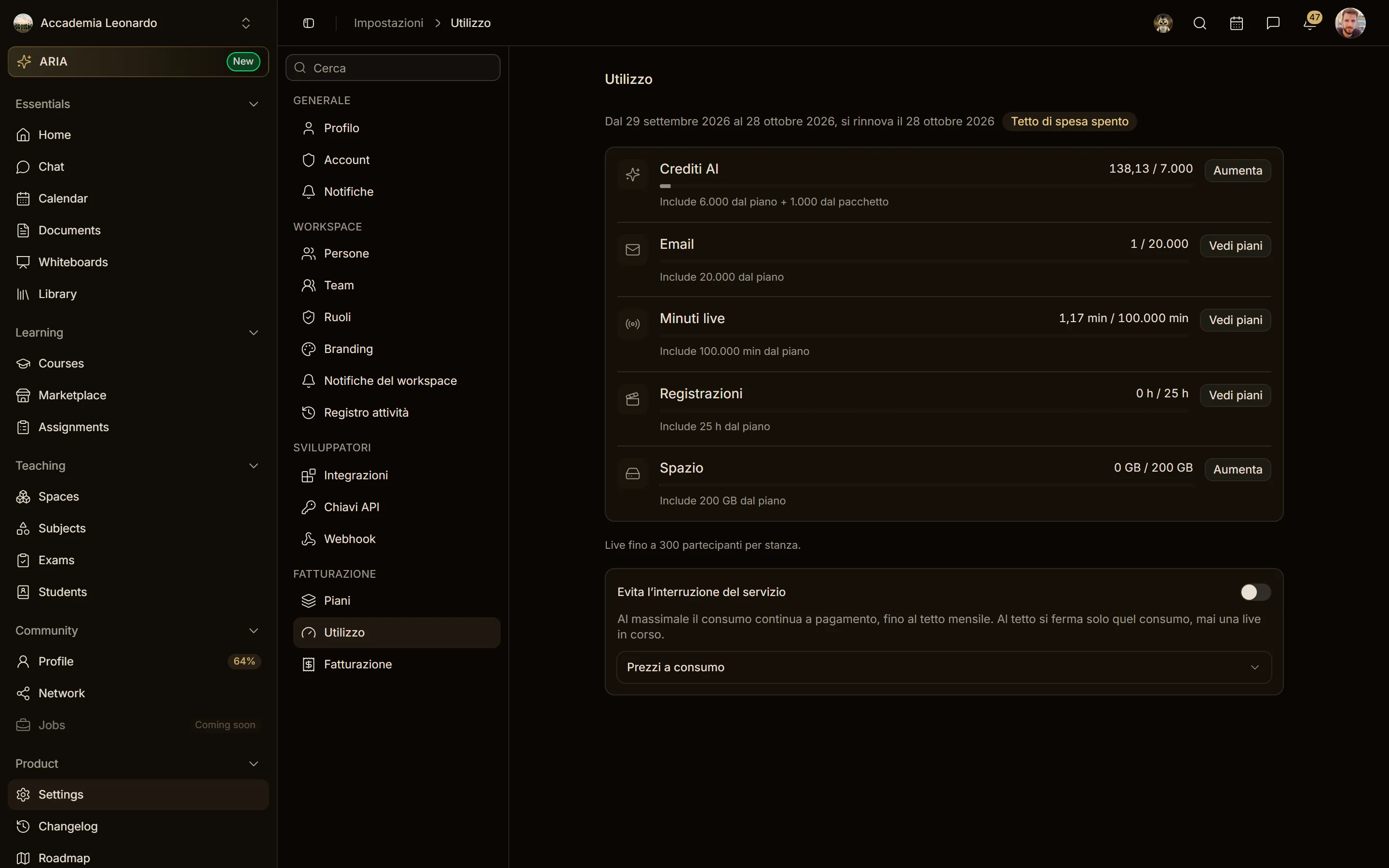
Avoid service interruptions on Pro and Enterprise: turned on, it shows the spend of the month against the cap, amber from 80%. On Free and Starter the same box says Upgrade to Pro.
Seats in People and in the Invite dialog
The banner at the top of People tells how many teachers and students can still be invited for free and what an extra teacher costs; the box in Invite people does the same for the emails you typed. See People and invitations.
| Case | Tone | Text | Button |
|---|---|---|---|
| Seats available (real) | info | You can invite N teachers and N students for free | none |
| Free, teacher seats used up (real) | info | You reached the Free teacher seats | Upgrade plan |
| Restricted (simulated) | destructive | The workspace cannot add people until the plan is back in order | Upgrade plan |
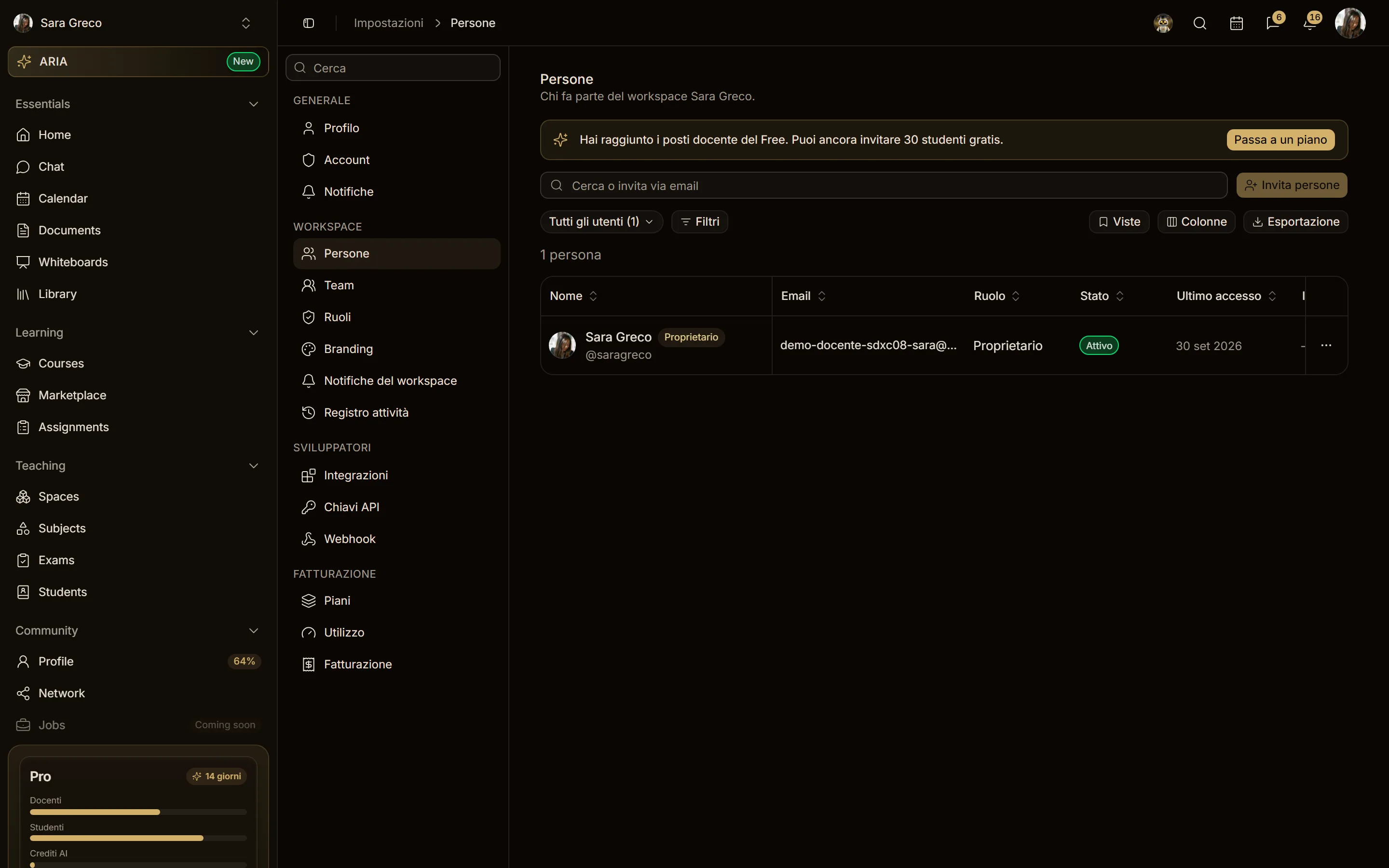
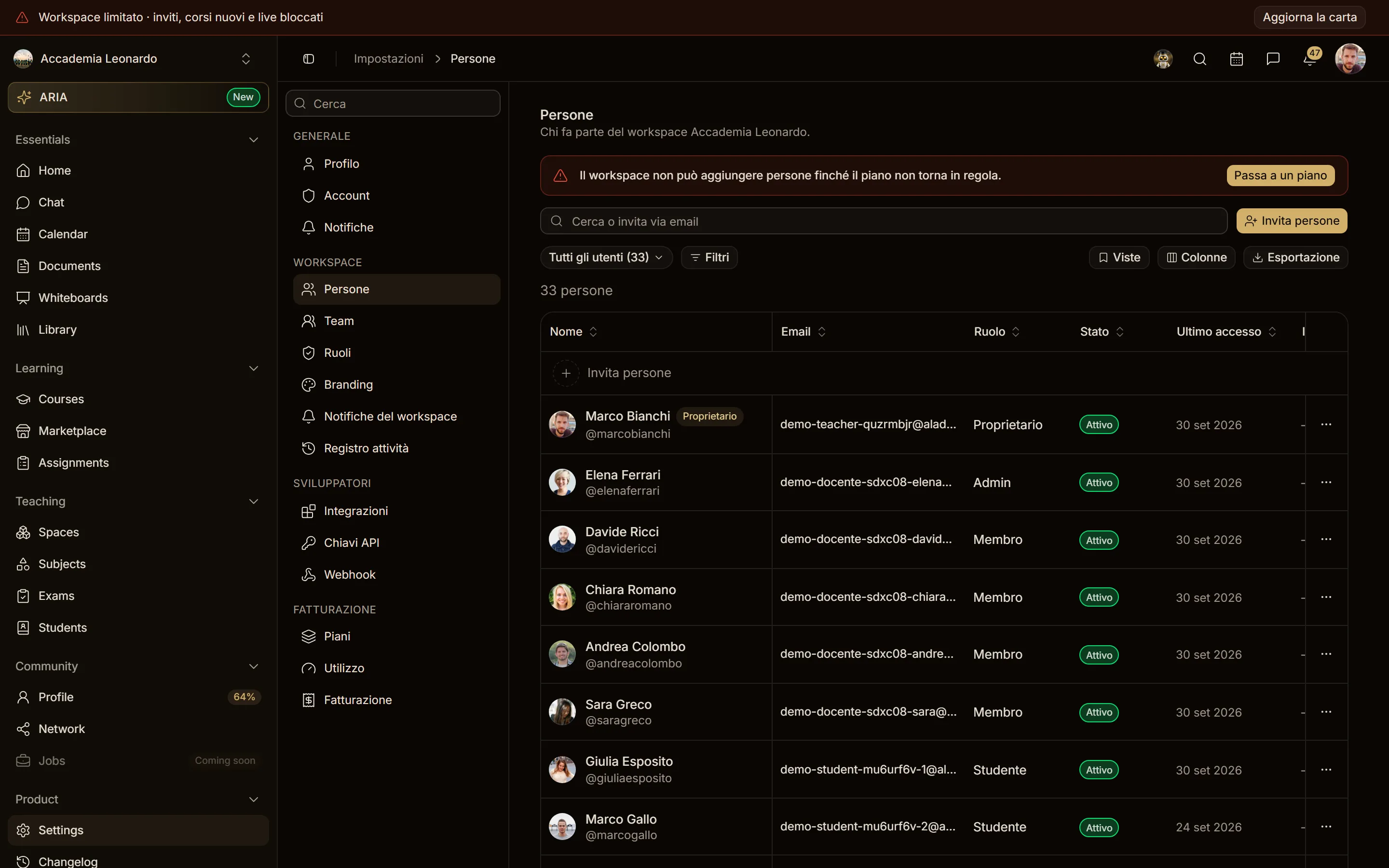
In the Invite dialog:
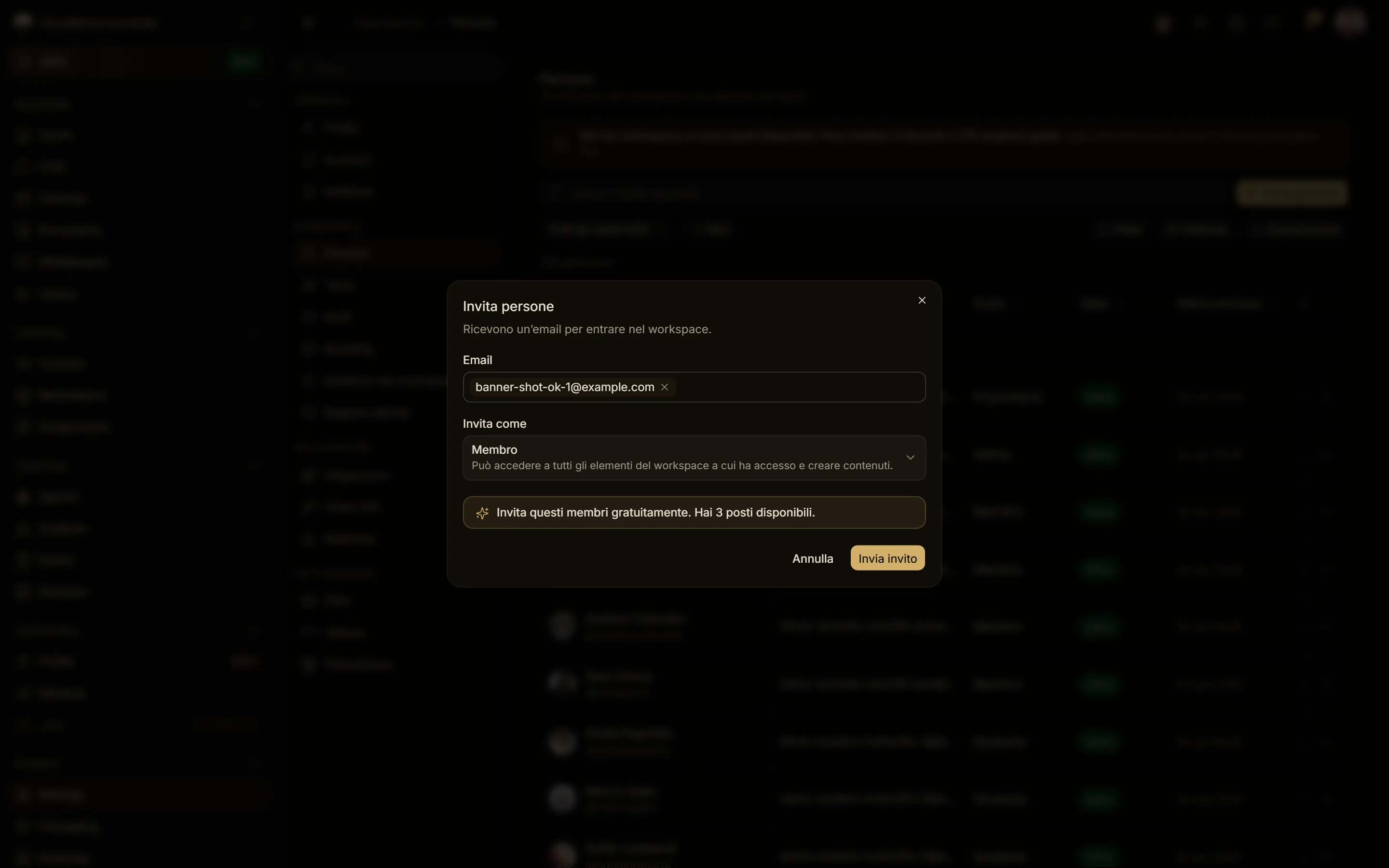
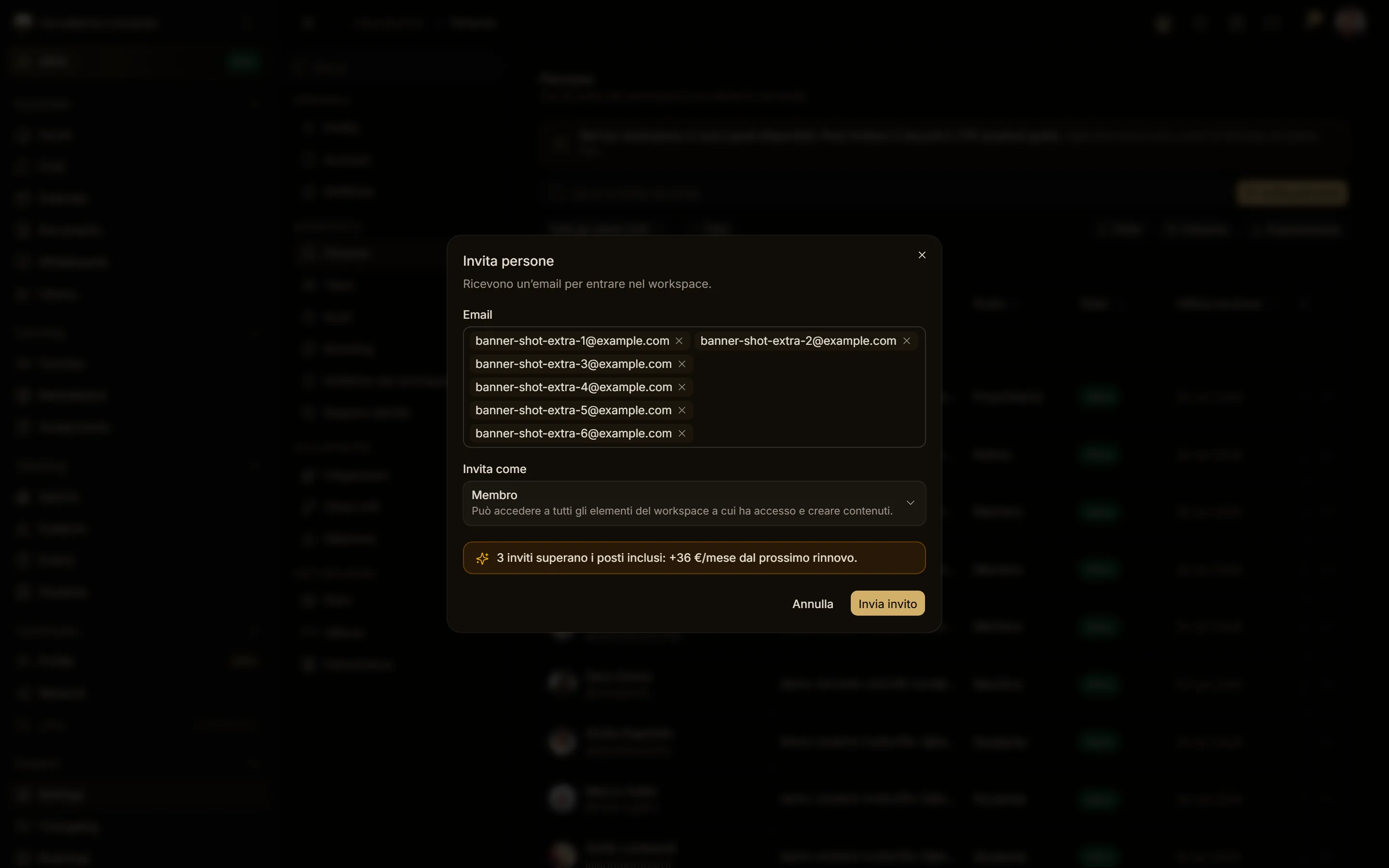

In the personal workspace Invite people is off: people join through what you share.
The plan limit card
- When: you create a team or a custom role beyond what the plan includes (the server answers "plan limit").
- Meaning: the plan includes N of them, or none.
- What to do: See plans, or Not now.
- Who: whoever tried to create it.
The plan card in the sidebar
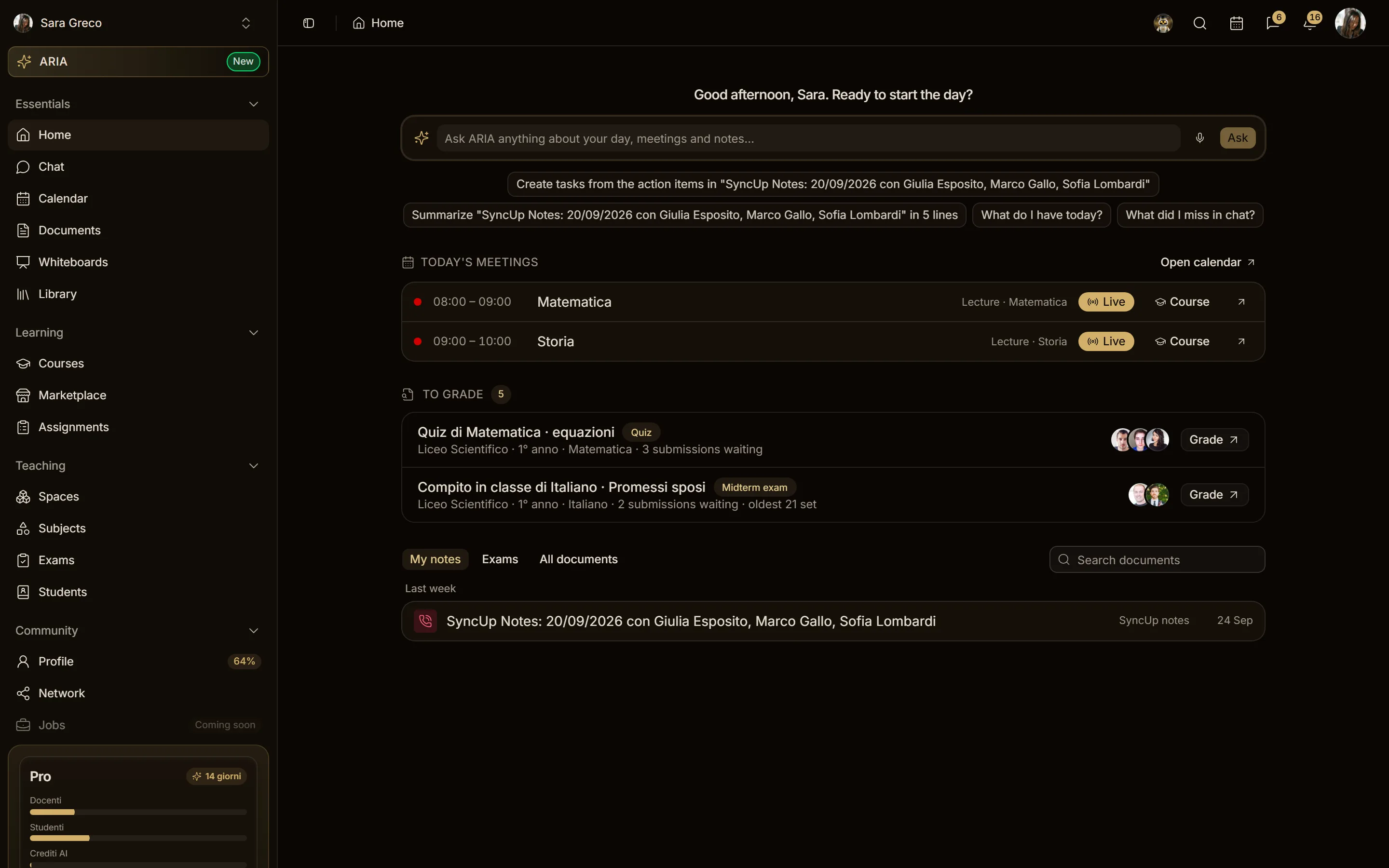
At the bottom of the sidebar, for whoever manages billing: on Free the trial of Pro, on Starter the upgrade to Pro, nothing on Pro, during the trial or with a payment to fix (the top banner speaks then). The AI credits bar is the real one, amber from 80%. The X hides it on every device; it comes back at a new limit.
Stripe verification
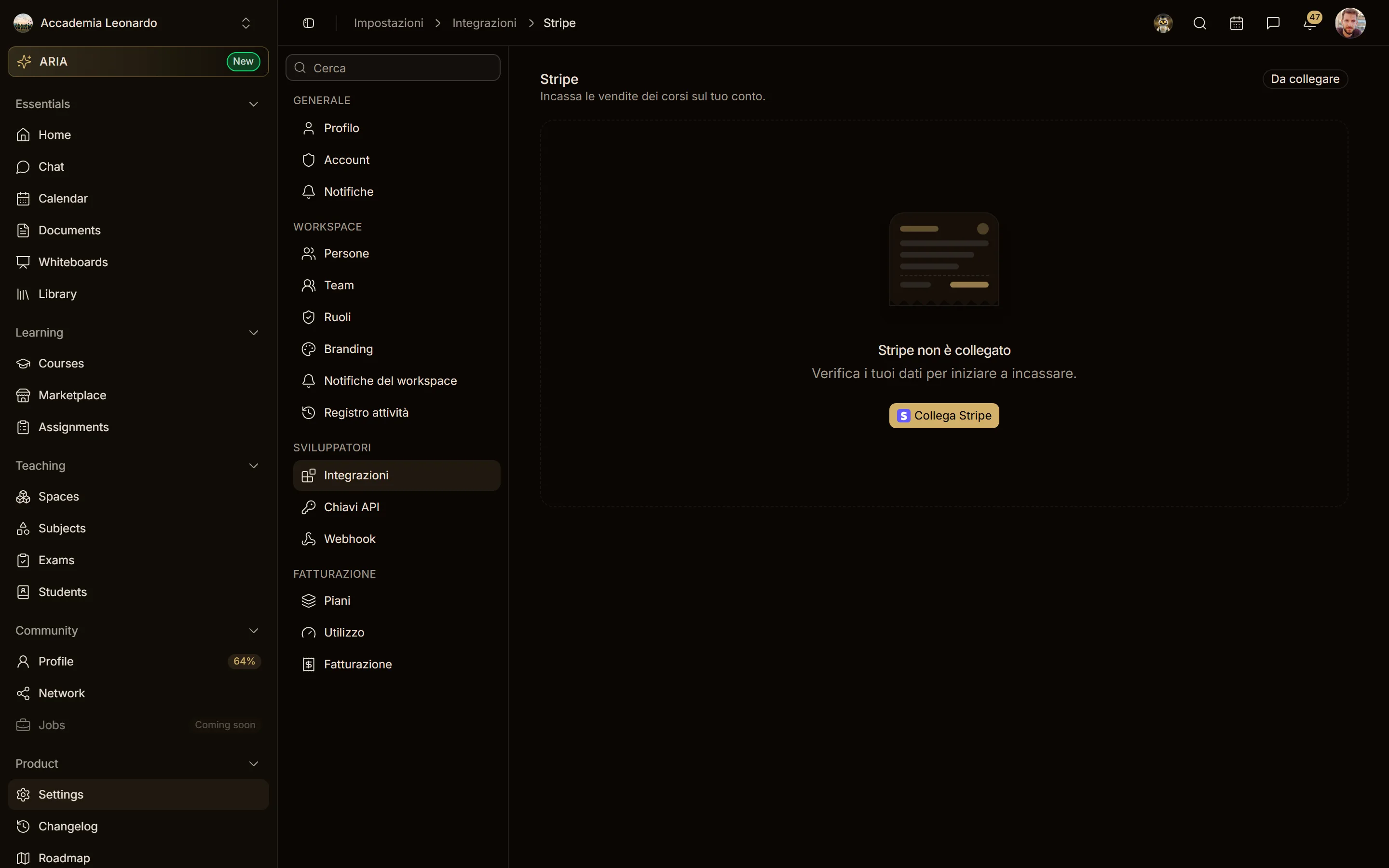
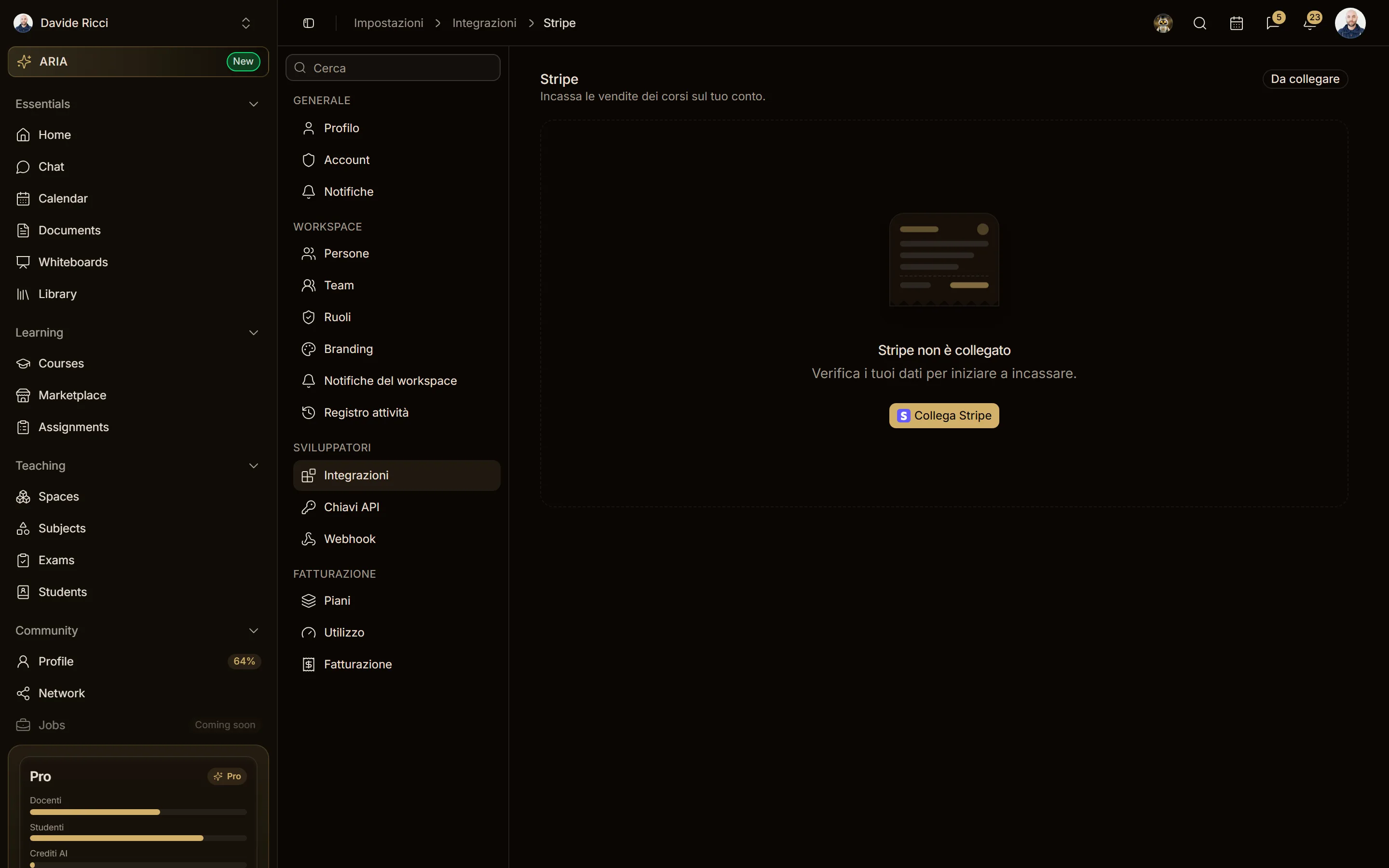
Settings > Integrations > Stripe shows whether the workspace can get paid: Stripe is not connected with Connect Stripe, or the account with Verification, Payments, Payouts and, when Stripe asks for something, Requested by Stripe with Continue verification.
Course builder: an earlier version
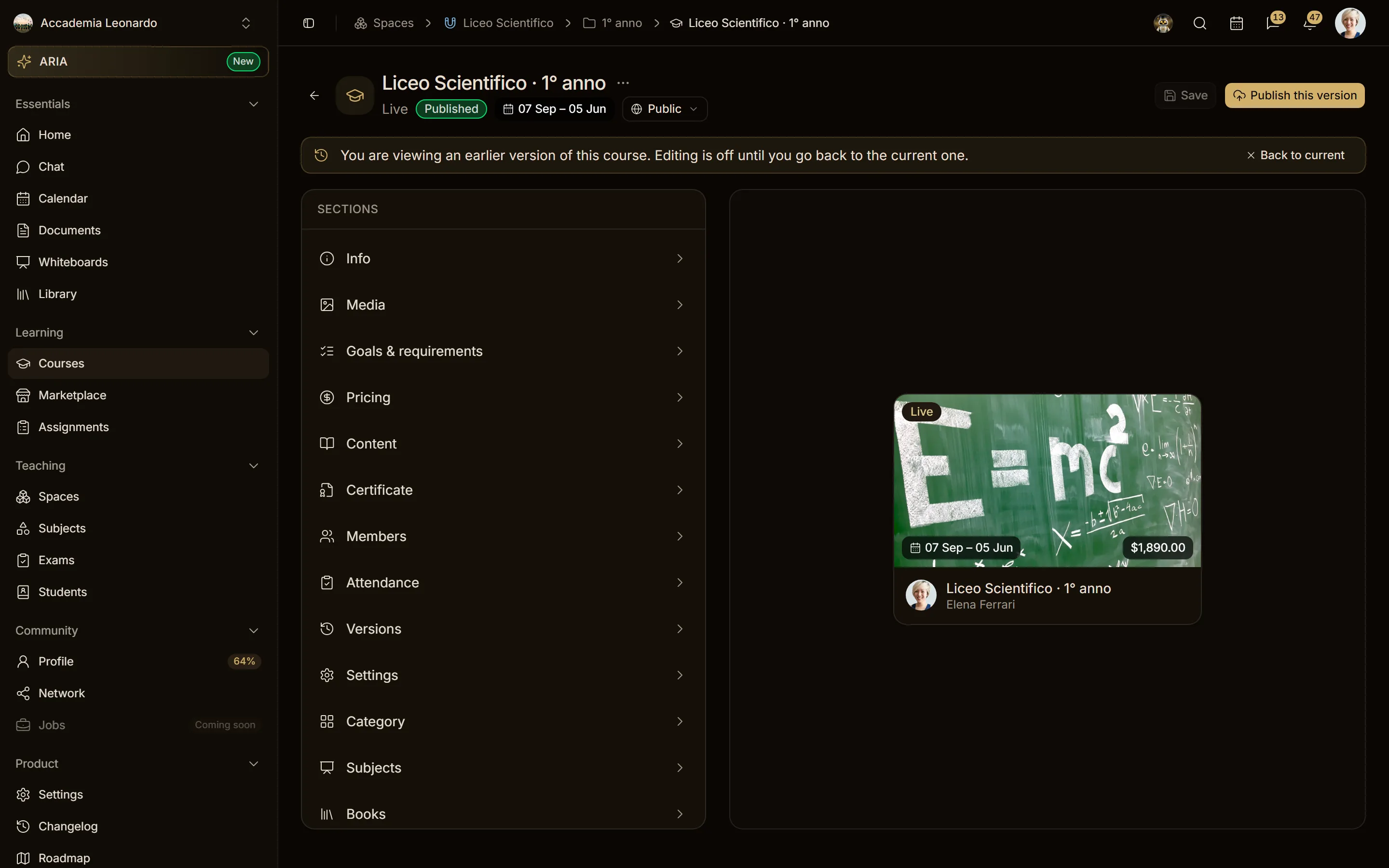
Opening an earlier version from Versions shows a notice above the sections: editing is off until you go Back to current; Publish this version publishes it.
Emails
The same moments also arrive by email to whoever manages billing: see Plans and billing.