
Invite people to the workspace
Settings → People — the seats banner, search or invite by email, the Invite people dialog with roles and seats, pending invitations, resend and revoke, the invitation email and page.
Draft · to be re-tested after the release (30/09/2026)
Settings → People is the address book of the workspace: everyone who works in it, the students, and the invitations still waiting for an answer. Owners and Admins invite from here.
Seats banner
At the top of the page a banner says how many people you can still invite for free with your plan: teachers (Teaching seats: Owner, Admin, Member) and students (Learning seats). When the plan sells extra seats it also says the price of one more teacher, for example Each extra teacher costs €12/month on the Pro plan. On the Free plan, once the seats are used, the banner offers Upgrade plan. Viewers are always free.
Every state of the seats banner and of the box in the Invite dialog, with screenshots, is in Banners and status notices.
Search or invite by email
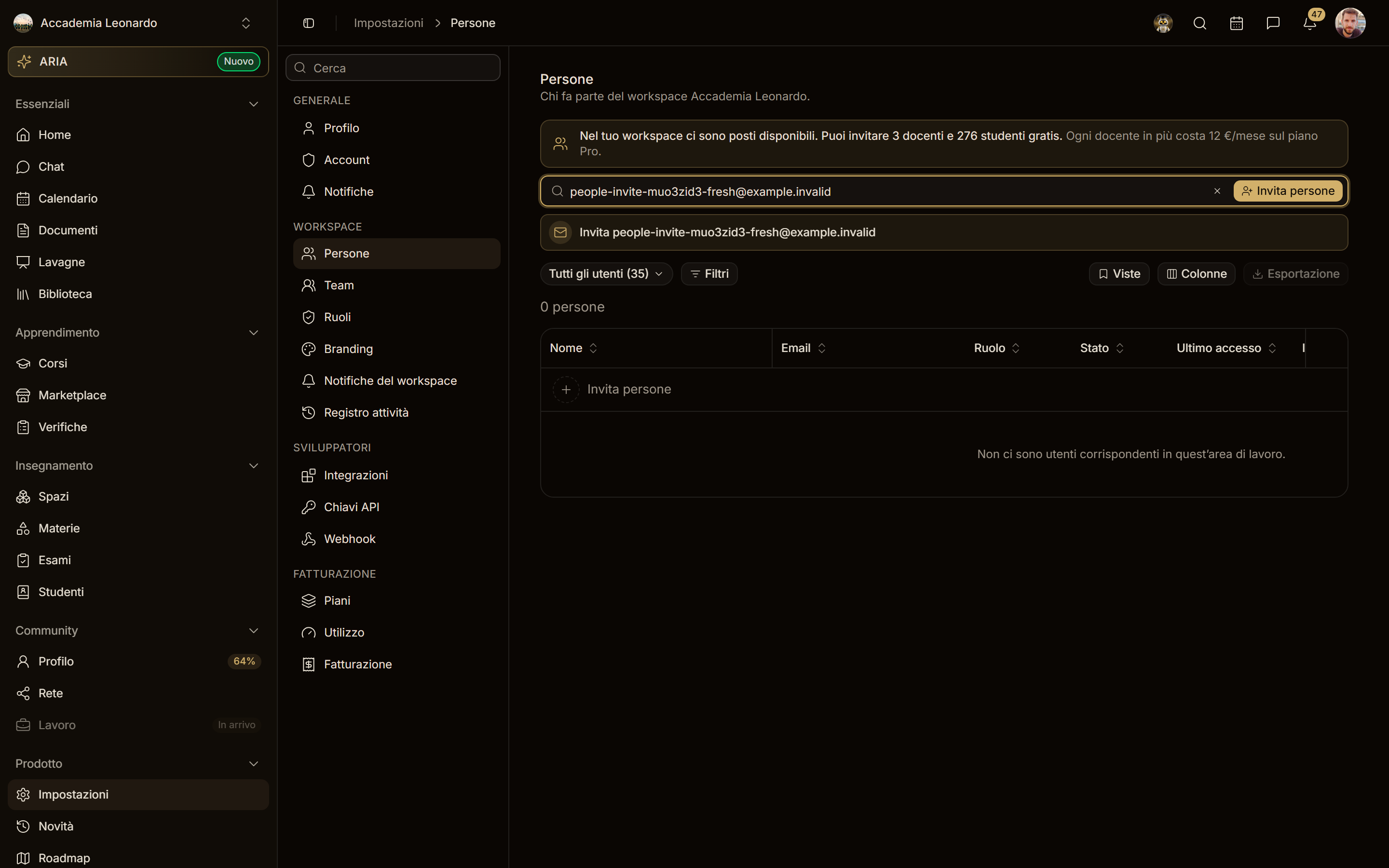
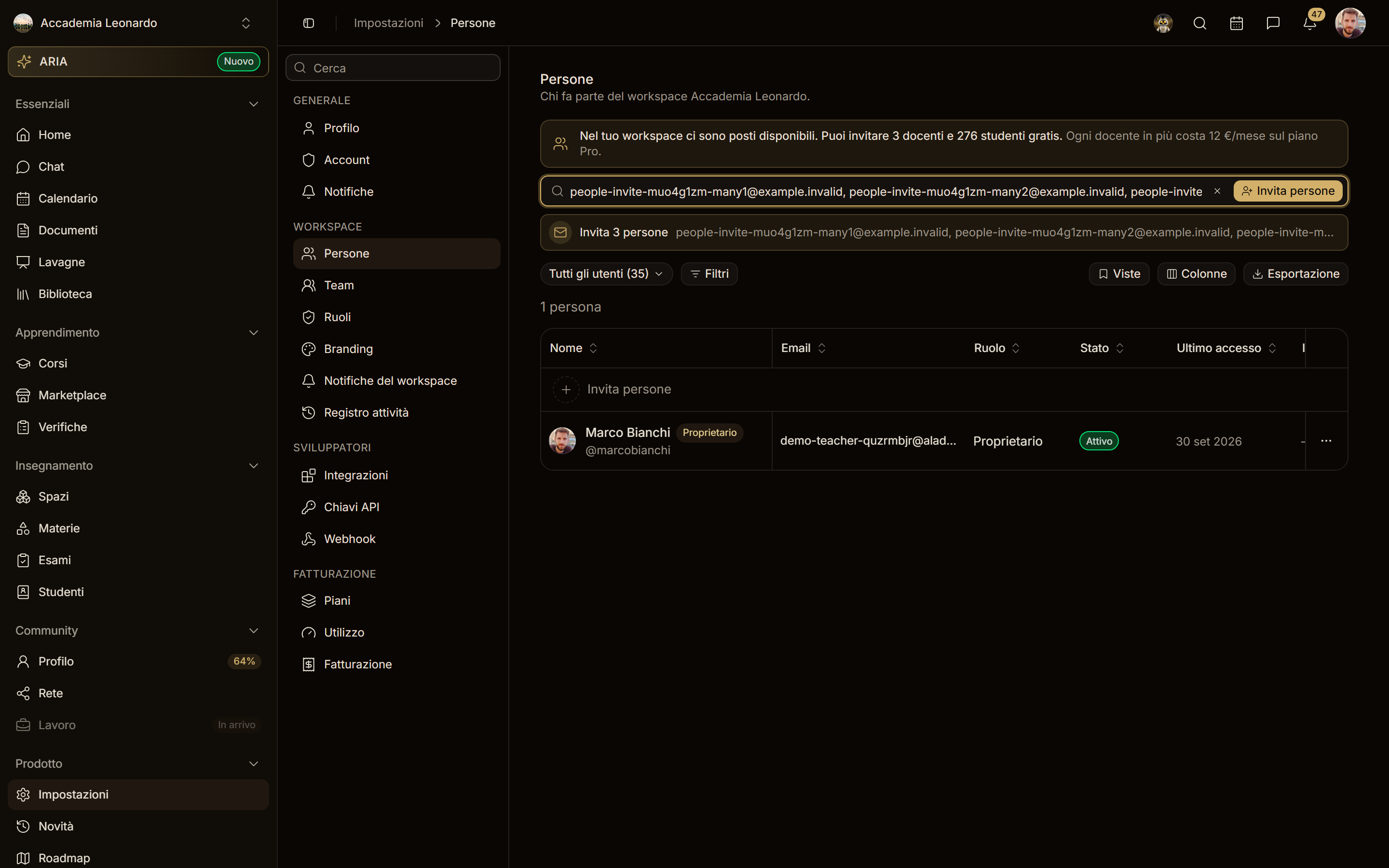
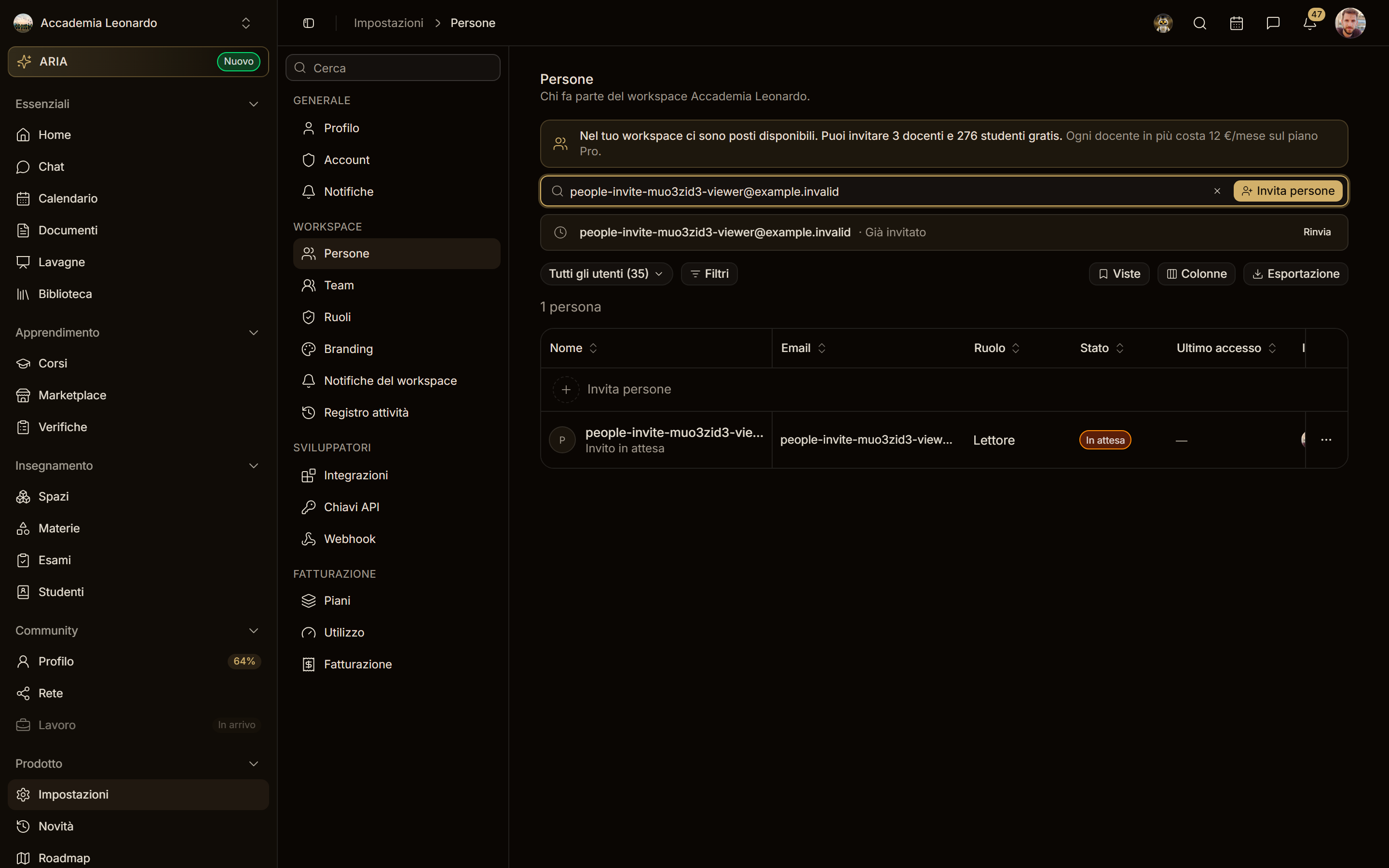
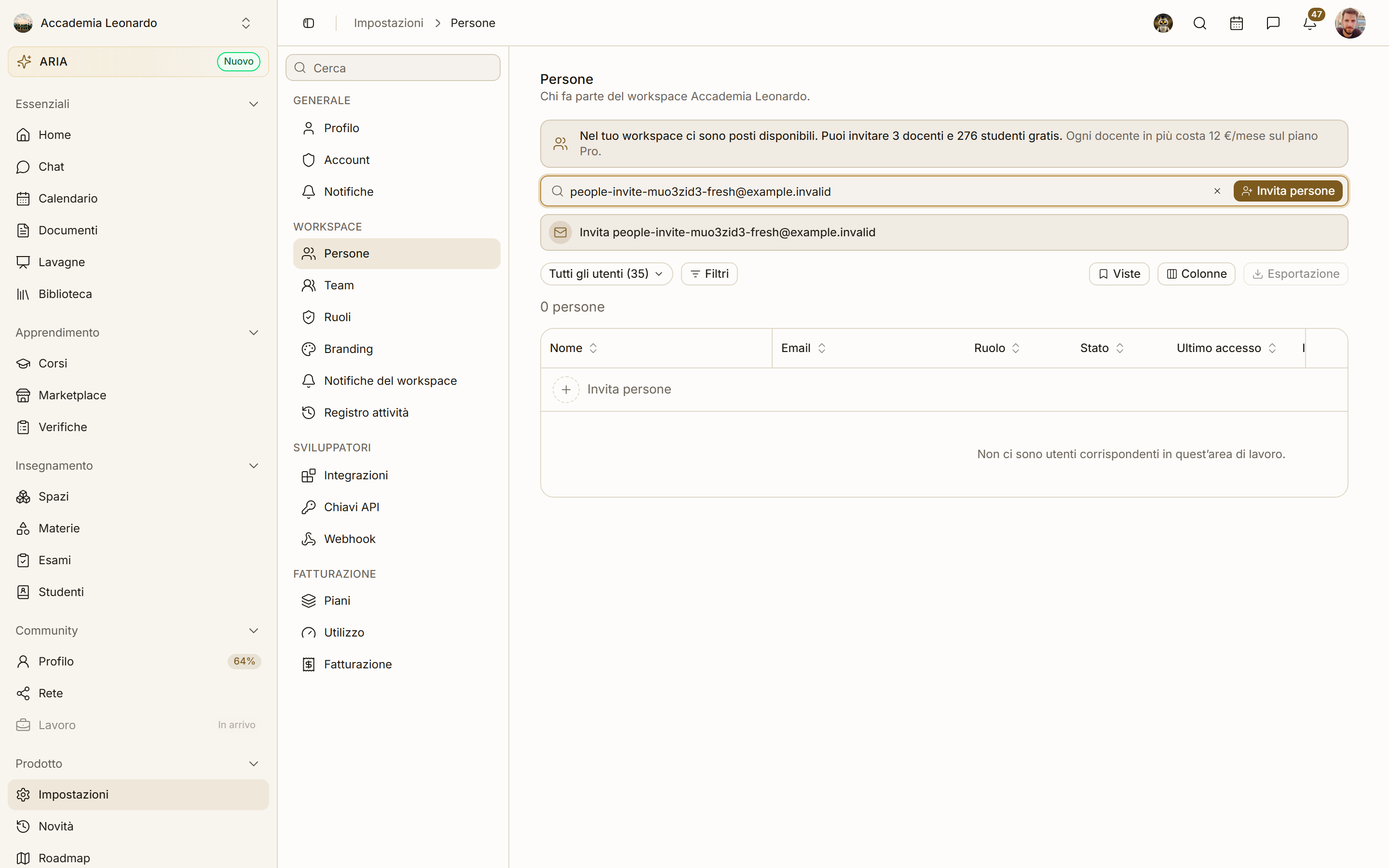
The seats banner, the search bar and the + Invite people button form a single block: the bar and the button sit in the same field, as in ClickUp. The bar filters the table by name, email or username, only among the people of this workspace. As you type:
- an email that is not in the workspace → right under the bar the row Invite name@example.com appears (with the envelope). A click or Enter opens the dialog with that address already filled in;
- several pasted emails, separated by comma, space or new line → the row becomes Invite 3 people and the dialog receives all of them; the table shows those already in the workspace;
- the email of a member → no invite row: the person shows up in the results;
- the email of someone with an open invitation → the row Already invited · Resend (or Invitation expired · Resend): Resend sends the email again with a new expiry.
With the keyboard: ↑ ↓ move through the suggested rows, Enter picks one, Esc clears the bar (like the X on the right). When nobody matches, the table says No matching users in this workspace.
People who cannot invite only see the search, without the button or the invite rows.
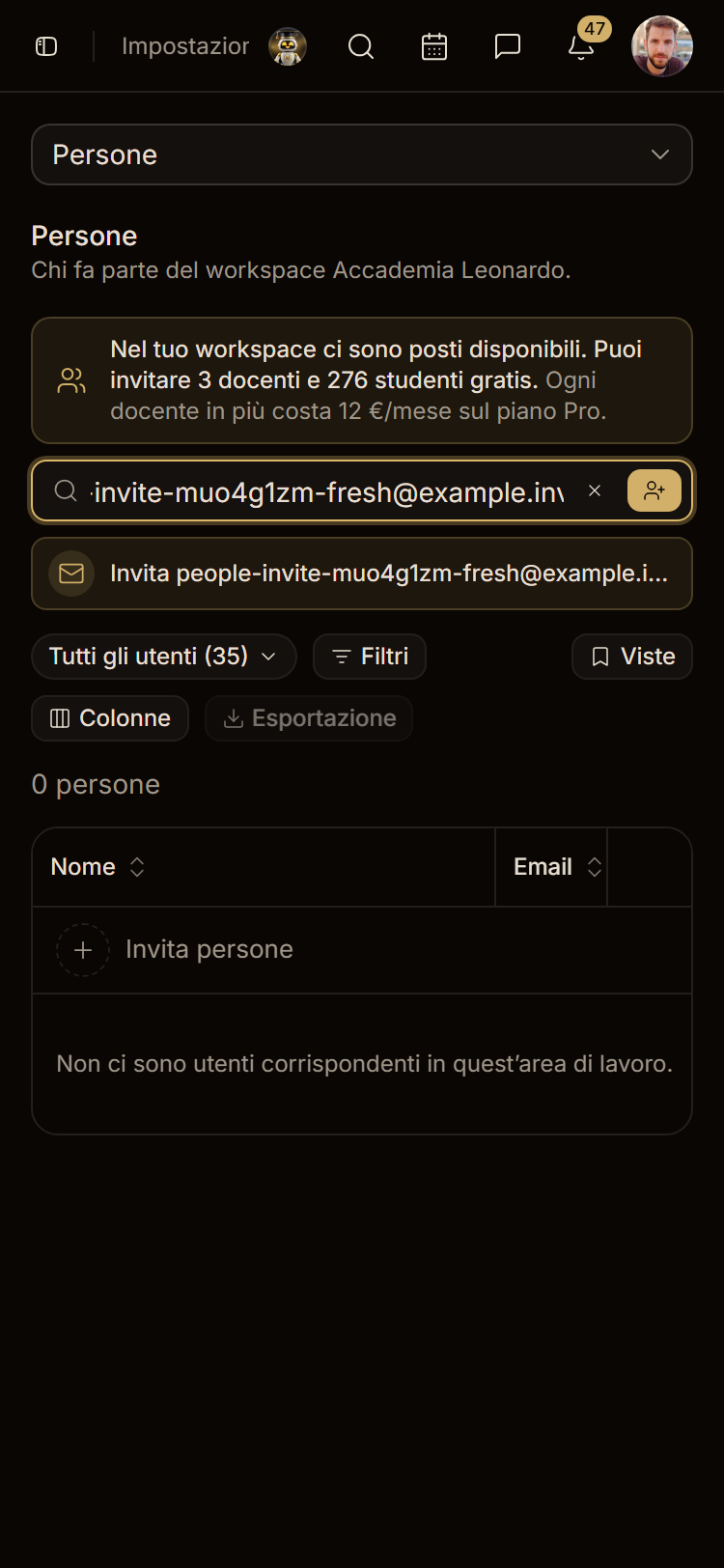
Next to it:
- All users (N) — a pill to see all users, Admins, Members, Viewers, Students or Pending invitations;
- Filters, Views and Columns — as before: conditions, saved views, column order and width;
- Export — a CSV of the rows on screen (name, email, role, status, last active, invited by, invited on, teams).
The columns: Name (with the Owner badge), Email, Role, Status, Last active, Invited by, Invited on, Team.
The Invite people dialog
-
Email — write or paste one or many addresses, separated by comma, space or Enter. Each becomes a chip: red if the address is not valid, amber if the person is already in the workspace or already invited (they are not invited again).
-
Invite as — only the roles you can give:
- Admin — can manage spaces, people, billing and settings;
- Member — can access every item of the workspace they have access to and create content;
- Viewer — sees only what is shared with them, free;
- Student — takes the courses they are enrolled in.
Custom roles are listed but are given to teams, not with the invitation; Add custom role opens Settings → Roles.
-
Seats — the box under the role: Invite these members for free. You have N seats available. If the people are more than the free seats: N invitations exceed the included seats: +€X/month from the next renewal (an estimate: paid seats are charged with the next release). Where the plan has no more seats (Free at its limit) the dialog offers Upgrade plan instead of sending. Admin and Member take Teaching seats, Student takes Learning seats, Viewer is free.
-
Send invitation — one invitation per email; a message sums up how many were sent. The rows appear in the table as Pending invitation.
Pending invitations
From ⋯ on a pending row: Resend invitation (new email, new expiry) or Revoke invitation (the link stops working and the row disappears). On an active row: Change role and Remove from workspace. The Owner cannot be removed.
The email
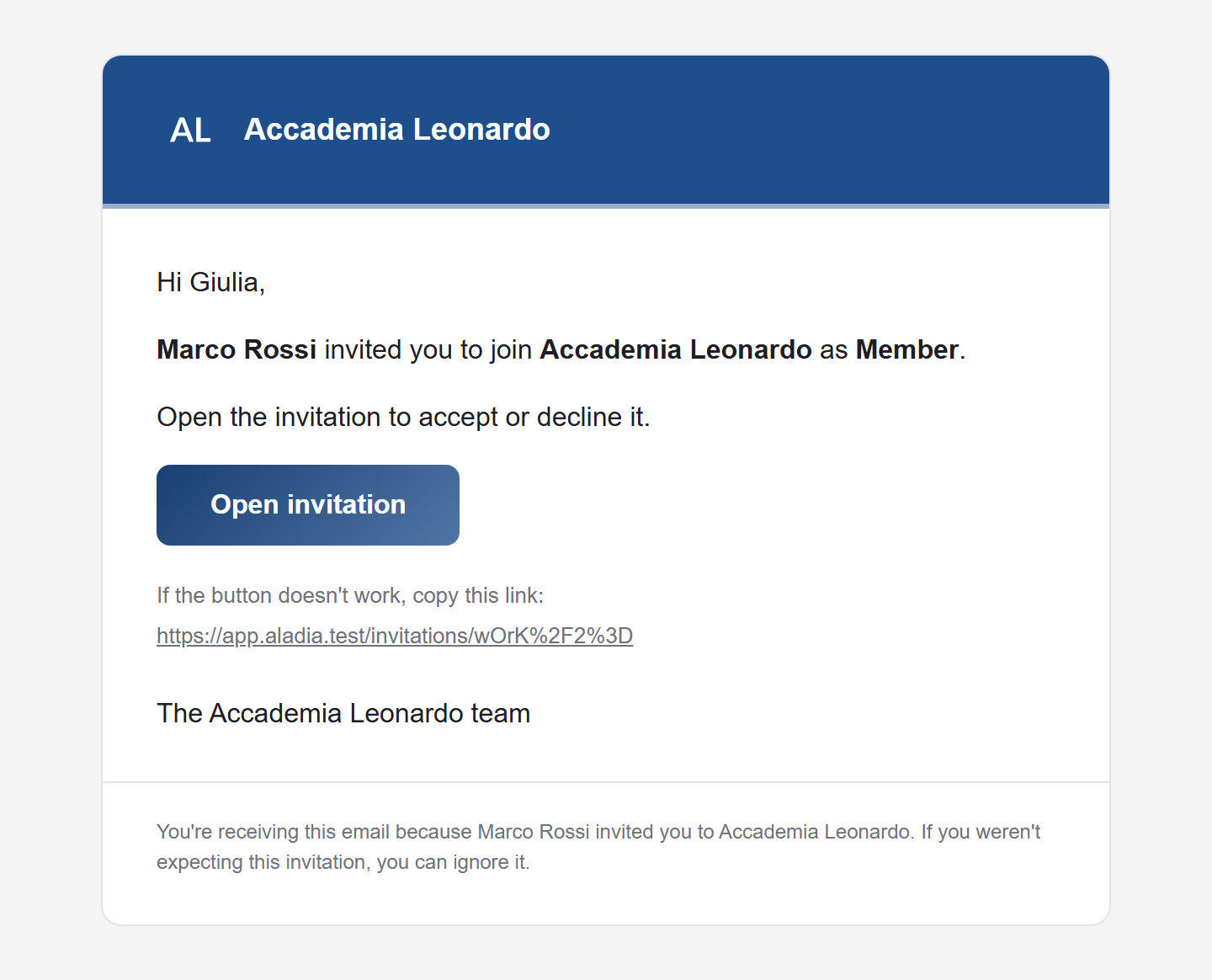
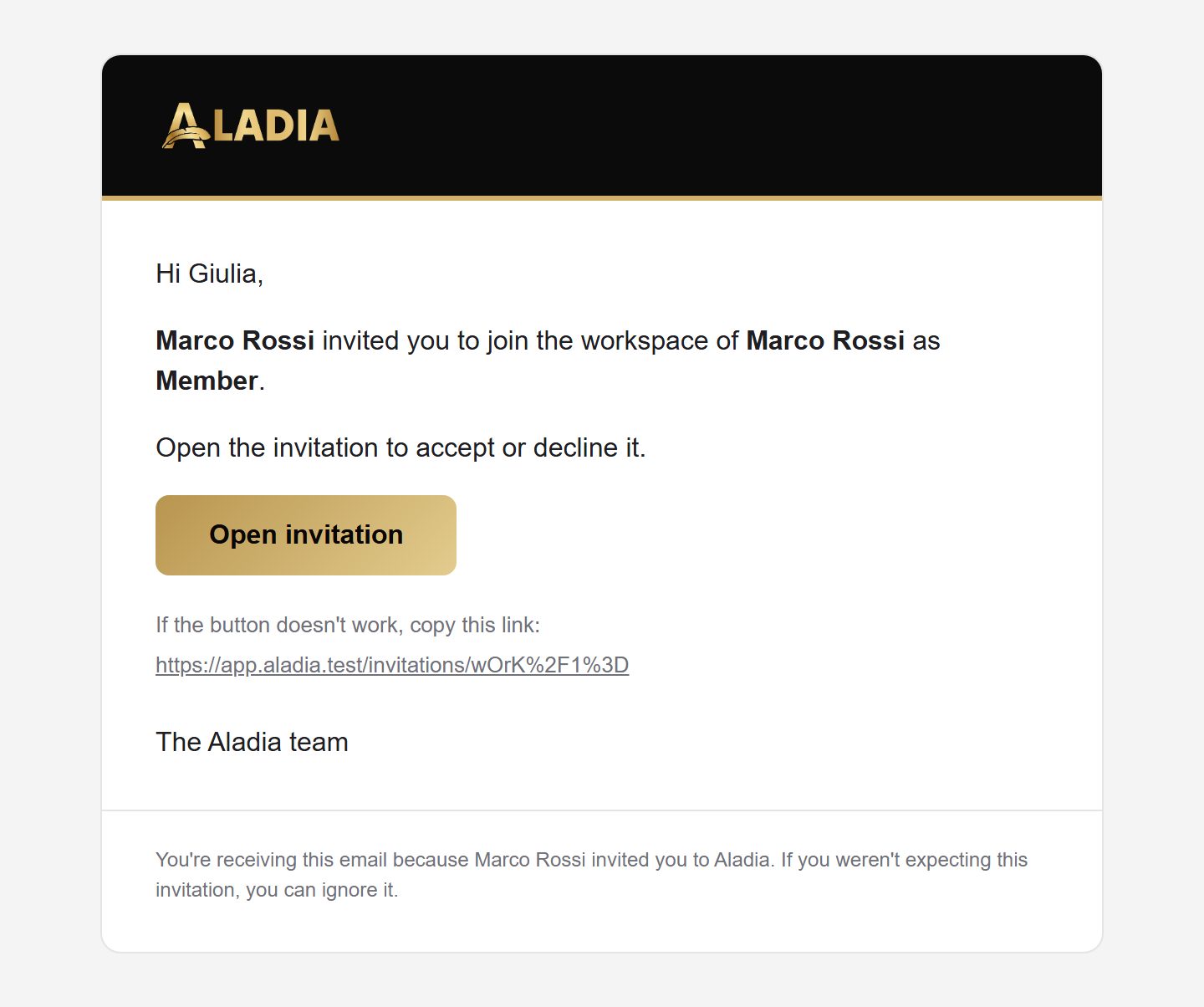
The email has the workspace theme (logo, name and colour from Branding; Aladia black and gold if none) and the language of the person invited: Marco Rossi invited you to join Accademia Leonardo as Member, a large Open invitation button, the link to copy if the button does not work.
The invitation page
The link opens the invitation page: who invites (photo and name), the workspace card, the role, Accept and Decline (fixed at the bottom on mobile). After accepting you enter the workspace and land on its Home. Opening the link again shows its state:
| State | What the page says |
|---|---|
| Pending | Accept or decline |
| Accepted | Invitation accepted — Enter the workspace |
| Already a member | You already have this role or a higher one — Enter the workspace |
| Declined | Ask for a new invitation if you change your mind |
| Expired | Ask for a new invitation |
| Another account | Sign in with the email the invitation was sent to |
| Revoked | This invitation was revoked or is no longer valid |
Personal workspace
The personal workspace is a workspace like any other: People has the same block, with the seats banner of your plan, the Search or invite by email bar, the + Invite people button and the Invite name@example.com row. The differences:
- only the holder invites, that is you: nobody enters someone else's personal workspace as a context, and the people in yours have no power over the workspace;
- Invite as offers Member, Viewer and Student: no Admin, and you are the Owner. Seats are those of your personal plan, with the same box in the dialog (Member = teacher seat, Student = student seat, Viewer free); past the seats the invitation is not sent;
- whoever accepts joins your personal workspace with the invitation role (if they were already in with a higher role, they keep it) and stays in their own context: they see what you share with them. They get no rights on spaces or courses until you share them;
- people still join as before too, by sharing a resource (space, course, calendar): whoever you add to one of your resources shows up in People on their own.
Pending invitations are resent and revoked from the row's ⋯, as in academies. The email has the same layout: Davide Ricci invited you to join the workspace of Davide Ricci as Student, with the branding of your personal workspace if you set it in Branding, otherwise with the Aladia theme. The invitation page says Davide Ricci's personal workspace, with the same workspace illustration.