Inviting people
Where the Invite button is for every resource, who the search finds, what the invitation email looks like and what happens when the invitation is accepted.
Draft · to be re-tested after the release (29/09/2026)
Who you can find, and how to invite everyone else
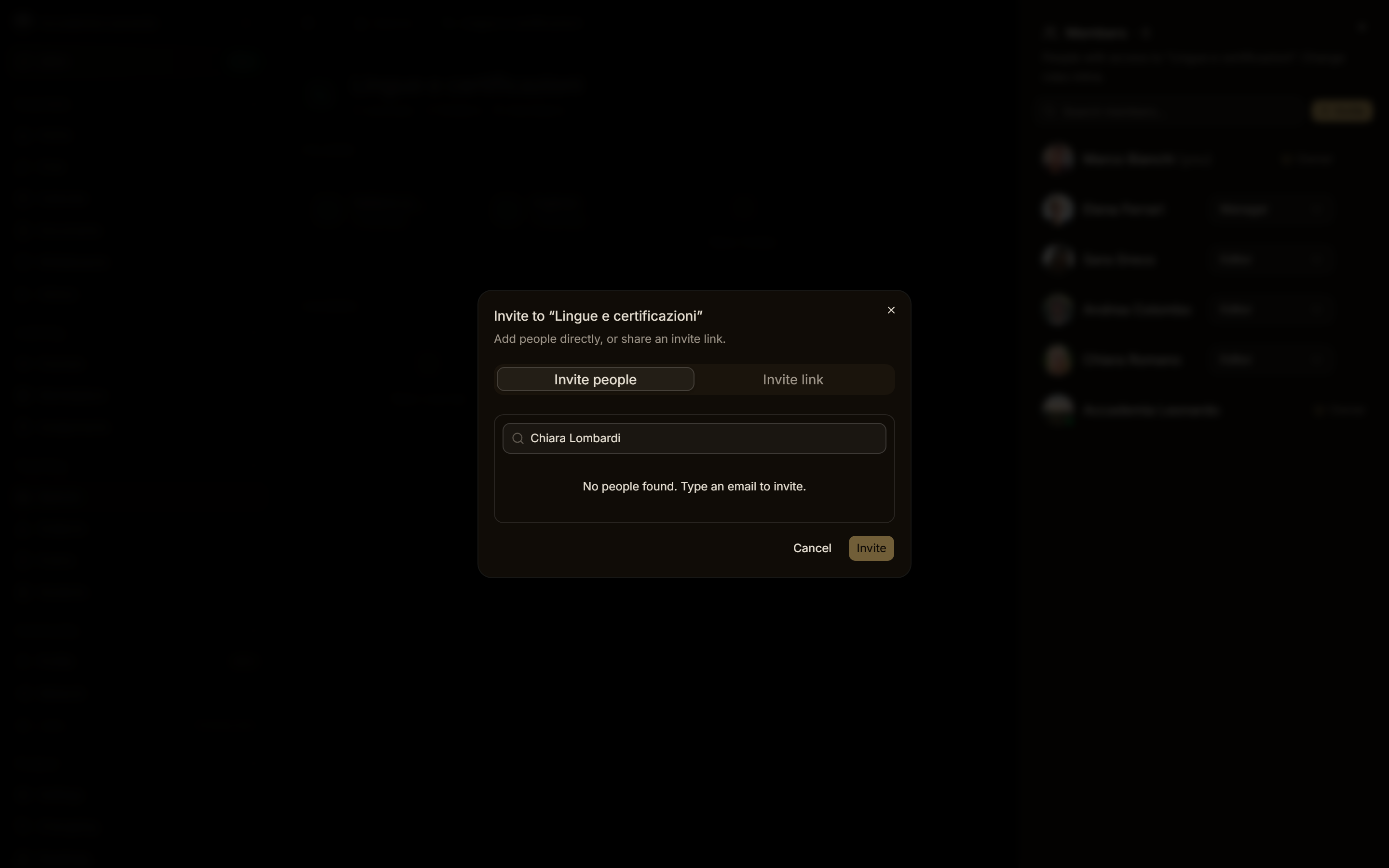
The people search in every invitation dialog shows only the people of your workspace:
- in an academy: its members, students included;
- in your personal workspace: the people already in a space, course or calendar that you own, or who accepted an invitation to the workspace (Invite people to the workspace).
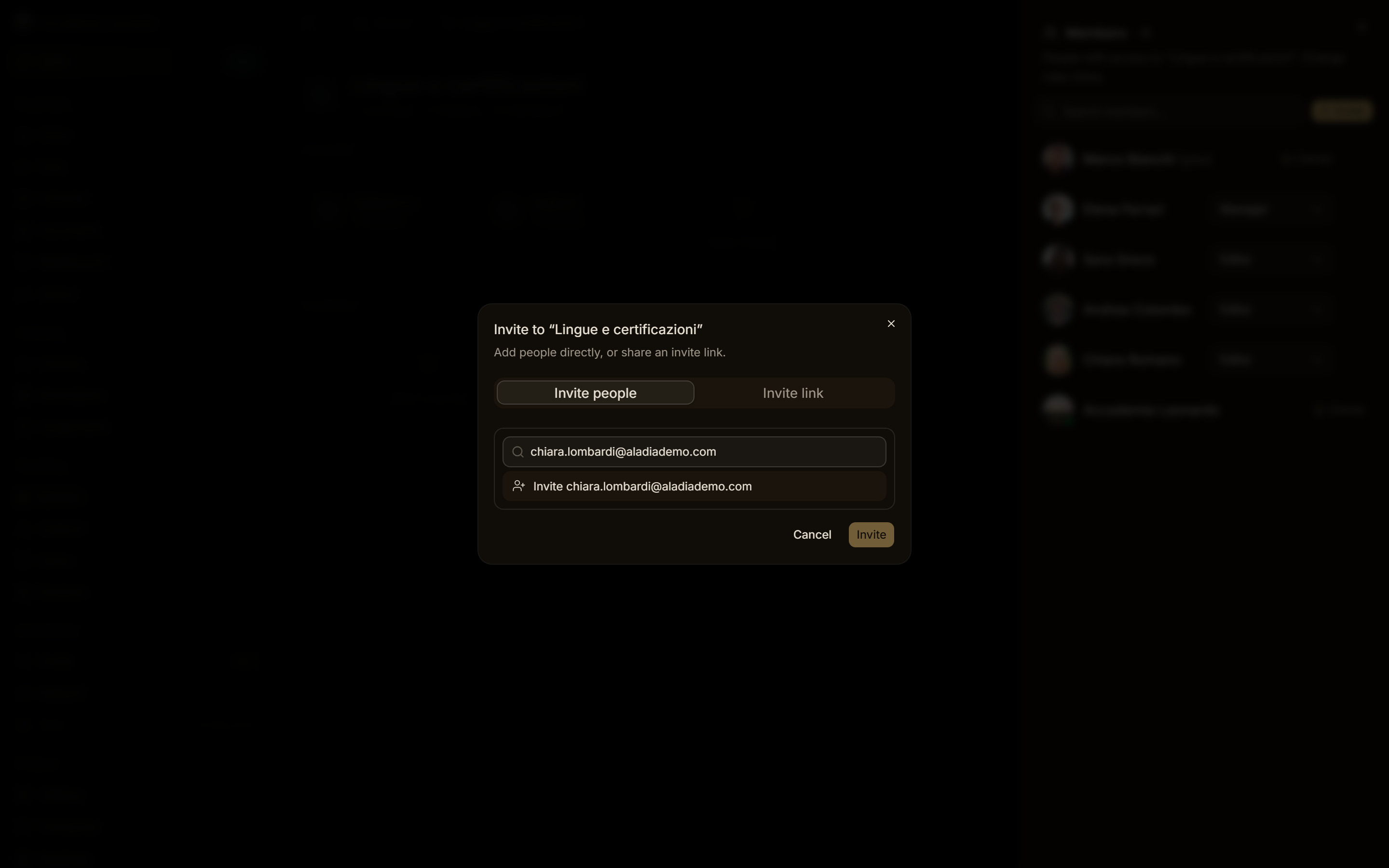
Anyone else is invited by typing their full email address: no suggestions appear for people outside the workspace, so nobody can browse the platform's users. Type the address and pick Invite <email>. If that address already has an Aladia account, the invitation also reaches them as an in-app notification.
Who can invite and with which roles is explained in Invitations and activity log.
Where the Invite button is
| Resource | Where |
|---|---|
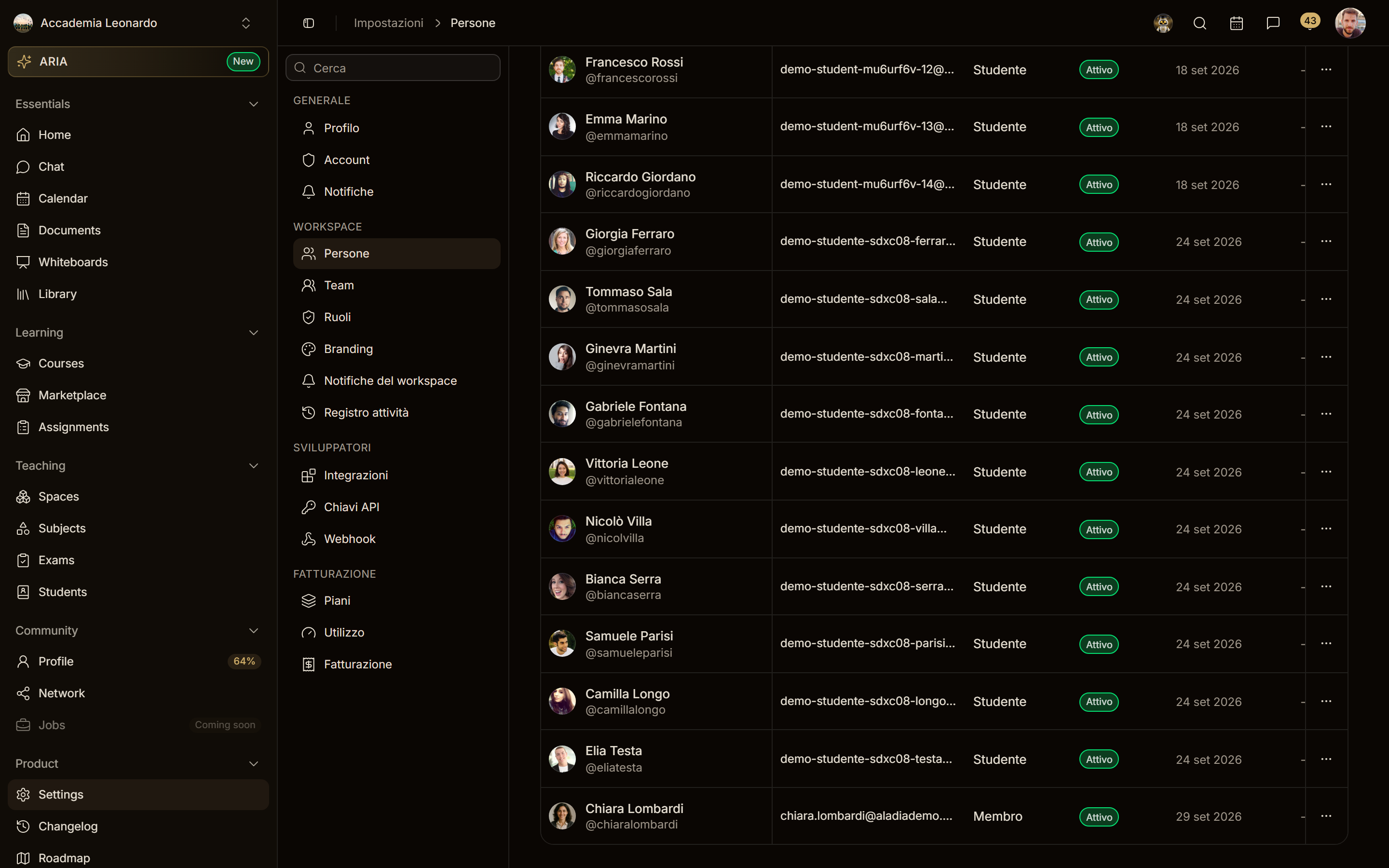
| Workspace (academy or personal) | Settings → People → Invite people: many emails at once, the role and the seats they take. See Invite people to the workspace. |
| Space | Open the space → ⋯ → Members (or the N members link under the title) → Invite. Tabs Invite people and Invite link. |
| Course | Course builder → Members → Invite. Tabs for people, invitation link and sale links. |
| Calendar | Calendar → Calendar settings (gear) → Members → Add people. The members of a course calendar are those of the course: there you only read them. |
| Event | Event editor → Participants: search or type an email, then Invite <email>. |
| Chat channel | Channel members → Add people, or when you create the channel. Only people of the workspace, no email invitation. |
| Subject area | Subject area → Members → Invite. |
| Subject | Teachers → Add teacher: you choose among the workspace staff (Owner, Admin, Member) and the members of the subject area; anyone not in the area joins it when assigned. |
| Library | Library → Members → Invite. |
| Exam collection, document, whiteboard | No Invite button in the app yet: share documents and whiteboards in a chat. |
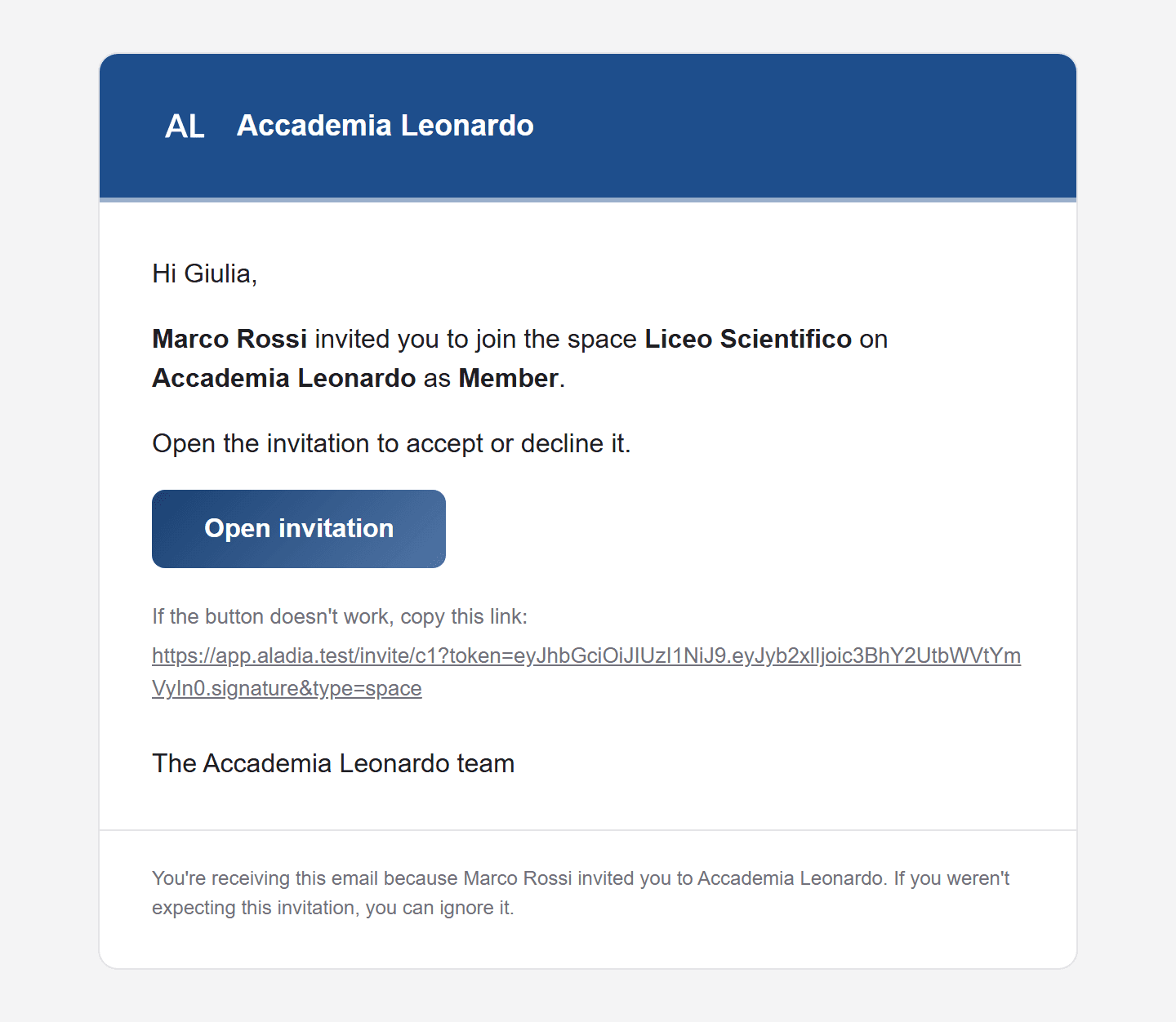
The invitation email
The email says who invites you, to what, in which workspace and with which role, and has one button: Open invitation. It carries the colours and the name of the academy that owns the resource; resources of a personal workspace use the Aladia theme.
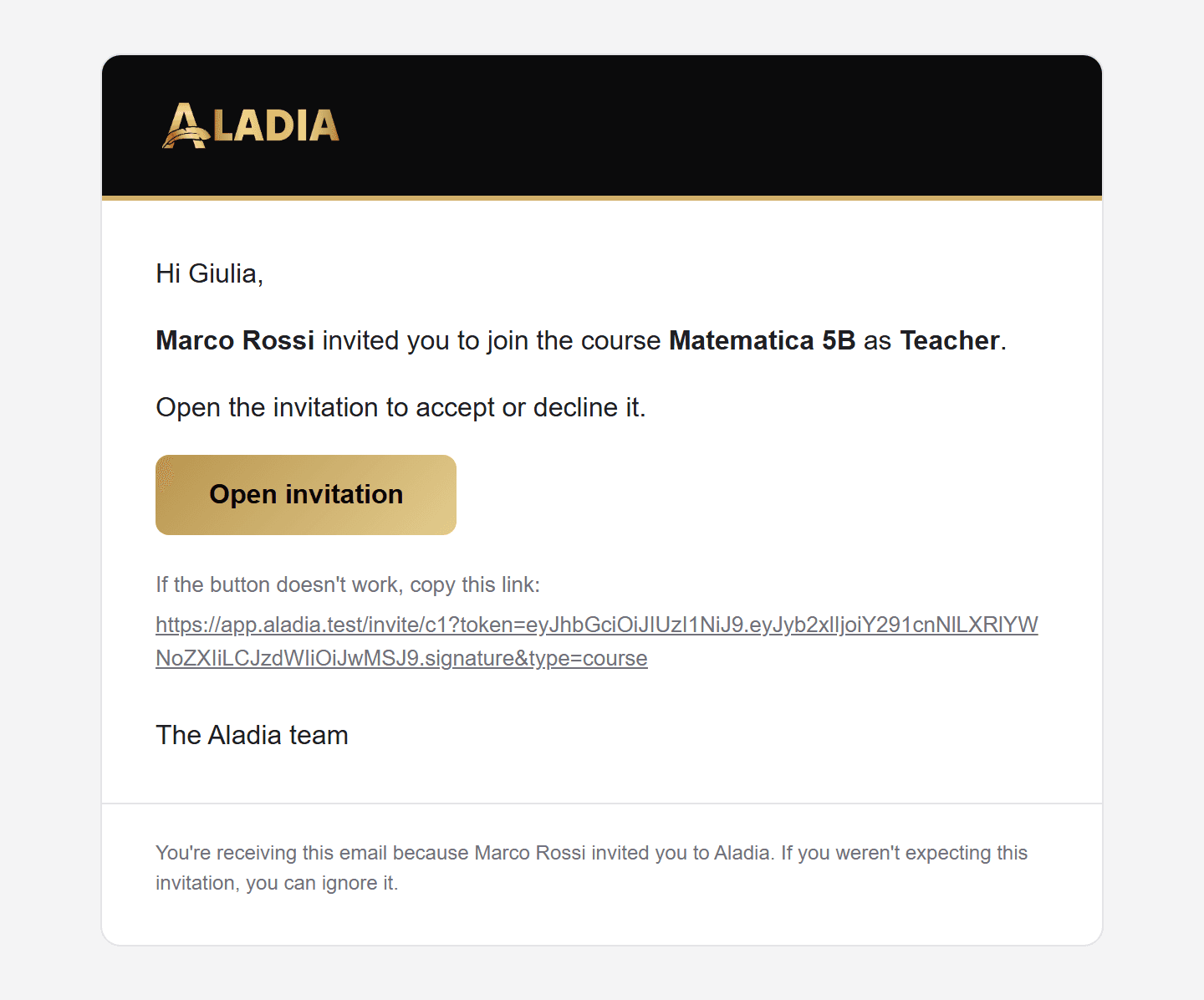
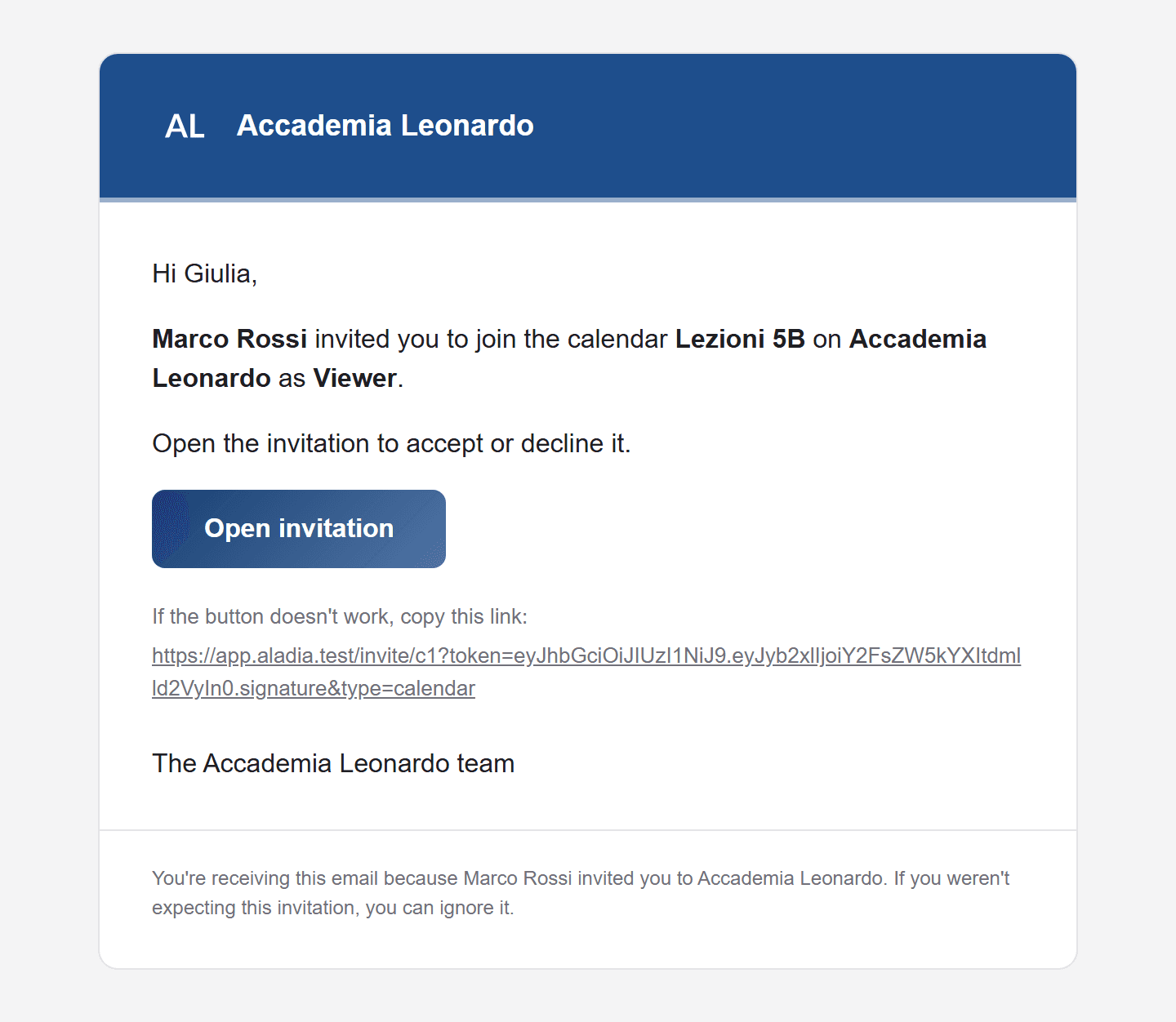
The invitation page
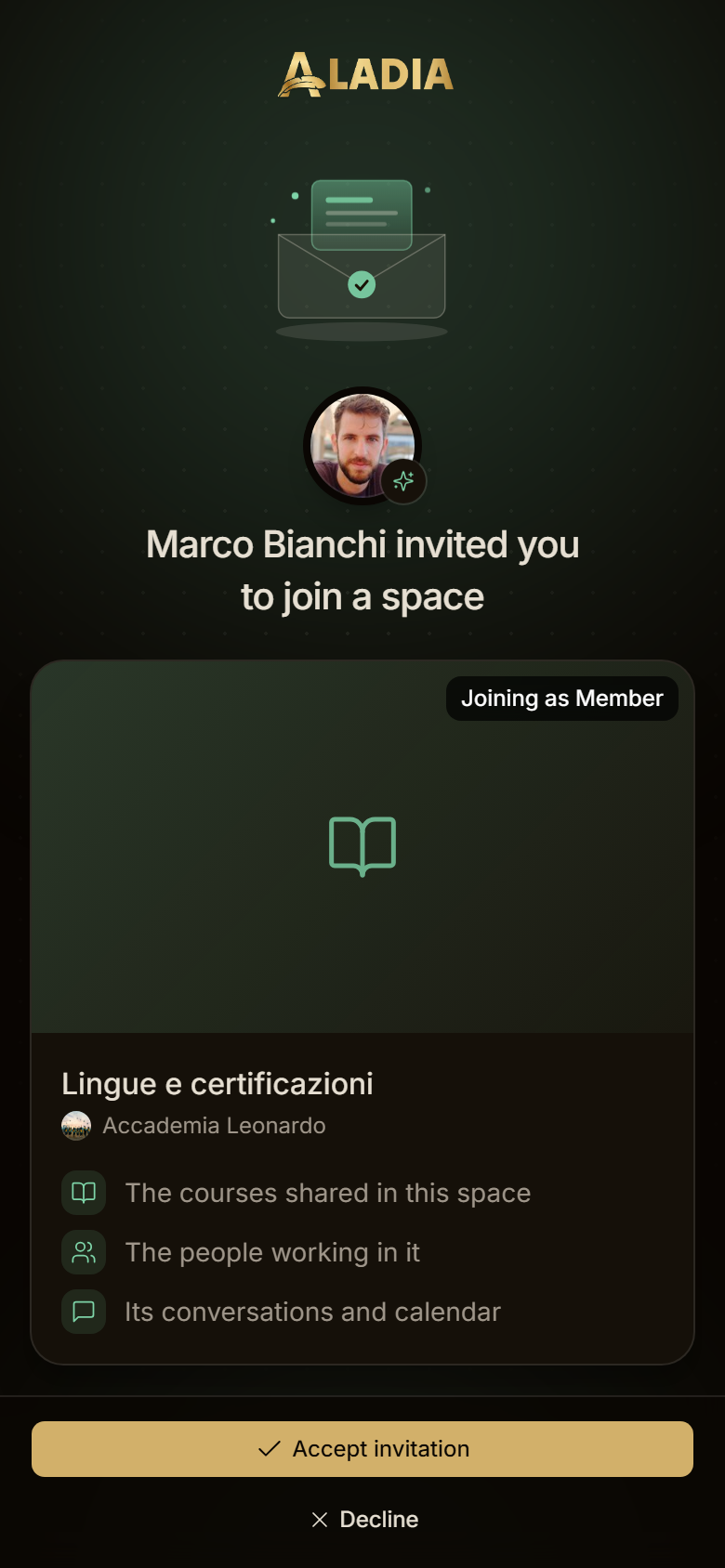
Open invitation leads to a page that shows the photo and name of who invites you, the resource and the role. If you are not signed in it asks you to create an account or sign in first. Every state of the invitation has its own message, so a link opened twice never asks you to accept again:
| State | What you see | Button |
|---|---|---|
| Waiting | <Name> invited you to join a space / course / calendar / event | Accept invitation, Decline |
| Accepted | Invitation accepted | Enter the space, Open the course, Open the calendar, Open the event |
| Accepted with another account | Already accepted with another account | Sign in with another account |
| Already a member | You’re already a member | the same entry button |
| Declined | Invitation declined | Go to Aladia |
| Expired | This invitation has expired | Go to Aladia |
| Withdrawn or replaced | This invitation is no longer active | Go to Aladia |
| For another account | This invitation is for another account (with the address it was sent to) | Sign in with another account |
| Broken link | This invitation can’t be opened | Go to Aladia |
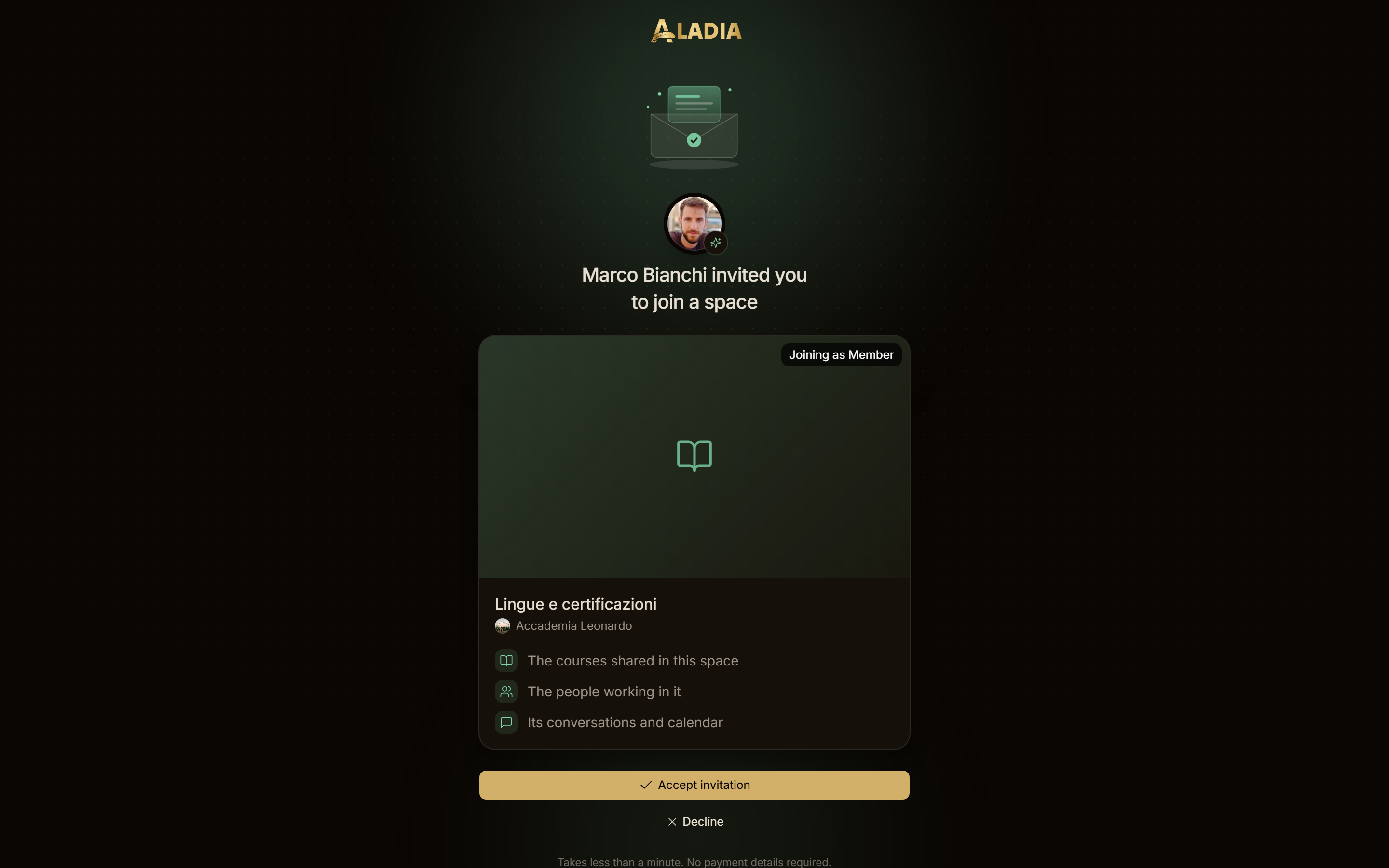
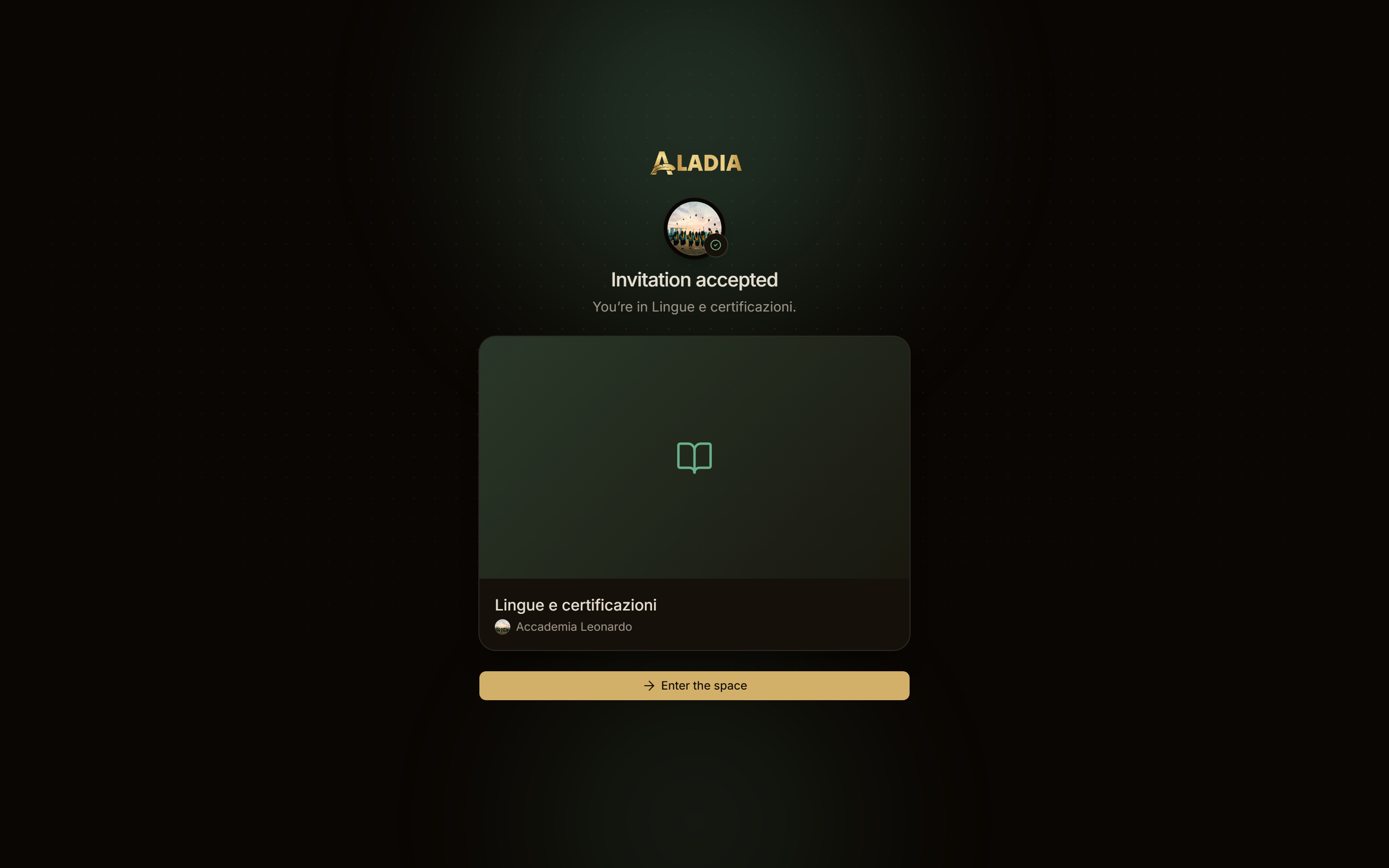
On a phone the buttons stay fixed at the bottom of the screen, above the system bar, while the page scrolls.
After accepting
Accepting an invitation to a resource of an academy also makes you part of that academy:
- Member for a space, a calendar, an event or a working role in a course;
- Student when you join a course as a student;
- Viewer when the invitation gives a viewer role.
A role you already have in the academy is never lowered. The page then switches to the academy and opens what you were invited to: the space, the course or the calendar. From that moment you appear in the academy's People.