
Thresholds and blocks
What you see at 80% and 100% of the limit, what happens to a blocked action and how to unblock it.
Thresholds apply to each meter on its own: reaching the AI credits limit does not stop emails or lives.
Below 80%
The bar is neutral. No notice.
At 80%: the notice
- The row turns amber and used/limit is in bold.
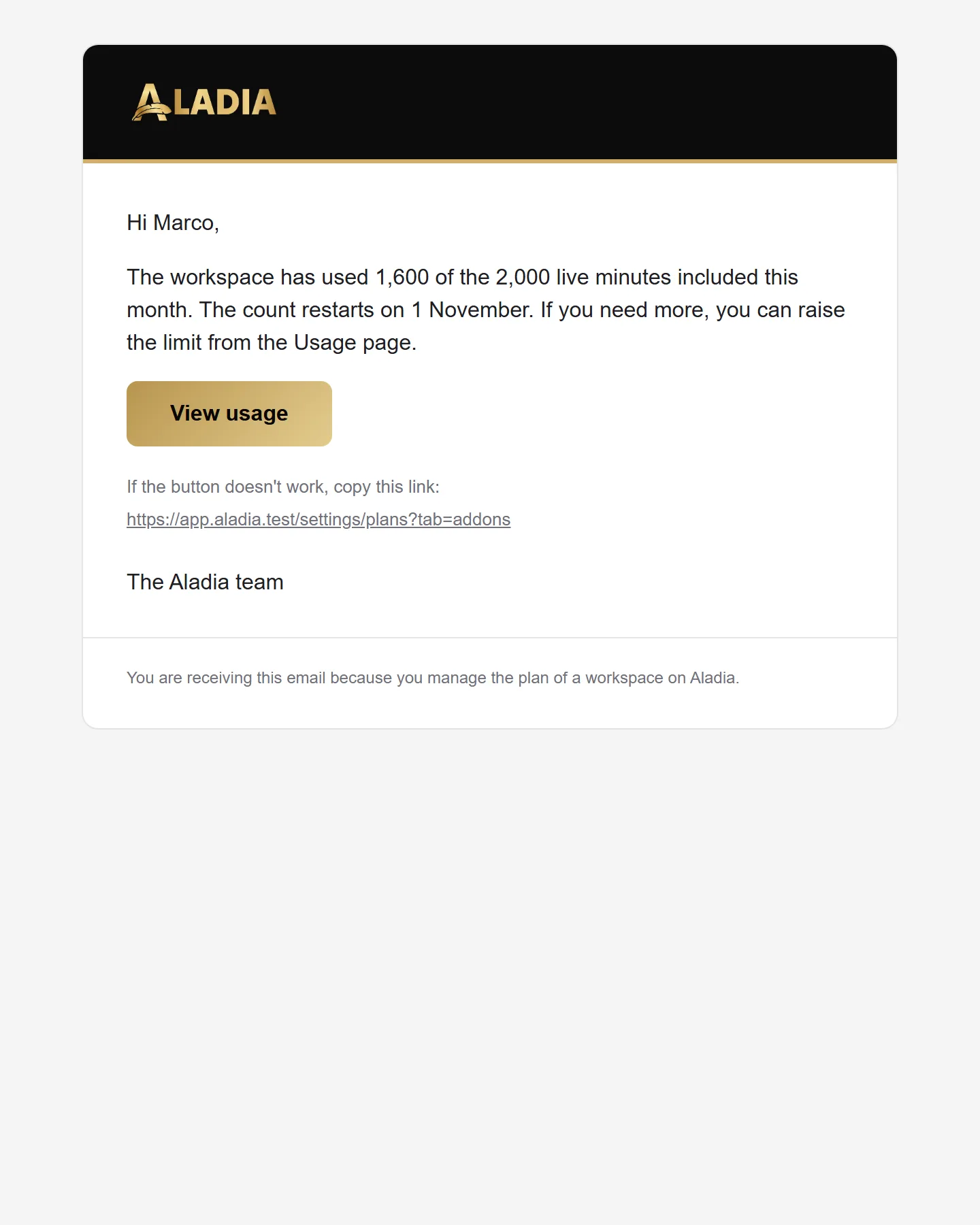
- The Owner, the Admins and the Billing role get an email, once per period and meter: "You have used 80% of this month's …", with the count and the day it restarts.
- Nothing changes in the app: everything works.
At 100%: the limit
- The row turns red.
- The second email arrives: "… limit reached". If "Avoid service interruptions" is on, it says usage is now billed up to the cap.
- Only that meter stops, and only when you are about to start a new use. A live already running is never interrupted, and joining a live that is already open always works.
- The block is active in every workspace where plans are active. Your data stays: only new usage stops, until the period renews, you add a pack or you move to a larger plan.
What stops, meter by meter:
| Meter | Action stopped at the limit |
|---|---|
| AI credits | A new question to ARIA, generating a course, a book or an image |
| Emails | Sending or renewing an invitation (academy, space, course, calendar, event) |
| Live minutes | Opening an instant room or starting a new live |
| Recordings | Starting a SyncUp recording |
| Storage | Uploading files |
When an action stops, a dialog opens: the meter name, "X of Y used this period, resets on …", and two buttons: See usage and Increase (AI credits and storage, to the pack) or See plans.
On the Usage page the stopped row shows Blocked at the limit.
How to unblock
From the fastest:
- AI credits or storage: buy a pack from Increase (Packs). The limit goes up right away.
- Pro and Enterprise: turn on Avoid service interruptions with a cap in €: usage continues and is billed.
- Upgrade from Plans: the new limit applies right away, the period's usage stays.
- Wait for the renewal: on the day shown in the dialog the count restarts from zero.
All the banners and notices of the app, with when they appear, are in Banners and status notices.