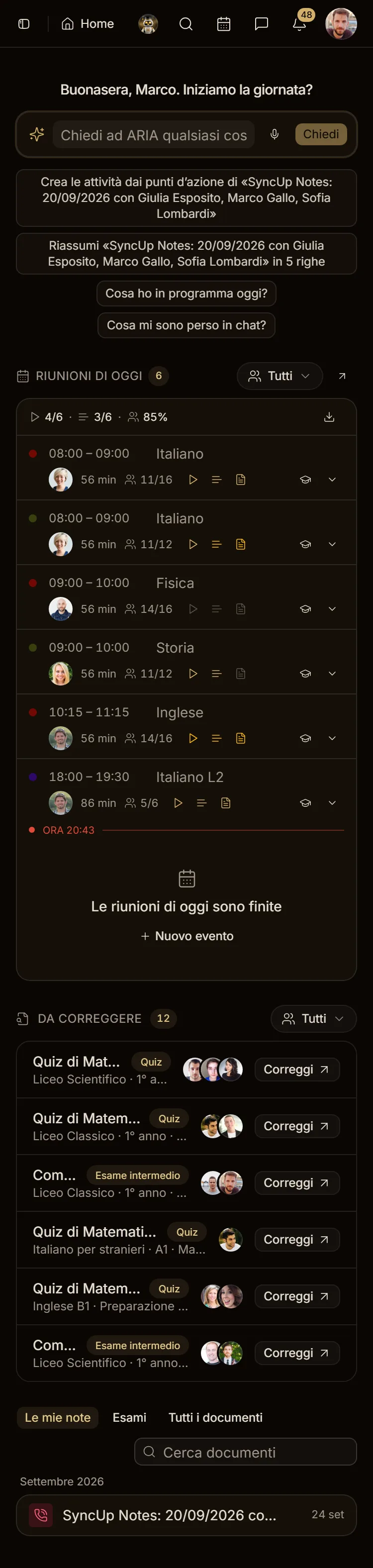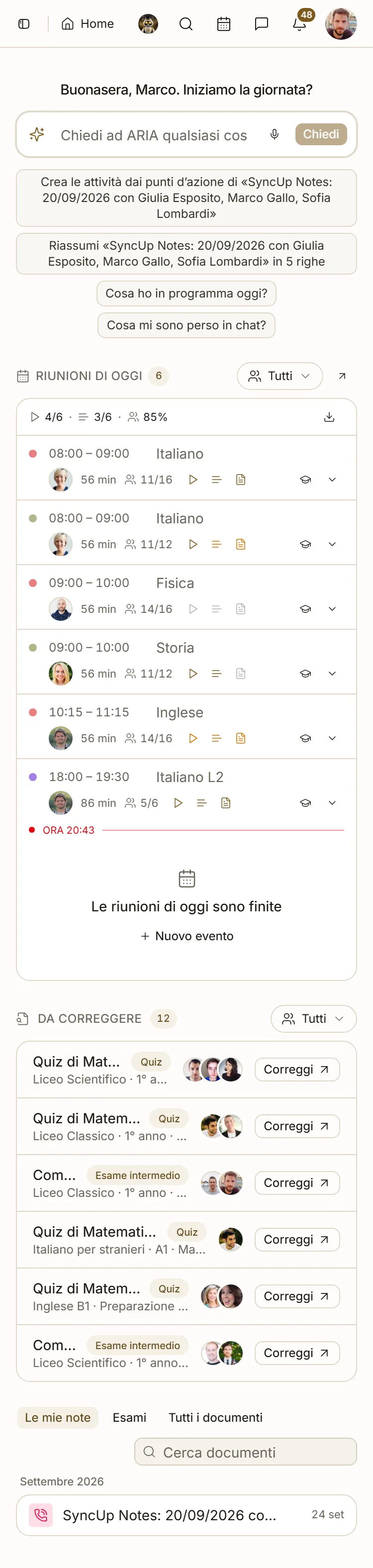
Today's meetings and report
In Home, the day's lessons and meetings with duration, attendance, recording, transcript and AI notes, plus CSV export.
Tested on …/…/2026 · version …
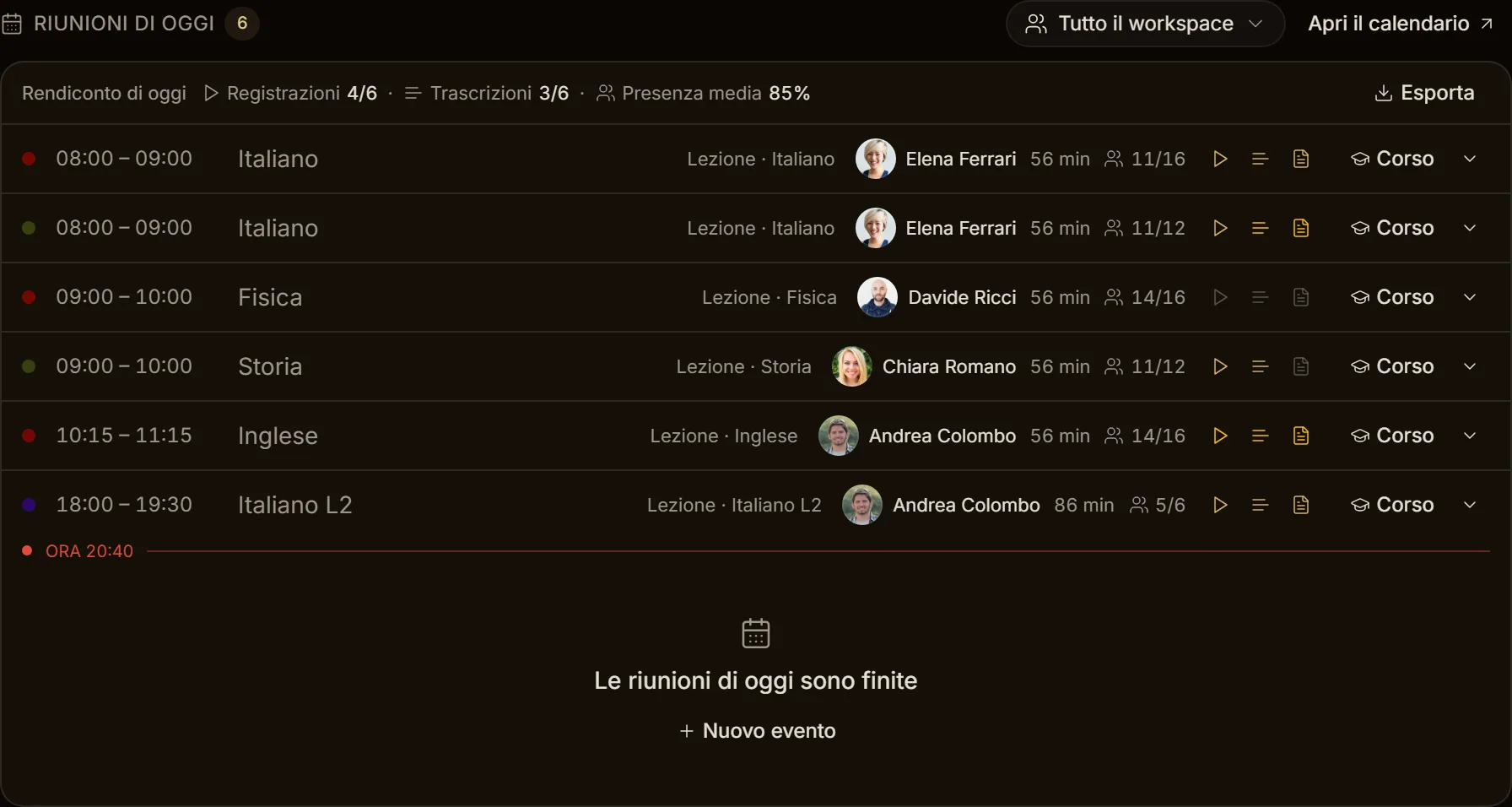
In Home, the Today's meetings box lists the day's lessons and meetings in time order. It does three jobs: join the meeting in progress, see what has already been done, and notice what is missing (a recording that isn't there, a transcript still being processed).
The row links
In a row, the title takes you to the lesson inside its course; a meeting outside courses takes you to the calendar, on that day and that meeting. Next to it, in Lecture · Mathematics · Year 1, the word "Lecture" is plain text, while the subject (with the level, when the lesson belongs to a level) takes you to its page in Subjects. The teacher's name and picture take you to their profile, even when the teacher is deactivated. The Course link stays where it was.
Hovering a link underlines it, but it only opens on click (on a phone, on tap), and opening it doesn't expand the row.
Choosing the period
In the section title, the word Today is the period picker: hovering it shows a box, a click opens the list.
| Period | Section title |
|---|---|
| Today (default), Yesterday, Tomorrow | Today's / Yesterday's / Tomorrow's meetings |
| This week (Monday to Sunday) | This week's meetings |
| Last week, Next week | Meetings · Sep 21–27 |
| This month | Meetings · October |
| Custom: start and end on the calendar, then Apply (31 days at most) | Meetings · Oct 1–15 |
The ‹ › arrows next to the title move by a whole period: a day, a week, a month or the days of the chosen range. The period stays in the page address (together with the person filter), so the browser Back button returns to the previous period and you can share the link.
With more than one day the meetings are split by day, under a small heading (Mon Oct 6) that stays in view while you scroll. The NOW line only appears on today, and The meetings … are over only when the period ends today. The report (recordings, transcripts, average attendance) and Export cover the whole period.
On a phone the picker opens in a panel from the bottom, with the periods as a list and the calendar below; the arrows stay next to the title.
The "NOW" line
A thin red line with the time (NOW 11:40) separates the concluded meetings, above, from the one in progress and the next ones, below. It moves on its own every minute. Concluded meetings are dimmed; the one in progress stays prominent.
Concluded meetings
Next to the title of each concluded meeting you find:
- the actual duration (for example 58 min), from when the room opened to when it closed;
- present over expected (for example 22/24; — when the lesson has no attendance data at all, neither in the registry nor from the room): for lessons, the students of the course; for other meetings, the invitees. Attendance is shown only to whoever manages the meeting (academy Owner and Admin, teachers and managers of the course or event); students don't see other people's attendance;
- three icons, for recording, transcript and AI notes.
| Icon colour | Meaning |
|---|---|
| Coloured | Available: one click opens it in a new tab |
| Amber | Processing: the recording arrives in a few minutes, transcript and notes within 24 hours |
| Grey | Missing: the meeting wasn't recorded, the transcript failed, or AI notes are off for the course |
Hover (or tap) an icon to read its state. AI notes arrive after the transcript, and only for courses with AI summary turned on in the course settings.
The arrow at the end of the row opens the details: who attended and who didn't (absent people in grey, latecomers marked late) and links to recording, transcript, notes, calendar and course.
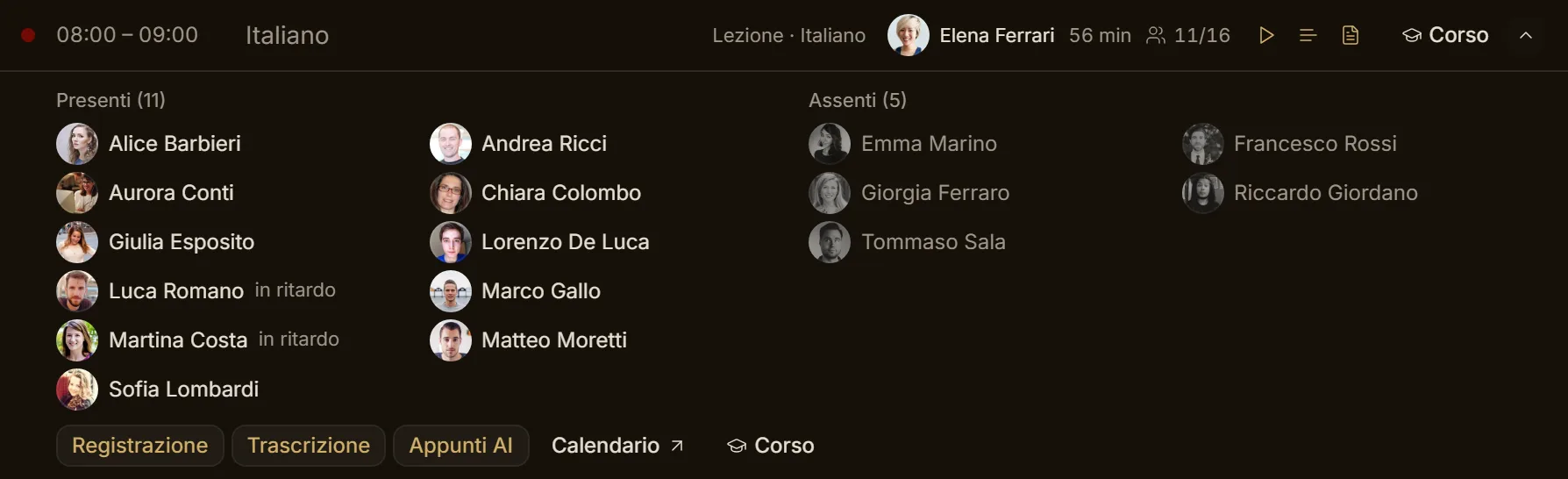
Lesson attendance comes from the course attendance registry; until the registry is updated, room entries are used.
The meeting in progress
The meeting in progress has the red dot, how long it has been open and how many people are connected (for 10 min · 23 connected), a red REC icon when it is being recorded, and the Join button.
If the time has started but nobody has opened the room yet, the row says not open yet and Join opens it.
Upcoming
Scheduled meetings show the video camera icon (you join from the Aladia room at lesson time). Only the first one says how long is left: in 2 h 20 min.
Today's report and export
Above the list, one line sums up the day over the concluded meetings: Recordings 4/5, Transcripts 3/5 and Avg. attendance 93% (computed only over the lessons with attendance data; — when there are none). When they are all over, Today’s meetings are over appears under the list. Export downloads a CSV file (semicolon-separated, opens straight in Excel) with one row per meeting and the columns: date, time, title, course, subject, teacher, duration, present/expected, recording, transcript, notes, link.
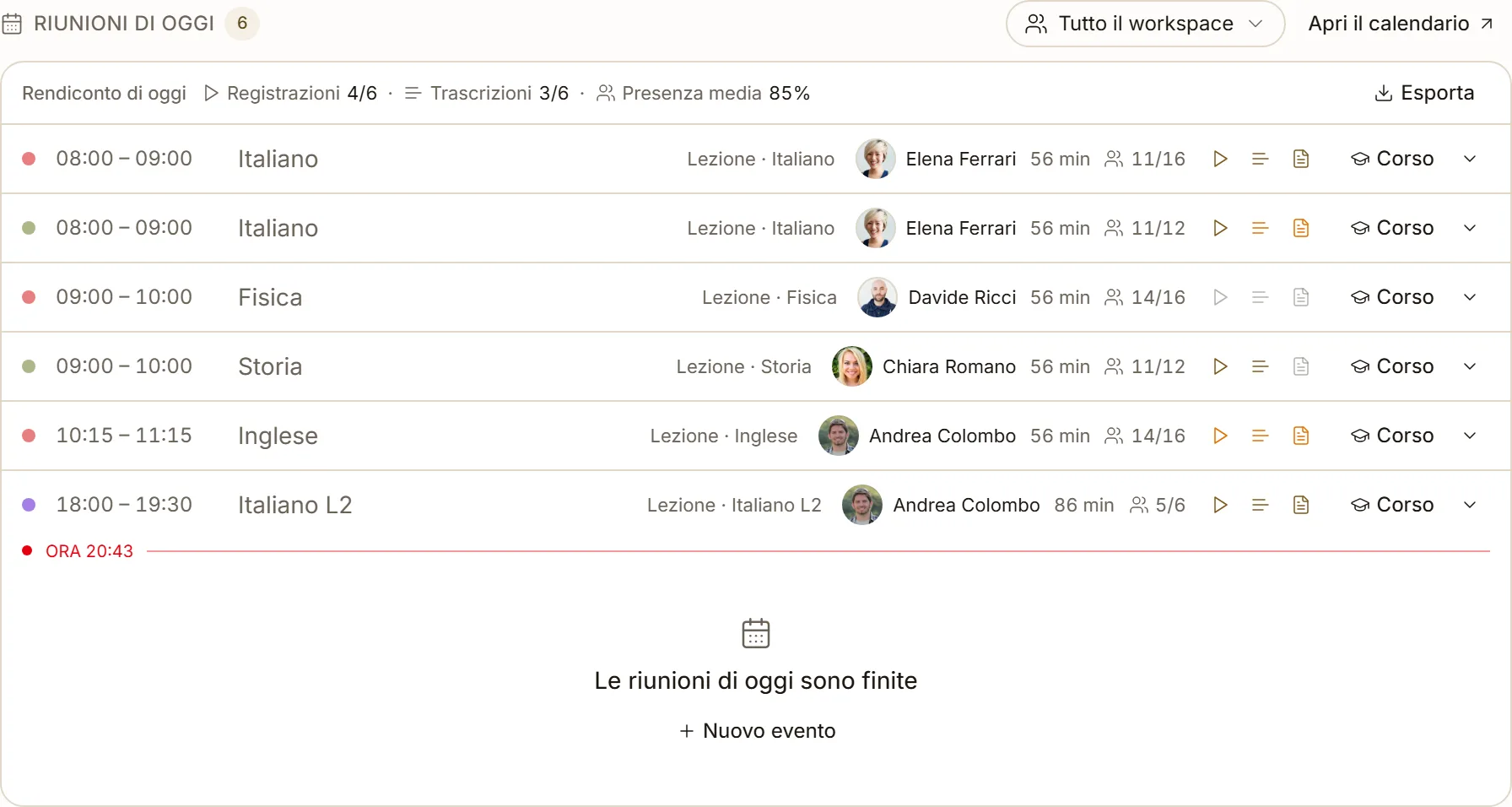
Export is shown to whoever manages at least one of the day's meetings.
On a phone
On a phone each meeting takes two lines: time, title and status on top; duration, attendance and the three icons, or Join, below. The report shrinks to icons with numbers (4/5 · 3/5 · 93%).
When you look at the meetings of the whole workspace or of another person, each row also shows the teacher; a deactivated teacher appears greyed out with deactivated.