
Who is responsible for what
Who answers for a lesson, a meeting or a submission to grade, how teachers join courses, what happens when a teacher changes and how the Home filter works.
Every lesson, meeting and document to grade has one or more responsible people: the people who see it on Home under Assigned to you, who grade the submissions and who are invited to the calendars. Aladia always works them out on the spot, with one rule. There is no "responsible" field to fill in: when the teachers change, the responsible people change too.
The order: level, subject, course, manager
For a lesson, a meeting or a document, the responsible people are:
- for a lesson or meeting covered by a substitution (see Substitutions), on the days of the substitution: the substitute instead of the usual teacher. For a submission to grade the same applies only if the substitution also hands over grading and is running;
- the teachers of the subject's level, if the item is linked to a level and that level has at least one teacher;
- otherwise the teachers of the subject;
- otherwise the course Teachers;
- for an event outside a course, the event manager (the event's Manager or, if there is none, whoever created it).
A few special cases:
- a level without teachers does not leave the item without a responsible person: it falls back to the subject's teachers. The level page says so: under Teachers it shows the Subject teachers (they also apply to this level), and the same for books; Assign adds teachers just for that level, and from then on they apply instead;
- a document (for example an exam in the course) without a subject of its own takes the subject of the lesson it is attached to;
- an exam with several subjects has all the teachers of those subjects as responsible people, each subject with its own level → subject rule. It falls back to the course Teachers only if no subject has teachers;
- a course without subjects: its Teachers are responsible.
Whoever already graded a submission stays in the history as the author of that grading, but no longer decides who is responsible for it.
Teachers join the course on their own
When a subject or a level is linked to a lesson of a course, or when a document linked to a subject is attached to a course, the teachers of that subject or level become course Teachers:
- they join active, with no invitation to accept, and get the notification You are a teacher of "course" for subject;
- Aladia remembers that they joined automatically and for which subject or level;
- they leave on their own when no lesson and no document of the course uses that subject or level any more, or when they leave the subject or the level;
- people added by hand to the course are never removed automatically;
- Deactivated people (see below) are not added.
Joining a course does not take a seat of the plan: only the workspace staff (Owner, Admin, Member) join, and they already have their seat.
Changing a teacher
When you change the teacher of a level or a subject, whoever comes in takes the place of whoever leaves: on Home they see exactly what the previous teacher saw.
What passes to the new teacher:
- the submissions to grade;
- a grading started and not finished yet: the new teacher finds it with the note Grading started by and the name of whoever started it;
- the future events of the level or subject, with the same role;
- the calendars of the level or subject;
- the Teacher place in the courses that use the level or subject, and with it the course chats.
What stays with the previous teacher, as history:
- the gradings already finished;
- attendance and past events;
- messages.
If the level has two teachers and one leaves, nothing passes to anyone: the other teacher was already responsible and stays so. If the only teacher leaves, the place stays vacant: the first teacher who comes in takes it over.
Replace teacher
You change a teacher from Subjects: in the subject's Teachers tab (Replace teacher button) or in the level (Replace button). A dialog opens in the middle of the screen:
- pick who leaves among the current teachers (if there is only one, it is already picked);
- pick who comes in among the workspace staff (Owner, Admin, Member), searching by name: people already in the area come first. Anyone not in the area yet joins it with the replacement, and the summary says so;
- before you confirm, the summary shows what passes to the new teacher: the submissions to grade (and how many gradings were already started), the future meetings and the courses of the subject or level. If other teachers stay, the summary says nothing passes;
- after Replace, the confirmation shows the same numbers. Calendars and future meetings update within a few seconds.
The button is for whoever can edit the subjects of the area (workspace Owner and Admins, area Managers and Editors). On a phone the dialog takes the width of the screen and works by tap.
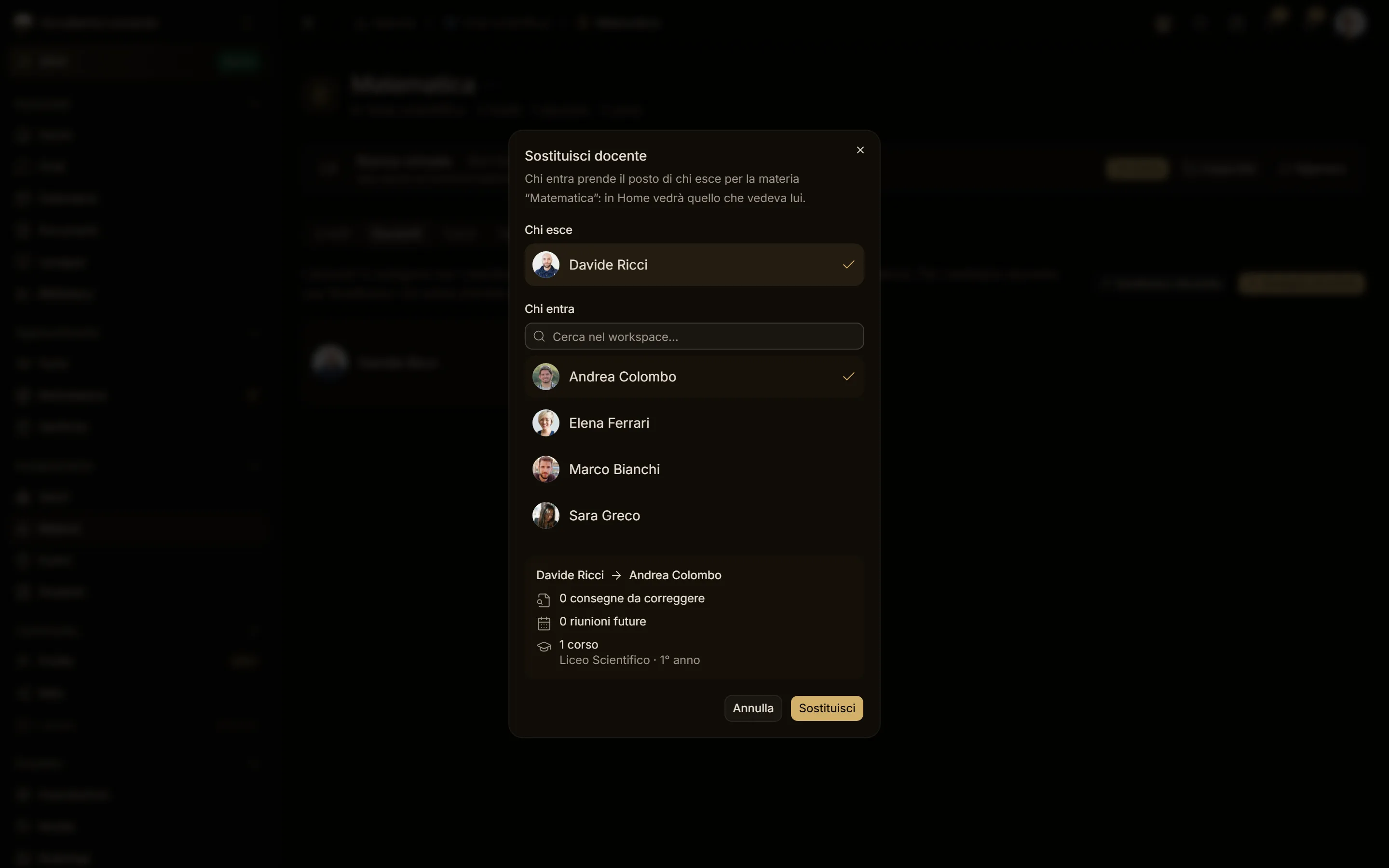
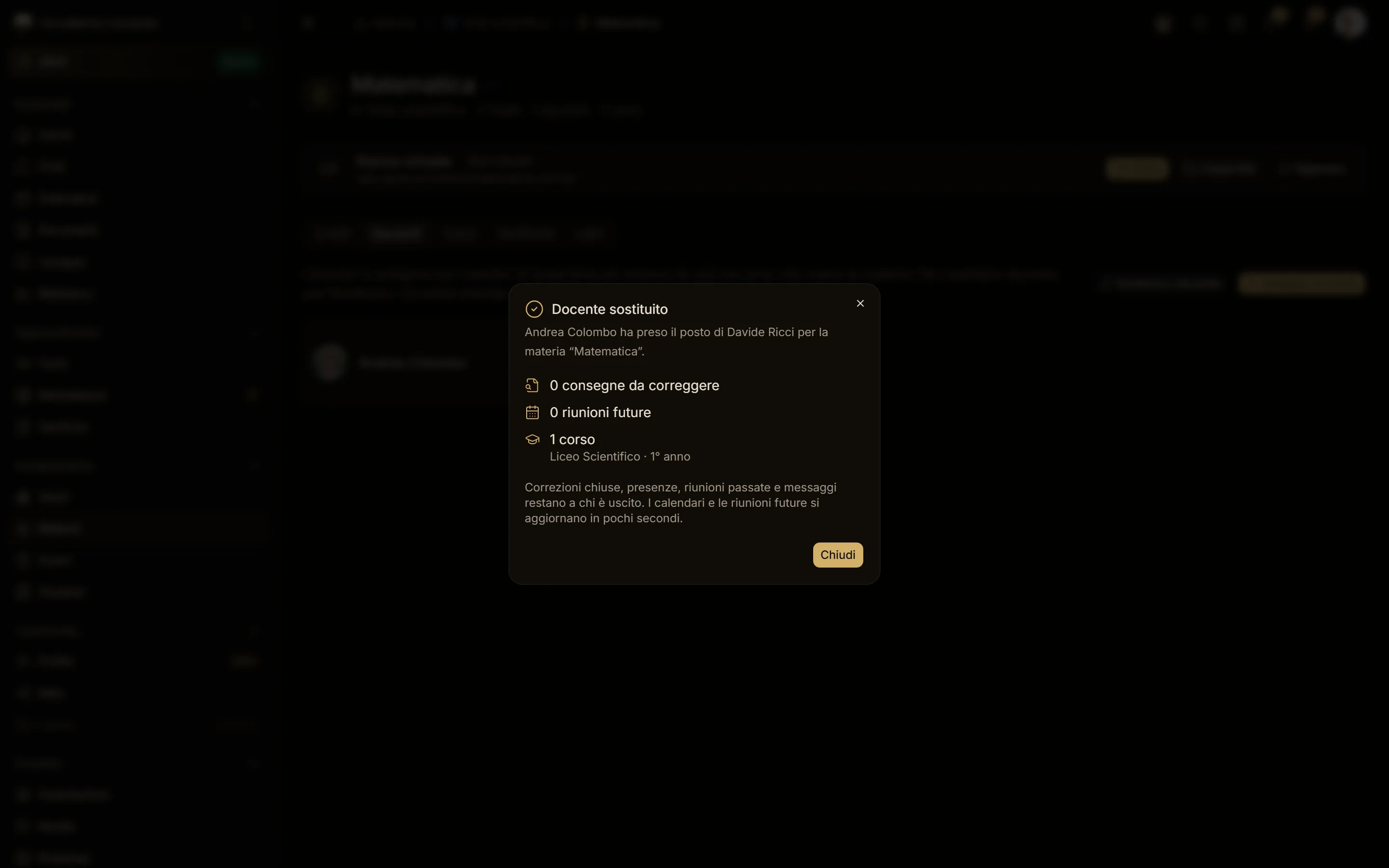
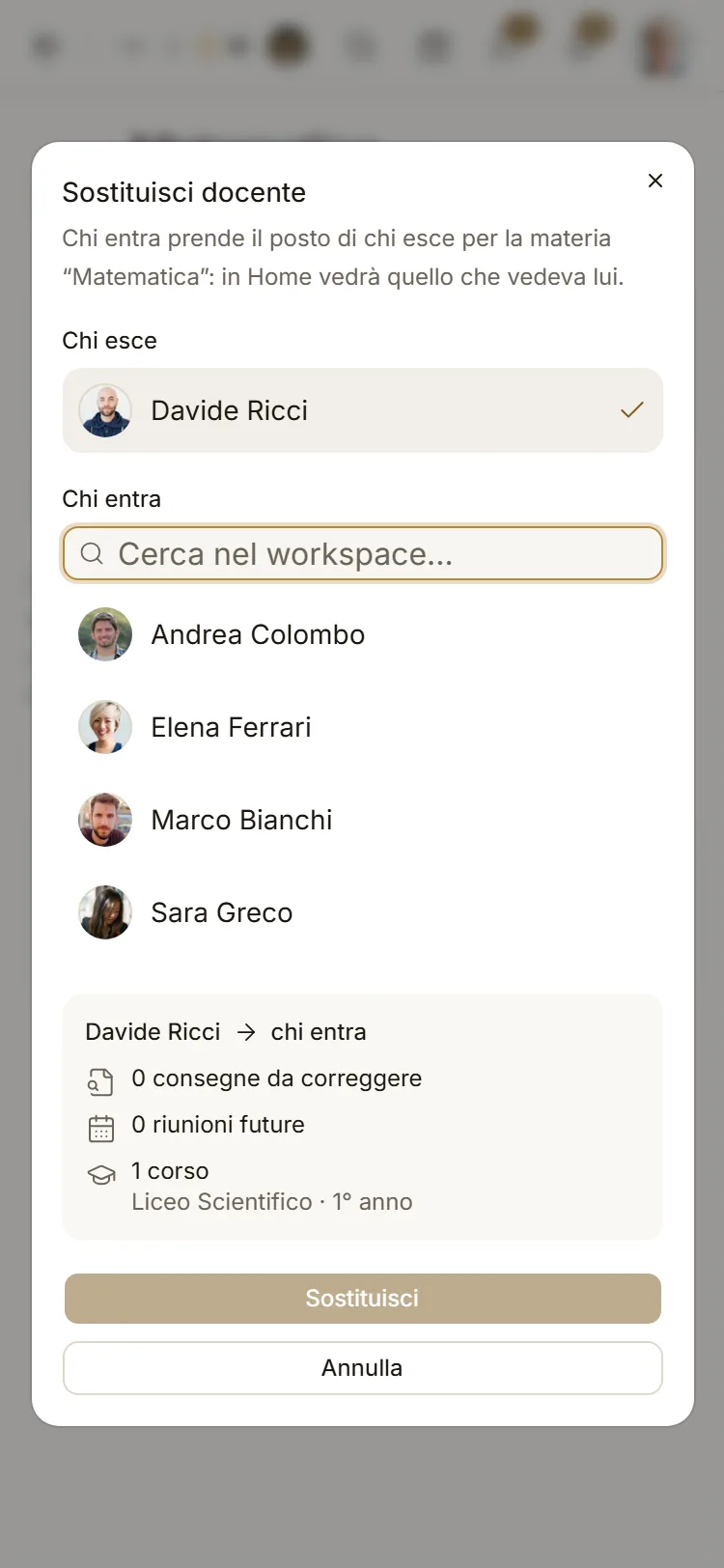
In the dialog you can also tick Notify students: every student of the courses of the subject or level gets a notification, and a message appears in the chat channel of every course, for example From today Italiano lessons are taught by Chiara Romano.
Temporary substitutions
When a teacher is away for a few days, with a substitution another person teaches their lessons (and, if you want, grades their exams) on those days only. Everything is explained in Substitutions: how to schedule one, what passes (the substitution follows the person, in all converging courses), grading, notices, badges and what students see.
The Home filter
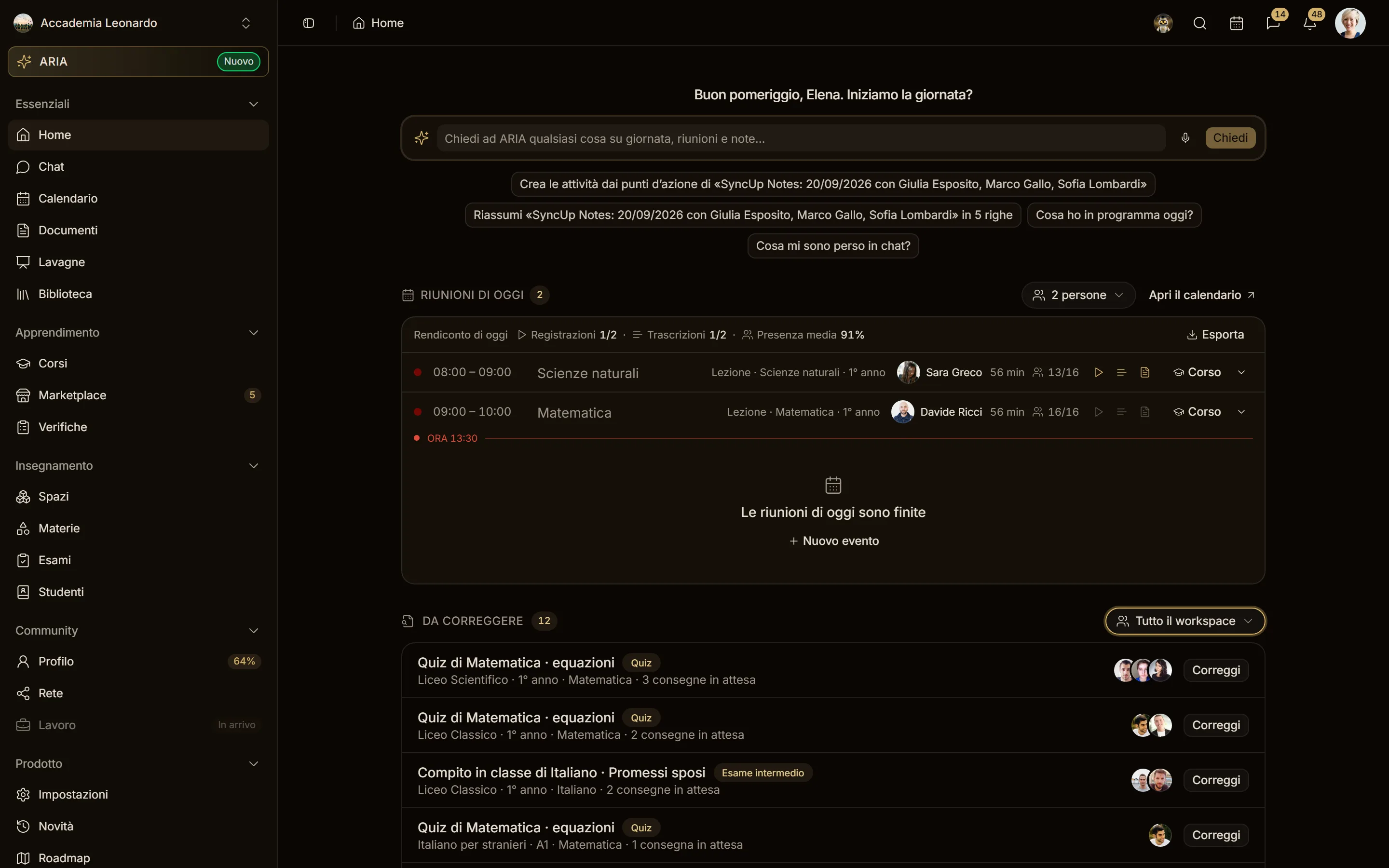
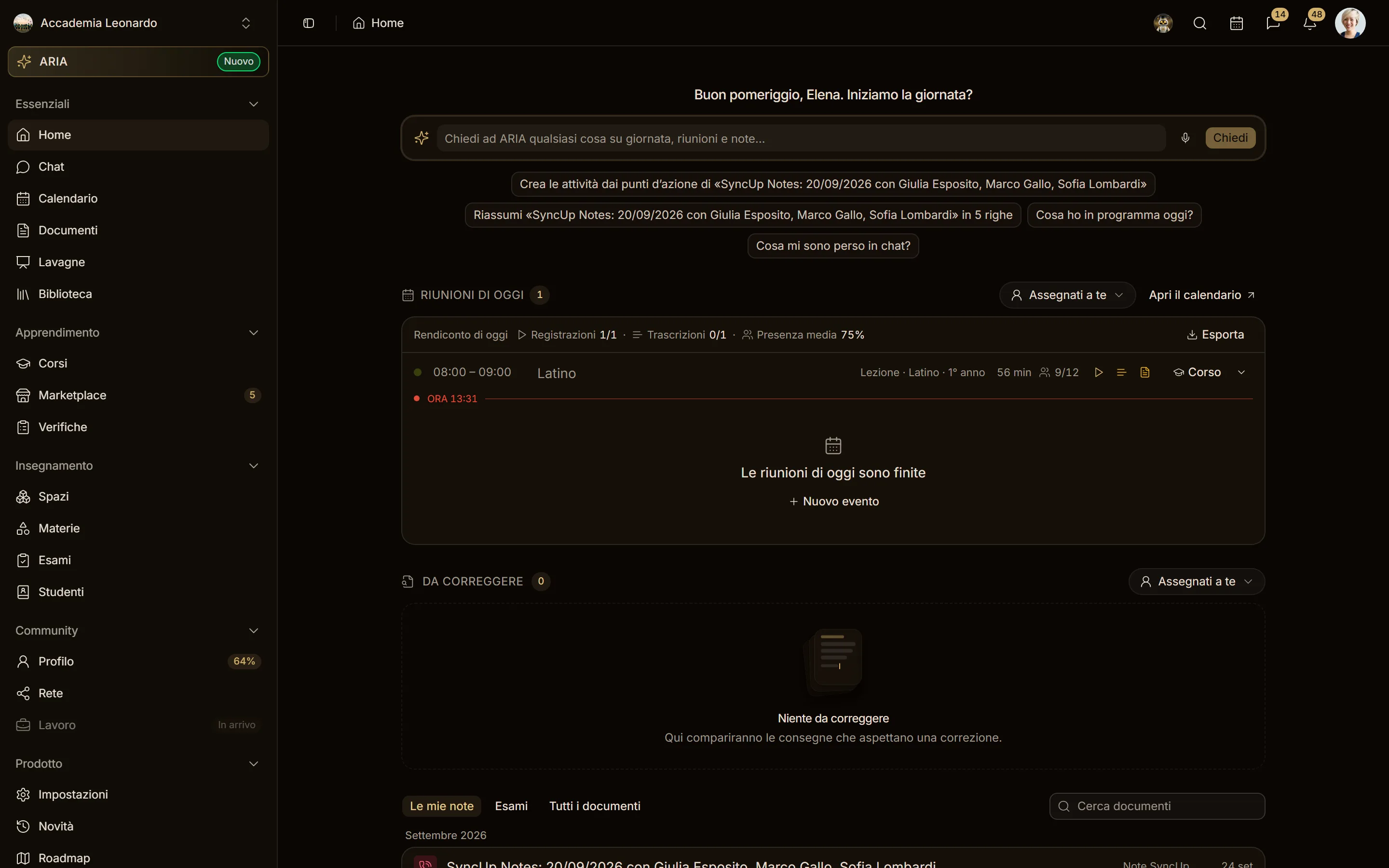
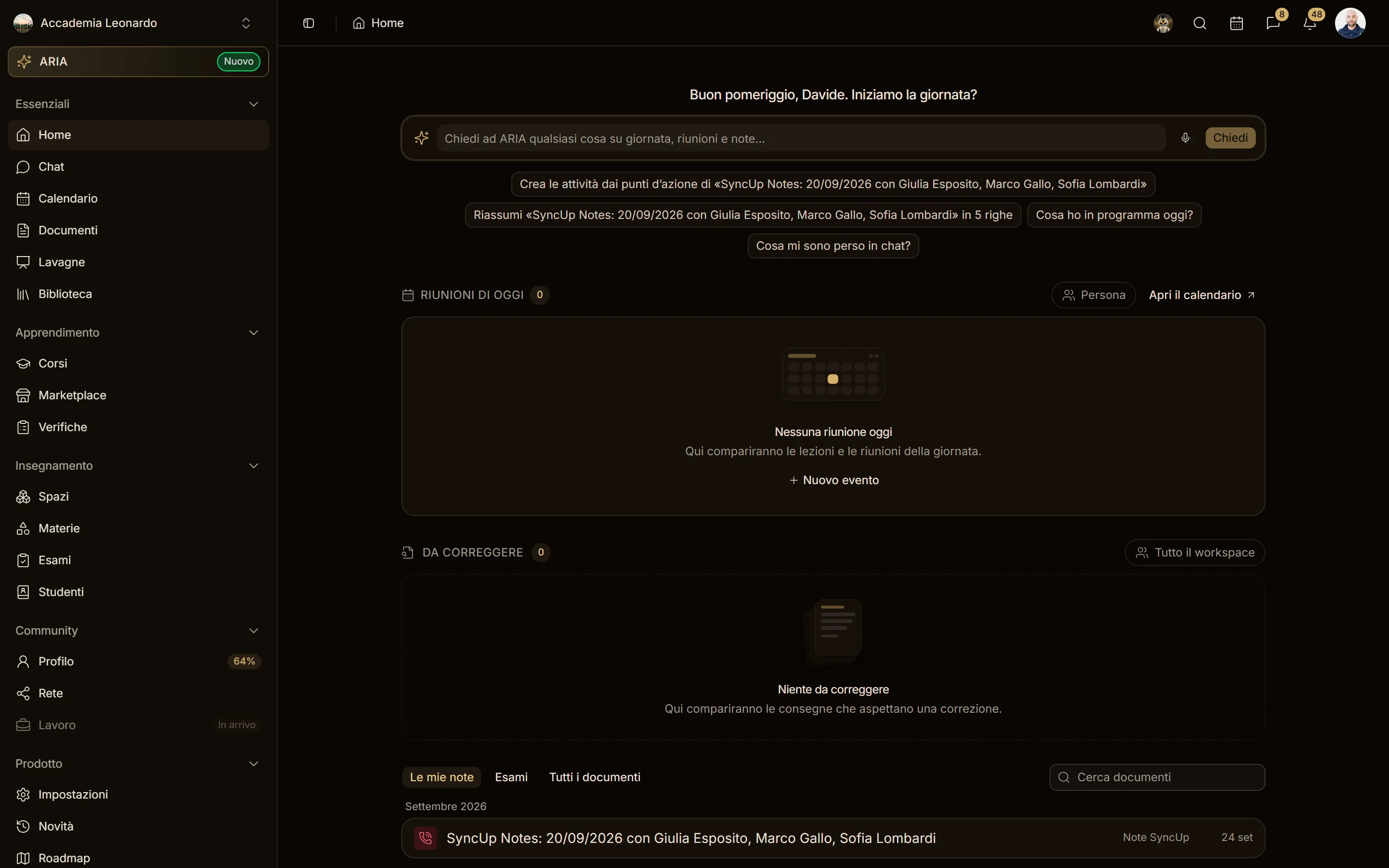
On Home, Today's meetings and To grade each have their own selector in the header. The two filters are independent: changing the meetings one doesn't touch the submissions, and the other way round. The section count updates and the choice stays in the page address so you can share it.
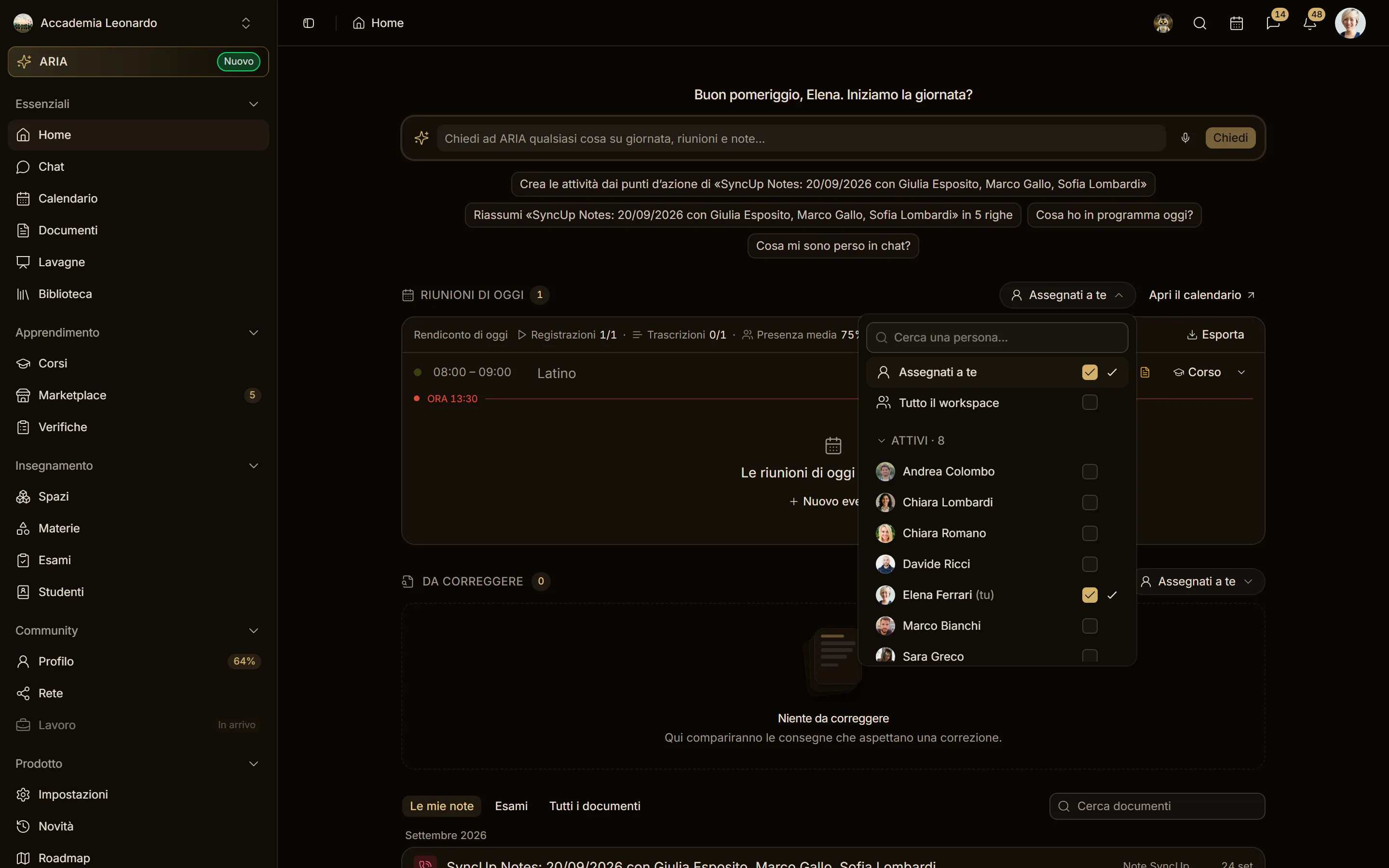
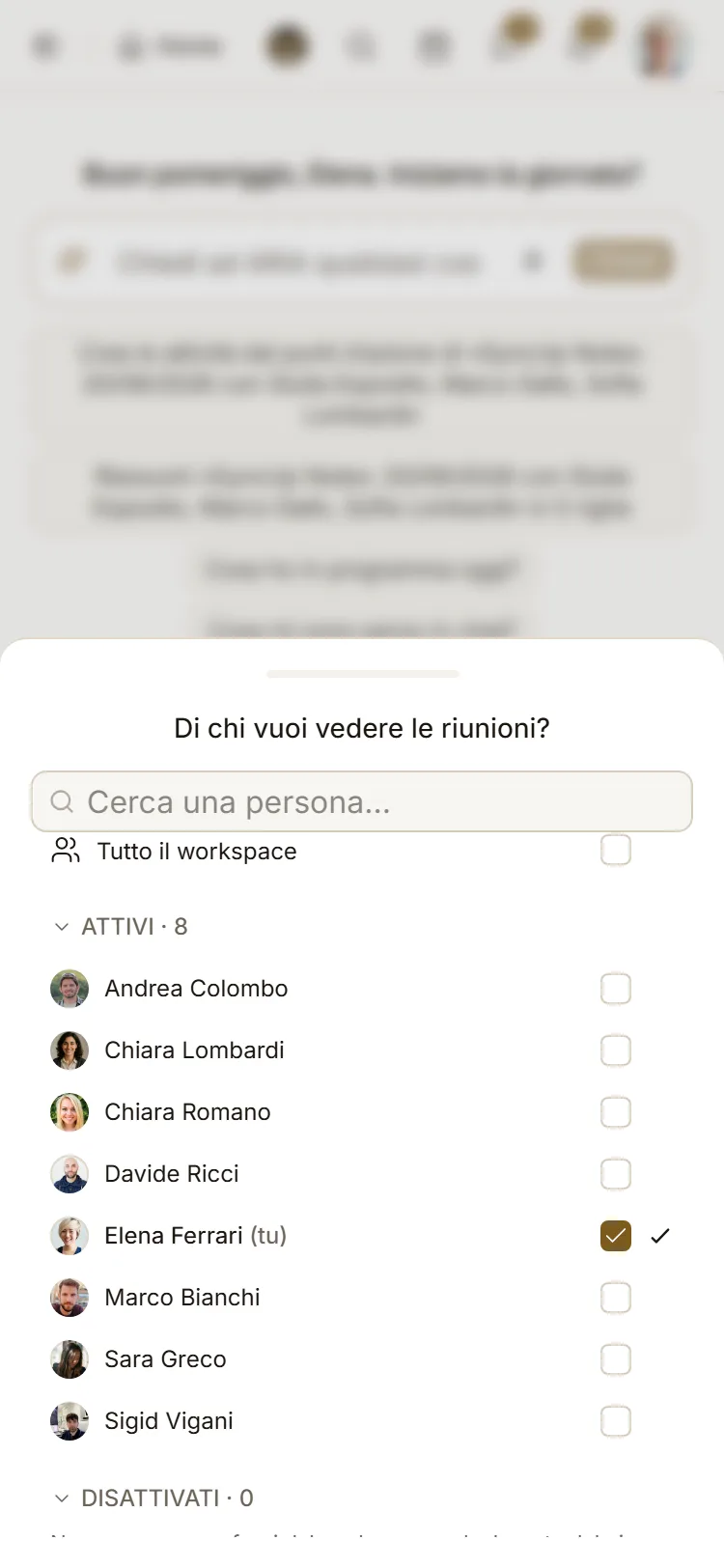
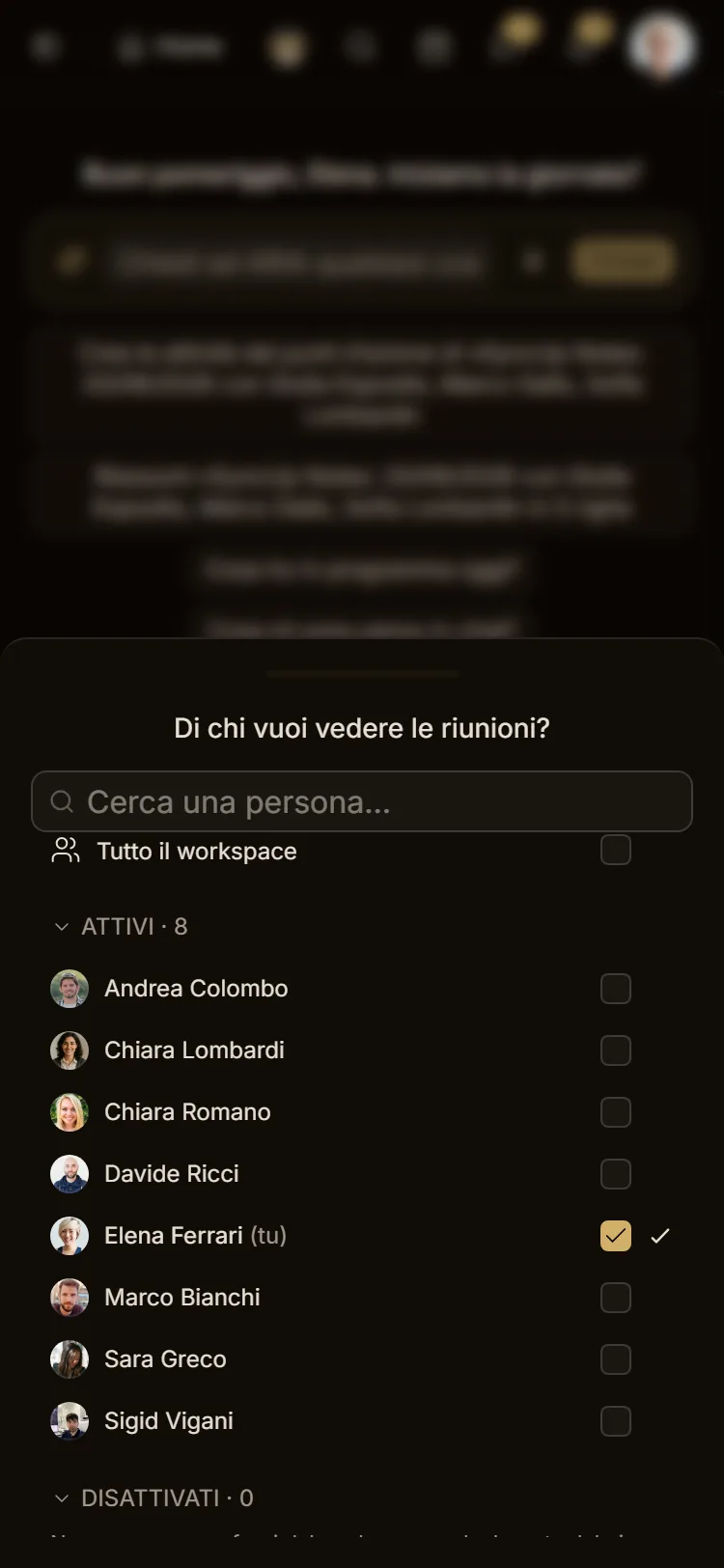
In the selector you can tick several people with the checkboxes on the right:
| What is ticked | What it shows | Selector label |
|---|---|---|
| only Assigned to you (at first) | what you are responsible for | Assigned to you |
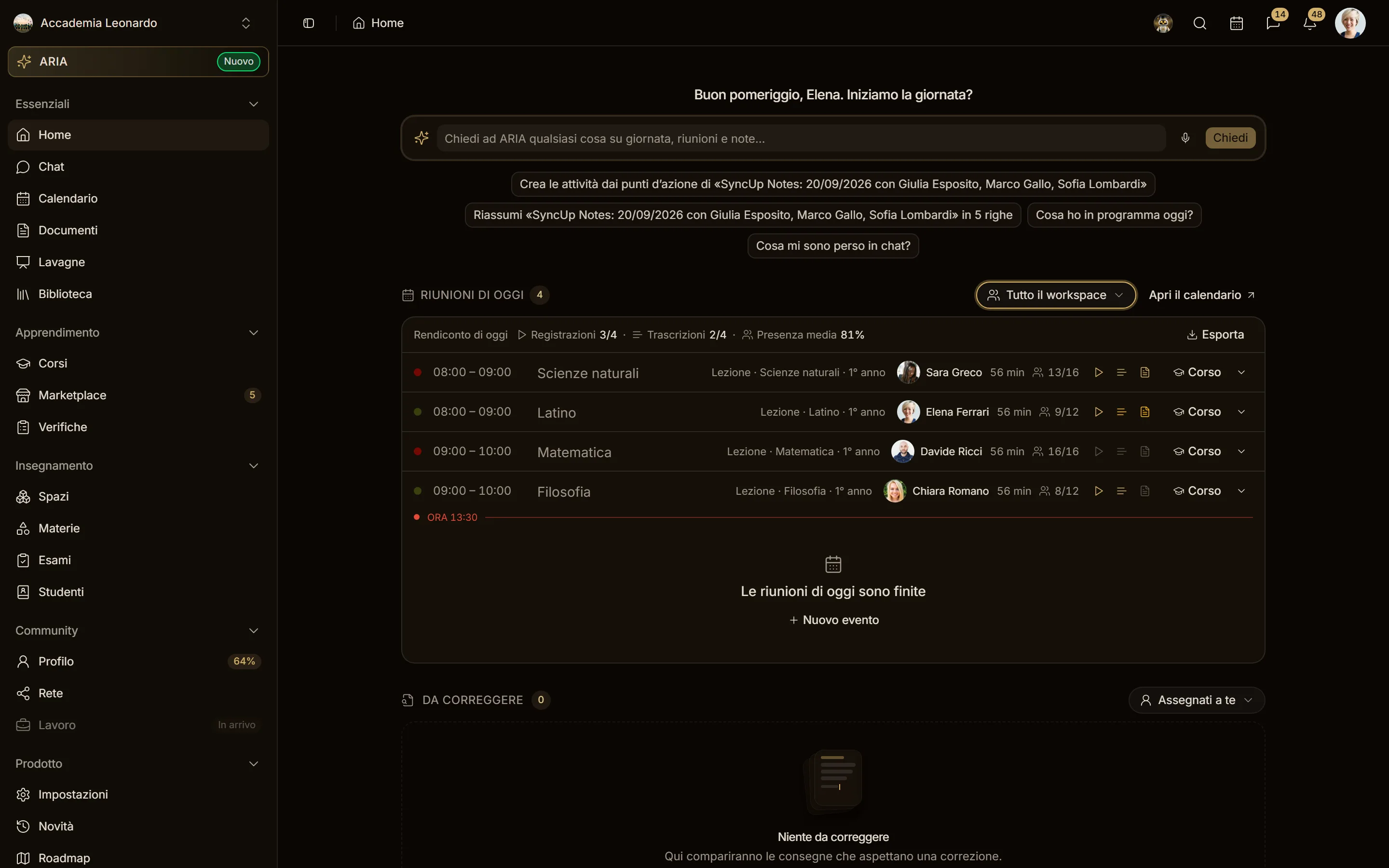
| Whole workspace | the whole workspace: ticks every person | Whole workspace |
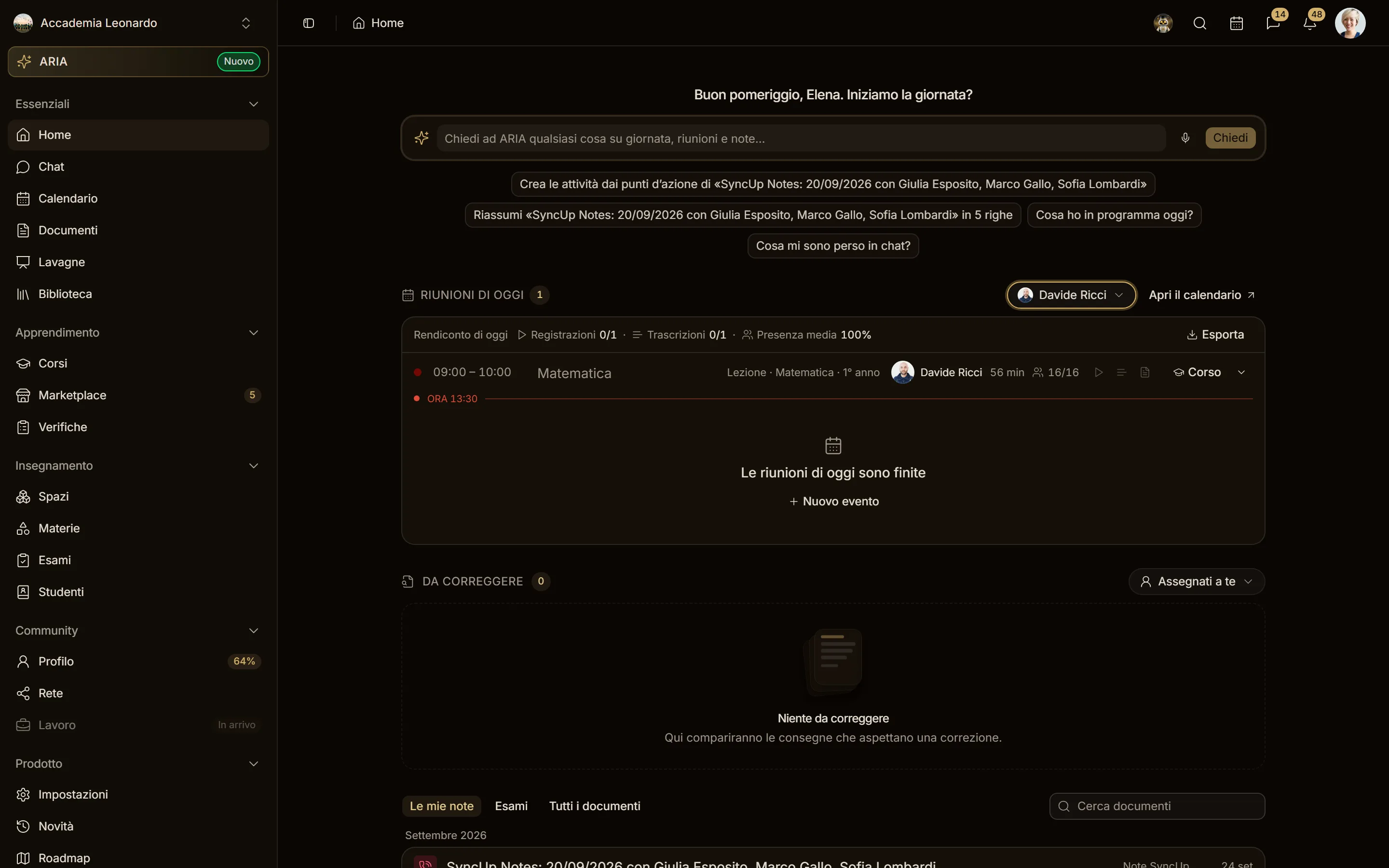
| one person | what that person is responsible for | their name |
| several people | what at least one of them is responsible for | N people |
Unticking Whole workspace, or leaving nobody ticked, goes back to Assigned to you. You can search a person by name. People are split into ACTIVE (open) and DEACTIVATED (always there, even when empty), two groups you can open and close.
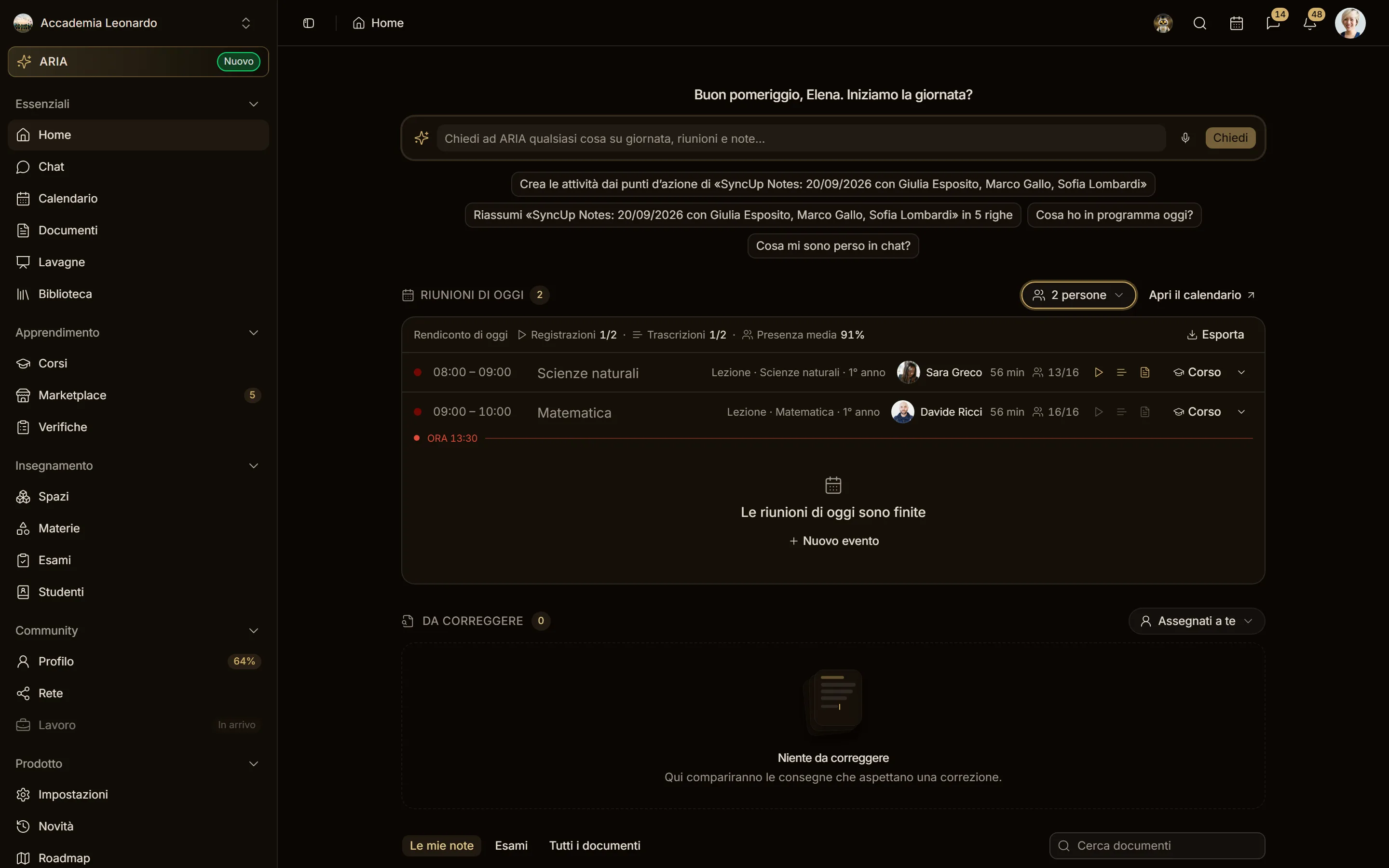
Only the Owner and the Admins of the workspace can pick another person or the whole workspace. Everyone else sees the selector fixed on Assigned to you and cannot open it. The server enforces it: asking for another person's items returns a 403 error.
On a phone the selector stays on the same line as the title; tapping it opens a panel from the bottom, as wide as the screen, with the search at the top (it stays visible with the keyboard open) and the same checkboxes. The panel stays open while you tick; the ACTIVE and DEACTIVATED groups open and close with a tap.
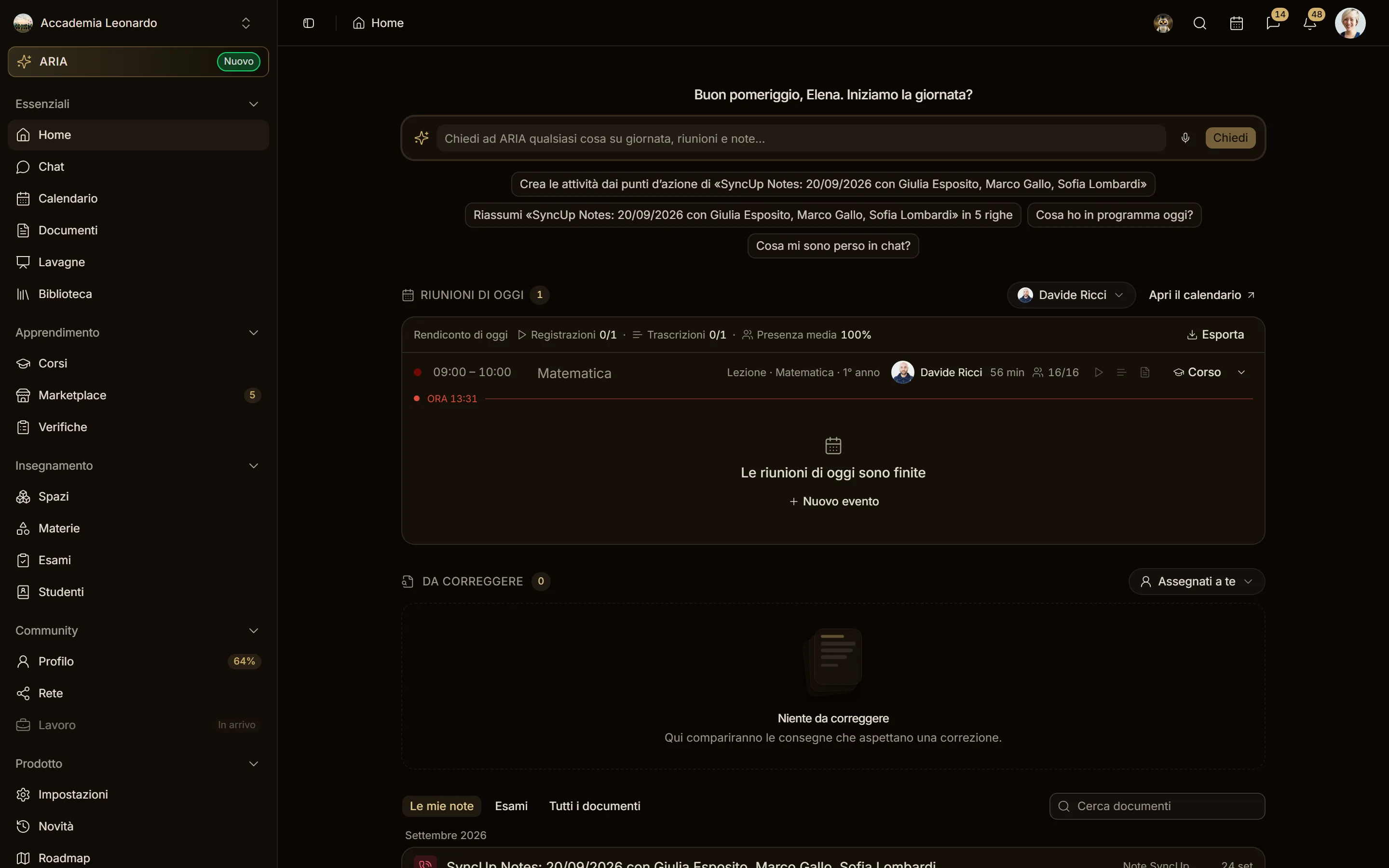
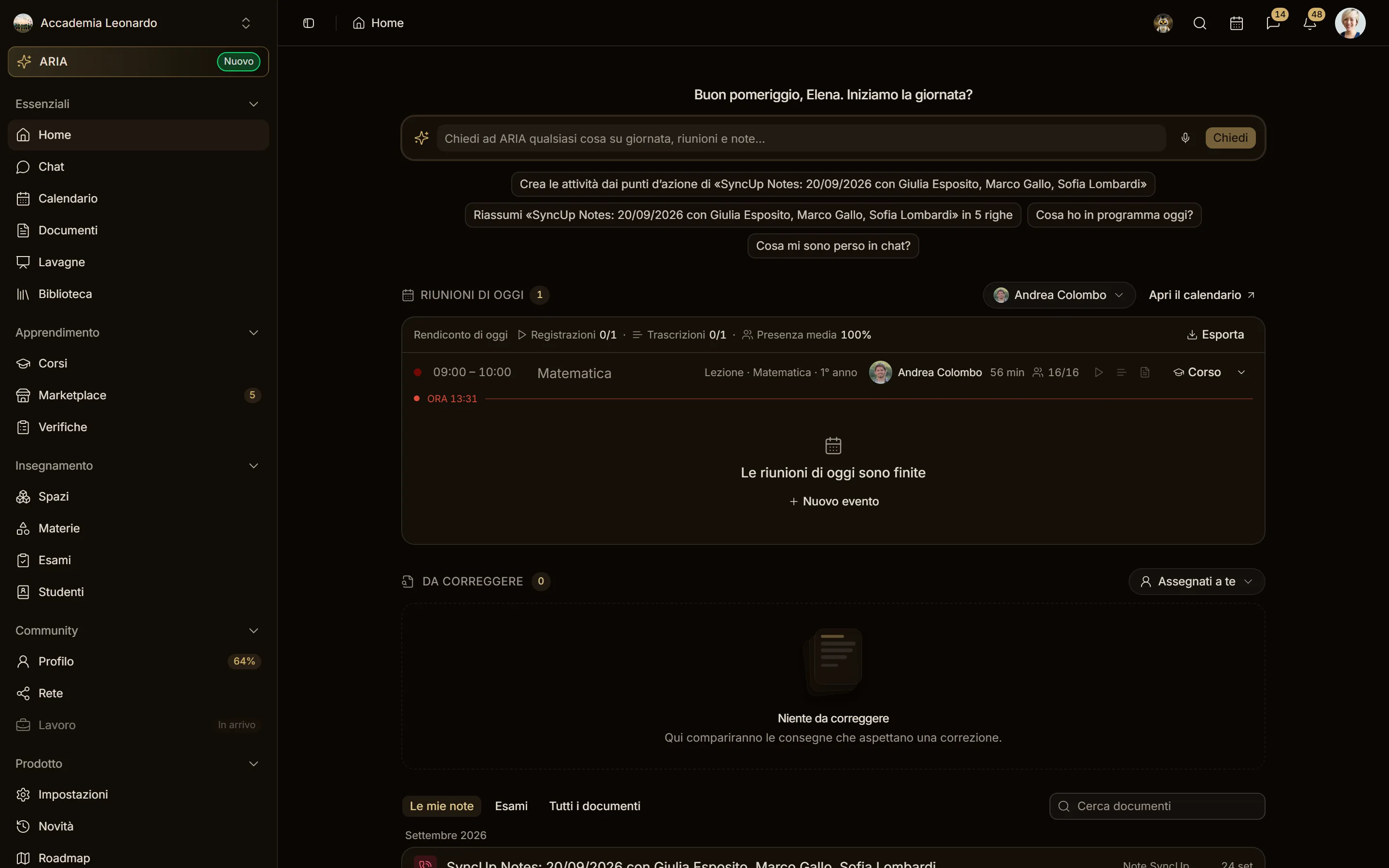
An example of a teacher change on a level: first Home filtered on the teacher who leaves, then the same Home filtered on the teacher who comes in, with the same meetings and the same submissions.
Grading from Home
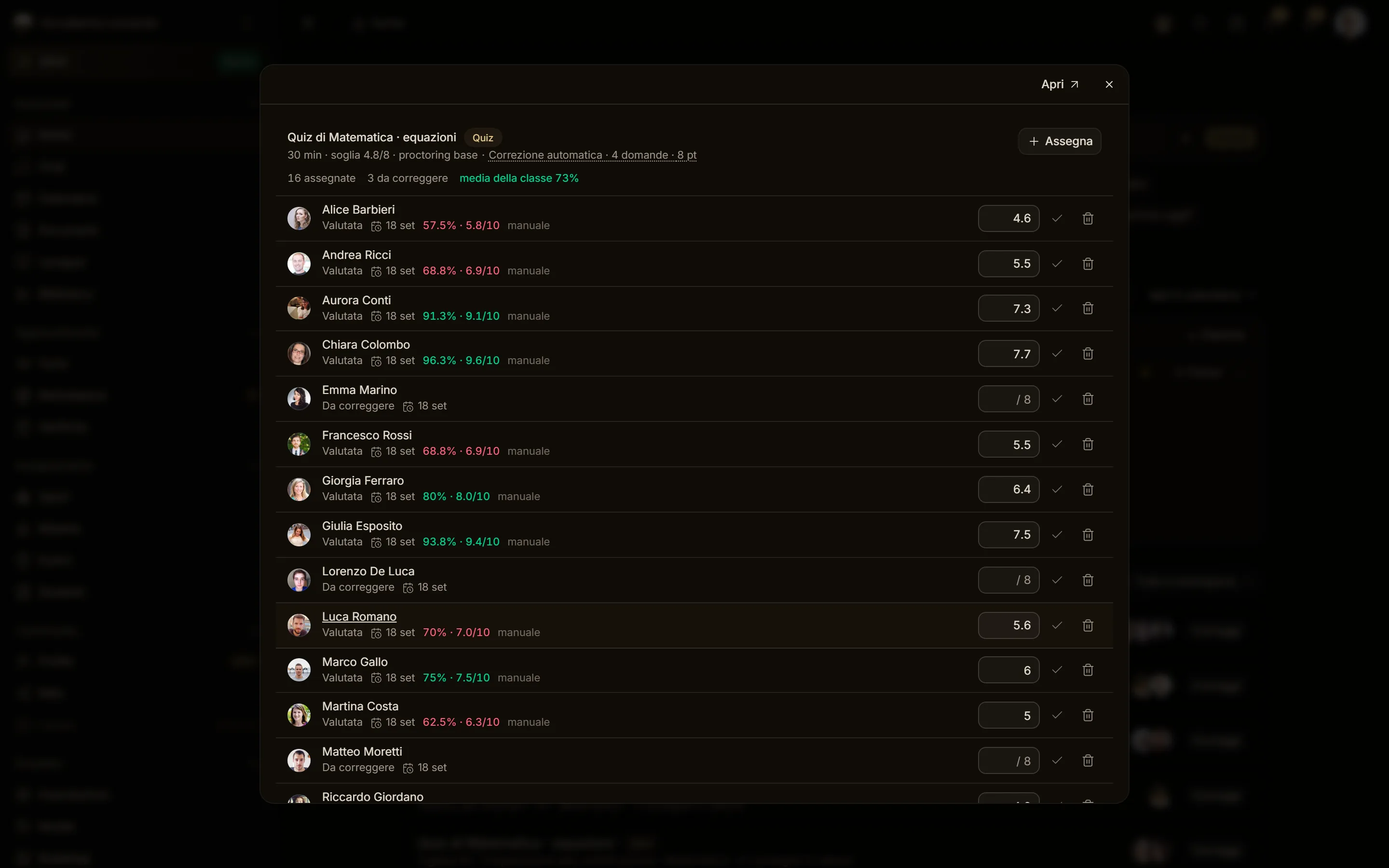
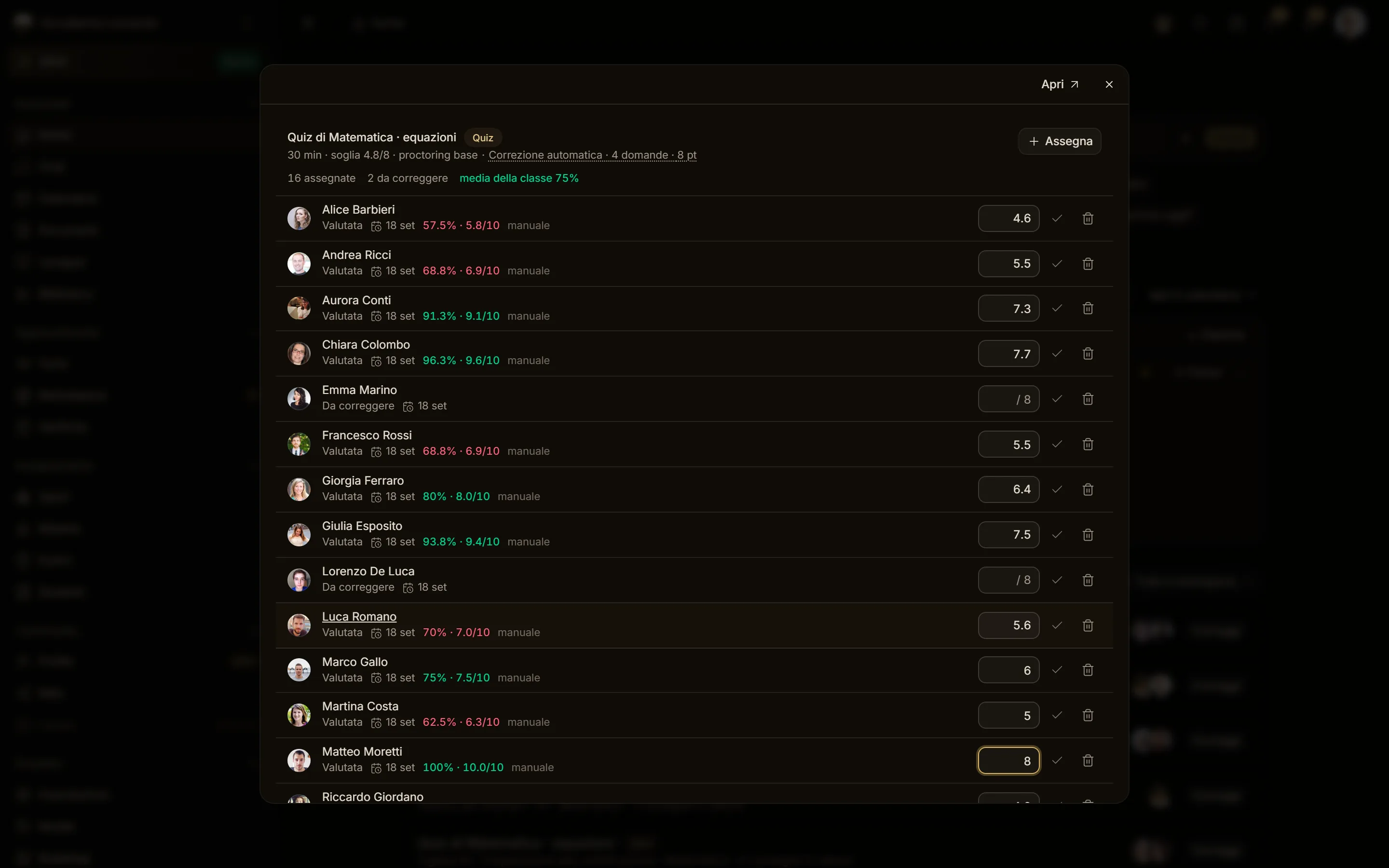
In To grade each row is an exam of a course, with the number of submissions waiting. Click the exam title or Grade: the assessment dialog opens, the same one you find in Subjects and in the course registry, with the submissions of that exam in that course. Hovering the title underlines it, but the dialog only opens on click (on a phone, on tap).
Grade in the dialog: the row number and the section number go down right away, without reloading the page, and when an exam has no more submissions waiting its row disappears. Open, at the top of the dialog, takes you to the full page (the subject, or the course registry if the exam has no subject).
Deactivated
The DEACTIVATED group lists the people who are still responsible for something (for example they are still teachers of a subject or a course) but who:
- are no longer part of the workspace, or
- were downgraded by a plan change. In this case you see since when next to their name, for example since Sep 12.
You can pick them to see what is left to reassign. Deactivated people are not added to courses automatically. People who are responsible for nothing do not appear in the list.