
Recording live lessons
Start, pause and stop the recording from the room, the course's automatic recording, the notice to participants, and where to find recordings, transcripts and notes.
Tested on …/…/2026 · version …
Live lessons are recorded from the lesson room. The recording includes audio, video and shared screens; when the lesson ends the transcript and, if turned on for the course, the AI notes follow on their own.
Who can record
Starting, pausing and stopping the recording is up to whoever leads the room: the course's teachers and managers, the academy Admin who teaches or manages the course, and whoever created the event. Students see that the lesson is being recorded, but have no controls.
Recording from the room
In the bottom bar of the room, whoever leads finds the button with the red circle:
- Tap the red circle to start recording. At the top, next to Live, REC appears for everyone.
- Tap the button again to open the menu: Pause or Stop recording.
- While paused the indicator reads Paused for everyone; choose Resume from the menu to carry on.
Each pause closes a file: resuming starts a new one. When the last person leaves the room, the recording stops on its own.
A lesson in several parts
If the recording was paused and resumed (or restarted), the lesson has several parts: Recording 1/2, Recording 2/2, in time order, all on the same lesson and each with its own transcript.
- In the course player, under the video, the 1/2 · 2/2 switcher moves between parts with a tap and shows how much of each you've watched; next to it is the lesson total (Lesson 75%).
- Anyone who wasn't there live completes the lesson by watching all the parts: each part weighs by its duration, and a part watched up to the threshold in the course's attendance rules (When watched at least, 80% unless changed) counts in full.
- Anyone who attended live has the lesson at 100%, as always.
The course's automatic recording
In Courses → the course → Settings → Lesson recording, the Record every lesson automatically switch starts the recording on its own when the teacher joins the room, and stops it when the lesson ends. The change is saved at once and applies from the next lesson, also on a course that is already published.
- New courses start with automatic recording on.
- Courses created before this feature have it off: whoever manages the course turns it on once the students have been told.
- With automatic recording on, the teacher can always pause or stop in the room: for that lesson it doesn't start again on its own, not even when another teacher joins. The next lesson starts again from the course rule.
- Students joining before the teacher don't start the recording.
The notice to participants
Recording people requires them to know. When the recording starts, everyone in the room sees the REC indicator and the notice This session is being recorded, which explains what goes into the recording and who will have it. Whoever joins while recording sees it straight away. The notice closes with Got it and comes back at every new start or resume.
Anyone who prefers not to appear can keep their microphone and camera off. For courses with under-age students or with internal consent rules, tell the students (and their families) before turning automatic recording on.
Where to find recordings, transcripts and notes
- In the course: under the lesson, in the course player, one row per recording with its duration and, under each part, its own Transcript and AI notes files (within 24 hours; while the transcript is being processed the part says Transcript in progress). The same files are also in the event's attachments in the calendar. See Recordings and transcripts.
- In Home: in the Today's meetings box the lesson in progress shows REC only while it is actually recording (not while paused); once the lesson ends, the three icons say whether recording, transcript and AI notes are available, processing or missing. With several parts the recording icon opens the first one and its tooltip says how many there are (2 parts). See Today's meetings and report.
Lesson not recorded: uploading the video
An ended lesson says Recording being processed only when the recording exists and isn't ready yet. If nobody recorded it, it says Not recorded, in the lesson room and in the lesson list.
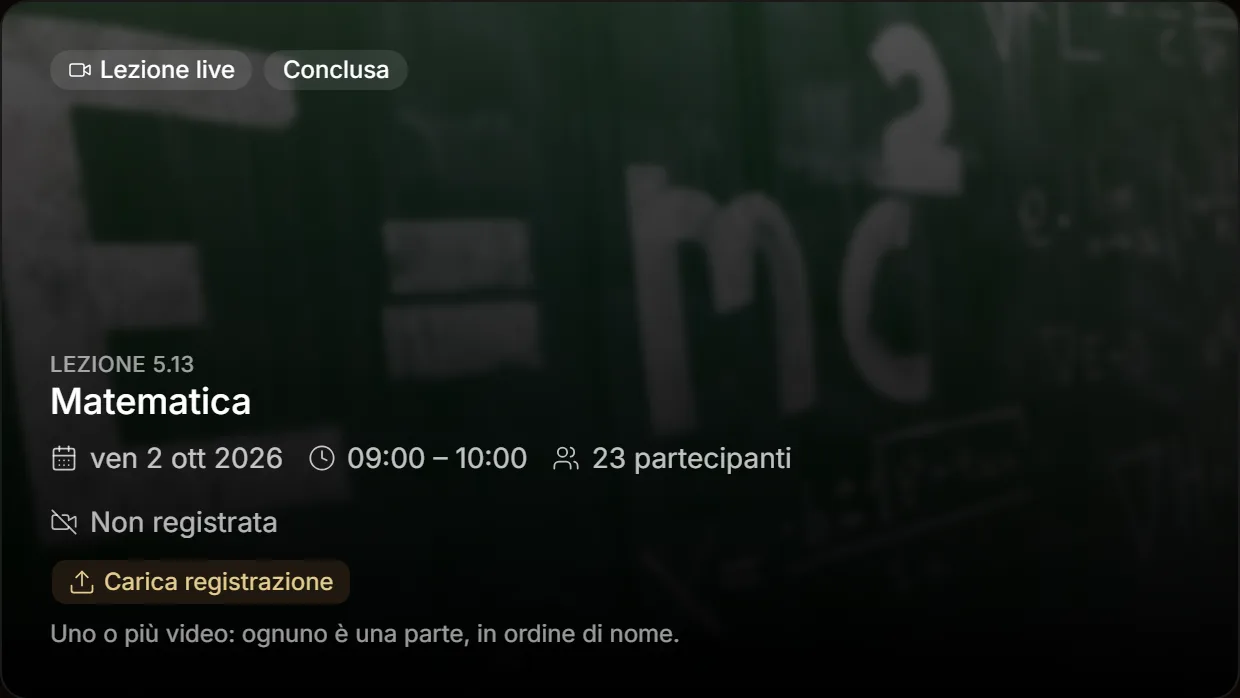
Course teachers, managers and admins see Upload recording on lessons that weren't recorded: in the lesson room and, in the list, inside the lesson's resources (first section, Recordings). Pick one or more videos: each one becomes a part (1/2, 2/2…) in name order, with a progress bar while it uploads. The uploaded video goes the same way as one recorded in the room: it shows up in every lesson of the event (convergent courses too), with its Transcript and AI notes once processed. Students see Not recorded only, without the button.
On a phone
On a phone the REC indicator, the notice and the controls all work by tapping: the recording button sits in the bottom bar with microphone and camera, and its menu opens with a tap.
If the recording doesn't start
If you see Recording is not available right now, the recording server is busy or not ready: try again after a few seconds. If the workspace has used up the recording hours of its plan, starting or resuming is not possible until hours are added; pausing and stopping always work.