
Learning on Aladia
Find a course, follow it live or on demand, watch the recordings and keep track of your progress.
Tested on 28/09/2026 · version b16a9af8fd
Find a course
Marketplace in the sidebar is the course catalog: browse by category, filter by live or on demand, price and language, or search by title and teacher. The Top 10 and the ranking rows highlight the most chosen courses. The Marketplace is always the one of the workspace you are working in (the academy or your personal workspace), with its courses only: see The workspace Marketplace.
Enrol
Open the course page and choose Buy or Enrol for free courses. The first chapter is always free to preview. Paid courses can be one-time or subscription based; instalments are shown before you confirm.
Follow the lessons
- On demand lessons have a video, notes and attachments. Your progress is saved lesson by lesson.
- Live lessons appear in your calendar with a Join button ten minutes before the start; the recording is available afterwards in the same lesson.
- Every course has a chat room where you can ask the teacher and talk with other students.
Recordings and transcripts
After a live lesson, its recordings appear in the course player under the lesson, one row per recording (Recording 1/2, Recording 2/2 and so on) with its duration.
Each recording gets a transcript and a summary, produced automatically. They are not immediate: the audio is processed in batch and they arrive within 24 hours of the end of the lesson. In the meantime the recording shows:
| Label under the recording | What it means |
|---|---|
| Transcript in progress | The recording is being transcribed. You can already watch it; transcript and summary arrive within 24 hours. |
| Transcript unavailable | The transcription did not succeed. The recording stays available to watch. |
When they are ready the label disappears and two links take its place: Transcript and Summary. On a locked lesson the links are visible but cannot be opened.
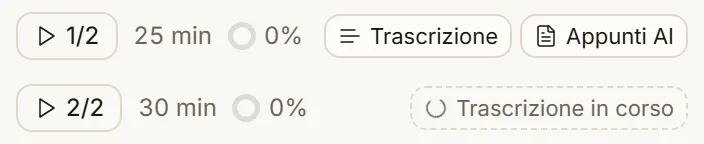
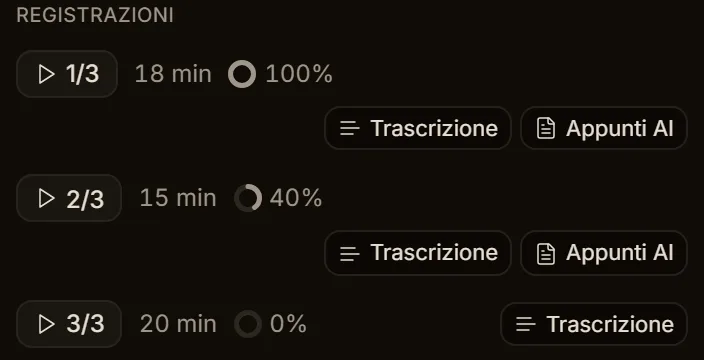
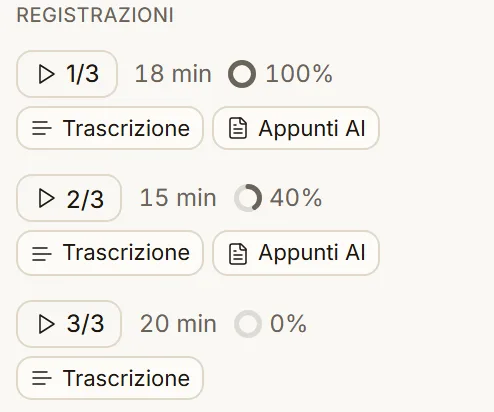
In the lesson list, recordings are the first section of the lesson's resources: one row per part with its duration, how much you watched and its files. Tap a part and the player starts there.
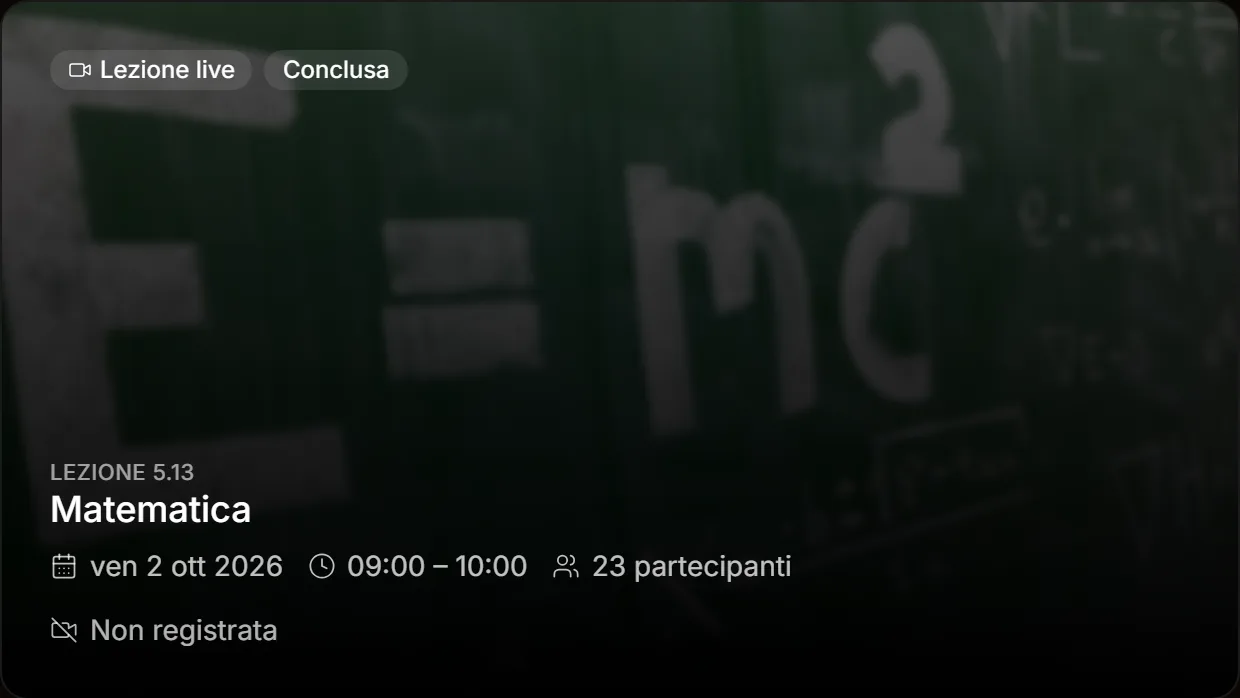
An ended lesson that nobody recorded says Not recorded; Recording being processed only shows when the recording exists and isn't ready yet.
Track your progress
On the course page, under each lesson, a thin bar shows how you followed it, with the attendance register's colours: full if you were in class (or late), partial if you caught up by watching the recording (Caught up past the course threshold), excused or absent. Lessons not held yet have no bar.
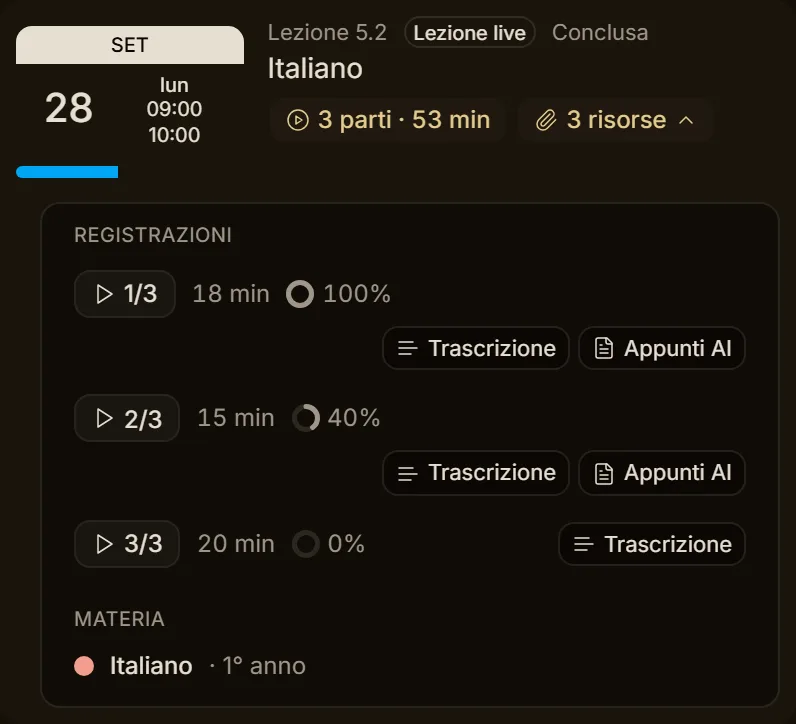
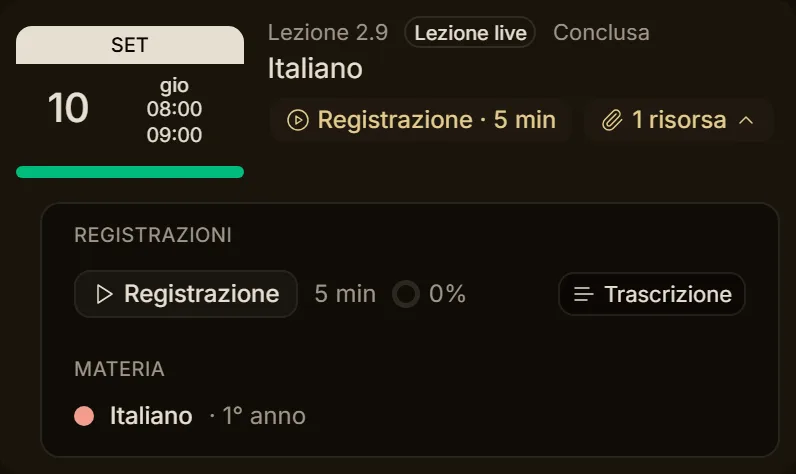
Teachers and managers see the class bar instead (present, late, excused, absent); tapping it opens that lesson in the register.
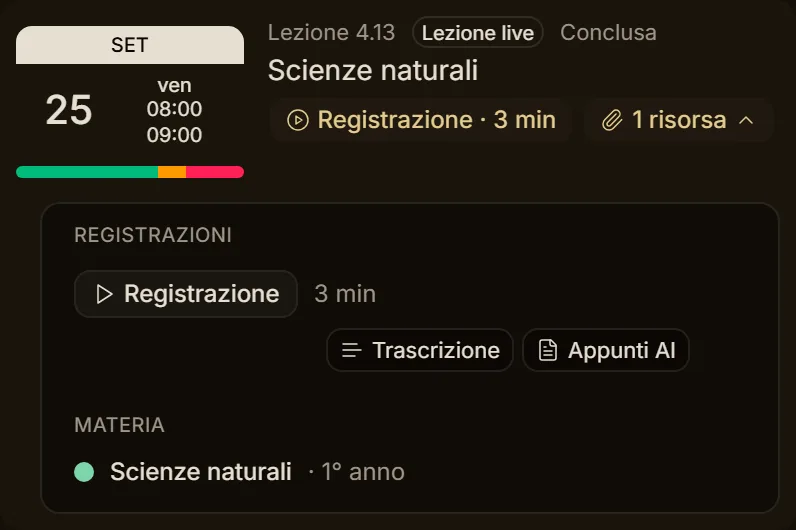
Learning → Courses shows what you are following, the next live lesson and the percentage completed. When a course is complete you receive a certificate, when the teacher has enabled it.
Upcoming assessments
When a teacher puts an assessment on a lesson, you see it before it opens:
- Upcoming assessments shows up in Home and in Assignments, with the course, when it opens and when it is due;
- the course Calendar tab shows "Opens: …" and "Due: …" on the right days.
If the lesson moves, the dates move with it. When the assessment opens you get a notification and find it in Your assessments, ready to take. If you join the course while an assessment is open, you usually get it too.