
The workspace Marketplace
Your academy's course showcase, its categories, Edit mode and publishing the showcase.
Updated on 08/10/2026: the Marketplace belongs to the workspace for everyone. The custom showcase (own categories, carousels, Edit mode) is being piloted on selected workspaces.
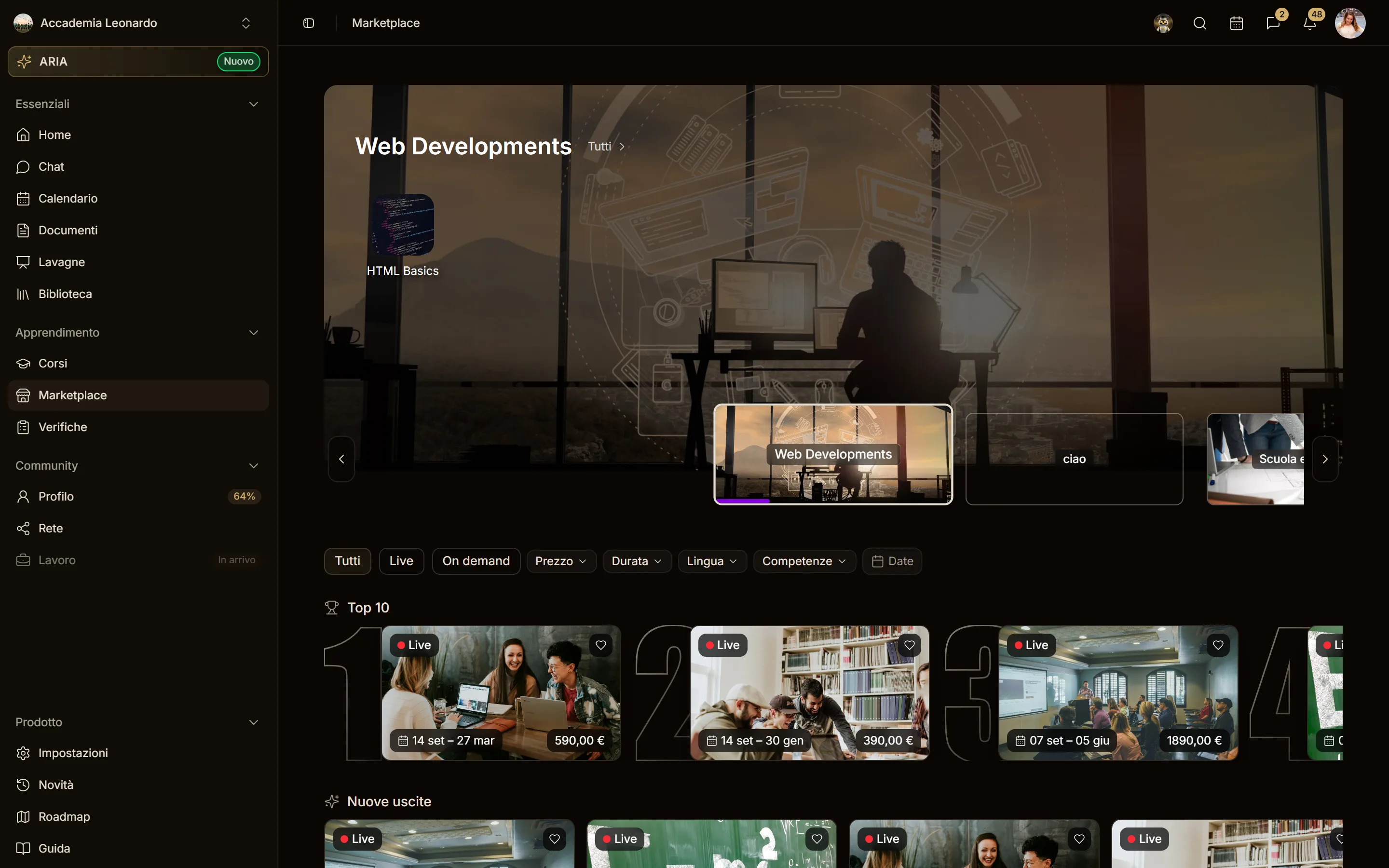
Every workspace has its own Marketplace, the personal workspace included: there is no platform catalog shared across workspaces. Search, rankings (Top 10, New releases, Most followed, Live starting soon…), the New courses box in the feed and the search in the top bar count only the courses of the workspace you are working in. Students and members see the published showcase; whoever manages it edits a draft and puts it online when it is ready.
Who sees what
| Who | What they see in the Marketplace |
|---|---|
| An academy member | the academy's courses |
| Someone working in their personal workspace | the courses of their personal workspace |
| A visitor on the academy's site (address or custom domain) | only that academy's courses, even without signing in |
| A visitor on app.aladia.io who is not signed in | no catalog: the Marketplace asks them to sign in |
A workspace that does not have the custom showcase yet sees its own catalog with the ranking rows and the general categories, always with the workspace's courses only. A single course page is still reachable from its link, for whoever buys it.
Who can do what
| Permission | What it allows | By default |
|---|---|---|
marketplace.update | edit the showcase, publish it, clear the examples, choose whether courses go through review | Owner, Admin |
marketplace.category | create, rename, reorder and delete the workspace categories | Owner, Admin |
They can also be granted with a custom role (Settings › People › Roles). In the personal workspace the owner holds them all.
Edit mode
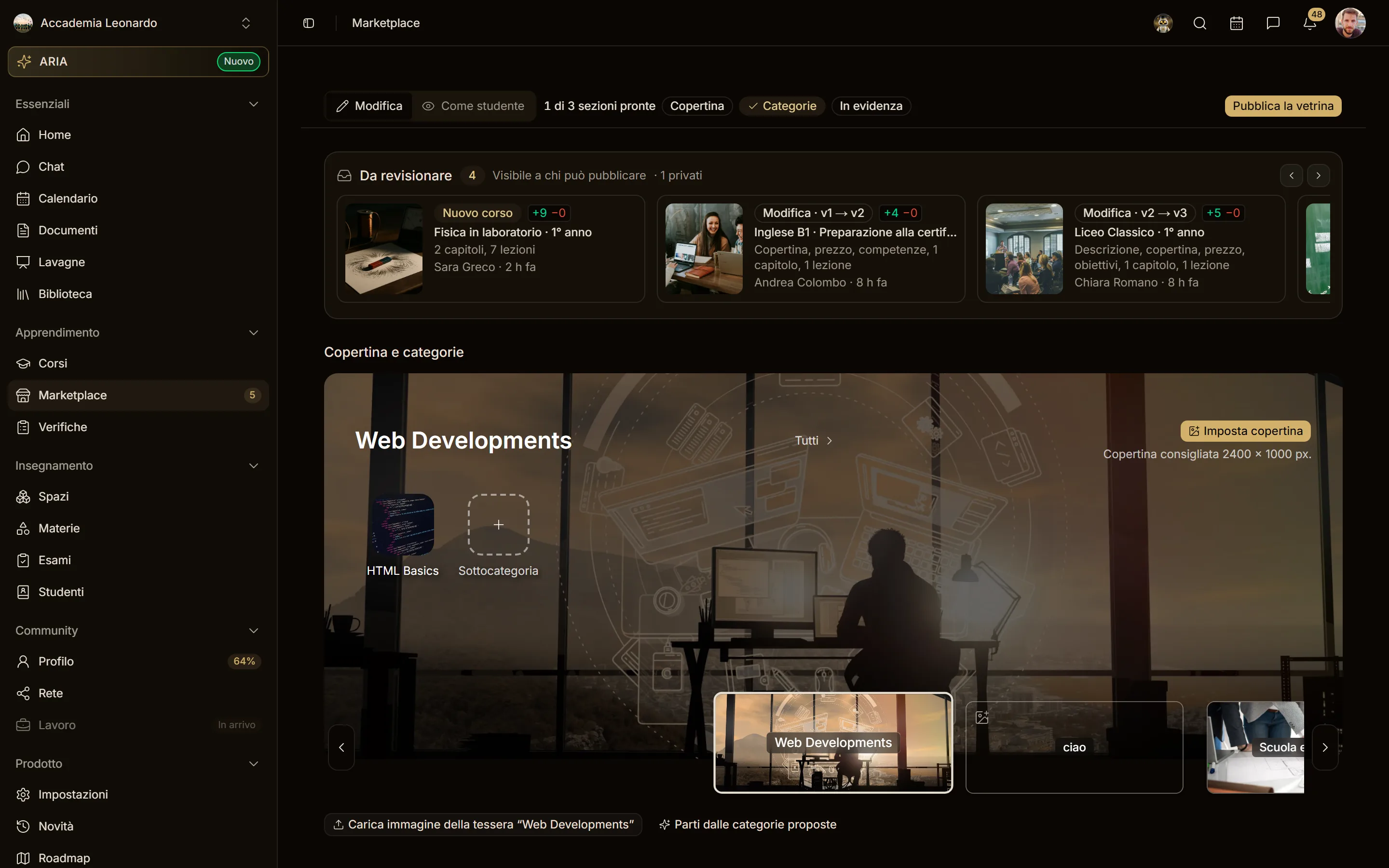
On the Marketplace page, below the top bar, whoever manages the showcase finds a toolbar:
- Edit / As a student to switch between the draft and what a student sees;
- the N of 3 sections ready checklist (Cover, Categories, Featured);
- Publish the showcase, enabled when the draft differs from the online showcase.
While the workspace is empty you see example content, only if you manage the showcase: students and visitors never see it. Clear examples removes it and leaves the places to fill; Restore examples brings it back.
Categories
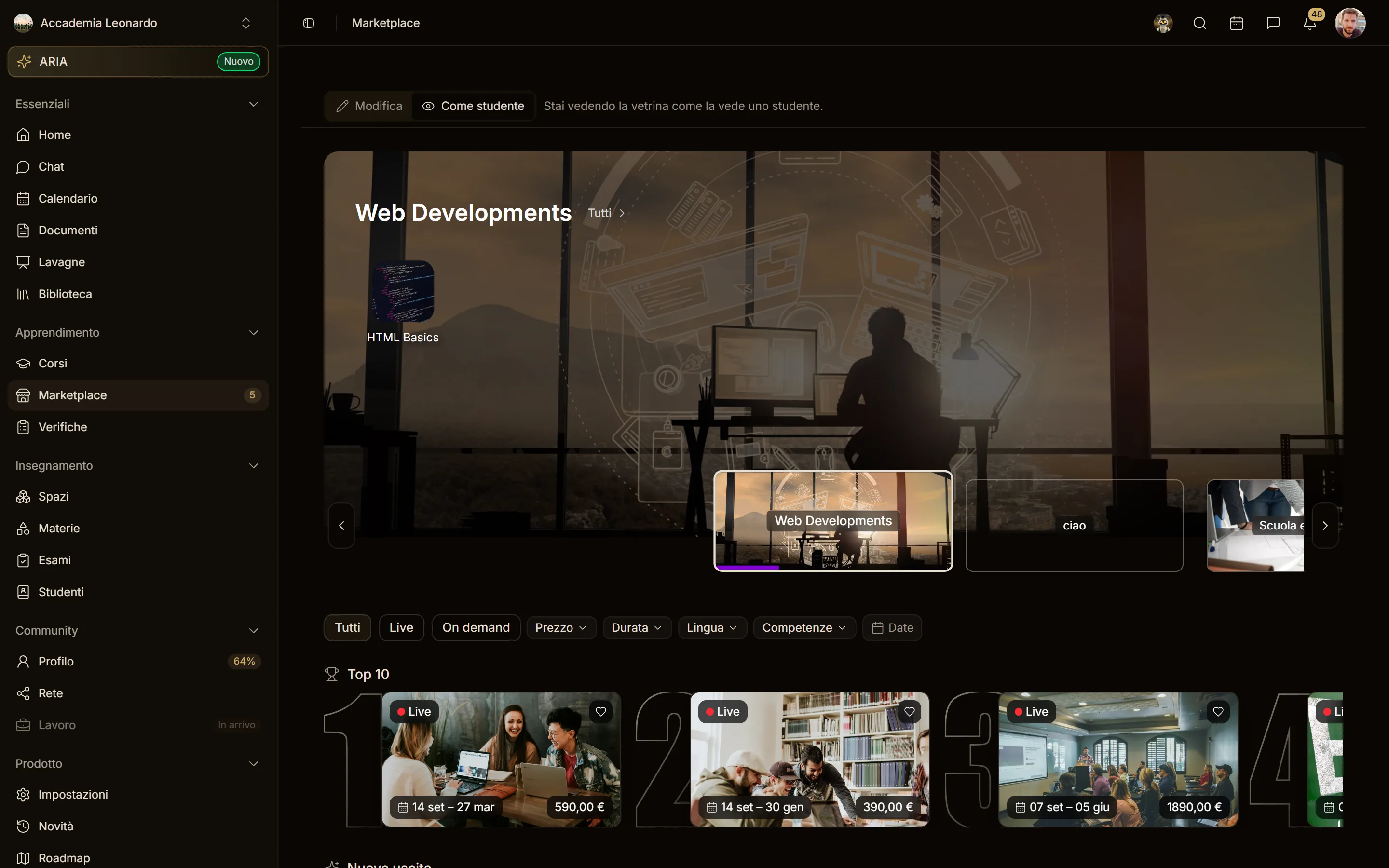
In Edit mode the header is the showcase's real one, with the same tiles and the same sizes a student sees: the editing actions sit on top.
- The category cover and name are written right in the hero: the cover fills the whole header, as in the online showcase. While it is missing, the recommended size, 2400 × 1000 px, appears next to Set cover.
- Subcategories: the hero tiles; click the icon to upload the image. To add one there is the dashed tile with the +, shaped like the others.
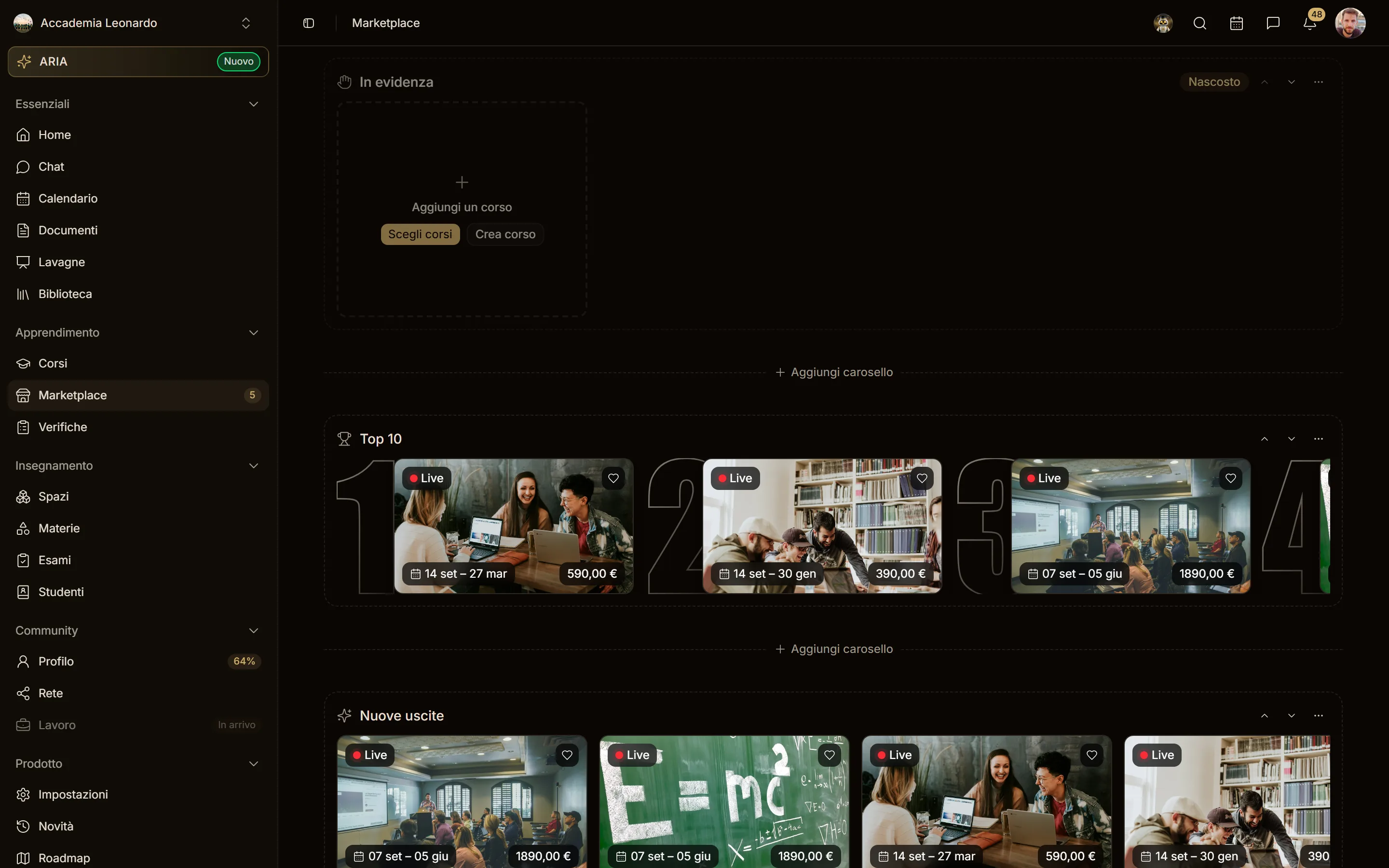
- Order: drag the tile, or use the round arrows on its edges (left: earlier; right: later). The arrows appear when you hover the tile or reach it with Tab; on phones they are always visible. This applies to subcategories, categories and featured courses.
- Categories: they are the tiles of the strip under the hero; a click opens the category in the hero, + Category adds one, the eye chooses whether it appears in the hero and the bin deletes it.
- Start from the suggested categories copies the platform's example categories, with their subcategories.
- Deleting: a category with subcategories cannot be deleted; if online courses use it, choose which category to move them to. Draft courses simply lose it.
Category changes apply to courses right away; in the online showcase a new category appears at the next Publish the showcase.
Placing a course
In the builder, under Category, pick a topic from the workspace categories: it carries its category with it. To publish you need one category and one topic (or just the category, if the workspace has no subcategories). If you have the permission you'll find the Manage categories link.
Carousels
Under the hero the showcase is made of carousels. In Edit mode you see them as a student will, with the real courses, and between one carousel and the next there is + Add carousel.
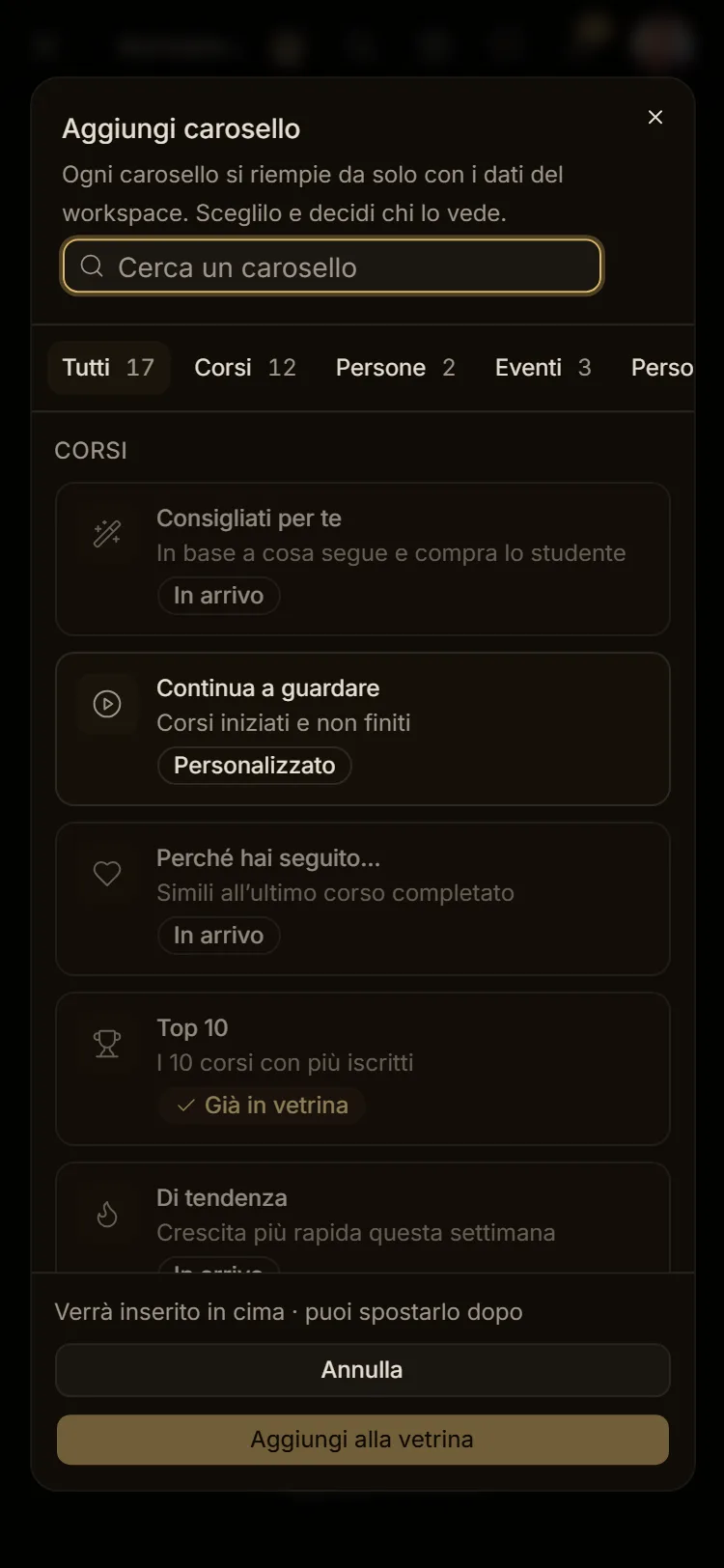
Adding a carousel. The catalog is split into Courses, People and Events, and you can filter by algorithm: personalized, popularity, new, fixed filter, real time. Pick a carousel and the preview on the right shows your workspace's courses. Then you set:
- the title;
- how many items it shows, from 4 to 20;
- the category, only for "By category";
- who sees it: everyone, only students who are signed in, or only visitors;
- Hide when it has fewer than 4 items, so a nearly empty carousel does not show.
Personal carousels, such as "Continue watching", show the Top 10 to visitors who are not signed in. Those marked Coming soon arrive with the next updates. "Already in the showcase" means that carousel is there already: except "By category" and "Manual selection", each type goes in once.
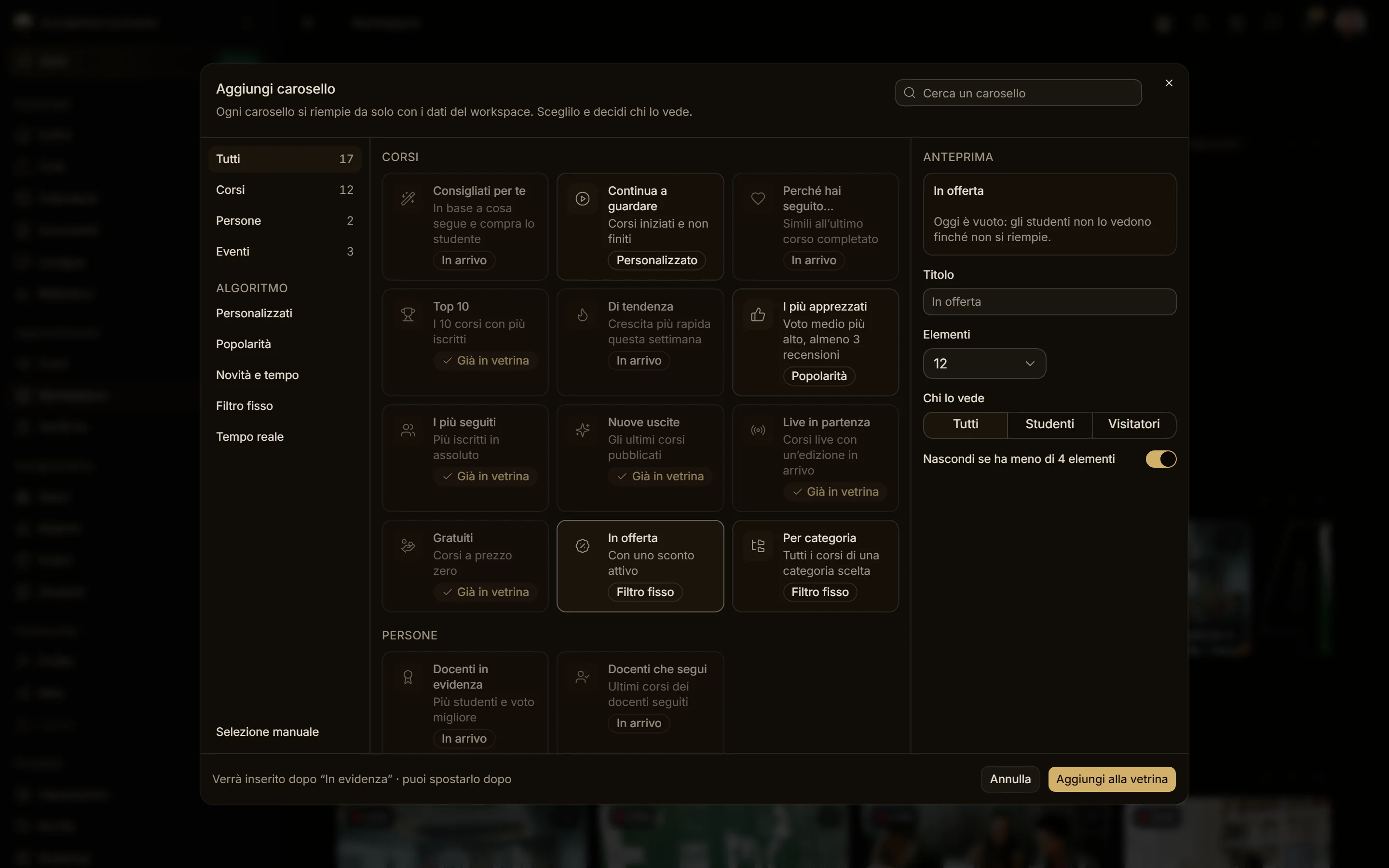
Available today: Manual selection (you pick the courses, at most 8), Top 10, New releases, Most followed, Live courses about to start, Free, On sale (with an active discount), Top rated (average rating, at least 3 reviews), By category and Continue watching.
On every carousel, still in Edit mode:
- you write the title right there;
- the arrows move it up or down;
- the ⋯ menu opens its settings, hides or shows it, deletes it.
In a manual selection the arrows on the sides of the cards change the order, the X removes a course and Pick courses adds more. Hidden or empty carousels stay visible in Edit mode, dimmed, so you can fix them; students do not see them. Everything applies to the draft: students see it after Publish the showcase.
On a phone the dialog works in two steps: first pick from the catalog, then set the carousel.
See also Course review.