
Sign in and sign up
Sign in, create an account with the 6-digit code, set up your school on /start, and what you see on the Free plan, including the upgrade card.
Tested on 28/09/2026 · version 17fbe54642
Sign in
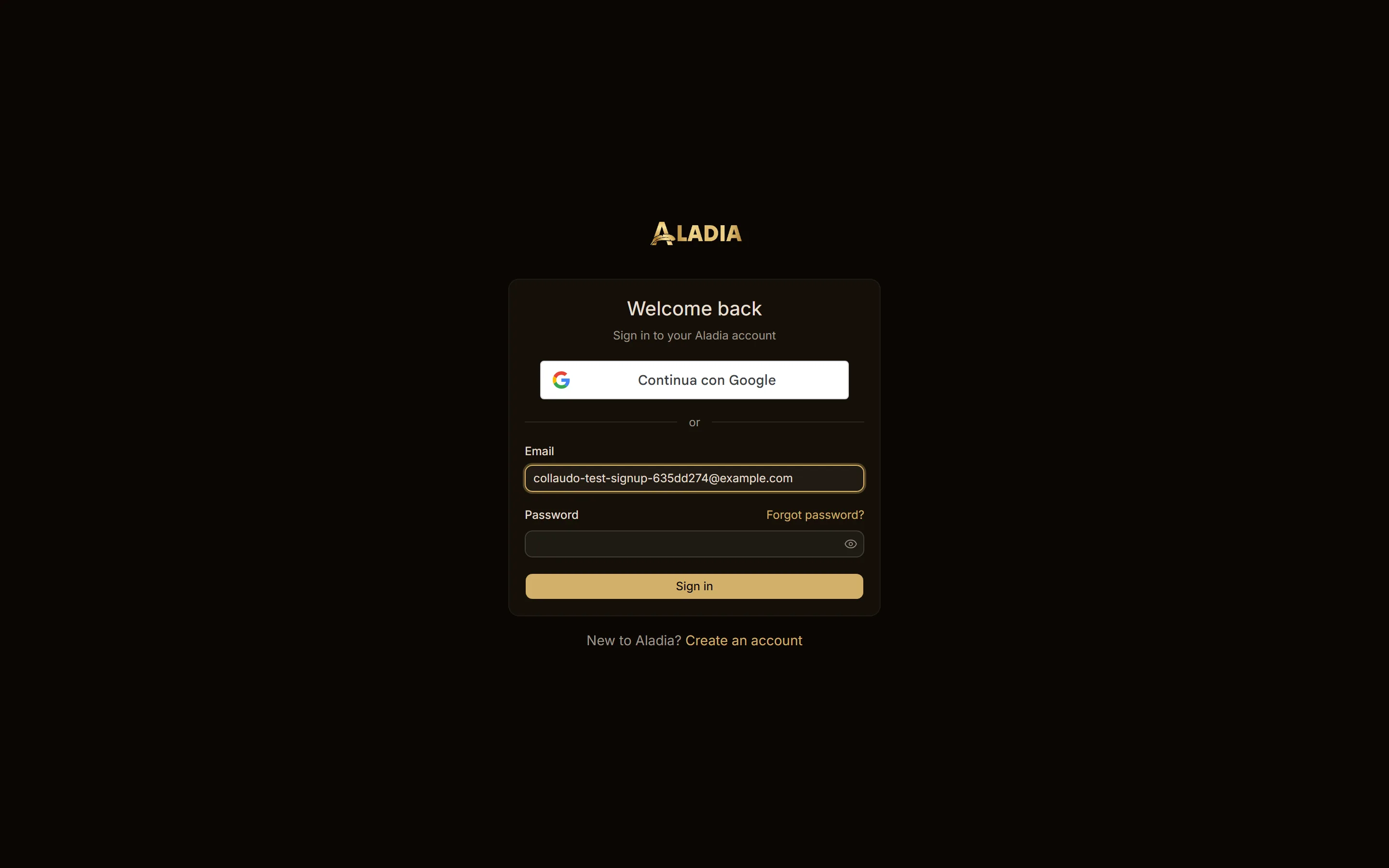
Open app.aladia.io, type your email and password and choose Sign in. You can also use Continue with Google.
If the email has no Aladia account yet, Sign in does not show an error: it takes you to the sign-up form with the email already filled in. You don't need to type a password first.
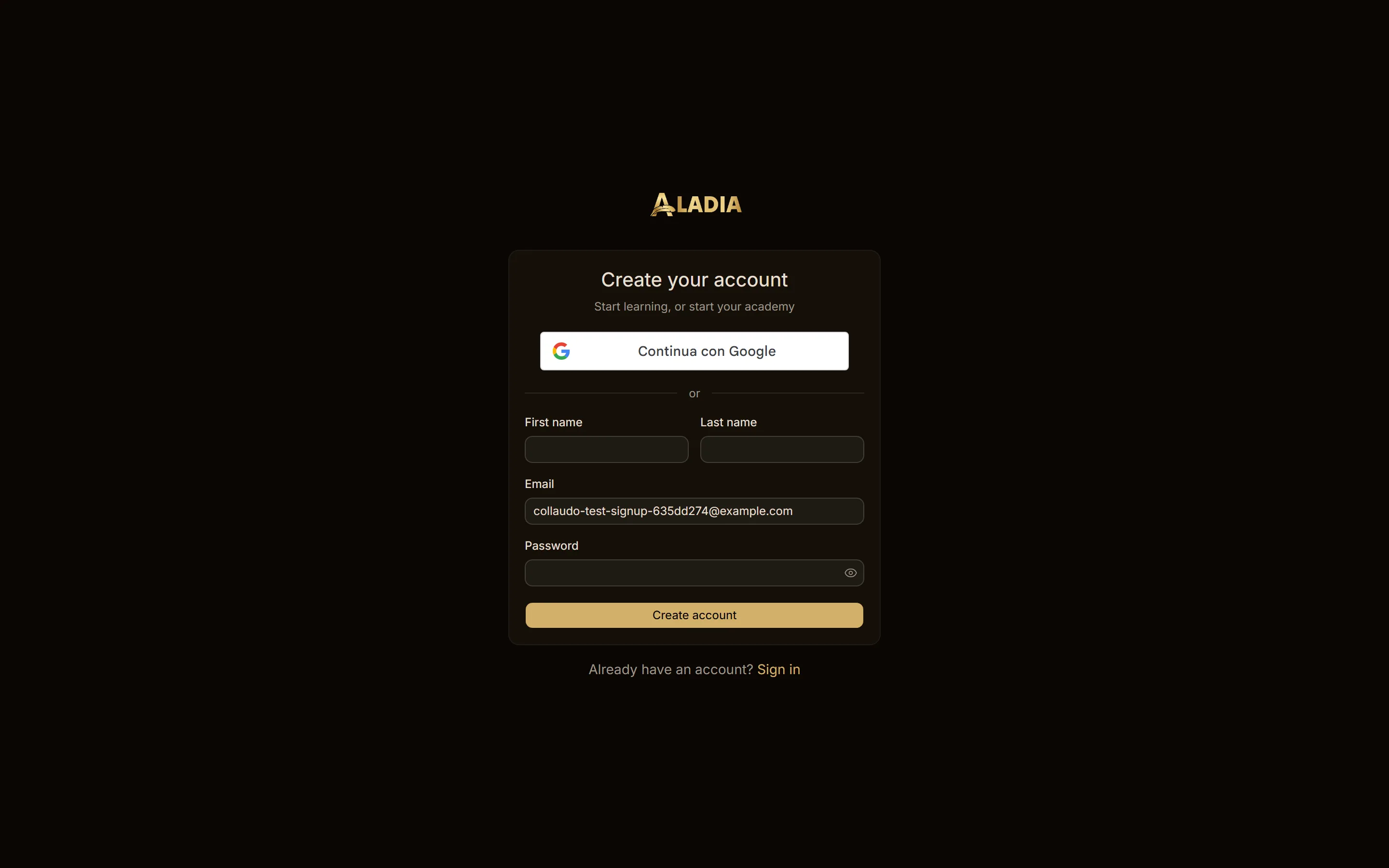
Create your account
- On the sign-up form enter first name, last name, email and a password with at least 8 characters, a lowercase letter, an uppercase letter, a number and a symbol.
- Choose Create account.
The verification code
After Create account you get a 6-digit code by email. Type it in the field Code sent to your email and choose Verify email. The right code confirms the email and signs you in straight away. If the code does not arrive, choose Send a new code.
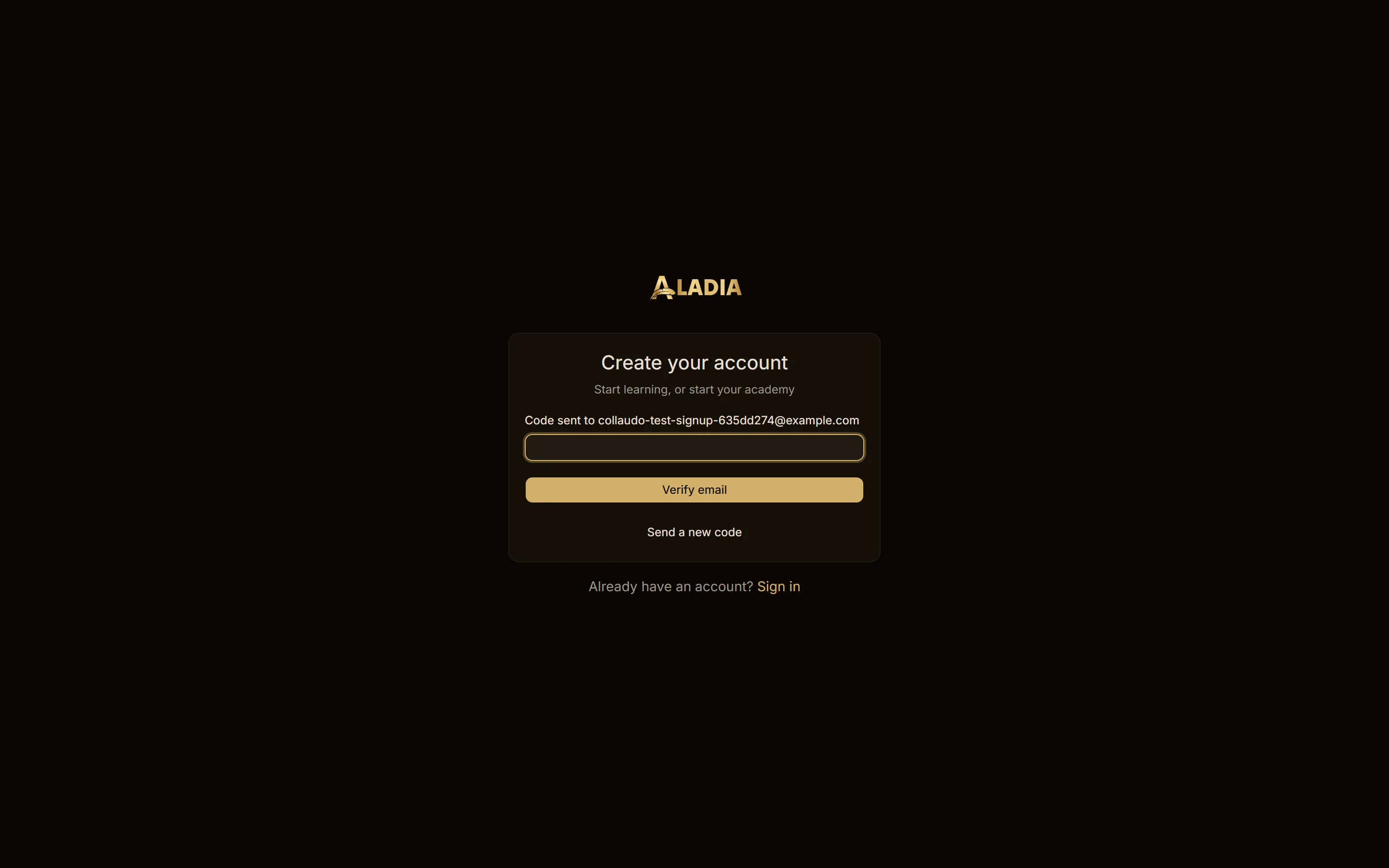
If you signed up from an invitation link, after the code you go back to that invitation. Otherwise you continue to Your school.
Your school (/start)
The first workspace is your school. On Your school:
- write the School name;
- choose the Type: School, Academy, Solo teacher or Company;
- choose Enter.
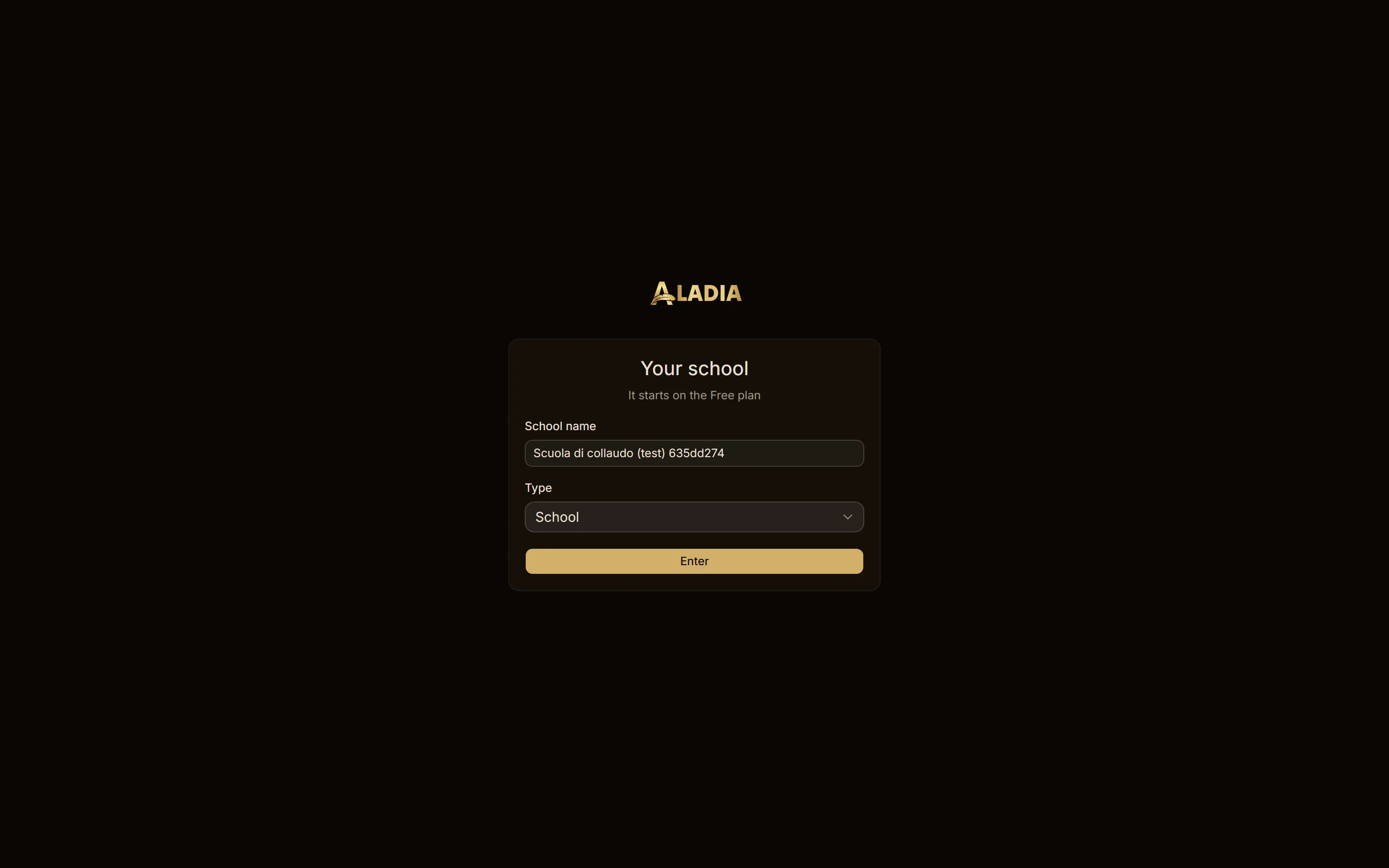
You enter the new workspace as its Owner, on the Free plan. You don't need a Stripe verification to prepare spaces and courses: it is only for selling (see Get paid).
What you see on Free
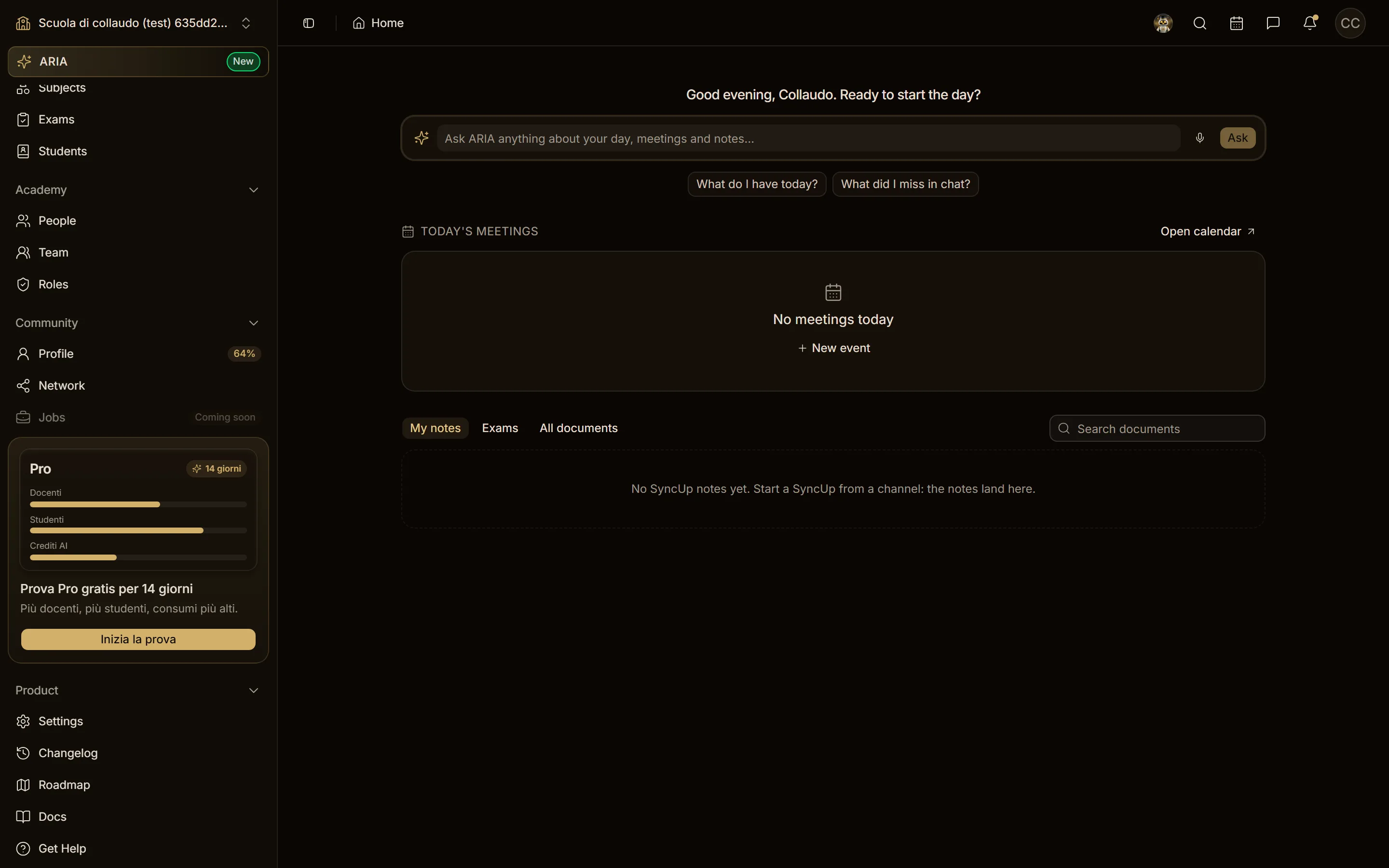
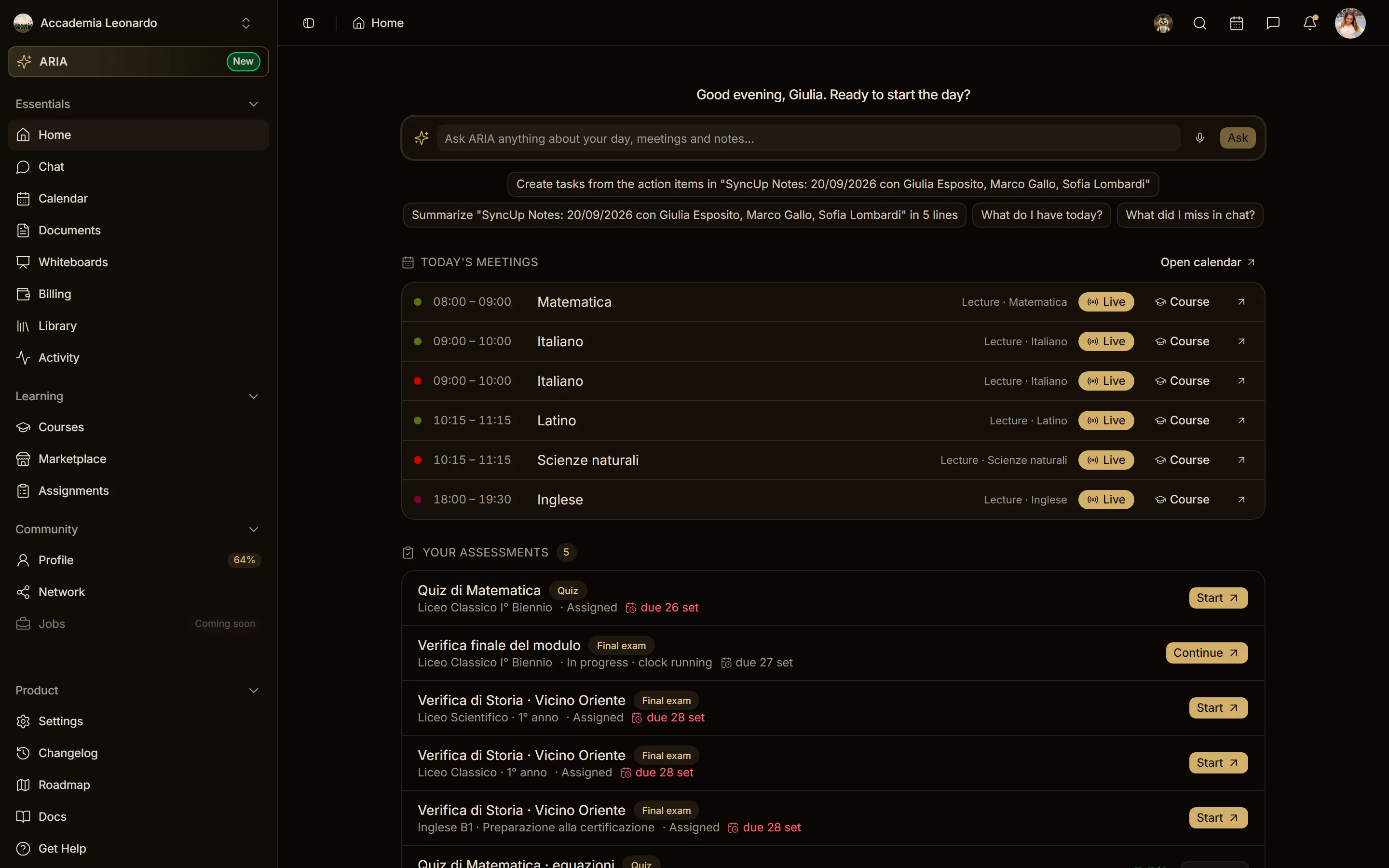
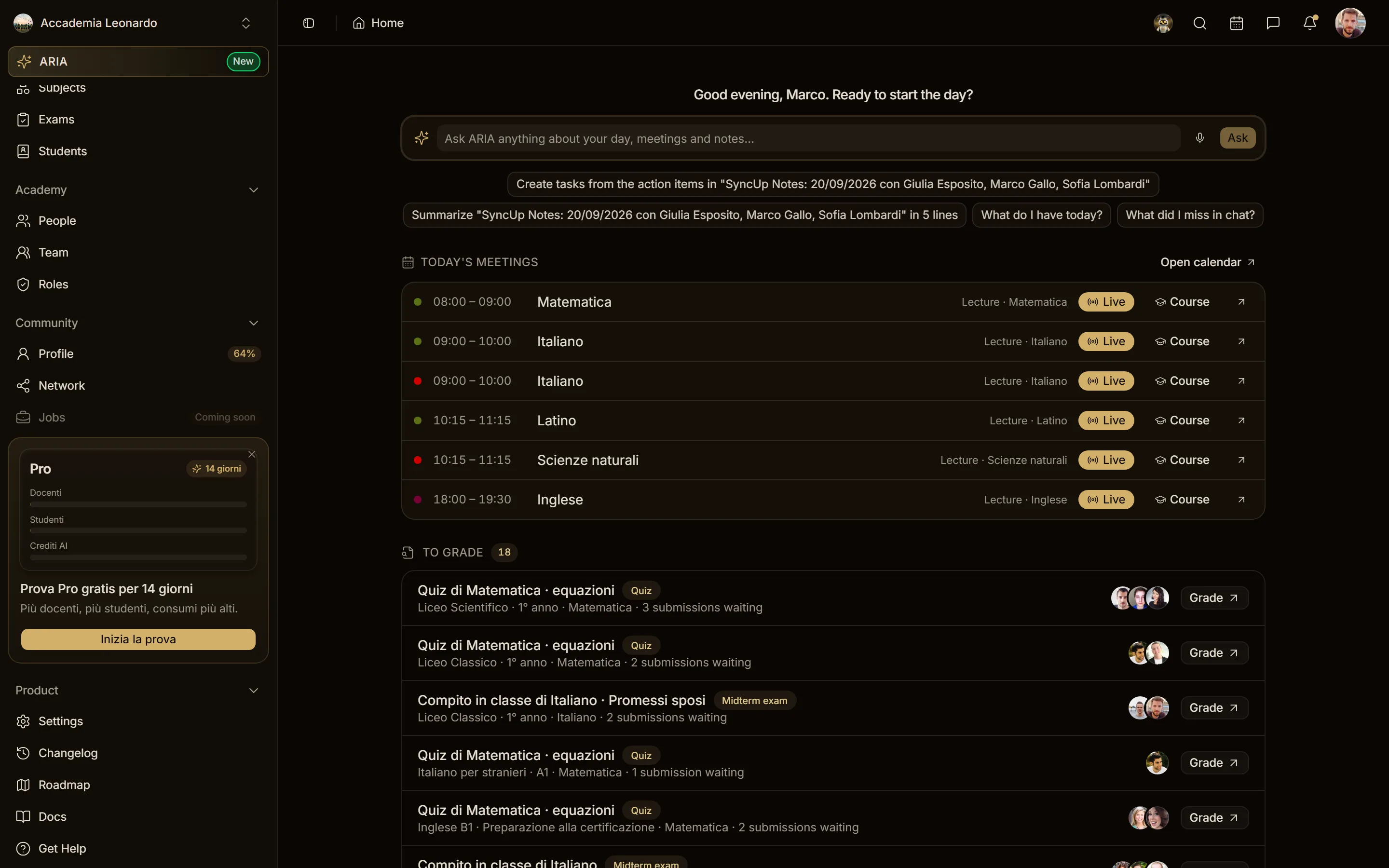
In the new workspace the sidebar has Teaching (spaces, subjects, exams, students) and Academy (people, team, roles), and at the bottom the upgrade card.
The Plan page (/workspace/settings/plan) shows the current plan, marked Current, and the four plans with a link to the details on aladia.io/pricing.
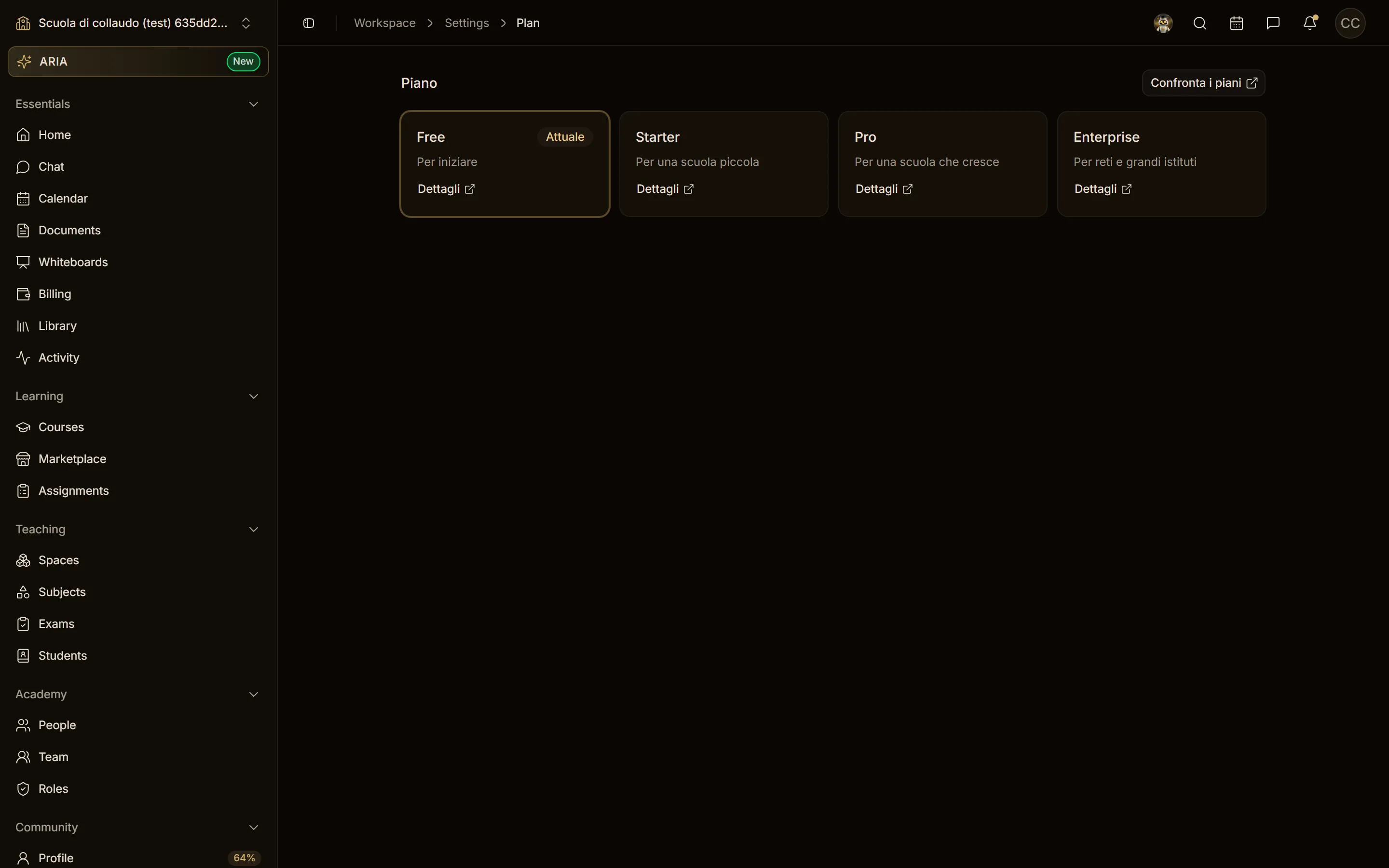
In the workspaces of the plans rollout the same page becomes Plan and billing, with the trial, plan changes, card and invoices: see Plan and billing.
The upgrade card
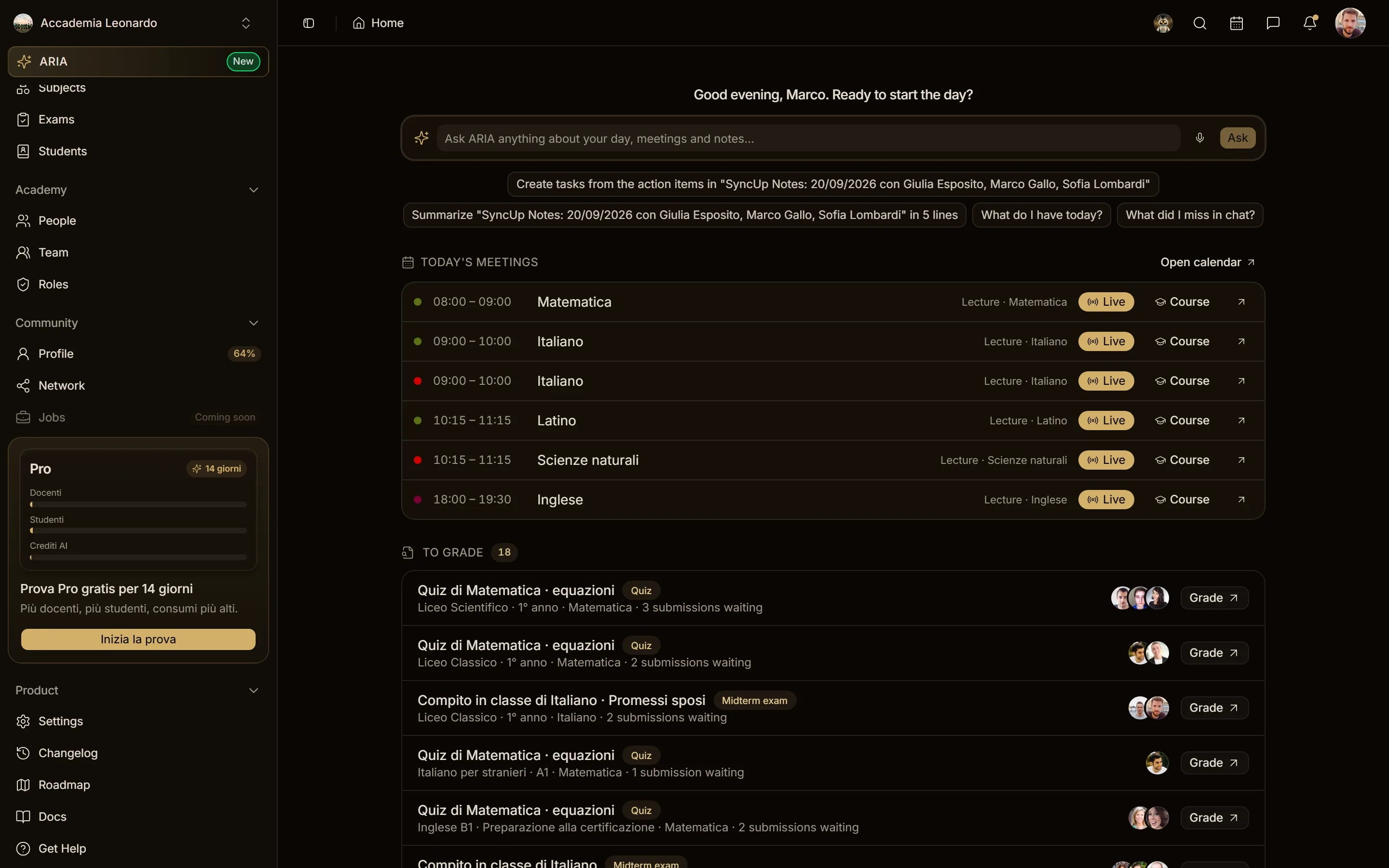
On the Free plan, the bottom of the sidebar shows the card Try Pro free for 14 days (in Italian: Prova Pro gratis per 14 giorni), with the Start the trial button that opens the Plan page.
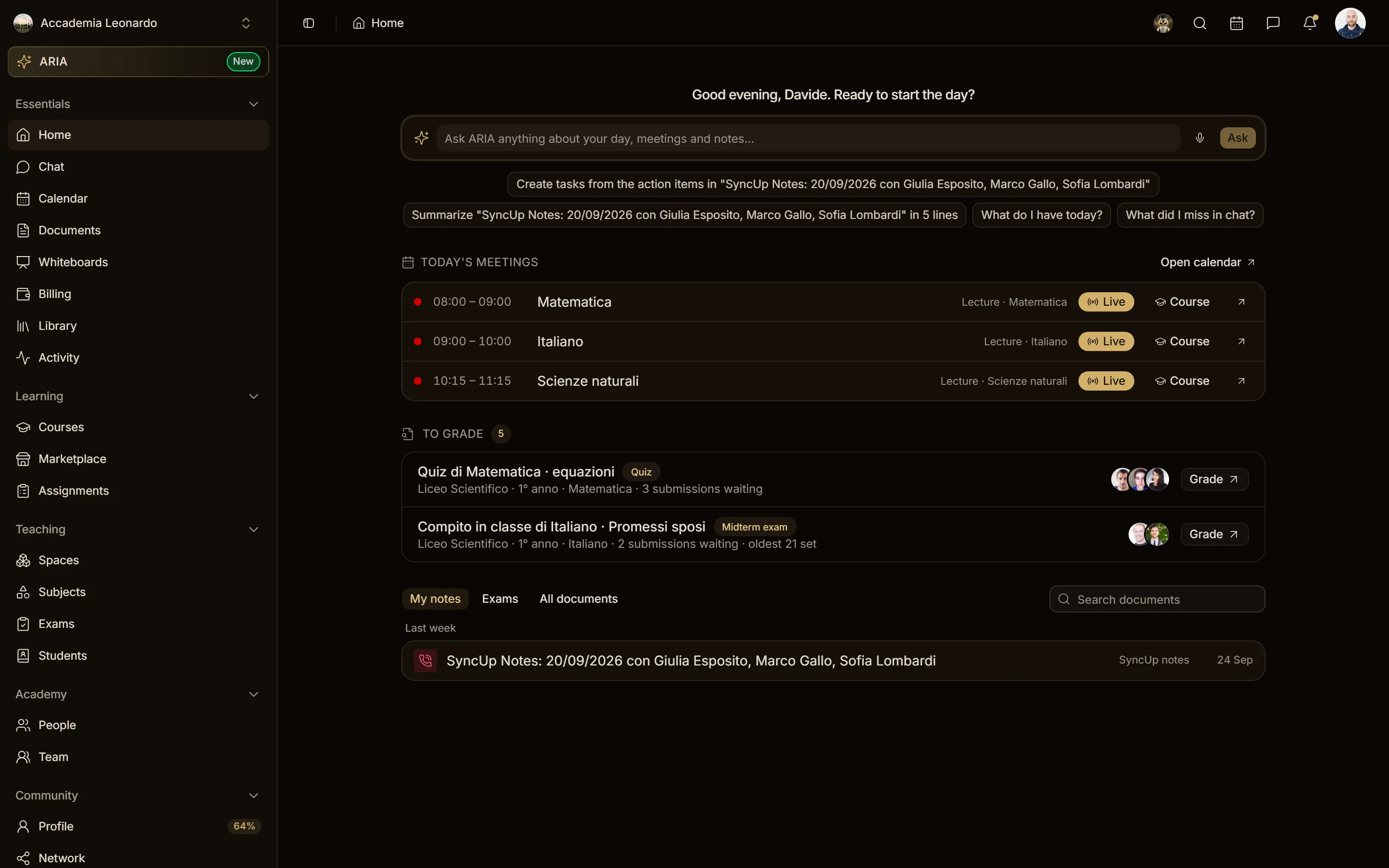
Only the people who manage the workspace's billing see it: the Owner, the Admins and members with the Billing role. Teachers who are members, and students, don't see it.
Hide the card
Move the pointer over the card and choose the X in its top-right corner (Hide). The card disappears and stays hidden after a reload. The choice is saved on your profile, so it applies on every device you use.
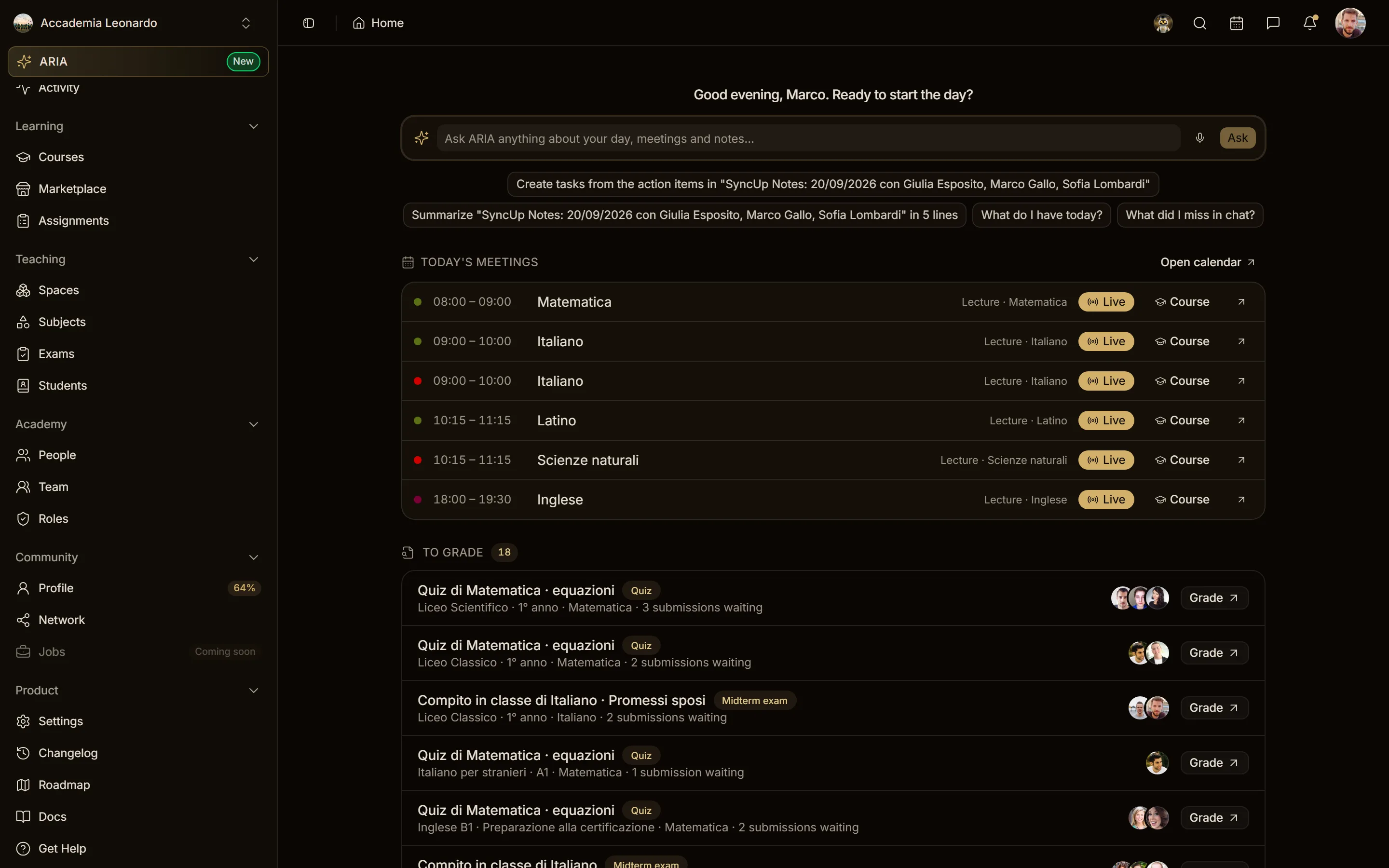
There is no setting to show a hidden card again yet. The Plan page stays available at /workspace/settings/plan.
Get paid
The Stripe identity verification is only needed to sell and receive payouts. Whoever manages billing starts it from the avatar menu in the top bar: Get paid in your personal context, Academy payouts inside an academy. The item stays there until the verification is complete.