
Your assessments
The student's Assessments page - what is to do, upcoming assessments, how to take and submit one, extra time, when you see the grade and how to ask your teacher a question.
Every assessment your teachers assign to you, in every course, is in one place: Learning → Assessments (/assessments). The same rows show up in Home, on the course page and under the lessons: wherever you start from, the same assessment opens.
Where you find them
| Where | What you see |
|---|---|
| Learning → Assessments | the full list, split into groups |
| Home | Upcoming assessments (the first three) and Your assessments: the open ones and the last three submitted or graded |
| Course page, Assessments section | the assessments of that course, in the edition you follow |
| The course lesson list | the assessment under the lesson it is tied to, or at the bottom of the chapter (End of chapter) or of the course (End of course) |
| The course Calendar tab | "Opens: …" and "Due: …" on the right days |
From the Assessments page the assessment opens without leaving the page: close the dialog and you are back on the list. A notification about an assessment opens it there too. From Home it opens inside the course.
The Assessments page
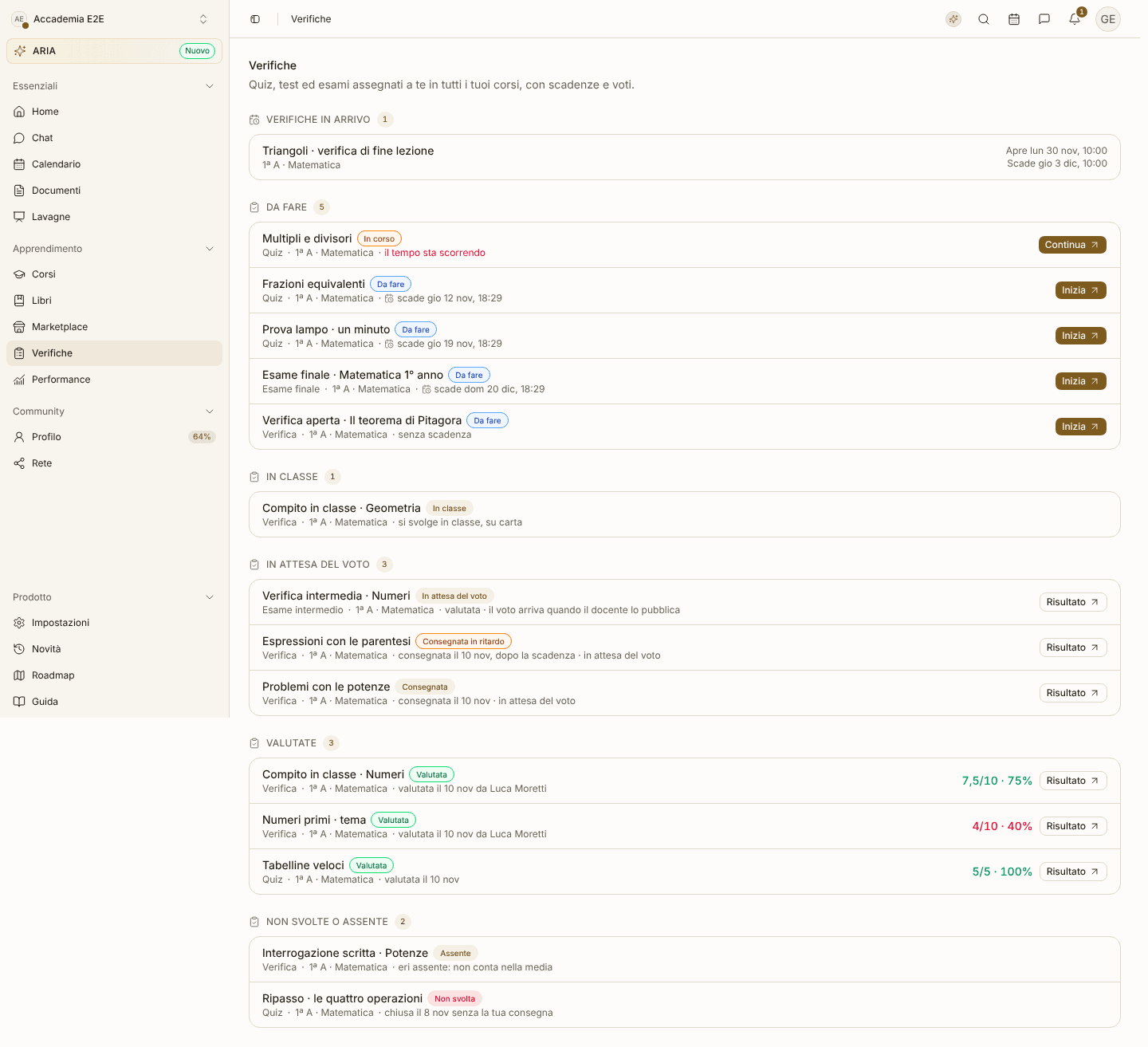
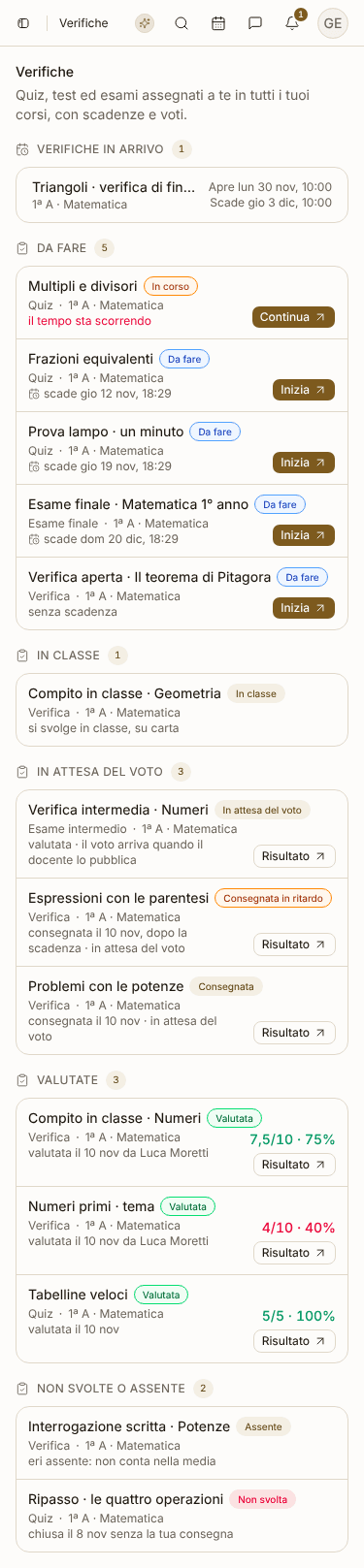
At the top, if there are any, the Upcoming assessments. Below, your assessments in five groups, each with its number of rows:
| Group | What it holds |
|---|---|
| To do | online assessments to take, the ones you are taking, and the ones already assigned that open later |
| In class | assessments taken in the classroom, on paper |
| Waiting for the grade | submitted, or already graded but with the grade not published yet |
| Graded | the ones with a visible grade |
| Missed or absent | closed without your submission, or you were absent |
The page has no filters and no search: the groups are fixed. If nothing has been assigned to you yet you read Nothing assigned yet.
The row of an assessment
Each row shows the title, the state written in a label, the type (Quiz, Midterm, Final…), the course with its edition and a sentence that says what happens now. On the right the grade, when there is one, and a single button: Start, Continue or Result.
If you did not submit it yourself, the row and the result say so: "Submitted automatically when the time ran out", "Submitted automatically at the due date" or "Closed by the teacher".
Rows with no action (Upcoming, Postponed, In class, Missed, Absent) have a Details button: it opens the assessment and says when it opens, why it is postponed, when it closed, that you were absent or that it is taken in class.
| State | What it means | Button |
|---|---|---|
| Upcoming | assigned but not open yet ("opens …") | Details |
| Postponed | the lesson it was tied to was suspended or deleted: it has no date until the teacher reschedules it | Details |
| To do | open, to take. Below you read the due date: "due in 40 min", "due today at 18:00", "due tomorrow at 09:00" (in red when less than 24 hours are left) or "no due date" | Start |
| In progress | you started it: "the clock is running" if it has a time limit, otherwise "started, not submitted yet" | Continue |
| In class | "taken in class, on paper" | Details |
| Submitted | "submitted … · waiting for the grade" | Result |
| Submitted late | submitted after the due date | Result |
| Waiting for the grade | "graded · the grade shows when your teacher publishes it" | Result |
| Passed / Not passed | you have the grade: "graded on … by …", with the grade next to it. Green if you reached the passing mark, red if not. If the assessment has no passing mark the label is Graded | Result |
| Missed | "closed … without your submission" | Details |
| Absent | "you were absent: it does not count in your average" | Details |
If the assessment allows several attempts, next to the title you read Attempt 2 (or 3…) and, while you have attempts left and the assessment is not closed, you find Retry.
For an assessment on paper there is nothing to open until the grade is there: then Result shows the grade, the comment and your copy.
Upcoming assessments
An assessment can show up before you can take it. There are three cases.
- Scheduled, not yours yet: the teacher put it on a lesson and you receive it when it opens. It is in the Upcoming assessments box (in Home and at the top of the Assessments page) with the course, "Opens …" and "Due …". In the course it shows under its lesson with the Upcoming label.
- Already assigned, opens later: it is among yours, in the To do group, with the Upcoming label and the sentence "opens …". There is no Start. It never shows twice: if it is already among yours, it is not in the box at the top as well.
- Postponed: the lesson it was tied to has been suspended or deleted. The label is Postponed, with no date, and the sentence "The lesson was postponed: we will let you know when the assessment is available again". Until the teacher gives it a new date it cannot be started, it does not expire and you get no reminders.
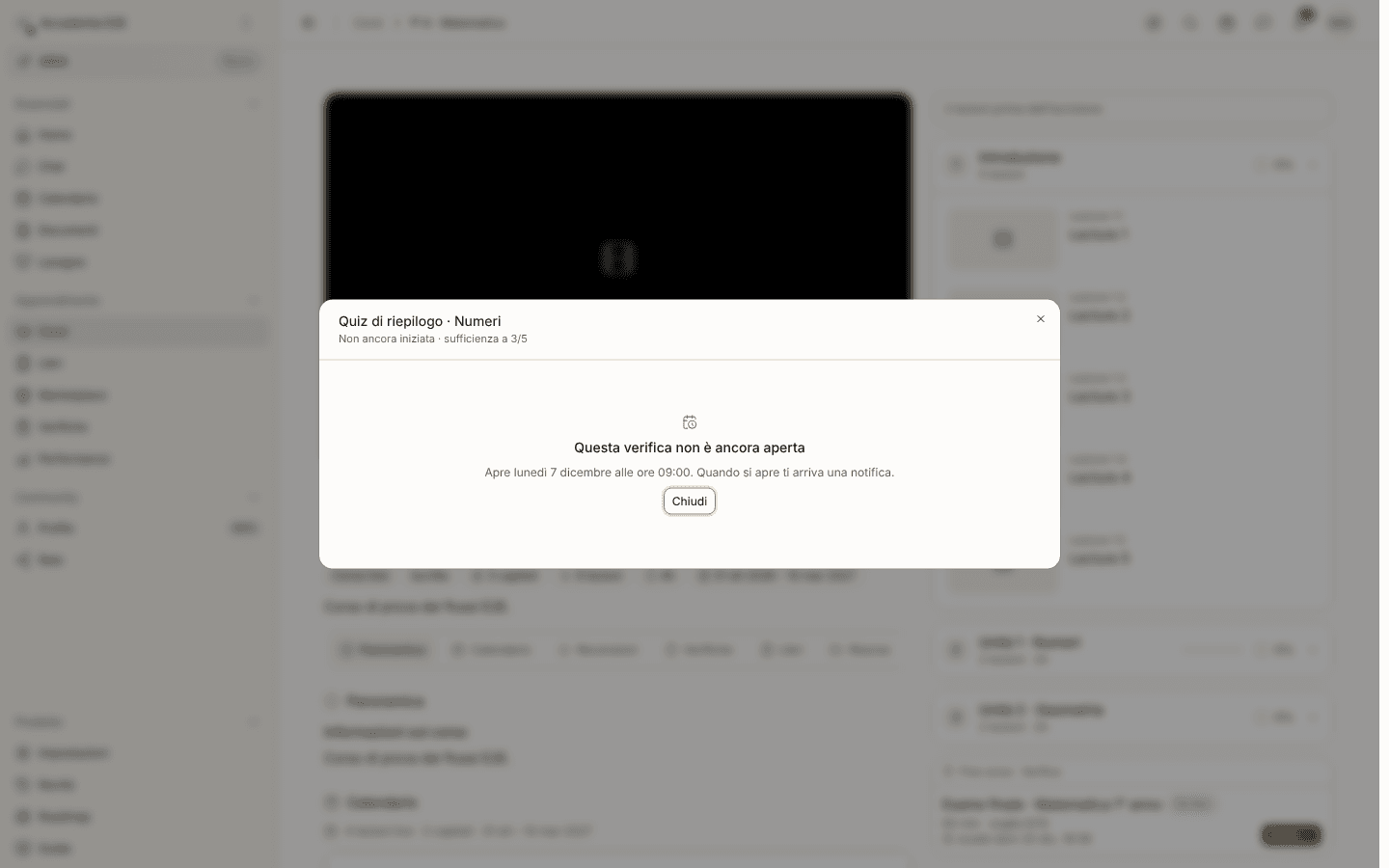
If you open one of these assessments (for example from a notification) the dialog says it plainly: This assessment is not open yet, with the day and time it opens, or This assessment is postponed. When it opens you get a notification.
If the lesson moves, opening and due date move with it.
Taking an assessment
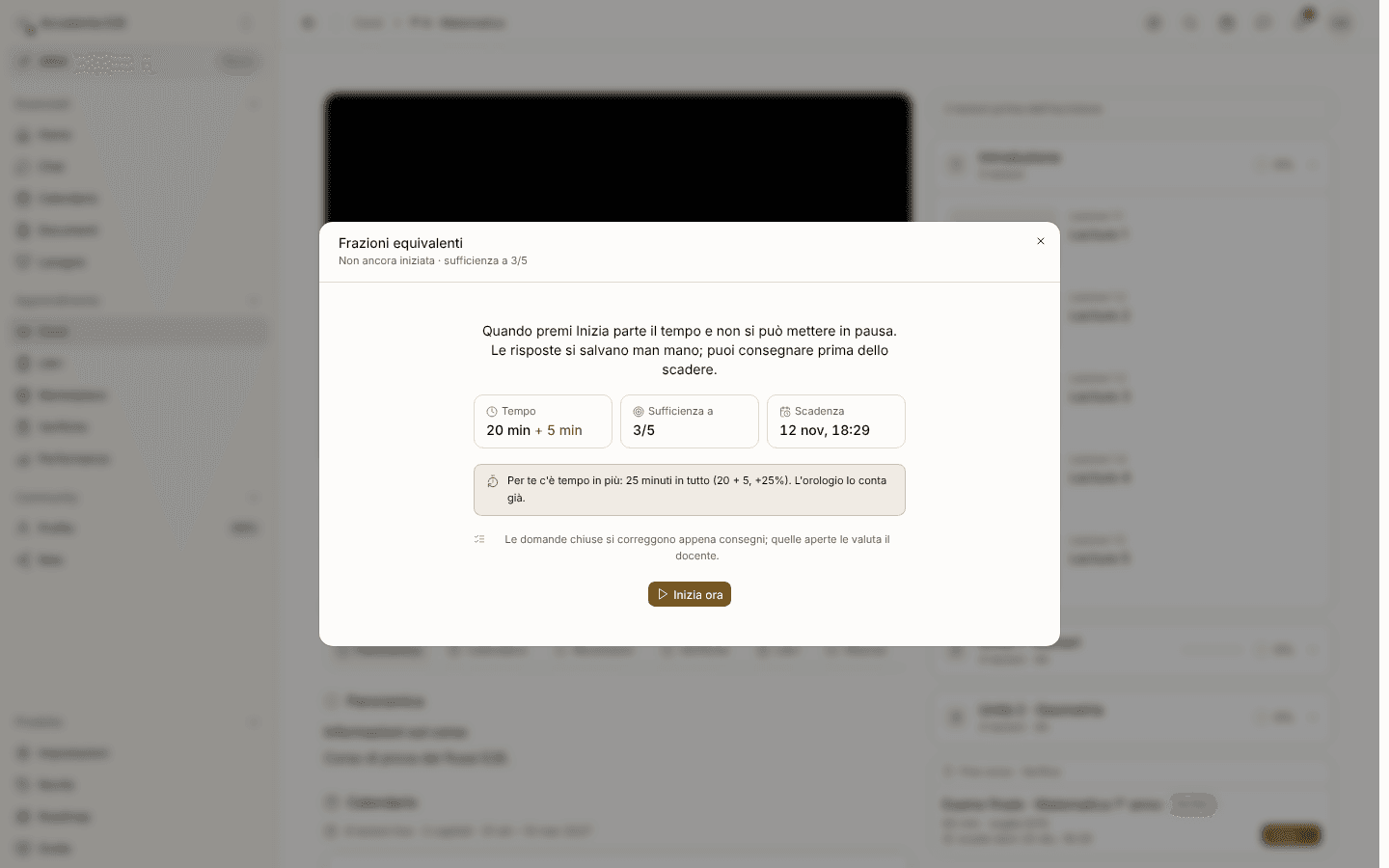
- Open the assessment. Press Start on the row. A dialog opens over the page you are on (full screen on a phone) with Time, Pass at and Due. The clock has not started yet.
- Start the clock. Press Start now. From here the clock runs and cannot be paused. If the assessment has no time limit you read No limit and you submit when you are done.
- Answer. Answers are saved automatically, one second after your last change. At the top you see the clock, how many answers you have given ("7/10 answered") and saved, saving… or unsaved.
- Submit. Press Submit. A confirmation tells you if some questions are still blank. After submitting you cannot change your answers.
Good to know while you take it:
- If you leave while the clock is running the dialog asks for confirmation (Leave the assessment?): the clock keeps running. You can come back from the Assessments page, the course page or Home with Continue.
- Offline you see the notice "Connection lost. Keep going: your answers stay here and are saved as soon as you are back online. The clock does not stop." Retry forces a new save.
- When time is up the clock turns into Time is up and the assessment is submitted automatically with what you have answered. This happens even if you closed the window: the platform hands it in, with the time of the deadline.
- At the due date of the assessment, if you have not even started it, it becomes Missed and you get a notice. If you started it in time, you finish it with your own time.
- Opening an assessment that is already past due you read This assessment is closed: message your teacher, they can reopen it for you.
- Proctored assessments first ask for your consent (what is recorded, for how long, who sees it). With Decline the assessment does not start.
Extra time
If your teacher gave you extra time, you see it before you start: "You have extra time: 63 minutes in total (50 + 13, +25%). The clock already counts it." During the assessment, next to the clock there is a label such as +25% or +13 min.
You only see your own extra time. Your classmates do not see it, and you do not see theirs.
After you submit
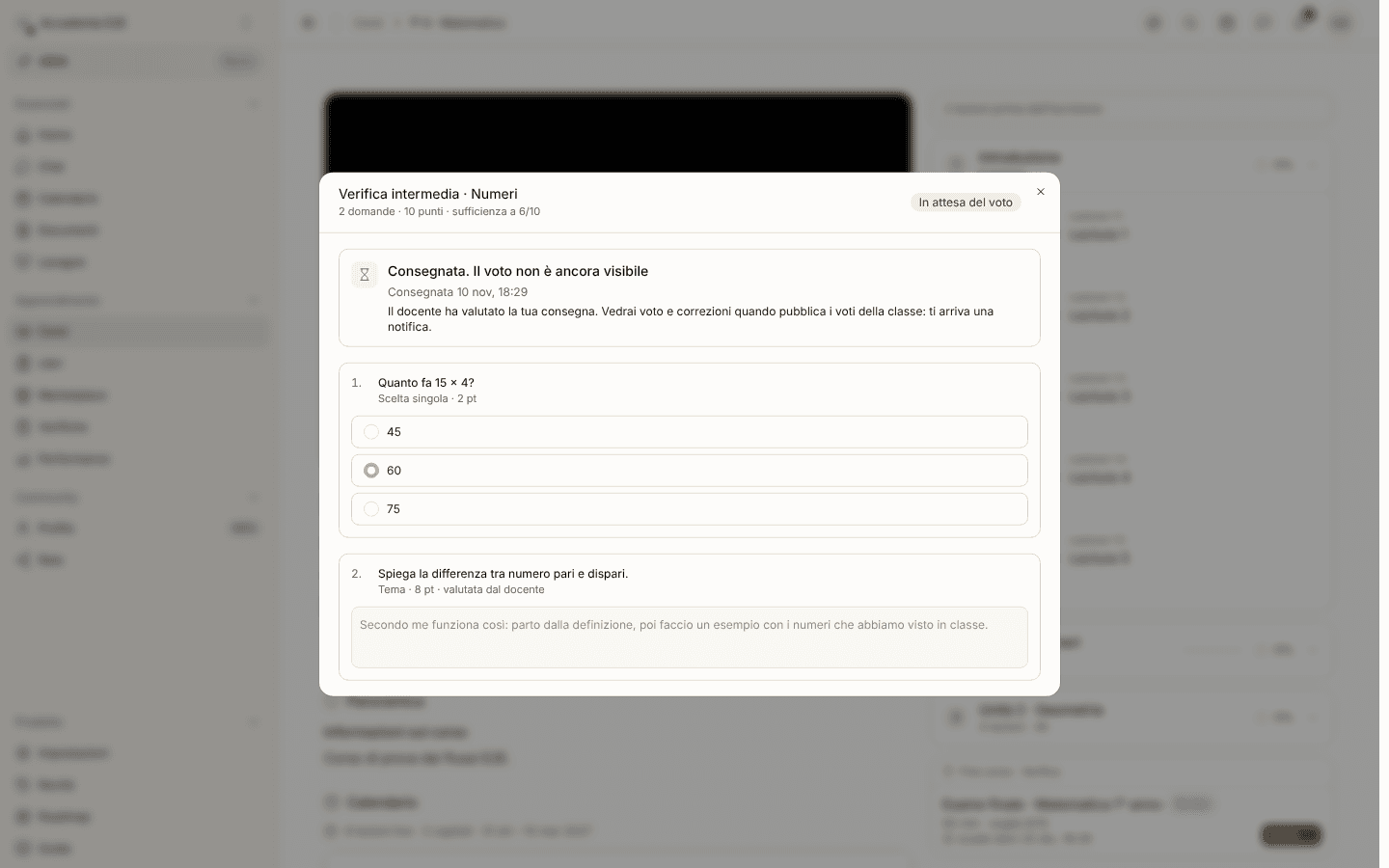
Right after submitting you read Submitted and a sentence about the wait:
- Waiting to be graded: closed questions are scored automatically, open ones wait for the teacher;
- The grade is not visible yet: the teacher has graded it, but publishes the grades of the whole class together. In the list the state is Waiting for the grade.
Until the grade is visible you see no number at all: no points, no right answers, no comments. When the grade arrives you get a notification.
The result
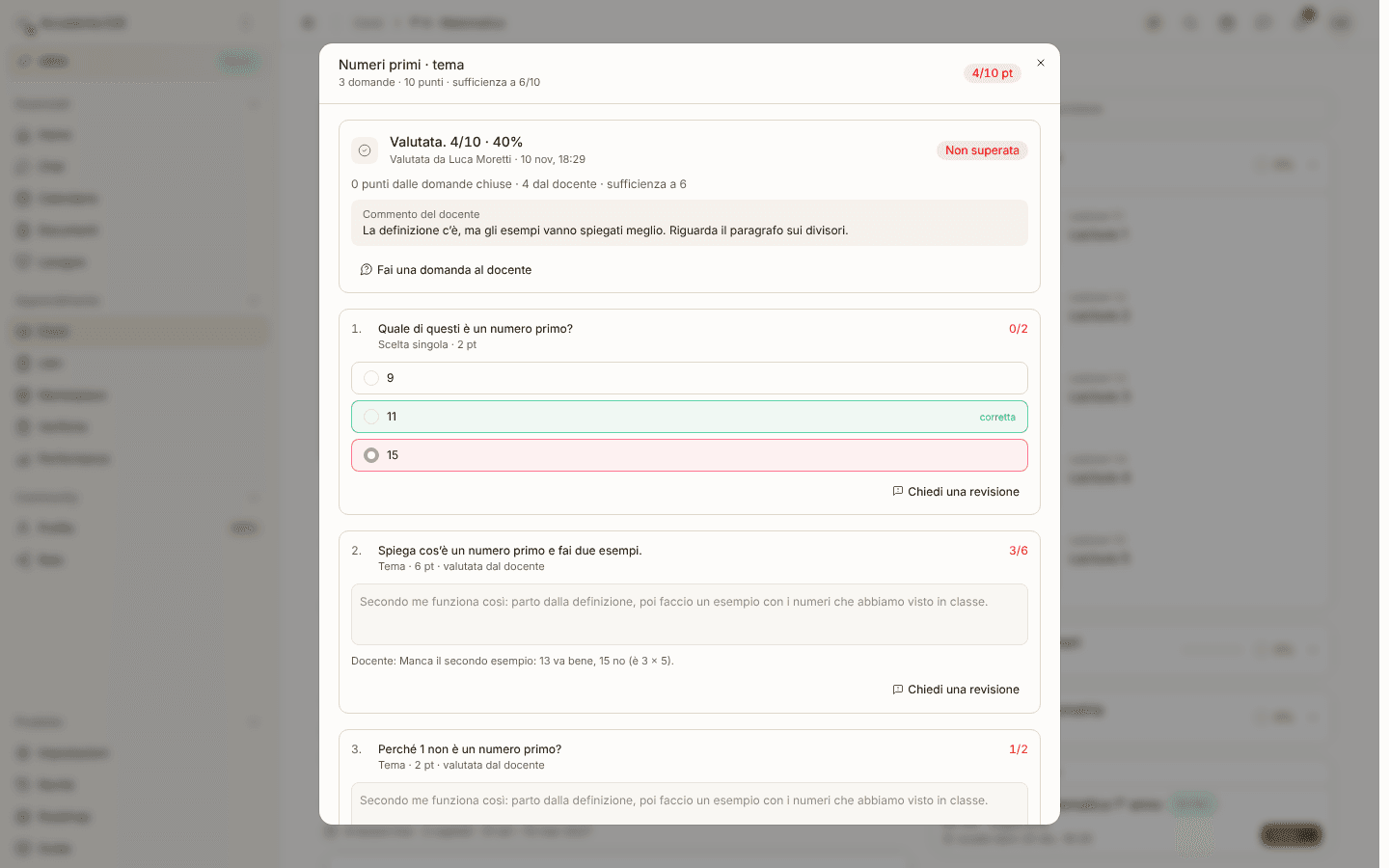
When the grade is visible, Result shows:
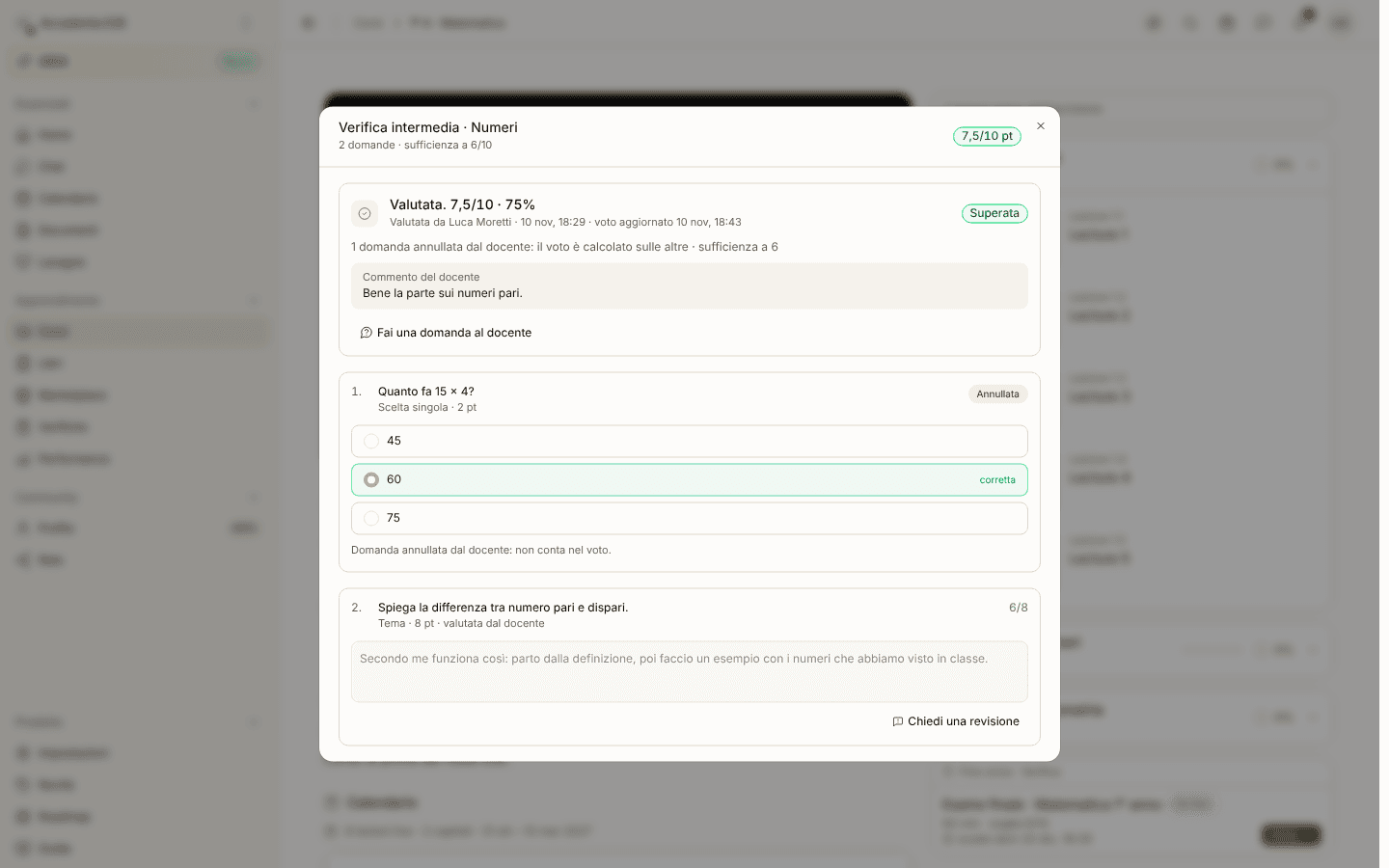
- the grade on the exam's own scale, with the percentage: for example 7,3/8 · 91%, and Passed or Not passed;
- who graded it and when ("Graded by …"), or Auto-scored;
- the Teacher's comment, if there is one;
- every question with the points you got, the right answer and the teacher's comment on that question, if any;
- for an assessment on paper: the grade, the comment and your paper copy. Solutions and the grade history stay with the teachers.
When you see it depends on two settings chosen by the teacher:
| Setting | When you see the grade |
|---|---|
| Grades as soon as graded | as soon as your assessment is graded |
| Grades all together | when the teacher presses Publish grades for the class |
| Results never | the grade is not shown: the assessment stays Waiting for the grade |
Special cases:
- Grade changed: if the teacher revises the grade, the row says "grade updated …" (on a paper assessment "regraded on …"). The previous grade is not shown.
- Voided question: if the teacher voids a question for the whole class, the question has the Voided label and the note "Question voided by your teacher: it does not count in the grade". The grade is worked out on the other questions.
- Publication undone: within 24 hours the teacher can undo the publication. The grade is hidden again and the assessment goes back to Waiting for the grade, until it is published again.
Asking your teacher a question
Inside Result, when the grade is visible, you find two buttons. Both send a message in chat to whoever graded the assessment: there is no separate form.
- Ask the teacher: write your question and press Send in chat. The message goes out with the reference to the assessment and the course and the link, then the conversation opens.
- Ask for a review: it is under each single question. Explain what you think should be looked at again and press Send request. Review requested stays under the question, with the date and what you wrote. Your teacher answers in chat. The grade may stay the same, go up or go down.
Good to know:
- the buttons are there only if a person graded the assessment. An assessment that was only scored automatically does not have them;
- a voided question has no Ask for a review;
- the Review requested note is remembered on the device you used: on another device it does not show, but the chat message stays.
Notifications
You get a notice when the assessment is assigned to you, when it opens, 24 hours and 1 hour before the due date if you have not submitted, when your submission is received, when the grade is published, when it turns out missed, when it is cancelled and when your teacher reminds you. The full table, with what arrives in app, as a push and by email, is in Assessment lifecycle and notices.
Choose what to receive in Settings › Notifications › Assessments.
In the app
In the app you find the same assessments in More › Assessments: Upcoming at the top, then the same groups (To do, In class, Waiting for the grade, Graded, Missed or absent). Some labels in the app are still the earlier ones: a postponed assessment is Upcoming, a graded one is Graded even when the website says Passed or Not passed, and rows with no action have no Details. Home has Your assessments and the Upcoming assessments.
- You take it in the app: Start now, answers saved automatically, time left and Submit always in view at the bottom, with "last minutes" when time is about to run out. Your extra time is written next to the time.
- A postponed or not yet open assessment is Upcoming in the app too, with no Start now.
- In the result you find the grade, the teacher's comment, Your copy for assessments on paper and Ask the teacher. Ask for a review shows under the questions where you did not get full points.
- Proctored assessments are taken on the website: the app shows Open on the web. In-person ones take place in class: in the app you see the grade.
- A push about an assessment opens that assessment directly.
See also Studying with the app.