
Light and dark theme
Choose Light, Dark or System, and Aladia follows you on every page.
Tested on …/…/2026 · version …
Aladia has a light and a dark theme. By default it uses System: it follows the theme of your computer or phone, and switches by itself when your device does (for example at sunset).
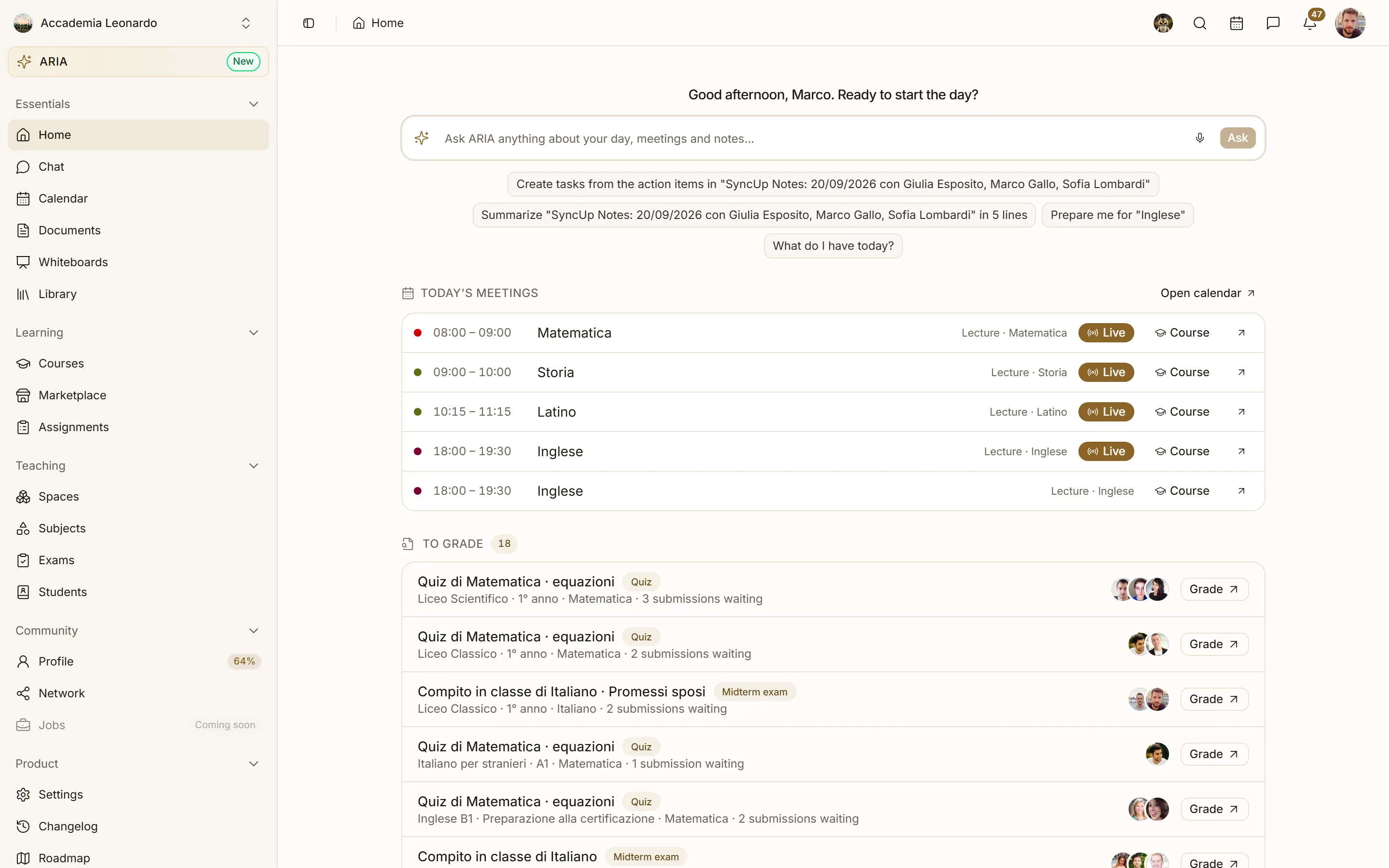
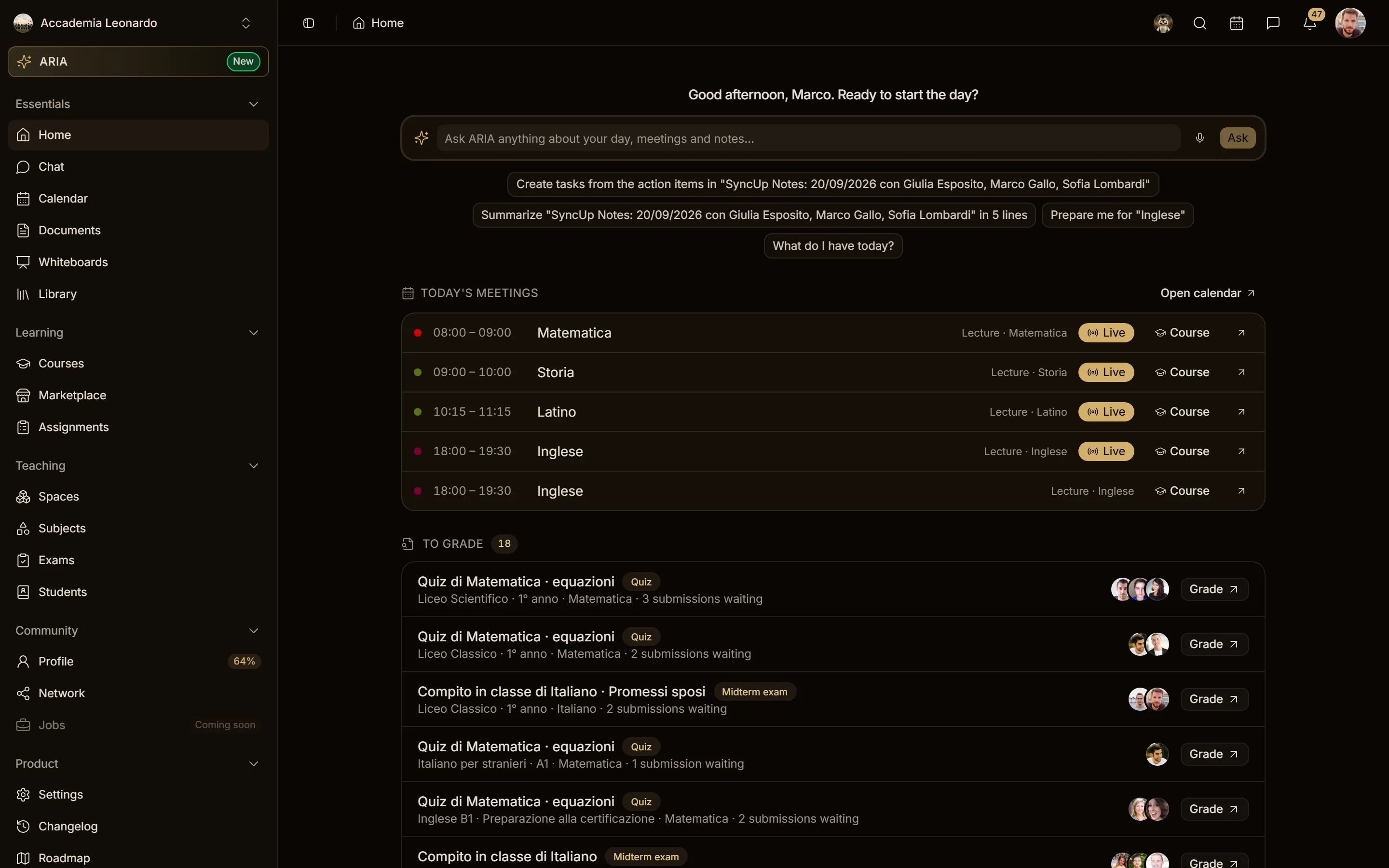
Choose the theme
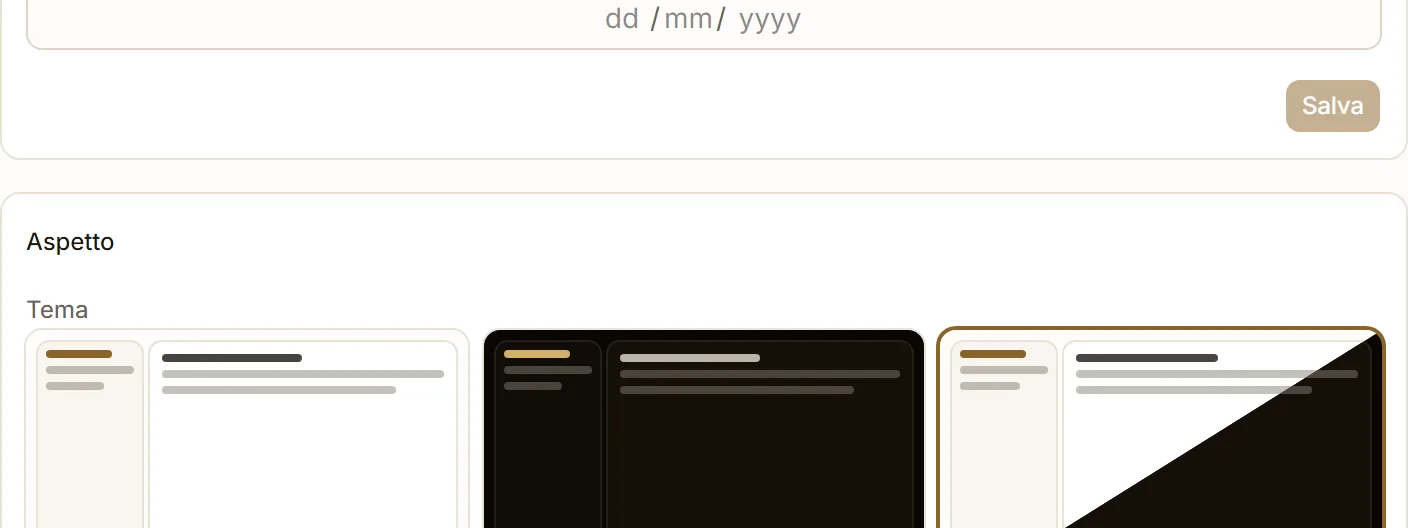
- Go to Settings → Account.
- In Appearance, pick Light, Dark or System. Each card shows a preview of the window in that theme.
The change is immediate, with no need to save.
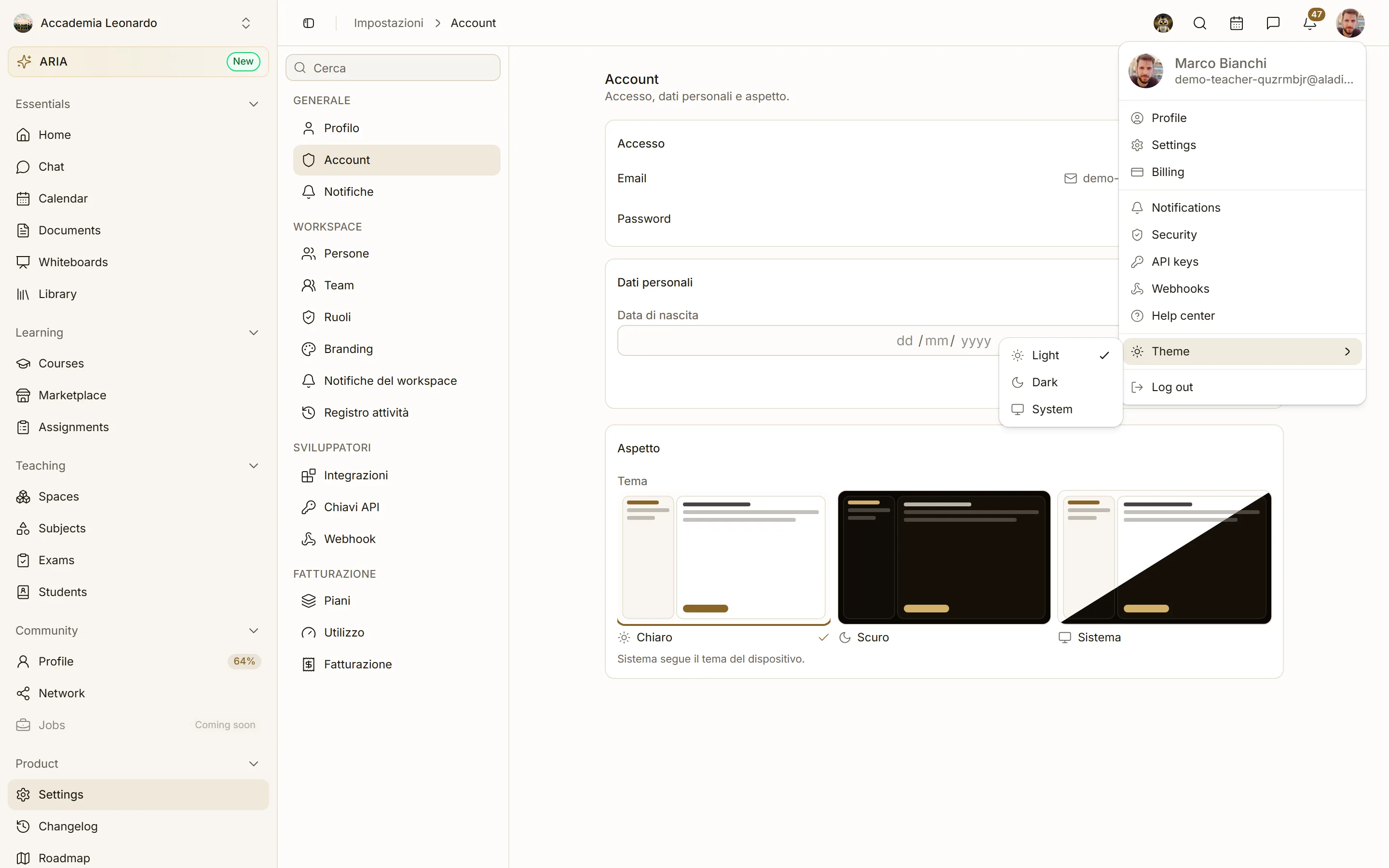
You can also change it in one click from the menu of your avatar, top right: Theme → Light / Dark / System.
Where the choice is saved
The theme is saved in the browser you are using, not in your account: on another computer or browser Aladia starts from System until you choose again there. The page opens already in the right theme, without a flash of the other one.
Light or dark only on one device
Leave System in Aladia and set the theme of that device: Aladia follows it on each device separately.
What changes
Every page of the app follows the theme: Home, Chat, Calendar, Courses and the course builder, Settings, the notifications and messages panels in the top bar and the dialogs. The payment and payout forms from Stripe follow it too. Videos, stories, reels and the photo editor stay on a dark background in both themes, so images keep their colours.
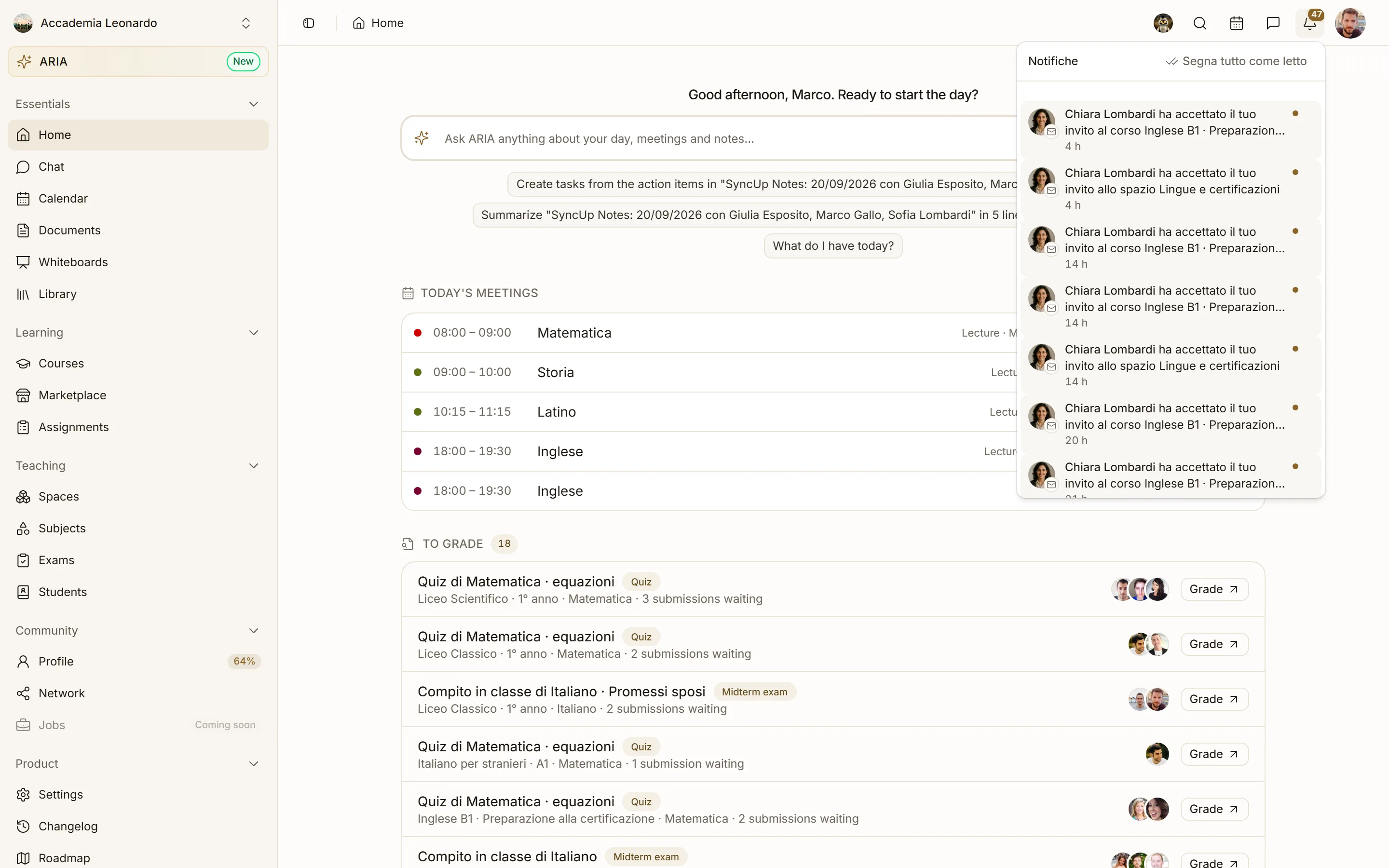
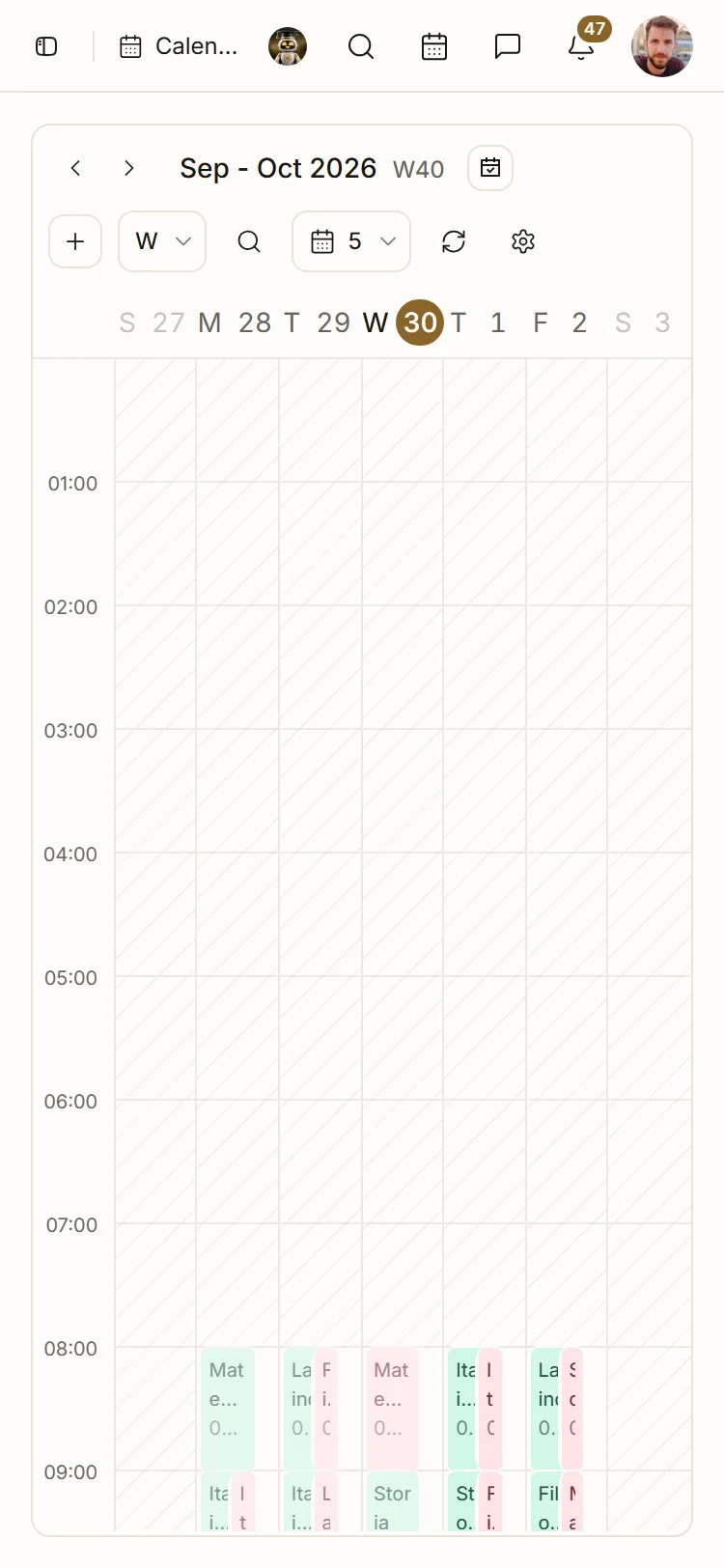
Both themes are checked for readability: text meets the WCAG AA contrast level (4.5:1, 3:1 for large text).