
Messages and notifications
Read and answer chats, and follow what happens, from the top bar.
Tested on …/…/2026 · version …
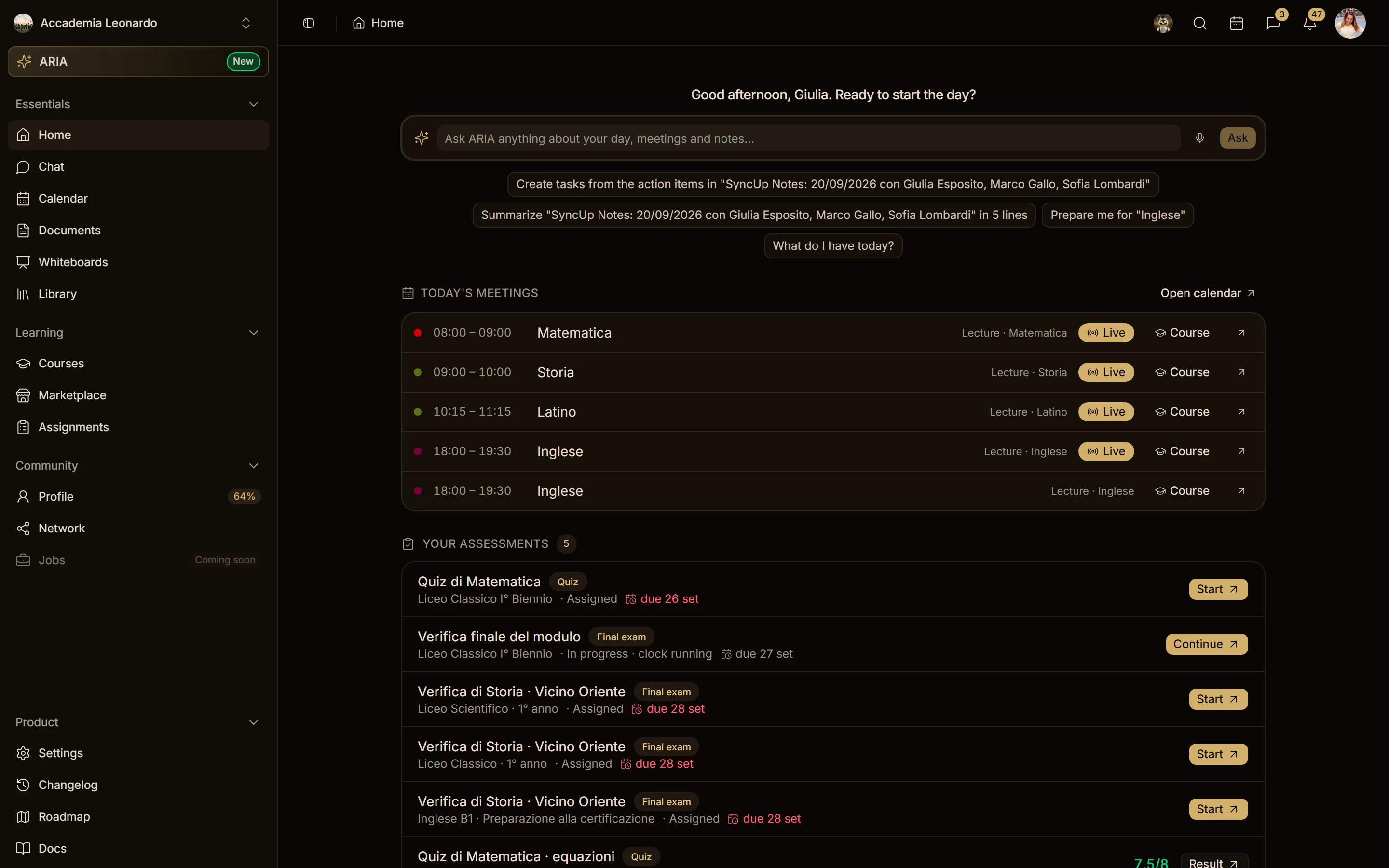
The two icons next to the calendar in the top bar show what is new in the workspace you are in: Messages (chat bubble) and Notifications (bell). A number at the top right of the icon counts what you have not read yet (1 to 99, then 99+), and it updates live: you never need to reload the page.
Messages
Click the chat bubble to see your latest conversations: direct messages and the channels you follow, each with the last message, when it arrived and how many messages you have not read.
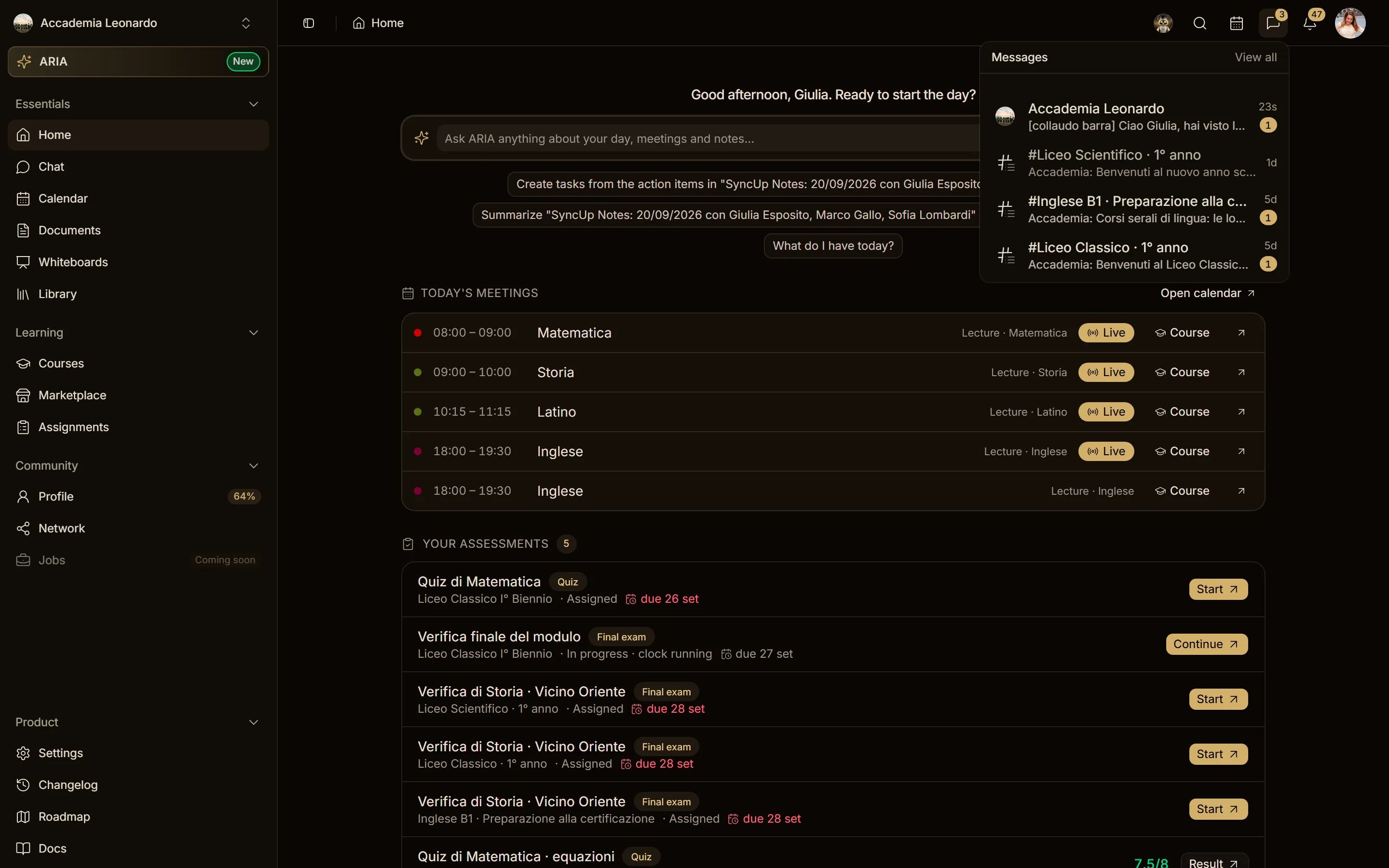
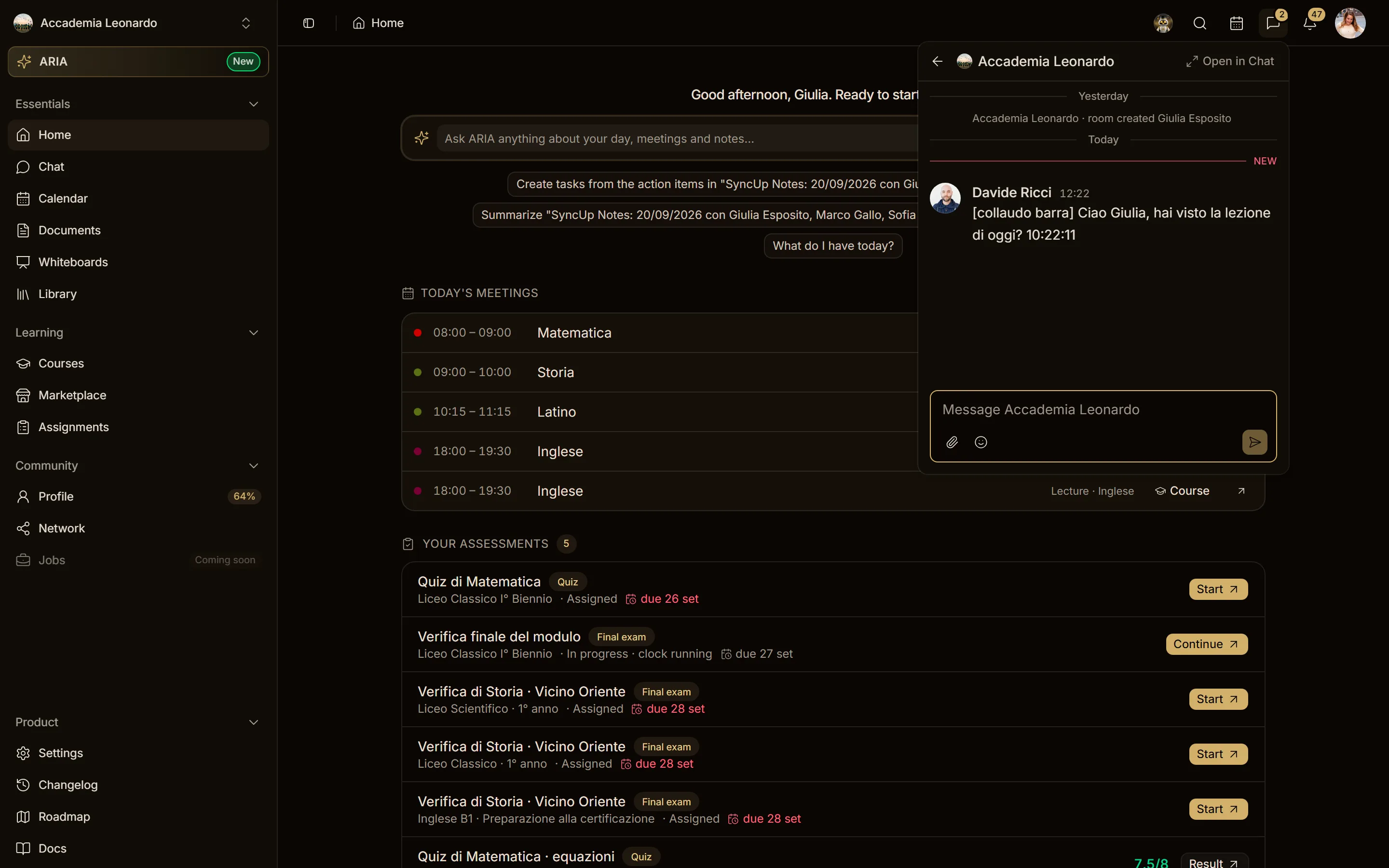
Click a conversation to open it right there, in a compact chat:
- the latest messages, marked as read as you see them;
- a reply box with attachments and emoji: press Enter to send;
- Open in Chat to continue on the full Chat page, with threads, files and calls.
View all opens the Chat page. Muted channels, and channels you do not follow, do not count in the badge.
Who is online in direct messages
On the Chat page and in the app, every direct message shows the person's photo with a dot in the bottom right corner:
- solid green dot: the person is online right now (Aladia is open on the web or in the app);
- empty grey ring: they are offline.
The status updates by itself as soon as the person comes or goes. When you open the direct message, the top bar shows their photo with the same dot, their name and, below it, their role (the main experience on their profile), or Online / Offline when there is no role.
New chat: messages, channels and sections
On the Chat page the + at the top opens the menu: New message, Create channel and Create section. In the app the same + opens the New chat page, with the same items plus Browse channels, and suggested people below (photo, presence dot, followers). Search at the top to find channels and people.
- New message: pick a person and the conversation with them opens (the existing one, or a new one). In the app you can just tap a suggested person.
- Create channel: give it a name (required, at most 80 characters) and add the people you want. Only members see the channel; more people can be added later from the channel details. Channels open to everyone are the ones of spaces, folders and courses: they are not created by hand.
- Create section: a personal section of your chat list to group channels. Only you see it.
- Browse channels: every channel and space you belong to, to follow or unfollow.
The new channel or direct message opens right away. Until the first message the chat shows a welcome: Chat in #name with Add people, or Chat with Name in direct messages, and Start SyncUp for a voice or video call.
Expand and collapse spaces, folders and courses
In the left column of Chat, spaces, folders and courses with editions contain channels. Hover the row: the icon turns into an arrow that shows whether the group is expanded or collapsed.
- Click the arrow: expands or collapses the group without opening the channel.
- Click the rest of the row: opens the channel without expanding or collapsing the group.
- With the keyboard, move the focus to the arrow with Tab and press Enter or Space.
- On phones and tablets, where there is no hover, tap the icon to expand or collapse the group and the name to open the channel.
A collapsed group also counts the unread messages of the channels inside it. Groups and sections stay expanded or collapsed as you left them, even when you change page or reload, on this device and browser. When you open a channel inside a collapsed group, the group expands on its own.
Documents in a message
With Attach a document (or /document) you can attach an existing one or create a new one. In the text field the document is a strip with its title, Open and the X to remove it: tap the title to rename it. Open shows the document full screen over the chat, even before you send; closing it (Esc or the X at the top) takes you back to your message as it was, ready to send. You can also send it right away, with the document still empty. In the sent message the document stays a strip: Open shows it full screen without leaving the chat. The same goes for a link to a document written in a message and for SyncUp notes. To go to the document page, use Open in Documents in the … menu at the top right.
Whiteboards in a message
With Attach a whiteboard (or /whiteboard) you can attach an existing one or create a new one. In the text field you see the whiteboard preview with its title, the X to remove it and Open over the preview: tap the title to rename it. Open shows the whiteboard full screen over the chat, even before you send, and you can already draw on it: it saves by itself. Closing it (Esc or the X at the top) takes you back to your message as it was, ready to send; you can also send it right away. In the sent message the whiteboard stays a preview: Open, or a tap on the preview, shows it full screen without leaving the chat. The same goes for a link to a whiteboard written in the message. From there Open in Whiteboards takes you to the Whiteboards section.
Threads, reactions and mentions in channels
- Below a message with replies there is a single line: the photos of who replied (ARIA with its own avatar), N replies and when the last one arrived ("today at 12:15", "yesterday at 12:03", "Wednesday, 21:52", "Oct 6, 17:30"). Tap it to open the thread.
- Messages from the same person written a few minutes apart stay together: name and photo once, the texts one below the other. Separators say Today, Yesterday, the weekday or the date.
- Long press a reaction (on the web: right-click) to open Reactions: the "All" tab and one per emoji, with who reacted, their photo and when.
- To mention someone type @ in the message or press the @ button under the text field. The menu has a search at the top: with a typed @ it shows what you write after the at sign, with the button you are already in it and type the name. Scroll to the bottom to load more people. Arrows to move, Enter to pick, Esc to close.
- Mentions are coloured: tap @person to open their profile, #channel to open the channel. When a message mentions you (by name, or everyone with @channel / @all) its row is highlighted.
SyncUp: calls in a channel
Start SyncUp (the camera icon in the channel header) opens a call for the members of the channel. The call stays inside the chat area, next to the app sidebar.
- The people counter in the call header opens the panel on the right: Members with who is in the call, and Chat with the call thread (the replies to the SyncUp message) and the same composer as the chat: what you write during the call stays in the thread, not in the channel. If the browser blocks the microphone or camera, a notice explains where to allow them.
- While the call is being recorded the REC badge shows how long it has been recording (for example REC 12:34), the same time for everyone.
- Top right: Settings to change microphone, camera and speakers, Open in a new window to move the call to its own window, and Minimize to keep the call in a small box at the bottom of the sidebar while you move around the app. From the small box you turn on microphone, camera and screen sharing, open the chat, go back to full size or hang up.
- In the channel, while you are in the call, the card says You are in the SyncUp call with Leave. When the call ends it becomes SyncUp ended with View AI Notes.
- When someone starts a SyncUp, the other members of the channel, group or direct message get a notification: Name started a SyncUp in #channel, with their photo. On the phone it is a push with the photo of who started, the channel image and Join: tapping it opens the waiting room of the call (or the chat, if the call is already over). When the call ends the push on the phone turns into SyncUp ended. You can turn it off in Settings → Notifications → Chat → SyncUp started; muted channels never notify.
- AI Notes: On (bottom left) turns the AI notes on or off. When they start a notice explains that the summary is posted in the SyncUp thread when someone stops AI Notes; tick Start automatically in future calls to choose whether your next calls start them on their own.
Notifications
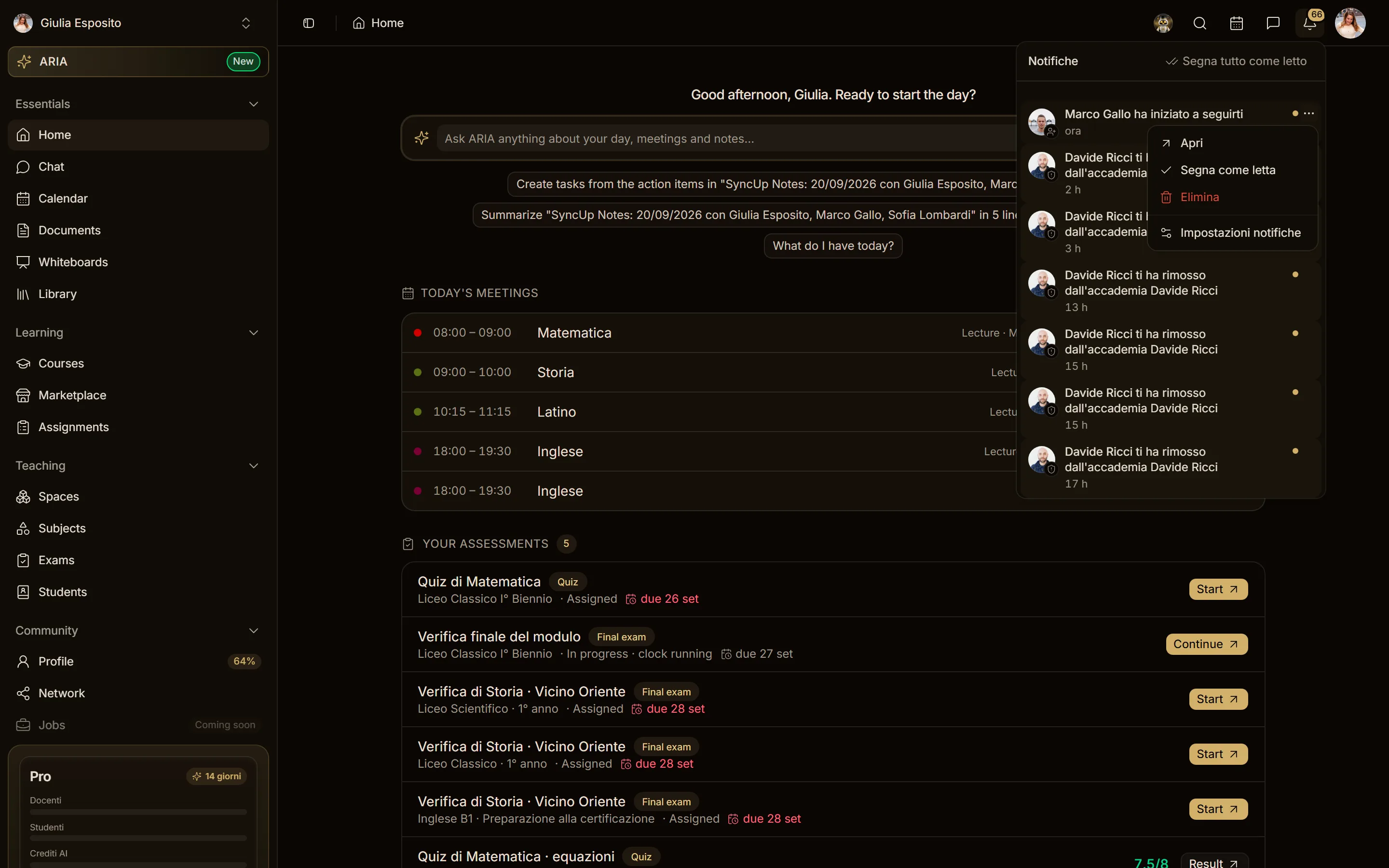
The bell lists invitations, follows, comments, mentions, course updates and everything else that concerns you, newest first. Unread notifications are highlighted with a dot.
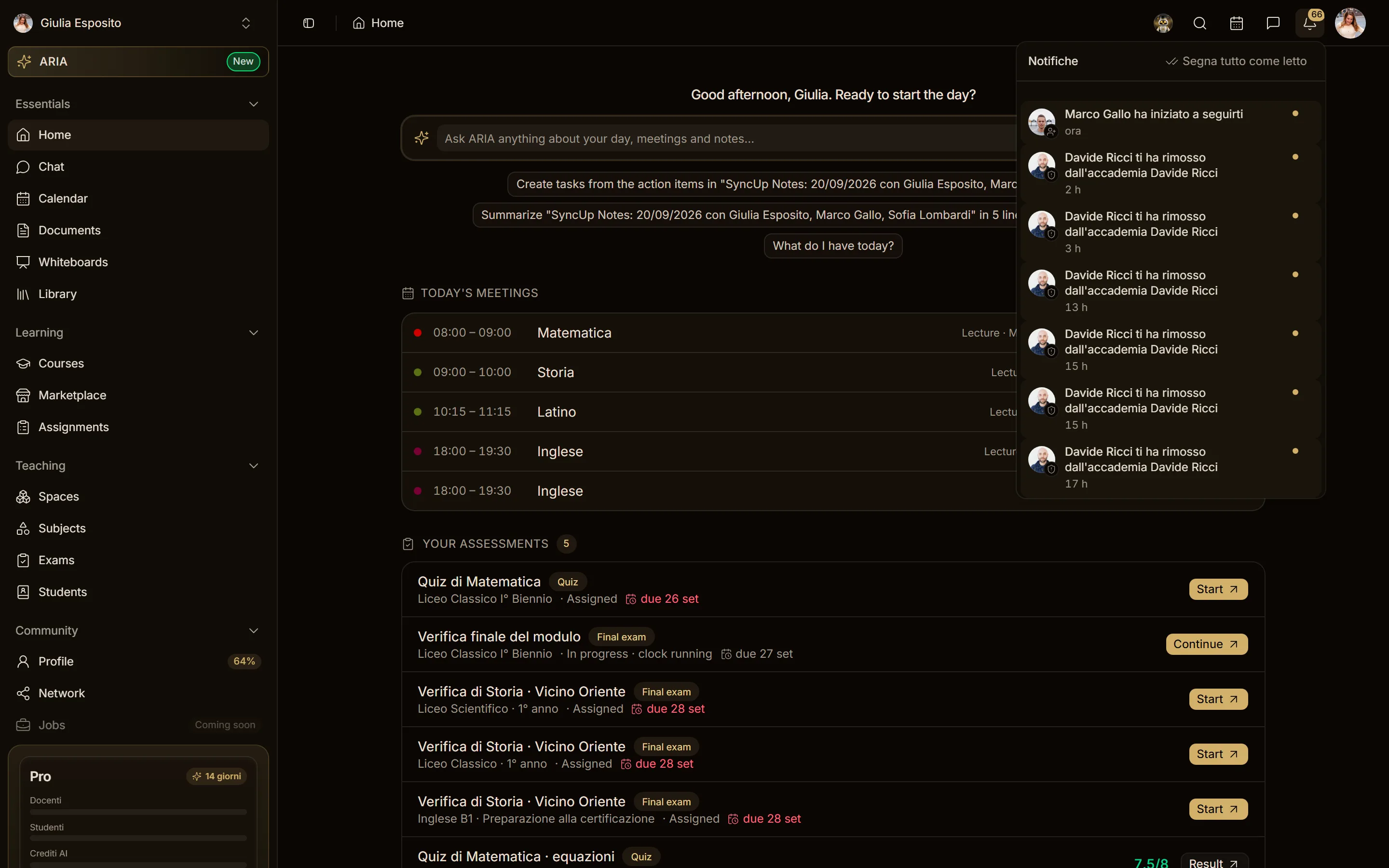
- Click a notification to open what it is about (a post, a course, a profile, an invitation): it is marked as read and the badge goes down.
- Mark all as read clears the badge in one go.
The menu on each notification
Hover over a notification to show the three dots on the right (on phones and tablets they are always visible). The menu offers:
- Open: goes to what the notification is about, like clicking it;
- Mark as read: removes the dot and lowers the badge without opening it (only on unread notifications);
- Delete: removes the notification from the list. Only on personal-profile notifications: an academy's notifications are shared by all its members, so they cannot be deleted from here;
- Notification settings: opens your notification preferences, where you choose what you receive and where.
If an action fails, the notification goes back to how it was and an error message appears.
One list per workspace
Your personal profile and each academy have their own messages and notifications. Switch workspace from your avatar to see the others.