
Planner
Plan your courses from the Planner under Teaching, lectures, chapters, closures and new courses, with the filter by space and folder.
The Planner is where courses are planned. You find it in the left menu, under Teaching › Planner, on the web and in the app. It is visible to whoever sees Teaching: always in your personal workspace, and in an academy to the staff and to anyone teaching at least one course.
The Calendar stays the place where you look at your agenda and create events on your own calendars. Lectures, chapters, course closures and new courses are created from the Planner. In the Calendar a lecture opens read-only: Open in Planner takes you to the same lecture in the Planner, where you edit it.
Views
At the top there is the view bar. Today it has Calendar: the usual calendar (day, week, month, agenda) with only the course lectures. Upcoming views will arrive as new tabs in the same bar.
Creating from the calendar
- Click or drag on an empty slot: a menu opens with New lecture, New chapter and Closure (days off), already set on that day and time.
- New lecture: pick one or more courses in the picker (for each course you see whether a chapter covers that day; if not, + chapter creates one) and continue to the form, already filled in with the day, time and chosen courses. Everything stays editable.
- New chapter: pick the course; the chapter is created on that day with its first lecture and opens for editing.
- Closure: pick the calendar (yours or a course's) and the day is already added to the closures.
The + New button
In the calendar toolbar, + New offers New course, New chapter and New lecture on the day in view.
Opening a lecture
Clicking a lecture opens the course lecture, the same one as in the builder: title, time, teachers, subject, books and the rest.
Filters and search
- Courses: the button with the graduation cap turns courses on and off, grouped by space and folder. Checking a space or a folder applies to all its courses. The choice is remembered in this browser.
- Holidays & closures: at the bottom of the same list, shows or hides the grey bands.
- Search: top right, finds lectures by title, course or subject.
- The gear opens your calendar settings: time zone, working hours, holidays and closures. Hours outside working hours are hatched.
The new Planner (trial)
Some academies are trying the new Planner. People with the planner permissions of the workspace see it (planner.read to look, planner.update to create editions and add or remove courses, planner.publish to publish changes): Owner and Admin already have them, other roles get them from Settings › Roles. The new Planner exists only in academies. In the app, where the new Planner is on, Teaching › Planner shows Open the Planner, which opens the website Planner in the browser.
In the app
Where the Planner in the app is on, Teaching › Planner shows the day agenda instead of Open the Planner. It is read-only: changes, the draft and publishing happen on the website.
- At the top is the week from Monday to Sunday: a dot marks the days with lessons, the arrows go to the previous or next week. It opens on today, or on the first or last day with lessons when today is outside the school year.
- Below is the day with the number of lessons and one row per lesson: start and end time, title, below it the class and the teacher (for example 1C · Prof. Gallo; the class only when the title does not already say it) and the state icon (recorded, live, to do, suspended, moved, no video, video on the way). Suspended and moved lessons are struck through; a moved one also says where it went. A lesson shared by several courses is a single row, with a ring showing the number of courses.
- Four or more lessons in a row with the same time and state become + N more lessons: tapping it opens them in place.
- On a day without lessons, Go to … takes you to the next day with lessons.
- Without a connection you see the last saved agenda of the day, with the time it was saved. Saved agendas are deleted when you sign out or switch workspace.
- Below the week, the pill with the school year opens Courses in the planner: search a course, class or space, the list loads in pages as you scroll and you tick the courses to see (up to 200). All courses clears the choice. When there are several school years you pick one at the top.
- Status shows only the lessons you care about (No video, Video on the way, Suspended, Moved and make-ups, With substitute, Live), with how many there are on the open day; it also holds the icon legend. With a filter on, the header says «N of M lessons». Reset turns the filters off.
- Tapping a lesson opens its card: day and time, state, substitute, the courses of a shared lesson, the series («Series: 34 lessons · 12 held · 21 to do») and the Register, course Chat and Video (when recorded) shortcuts. Edit, suspend, substitute on the web opens the website Planner.
- At the bottom, Changes, draft and publishing on the web opens the website Planner.
Editions
The whole planner lives inside an edition: a period with a name, start, end and closures, for example Year 2026/27 or Summer courses 2027. Lessons repeat until the end of the edition and skip the closed days on their own.
- The first time the planner opens on Let's set up your first edition: name (suggested "Anno 2026/27"), start and end (suggested from mid September to 10 June), the period strip with hatched closures, the public holidays of the academy, Christmas and Easter suggested from the Italian calendar (remove them with ×) and + Closure to add more. At the bottom you see how many teaching days there are. Start creates the edition. People who cannot create editions see "The planner is not ready yet".
- The Edition selector, at the top, switches between editions; + New edition creates another one with the same form. Several editions can run at the same time. The list never goes past the window: only the list scrolls and + New edition always stays visible at the bottom. With more than 8 editions a search by name appears at the top.
- The edition is chosen only here, in the Planner: Courses, Home and Calendar show every course, also the ones not in an edition.
Edition courses
- Empty edition: two choices, Create a course or Add courses from the spaces. The dialog lists the workspace courses with space and folder; the ones already in the edition are ticked and disabled, on-demand ones are disabled ("No live lessons").
- A course joins the edition with its own edition (cycle) of this period, as it is; a course without one stays out, and the planner tells you. The course stays in its space and does not change. From a course's ⋯ menu, Remove from the planner removes it from the edition without touching it.
- Course column: on the left, always visible, in two groups, Created in the planner and From the spaces (space and folder under the name). The checkboxes select several courses: the selected ones stay in place, with the row highlighted.
- New lesson by dragging: with the courses selected, drag in the open day. Every selected row shows the dashed box with the time, which follows the drag; where the course already has a lesson at that time the box is red with “busy”. Drag the sides of the box to change start and end, the middle to move it.
Course editions in the planner
Where course editions are on, the planner works with them.
- Add course shows for each course what will happen, before you confirm:
- Attach · edition name: an edition of the course fits entirely within the dates of this planner edition; it joins with its own dates, which the planner never changes.
- New edition: no edition of the course fits, or it fits only partly. A new edition starts with the year's dates and its name (you can change it); usually it is a copy of the Main edition, but you can make it Empty. Enrolment is by invitation. If this planner edition starts on the same day as or before the course's Main edition, the new edition cannot be created: the course shows why and cannot be chosen.
- Already in the planner.
- You can add hundreds of courses at once: they go in groups, with the progress on the button ("Adding… 40/200"). Courses that do not get in stay selected, with the reason, and you can try again.
- Create course creates the course in the hidden "Planner" space, with a single edition already attached and the year's dates. You see it in the planner until you move it to a space.
- The calendar of an attached edition is managed only here: in the builder it is read-only, with Open in Planner. Content, offer, members and settings stay in the builder.
- Detach from Planner (the course ⋯ menu, or the edition menu in the builder) makes the edition independent again: lessons and dates stay as they are, the calendar can be edited in the builder again and the course leaves this planner edition.
- Convergences: a course takes part in a shared lesson only within its edition's dates. Outside them its row is hatched with "Outside the course edition"; if only one course is left in a convergence, it becomes a normal lesson.
- Publish, in the draft bar, has the Notify students checkbox. When the draft touches editions not published yet, a line "N editions not published yet · Publish the editions too" appears: when ticked, the planner publishes the editions first (and the course page, if it was never published), then the lessons.
- If Publication did not start appears at the top, the publishing service did not answer for about 30 seconds: the draft lessons were not written and stay in the draft. Press Try again after a few minutes.
- Open the builder opens the course directly on this planner's edition.
The week
- Time runs horizontally. Each day is a narrow column with a bar as tall as the teaching hours and a dot when something needs a look (red: no video or in conflict; amber: substitution or moved lesson; grey: suspended). A click opens the day and shows the hours from 8 to 20, with the lessons of each course and a red line at the current time; the following days always stay visible on the right. Before now the background is grey. Another click closes it. Days outside the edition are grey.
- For a course with several editions (cycles) in the same calendar you only see the lessons of the edition attached to this period.
- Today, the arrows and the week picker take you anywhere; scrolling brings the weeks before and after.
- Many courses: with many courses the rows arrive in batches of 50 as you scroll down, with no buttons or page numbers. The count at the top left always shows every course in the edition. Select all and the checkbox of a section or group also take the courses not shown yet.
- Lesson states: next to the title, the ring with the number of courses (shared lesson) and at most two icons: substitution, then the recording (green dot: live; green camera: recorded; clock: video processing; red crossed camera: no video), a red dot when it is in conflict. A suspended lesson is hatched and struck through, a moved one is struck through with an arrow to the new date, one in the draft has a dashed border.
- Status: the menu at the top right lights up only the lessons you care about (No video, Video processing, Suspended, Moved, Substitutions, In conflict, In draft), with how many there are this week; the red dot counts today's lessons without video. The legend is inside too. The ✕ clears the filters.
- Teacher: next to Status, pick a person and only their lessons stay lit; at the top you see their hours this week and their conflicts.
- Teacher chosen in the planner: the teacher you choose for a lesson counts as that lesson's teacher even after publishing, ahead of the subject and course teachers: the lesson goes into their hours, the grouping by teacher and the conflicts. Until they accept the invitation, the grouping by teacher shows “invitation pending” next to the name. If they decline the invitation or you remove them, the lesson goes back to the subject or course teachers.
- Lesson: a click opens the summary (day, time, teacher, room, recording with its parts, suspension or move, substitution, conflicts, the series “Every Monday until … · N to do, M held” and the other courses of the shared lesson) and lights up the copies of the same lesson in the other courses. Lesson actions are coming soon.
- Phone: you see the day agenda of the edition courses, with the same states and the Status filter.
Resume, place and books
- Resume: in the summary of a suspended lesson, Resume puts it back on schedule; for a repeating lesson choose Only this one, From here on or Whole series (suspended ones only). For several courses at once: select the courses and, in the bar at the bottom, ⋯ › Resume… puts back on schedule the suspended lessons between two dates.
- Edit on a lesson also has Place and Book with pages.
- New lesson can go into all the edition courses at once.
- Everything goes into the draft: the grid shows the result right away and lessons already started never change. Publish with Publish and undo within 24 hours.
Lesson content
- Edit on a lesson also has Description, Links, Attachments, Documents, Assessments and Participants (Editors and Members added by hand). They apply to Only this one, From here on or Whole series like the rest of the edit; a document is always attached to a single lesson.
- An assessment is added with Add assessment, moved to another lesson of the same course and subject from the ⋯ menu, or removed with Remove. A document is added with Add document. You can only add assessments from collections you can read.
- For several courses at once: select the courses and, in the bar at the bottom, ⋯ › Content…. Choose the period, the subject, what and what to do: append, replace or clear the description; add or remove a link, an attachment, a participant; remove a document; add, move to another period or remove an assessment (one per course, on the first lesson of the period).
- Content never notifies the students. It goes into the draft and is published with Publish, like the rest.
Assessments follow the lesson
Where placed assessments are active, an assessment added to a planner lesson is an assignment for every class of the lesson (one per course and edition, also on shared lessons). Under the assessment, in the lesson panel, you see the classes with their status (Scheduled, Open, Closed, To plan) and when it opens and is due.
- In the draft: an assessment you just added stays in the planner draft. No student is notified until you press Publish.
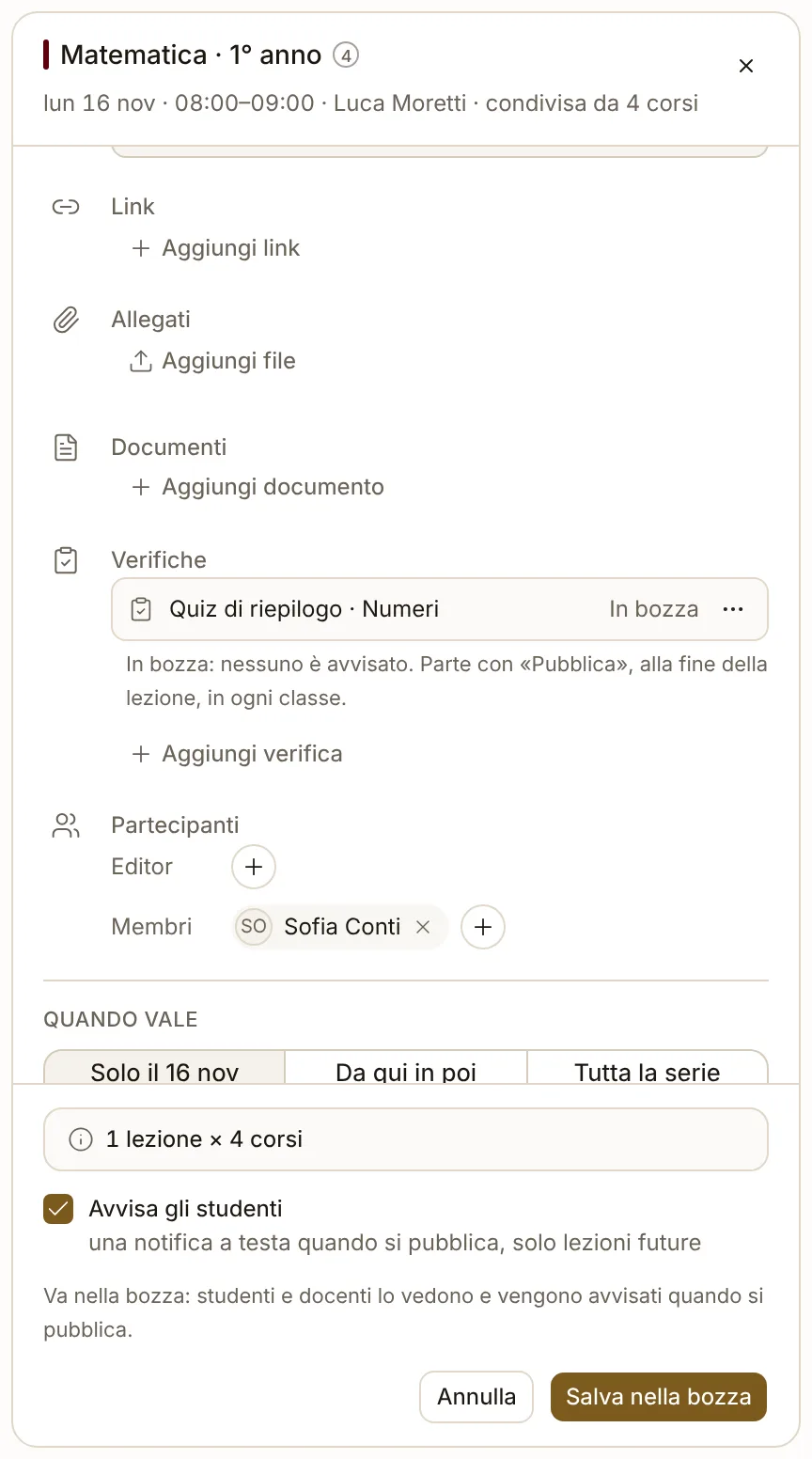
- Move the lesson: opening and deadline of the assessment move with it, right after Publish.
- Suspend with Set the recovery: the assessment goes to the recovery. At the recovery appears next to the class.
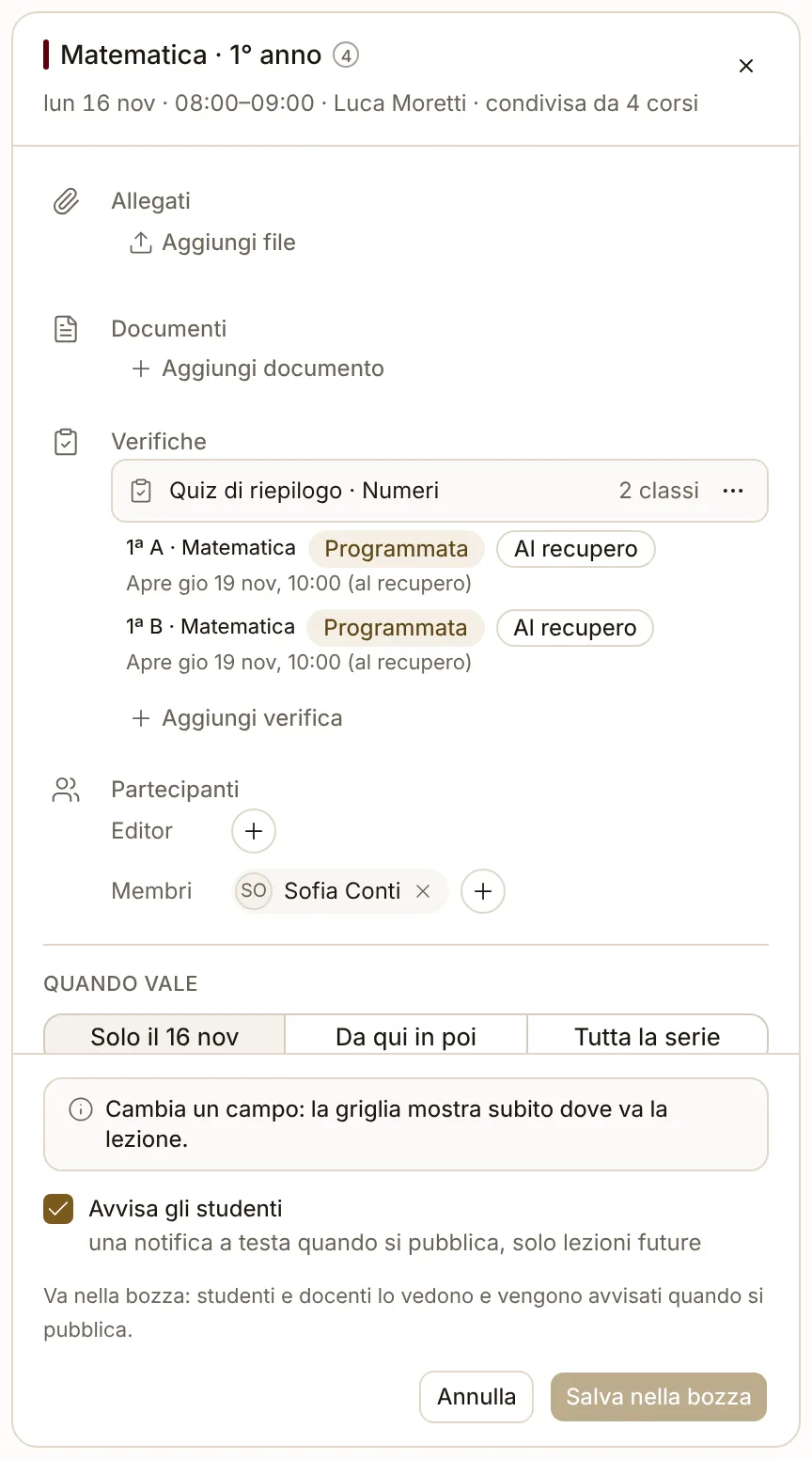
- Suspend with no recovery: an assessment not yet open goes back to To plan and waits. It comes back by itself when you resume the lesson or set the recovery.
- Delete the lesson: an assessment not yet open goes back to To plan. Add it to another lesson.
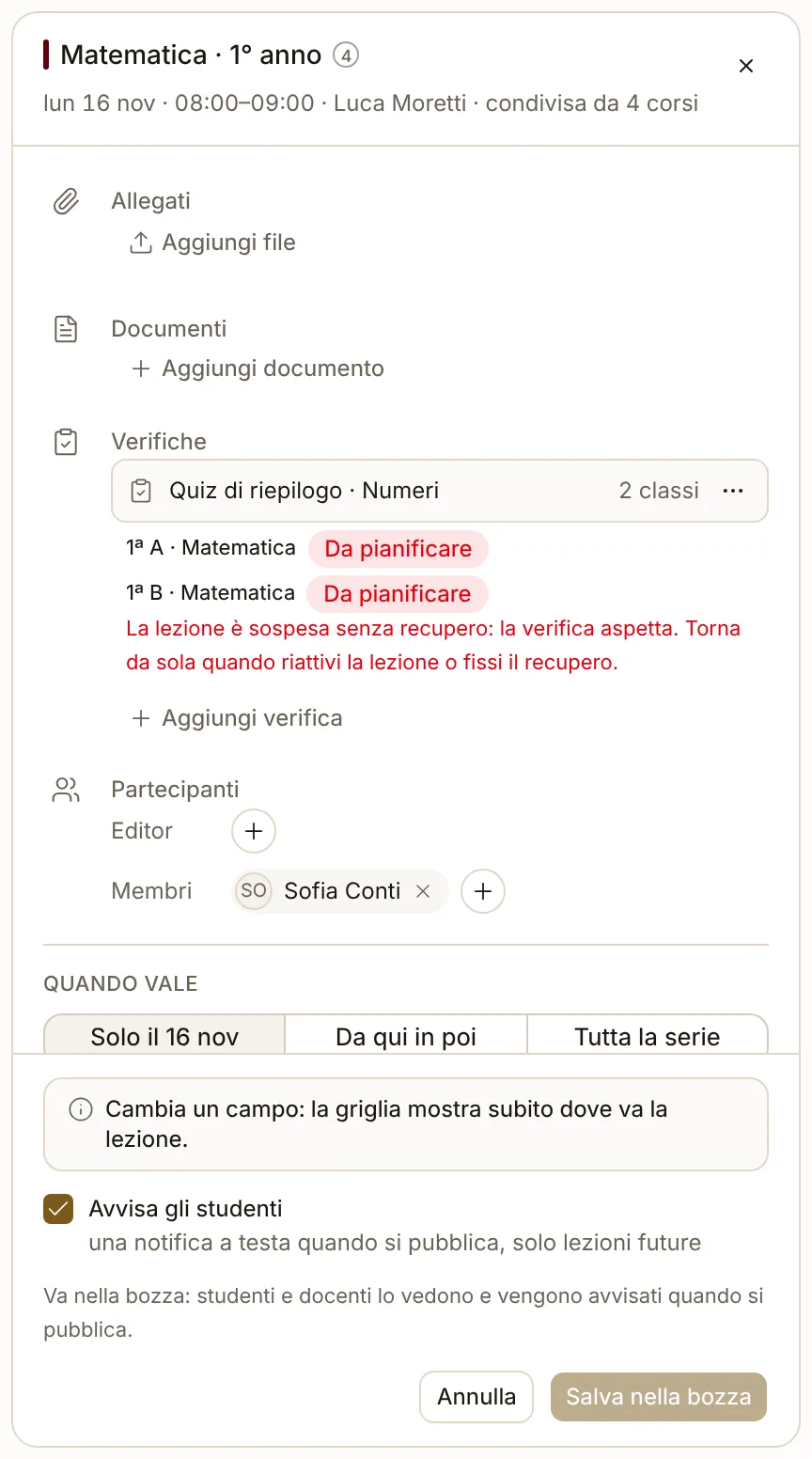
- An assessment that is already open stays open: students are working on it.
- When an assessment goes back to plan, the person who assigned it and the course teachers get a notification. Students do not.
- Two assessments on the same day: if a class already has another assessment opening on the day of the lesson, the panel says so. It is a warning: you can add it anyway.
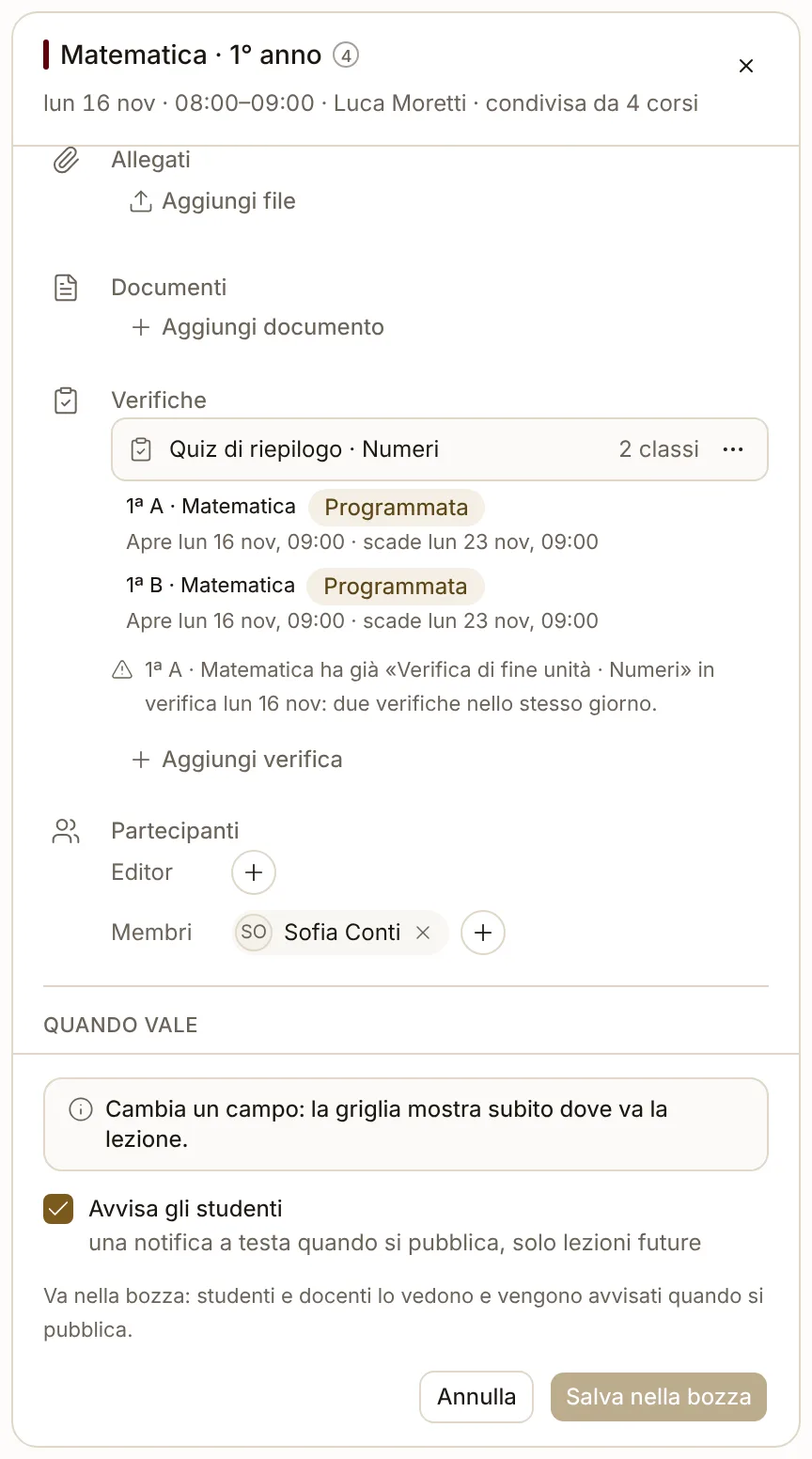
- Undo of the publication (within 24 hours) puts the assessments back as they were too: after a move, a suspension or a Resume. The exception is a deletion: Undo creates the lesson again as a new lesson, so the assessment stays To plan and has to be added again to the new lesson.
The year
- Year shows the edition courses month by month: a bar from the start to the end of the course in this edition with “N lessons · N h”, the lessons shared with other courses (“⇄ N shared”), the dates and one tick for each week with lessons; closures as hatched bands and today with a red line and the “today” chip. A click on a course opens its week. A course without dates has Choose start and end, which opens the course editions in the builder.
- Closures · N opens the edition closures: add, edit and remove them. If a new closure falls on lessons already created, the planner tells you how many and in how many courses: for now they stay as they are (Keep them); suspending them or proposing make-ups is coming soon.
- Edit edition changes the edition name and dates. Course dates and lessons already created do not change.